How To Use Macbook Shortcuts To Save Time Effectively

How to use MacBook shortcuts to save time
Using shortcuts on your MacBook can significantly speed up your daily tasks. Instead of clicking through menus, you can perform many actions quickly with key combinations. Knowing these shortcuts helps you work more efficiently and reduces the time spent on repetitive tasks.
Getting Started with Basic MacBook Shortcuts
First, familiarize yourself with the most common shortcuts. These include copying, pasting, undoing, and saving. They save time because they replace multiple clicks and menu navigation.
- Command + C: Copy selected item
- Command + V: Paste copied item
- Command + Z: Undo last action
- Command + S: Save current document
- Command + P: Print the current document
Practice these shortcuts to get comfortable quickly. They are fundamental tools that you’ll find handy across most applications.
Navigation and Window Management
Efficient navigation helps you move between apps and windows faster. MacBook shortcuts enable you to switch, open, or close windows smoothly, saving you from cluttered desktops and wasted minutes.
Switching Between Applications
Press Command + Tab to cycle through open apps. Holding Command and tapping Tab repeatedly cycles through applications. This method avoids using your mouse to click between apps.
Managing Multiple Windows
Use Command + ‘`’ (the grave accent key) to toggle between windows of the same app. For example, if you have multiple Safari windows open, this shortcut allows quick switching.
Closing Windows Quickly
Press Command + W to close the current window. This shortcut helps you close files or tabs without reaching for the mouse.
Text Editing and Document Management
Editing documents is a common task on MacBook. Shortcuts for copying, pasting, selecting, and formatting help you work more precisely and fast.
Selecting Text
Hold Shift and use arrow keys to select text easily. This method is faster than dragging with the mouse.
Cut, Copy, and Paste
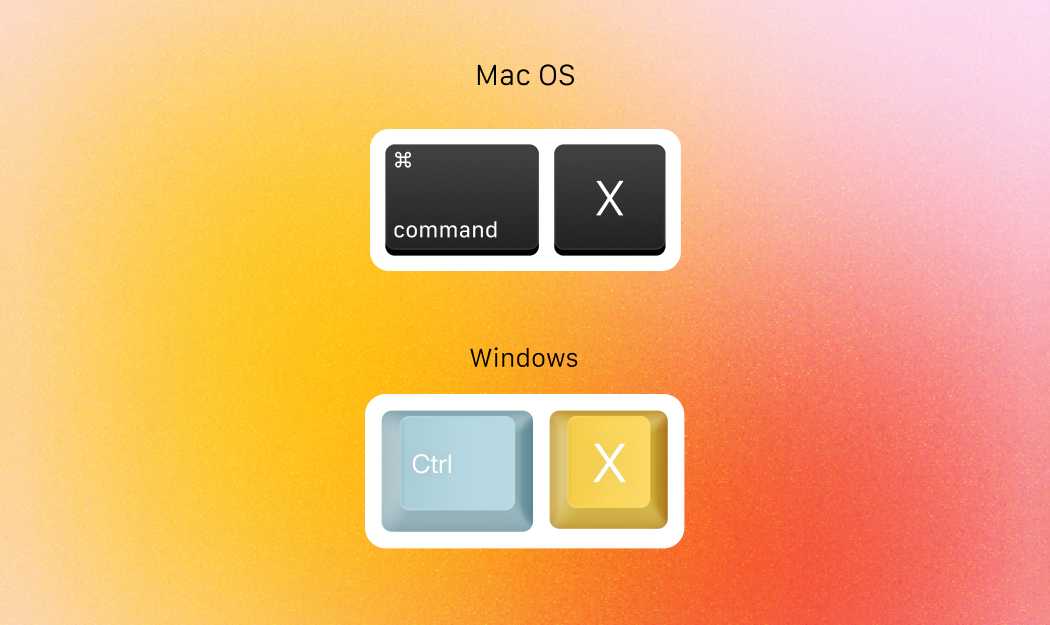
Use Command + X to cut selected text, Command + C to copy, and Command + V to paste. These shortcuts are essential for efficient editing.
Undo and Redo Actions
If you make a mistake, press Command + Z to undo. To redo, press Command + Shift + Z. Fast corrections save time and frustration.
Taking Screenshots and Screen Recording
Capturing your screen quickly can be necessary for tutorials, troubleshooting, or sharing information. MacBook offers shortcuts for these tasks with high quality and ease.
Full Screen Screenshot
Press Command + Shift + 3. The screenshot saves directly to your desktop.
Selected Portion Screenshot
Press Command + Shift + 4. Drag to select the area you want to capture, then release to save.
Screen Recording
Use Command + Shift + 5. A menu appears with options for recording the entire screen or a selected portion.
Using Trackpad Gestures for Quick Navigation
MacBook trackpads support gestures that help you switch between tasks faster without keyboard shortcuts. Learning these gestures optimizes your workflow.
Switching Desktops and Spaces
Swipe left or right with three fingers to move between desktops. This helps organize your workspace and switch contexts efficiently.
Mission Control
Swipe up with four fingers to open Mission Control. view all open windows, desktops, and full-screen apps at once, making multitasking smoother.
App Exposé
Swipe down with three fingers to see all open windows of the current app. It speeds up finding specific files or windows within an app.
Customizing Shortcuts for Personal Efficiency
MacBook allows you to create personalized shortcuts for your most-used commands in System Preferences. This feature helps tailor your workflow to suit your habits.
Creating App-specific Shortcuts
Go to System Preferences > Keyboard > Shortcuts. Select App Shortcuts and add new commands for your favorite apps.
Assigning New Shortcut Keys
Pick a unique key combination that doesn’t conflict with existing shortcuts. Use memorable key combinations to avoid confusion later.
Using Siri for Quick Actions
Activate Siri by clicking the Siri icon or pressing the dedicated key. You can ask to open apps, search files, or perform commands through voice, saving time.
Examples of Siri Commands
- “Open Safari”
- “Create a new document in Pages”
- “Show my recent files”
- “Set a reminder for 3 PM”
Using Siri alongside keyboard shortcuts creates a hybrid approach to fast productivity.
Utilizing Automator for Custom Workflows
Automator lets you create workflows that perform multiple tasks automatically, saving hours of manual work. Set up repetitive actions once and execute with a shortcut or click.
Creating a Simple Workflow
Open Automator, select Workflow, and add actions like renaming files, resizing images, or sending emails. Save and assign a shortcut if desired.
Automator Templates and Tips
Use built-in templates for common tasks. Explore online resources for scripts and workflows that match your needs.
Summary of Effective MacBook Shortcuts
| Shortcut | Action |
|---|---|
| Command + C | Copy |
| Command + V | Paste |
| Command + W | Close window |
| Command + S | Save document |
| Command + Tab | Switch applications |
| Command + Shift + 3 | Full-screen screenshot |
| Command + Shift + 4 | Selected area screenshot |
| Command + Shift + 5 | Screen recording options |
Adopting these shortcuts into your daily routine can make your MacBook tasks faster and easier. Try integrating a few at a time to build your efficiency without overwhelm. The more you use shortcuts, the more natural they’ll feel, and your productivity will improve in no time.
45 Simple Mac Keyboard Shortcuts You Need To Know
Frequently Asked Questions
What are some useful shortcuts for navigating between open applications quickly?
Use Command + Tab to cycle through your open applications. Holding Command and pressing Tab repeatedly allows you to select the application you want to switch to. Once you release the keys, your Mac will bring that application to the foreground, saving time compared to manually clicking through your background windows.
How can I take a screenshot using MacBook shortcuts efficiently?
Press Command + Shift + 3 to capture the entire screen, or Command + Shift + 4 to select a specific area for the screenshot. These shortcuts save you from using the mouse to navigate menus, allowing you to quickly capture what you need without interrupting your workflow.
What shortcuts can I use to manage windows more effectively?
Press Control + Up Arrow to access Mission Control, which displays all open windows and Spaces in a single view. To switch between desktops or full-screen apps, press Control + Left or Right Arrow. These shortcuts help you organize and navigate your workspace swiftly.
Are there shortcuts for quickly accessing system functions like Wi-Fi or Do Not Disturb?
Yes, you can customize menu bar shortcuts via System Preferences. Additionally, pressing Option + click on the Wi-Fi icon in the menu bar reveals quick options to connect to networks or turn Wi-Fi off. The Notification Center can be opened with two fingers swipe from the right edge or by pressing Option + Brightness key, giving immediate access to notifications and settings.
How can I create custom shortcuts for specific commands or applications?
Navigate to System Preferences > Keyboard > Shortcuts. Click on App Shortcuts and then the + button to add a new shortcut. Specify the application, menu title, and desired keyboard combination. Custom shortcuts enable you to perform repetitive tasks faster without navigating through menus manually.
Final Thoughts
Using MacBook shortcuts to save time can significantly boost your productivity. Practice common shortcuts like Command+C to copy and Command+V to paste for quick multitasking. Customizing shortcuts for specific apps can also help you work more efficiently. By integrating these shortcuts into your daily routine, you minimize repetitive movements and focus on your tasks. Remember, familiarity is key to quick execution. In conclusion, knowing how to use MacBook shortcuts to save time makes your workflow smoother and more effective.
Similar Posts































