How To Restore A Backup Using Time Machine Effectively

How to restore a backup using Time Machine
Restoring a backup with Time Machine is a straightforward process that helps recover lost files, folders, or even your entire system. Whether you accidentally deleted important documents or need to revert your system to a previous state, Time Machine has you covered. Follow these detailed steps to perform a successful restoration.
Understanding the basics of Time Machine backups
Time Machine automatically creates backups of your Mac at regular intervals. These backups include system files, applications, emails, documents, and settings. They are stored on an external drive, network storage, or Time Capsule. Knowing what a backup contains helps you decide what you want to restore.
Preparing for the restoration process
Before restoring your backup, ensure that your backup drive is connected and functioning properly. If you’re restoring to a different Mac, verify that the backup is compatible. Save any current work because restoring will replace existing data. Also, make sure your Mac has enough battery life or is plugged into power.
Accessing Time Machine on your Mac
You can access Time Machine through the menu bar or System Preferences. Click the Time Machine icon in the menu bar if it’s visible. If not, go to Apple menu, select System Preferences, then click Time Machine. From here, you can start the restore process or browse backups.
Using Time Machine to restore files and folders
Browsing your backups
Click the Time Machine icon and select Enter Time Machine. You can browse through your backups by moving up and down in the timeline on the right side of the screen. Choose the date and time when the files you need were available.
Restoring individual files or folders
Navigate through your backup to locate the specific files or folders you want to recover. Select them and click the Restore button. The files will be copied back to their original location on your Mac. This method is quick and avoids overwriting the entire system.
Restoring your entire system from a backup
Starting a system restore from macOS Recovery
To restore your entire Mac to a previous backup, restart your Mac in macOS Recovery mode. Turn off your Mac completely. Then, press the power button and immediately hold down Command + R until the Apple logo appears. This boots your Mac into Recovery mode.
Using Disk Utility to prepare the disk
Once in Recovery mode, select Disk Utility. Choose your startup disk, typically labeled Macintosh HD. Click Erase to format the disk if necessary. Confirm your choice, then exit Disk Utility to go back to the main menu.
Restoring from Time Machine backup
Select Restore from Time Machine Backup and click Continue. You will see a list of available backups. Pick the backup date you prefer and follow the on-screen instructions to restore the system. This process can take some time depending on the size of the backup.
Restoring specific apps or data from Time Machine
If you only need a particular app or data, browsing the backup is the fastest way. Use Time Machine to locate and restore individual items without affecting your current system setup. This approach saves time and minimizes disruption.
Handling common issues during restoration
Backup not available or corrupted
If your backup is missing or appears corrupted, double-check your backup drive’s connection. Try reconnecting or repairing the drive using Disk Utility. If problems persist, consider using another backup or seek professional help.
Restoration process takes too long or fails
Large backups may take considerable time to restore. Ensure your Mac stays connected to power and has a stable connection to the backup drive. Restart the process if needed or try restoring from a different backup point.
Post-restoration tips and best practices
- Once your restore completes, verify the files or system state are as expected.
- Update your software and operating system if necessary.
- Regularly check your backup drive’s health and capacity.
- Keep multiple backups to avoid data loss in future issues.
Related topics
How to create a new Time Machine backup
Always maintain current backups by scheduling regular Time Machine backups. Connect your external drive, go to System Preferences, select Time Machine, and turn it on. Confirm your backup disk and let the process run automatically.
Managing multiple backup disks
If you use more than one backup drive, ensure each is properly configured and up-to-date. Time Machine can switch between drives based on your settings, providing redundancy and security for your data.
Restoring from a Time Machine backup on a new Mac
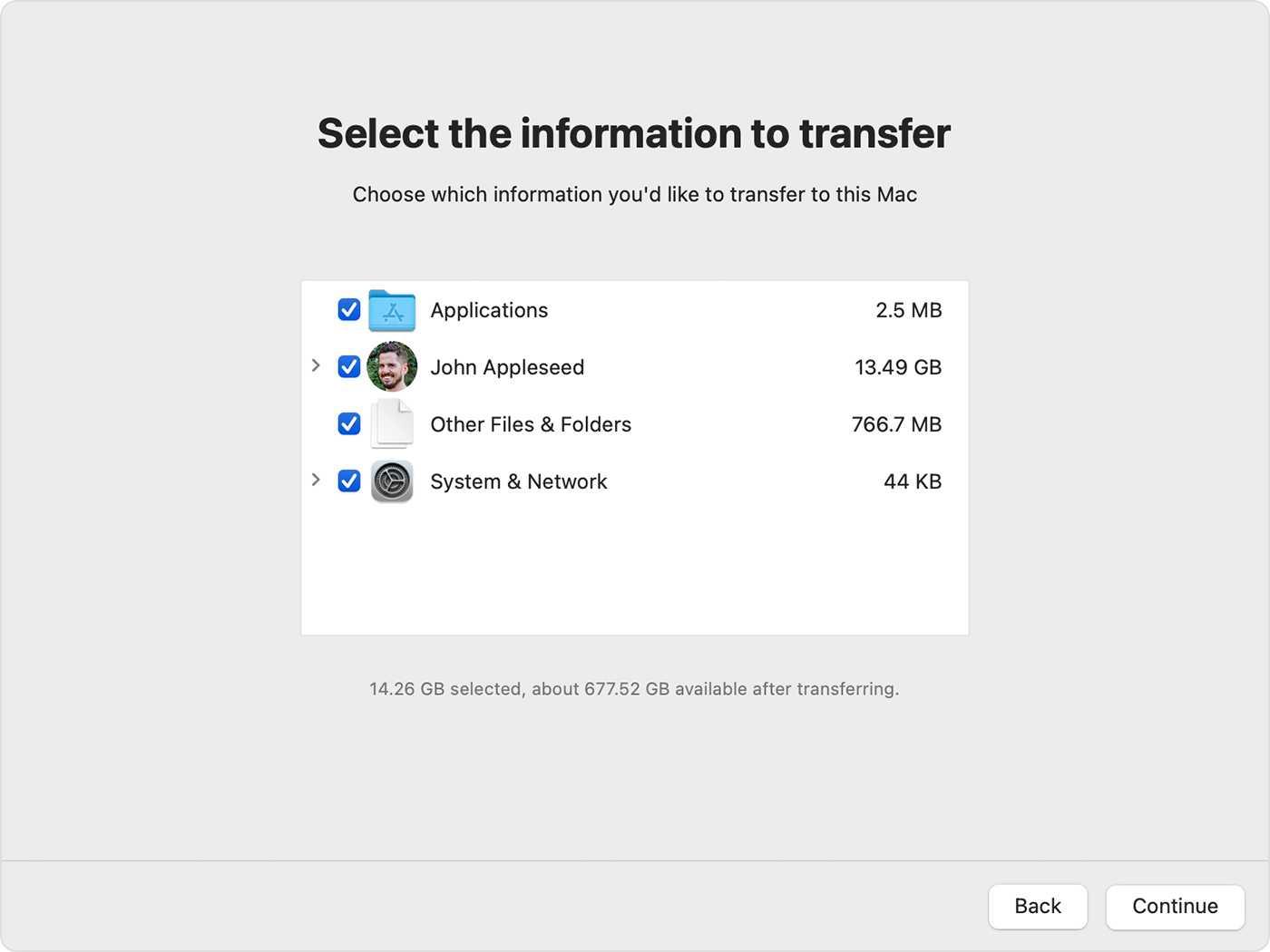
When setting up a new Mac, you can choose to transfer your data from an existing Time Machine backup. Connect your backup drive during initial setup and follow the prompts to migrate your data seamlessly.
Restoring a backup with Time Machine can seem complex, but following these steps makes the process clear and manageable. Always double-check your backup’s integrity before restoring, and remember to keep your data protected with regular backups.
How to restore files from a Time Machine backup | Apple Support
Frequently Asked Questions
What steps should I follow to restore files from a Time Machine backup?
To restore files using Time Machine, open the Time Machine application from the Applications folder or menu bar. Navigate through the timeline on the right side of the screen to find the date of the backup containing the files you want. Select the files or folders you wish to restore, then click the “Restore” button. The selected items will be copied back to their original locations on your Mac.
Can I restore specific applications from my Time Machine backup?
Yes, you can restore individual applications. Open Time Machine and browse to the Applications folder or any location where the application resides. Find the application version you want to restore based on the date. Select the application and click “Restore” to replace the current version with the backed-up one. Ensure that the application is not running during the restoration process.
Is it possible to recover data from a Time Machine backup when my Mac won’t start?
Yes, you can restore your data even if your Mac doesn’t start properly. Boot into macOS Recovery by restarting your Mac and holding Command + R during startup. Once in Recovery mode, select “Restore from Time Machine Backup” in the macOS Utilities window. Follow the prompts to choose the backup and restore your system to a previous state, including all files and settings.
How do I select a specific backup date to restore from in Time Machine?
When you open Time Machine, a timeline appears along the edge of the screen showing available backup dates. Use the arrows or scroll through the timeline to locate the date you want to restore from. Click on that date to view the contents of the backup at that point. Select the files or folders you wish to recover and click “Restore” to complete the process.
What precautions should I take before restoring a backup with Time Machine?
Before restoring a backup, back up your current data to prevent any loss. Ensure that you select the correct backup date to avoid restoring outdated or unwanted files. Close all open applications and save any ongoing work. If restoring an entire system, consider disconnecting external drives or peripherals that you do not want to restore. Follow the on-screen instructions carefully to avoid restoring incorrect data.
Final Thoughts
Restoring a backup using Time Machine is straightforward and efficient. First, connect your external drive containing the backup. Then, open Time Machine and select the date you want to restore from. Click restore, and your system will revert to the chosen backup state. By following these simple steps, you ensure your data is safe and accessible. Knowing how to restore a backup using Time Machine gives you confidence in managing your data recovery process.
Similar Posts































