How To Regularly Back Up Your Macbook Using Time Machine?
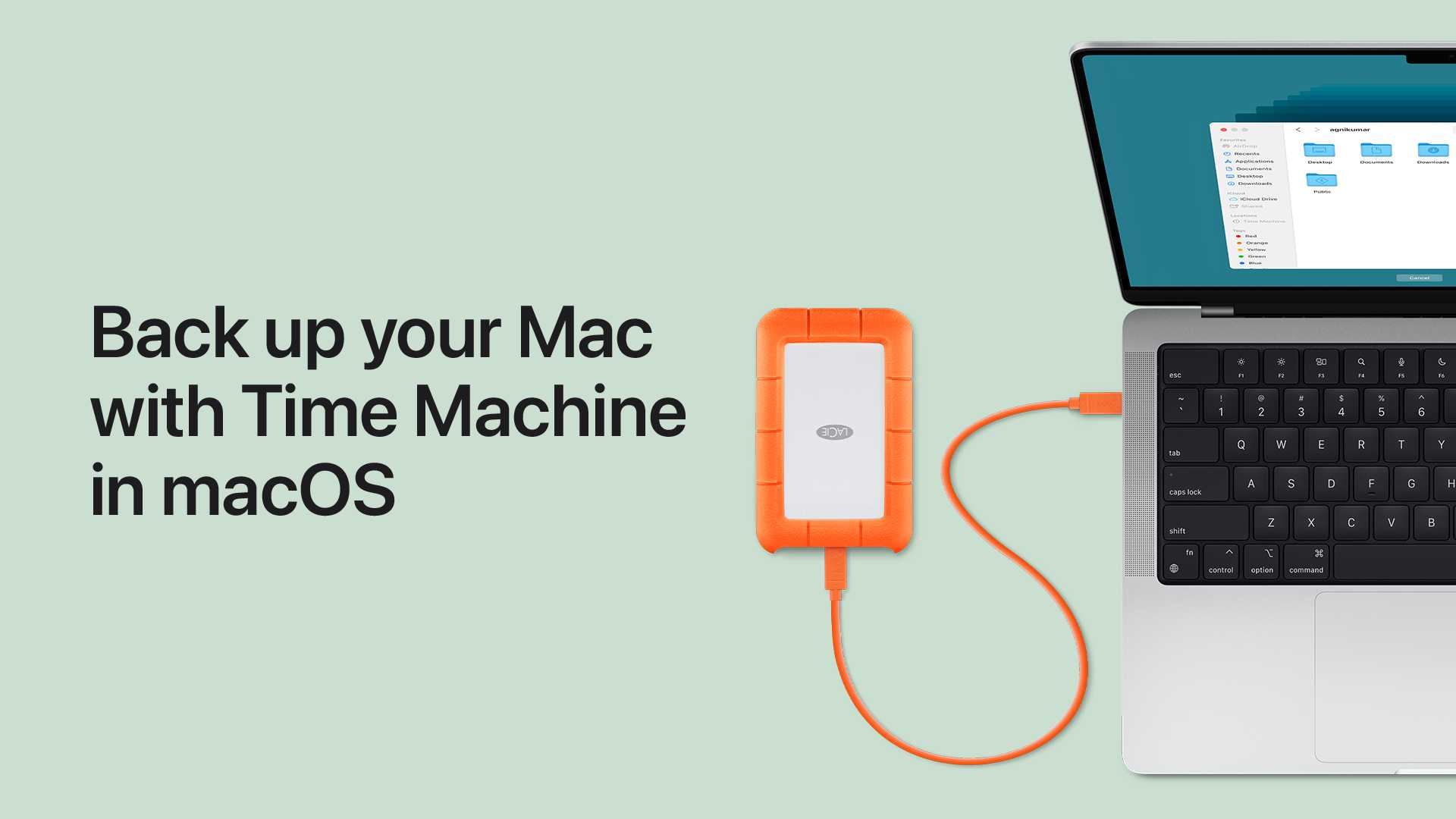

How to regularly back up your MacBook using Time Machine
Backing up your MacBook is essential to keep your data safe. Time Machine is a built-in tool on Mac that makes this process simple and effective. Regular backups ensure that you do not lose important files if something unexpected happens to your device.
Understanding the importance of regular backups
Regular backups prevent data loss caused by hardware failures, theft, or accidental deletion. They allow you to restore your system to a previous state quickly. Without backups, recovering lost files can become time-consuming and sometimes impossible.
What is Time Machine and how does it work?
Time Machine is Apple’s backup software that automatically saves copies of your files. It creates incremental backups, meaning only new or changed files are added each time. This system allows you to go back in time and retrieve previous versions of your documents.
Preparing your MacBook for regular backups
Check available storage space
Ensure your external drive has enough space for backups. Ideally, it should be at least twice the size of your Mac’s used storage. This way, you can keep multiple copies without running out of space.
Update your macOS
Keeping your Mac updated ensures Time Machine works smoothly. Software updates often include bug fixes and improvements related to backup functions.
Organize your files and folders
Sort your important files into well-organized folders. This makes restoring specific files easier if needed. Clean up unnecessary files to optimize backup efficiency.
Choosing the right backup storage device
External hard drives or SSDs are popular choices for Time Machine backups. Select a device with enough capacity and reliable performance. Consider using a USB, Thunderbolt, or Wi-Fi-enabled drive for convenience.
Connecting your external drive to your MacBook
Plug your drive into your MacBook using the appropriate cable. Once connected, your Mac should recognize it automatically. If not, you may need to format the drive first.
Formatting the external drive for Time Machine
If the drive is new or not formatted correctly, use Disk Utility to format it as Mac OS Extended (Journaled) or APFS. Choose the format that best suits your macOS version for optimal compatibility.
Setting up Time Machine for automatic backups
Enabling Time Machine in System Preferences
Go to Apple Menu > System Preferences > Time Machine. Click on ‘Select Backup Disk’ to choose your external drive. Toggle the switch to ‘On’ to activate automatic backups.
Configuring backup options
You can select options like ‘Back Up Automatically’ for regular backups. Additionally, you can exclude certain folders or files from backup if needed. Use the ‘Options’ button to customize these settings.
Understanding backup frequency and schedule
How often does Time Machine back up?
By default, Time Machine performs hourly backups for the past 24 hours, daily backups for the past month, and weekly backups beyond that. This schedule ensures your data is consistently protected without taking up too much space.
Adjusting backup frequency
While Time Machine does not allow direct control over backup frequency, you can use third-party apps or scripts to customize the schedule. Alternatively, manually initiating backups is also an option.
Manually starting and stopping backups
To start a backup manually, click the Time Machine icon in the menu bar and select ‘Back Up Now.’ To stop a backup, simply disconnect your external drive. Make sure your Mac is connected to power during backups.
Monitoring backup progress
During a backup, a progress bar appears in the Time Machine menu bar icon. You can click it to see details about the current backup process. Large files or a slow connection can increase backup time.
Restoring files from Time Machine backups
Restoring individual files or folders
Open the folder containing the file you want to recover. Click the Time Machine icon and select ‘Enter Time Machine.’ Browse through backups and select the file to restore.
Restoring your entire Mac system
If you need to restore your whole system, restart your Mac while holding Command + R. Choose ‘Reinstall macOS’ or ‘Restore from Time Machine Backup’ from the macOS Utilities window. Follow the prompts to complete the process.
Best practices for maintaining effective backups
- Schedule regular backups: Set a routine to connect your drive and verify backups weekly.
- Keep multiple backup copies: Use different drives or cloud backups for extra security.
- Monitor backup status: Regularly check that backups are completing without errors.
- Test restore procedures: Periodically restore a file to ensure backups work properly.
Troubleshooting common backup issues
Backup not starting or completing
Check your external drive’s connection and ensure it has enough space. Restart your Mac and try again. Also, verify that your drive is formatted correctly.
Errors related to permissions or disk errors
Run Disk Utility to verify and repair your external drive. Check permissions and ensure no other applications are interfering with the backup process.
Dealing with backup corruption or partial backups
If a backup is corrupted, delete the problematic backup and start a fresh one. Regularly deleting old backups can also free up space and prevent corruption.
Additional tips for seamless backups
- Use a dedicated drive for Time Machine: This prevents accidental deletions or formatting of backups.
- Secure your backups: Consider encrypting your external drive to protect sensitive data.
- Keep your Mac and external drive in good condition: Regularly check for hardware issues and keep software updated.
Related topics to explore
- Using iCloud for additional backup options
- Alternative backup tools for Mac
- Best external drives for Mac backups
- Understanding APFS and how it affects backups
- Security tips for safeguarding your backups
By following these steps and tips, you can ensure that your MacBook stays protected with regular Time Machine backups. Consistency is key to avoiding data loss and making the recovery process smooth if needed. Make it a habit to check your backups, and you’ll always have peace of mind about your important files.
How to back up your Mac with Time Machine | Apple Support
Frequently Asked Questions
How can I set up Time Machine to perform automatic backups on my MacBook?
To set up automatic backups with Time Machine, connect an external storage device to your MacBook. Then, go to System Preferences and select Time Machine. Turn on Time Machine by clicking the toggle, select your backup disk, and check the option to “Back Up Automatically.” Your MacBook will now back up regularly without your intervention.
What steps should I follow to ensure Time Machine backs up my data consistently?
Ensure your backup disk remains connected or is accessible when scheduled backups are due. Confirm that Time Machine is enabled in System Preferences, and verify that the option for automatic backups is active. Additionally, avoid turning off your MacBook during scheduled backup times to prevent missed backups.
How can I verify that my backups are occurring regularly with Time Machine?
Open the Time Machine preferences panel to check the status of recent backups. You can also browse through your backups by entering Time Machine from the menu bar or System Preferences to see if recent files are stored. Setting up notifications can also alert you if a backup hasn’t run as expected for a certain period.
What should I do if my Time Machine backup fails or encounters errors?
If your backup fails, first verify that your external drive is properly connected and has enough free space. Restart your MacBook and attempt the backup again. If issues persist, check your drive for errors using Disk Utility or try reselecting your backup disk in Time Machine preferences. Ensuring your macOS is up to date can also resolve compatibility issues.
Are there best practices for managing your backup disk to ensure reliable backups?
Keep your backup disk in a safe, stable location away from physical hazards. Regularly check the disk’s health and free up space when necessary to prevent storage issues. Use a dedicated disk for backups to avoid conflicts, and consider scheduling occasional manual backups to supplement automatic ones for added security.
Final Thoughts
Regularly back up your MacBook using Time Machine to protect your data. Connect an external drive or set up a network location for backups. Enable Time Machine in System Preferences and choose your backup disk. Set a daily or weekly schedule to ensure consistent backups. Check backups periodically to confirm they complete successfully. This habit keeps your data safe and easily recoverable. In summary, how to regularly back up your MacBook using Time Machine is simple. Consistent backups prevent data loss and keep your information secure.
Similar Posts































