How To Use Dictation To Type Hands Free Efficiently

How to Use Dictation to Type Hands Free
Using dictation to type without using your hands can significantly boost your productivity and ease your workload. It allows you to speak your ideas instead of typing them, making tasks faster and more comfortable. Whether you’re working on a document, sending emails, or taking notes, dictation tools offer a simple way to type hands free.
Understanding How Voice Recognition Works
Voice recognition technology converts your spoken words into text using complex algorithms and advanced software. It captures your voice through a microphone and analyzes your speech patterns to produce accurate text. Modern dictation tools use artificial intelligence to improve their accuracy over time, learning from your voice and language style.
Popular Devices and Platforms for Dictation
Many devices and platforms support dictation features today. These include smartphones, tablets, and computers. Popular options are:
- Smartphones like iPhones and Android devices
- Windows and Mac computers
- Tablets such as iPads and Android tablets
- Web-based applications and browser extensions
Each platform has specific dictation tools, so understanding what your device supports helps in setting up the best hands-free typing experience.
Setting Up Dictation on Your Device
Enabling Dictation on Apple Devices
On iPhones and iPads, go to Settings, then tap on General, and select Keyboard. Turn on the toggle for Dictation. You might need to enable Dictation in the Language & Region settings as well.
Enabling Voice Typing on Android
Navigate to Settings, then tap on System or General Management, and select Language & Input. Choose On-screen keyboard or virtual keyboard, then select Google Voice Typing or Voice Input, and activate it.
Activating Dictation on Windows
Press Windows + H to open the dictation toolbar. Make sure your microphone is connected and working properly. Then, click the microphone icon or say “Start listening” to activate dictation.
Activating Dictation on Mac
Open System Preferences, select Keyboard, then go to the Dictation tab. Choose ‘On’ to enable dictation. You can also set a shortcut to activate dictation quickly.
Best Practices for Accurate Voice Recognition
To improve the accuracy of your dictation, it’s important to speak clearly and at a steady pace. Avoid background noise, which can interfere with recognition. Using a high-quality microphone also makes a big difference in capturing your voice accurately.
Tips to Improve Hands-Free Typing Efficiency
- Pause briefly after each sentence for the software to process your speech.
- Use punctuation commands like “comma,” “period,” or “question mark” to structure your sentences.
- Speak in natural language rather than trying to enunciate unnaturally.
- Correct mistakes immediately to help the software learn your voice better.
Voice Commands for Formatting and Navigation
Many dictation tools support commands that help in formatting text or navigating within your document. Examples include:
- “New paragraph” to start a fresh paragraph
- “Bold that” to make text bold
- “Go to the end of the line” or “scroll down” for navigation
Learning these commands can make your hands-free typing smoother and more efficient.
Overcoming Common Challenges in Voice Typing
Dealing with Recognition Errors
If your dictation software misinterprets words, try speaking more deliberately. Correct errors immediately to train the system for better future recognition. Adjust your microphone settings if necessary.
Managing Background Noise
Choose a quiet environment for dictation sessions. Use noise-canceling headphones or microphones to reduce ambient sounds. This improves recognition accuracy and reduces frustration.
Handling Accents and Speech Variations
Voice recognition systems are increasingly capable of understanding different accents. Speak naturally and clearly. Some software allows you to set your language or accent preferences for better results.
Integrating Dictation with Other Tools
Using Dictation with Word Processors
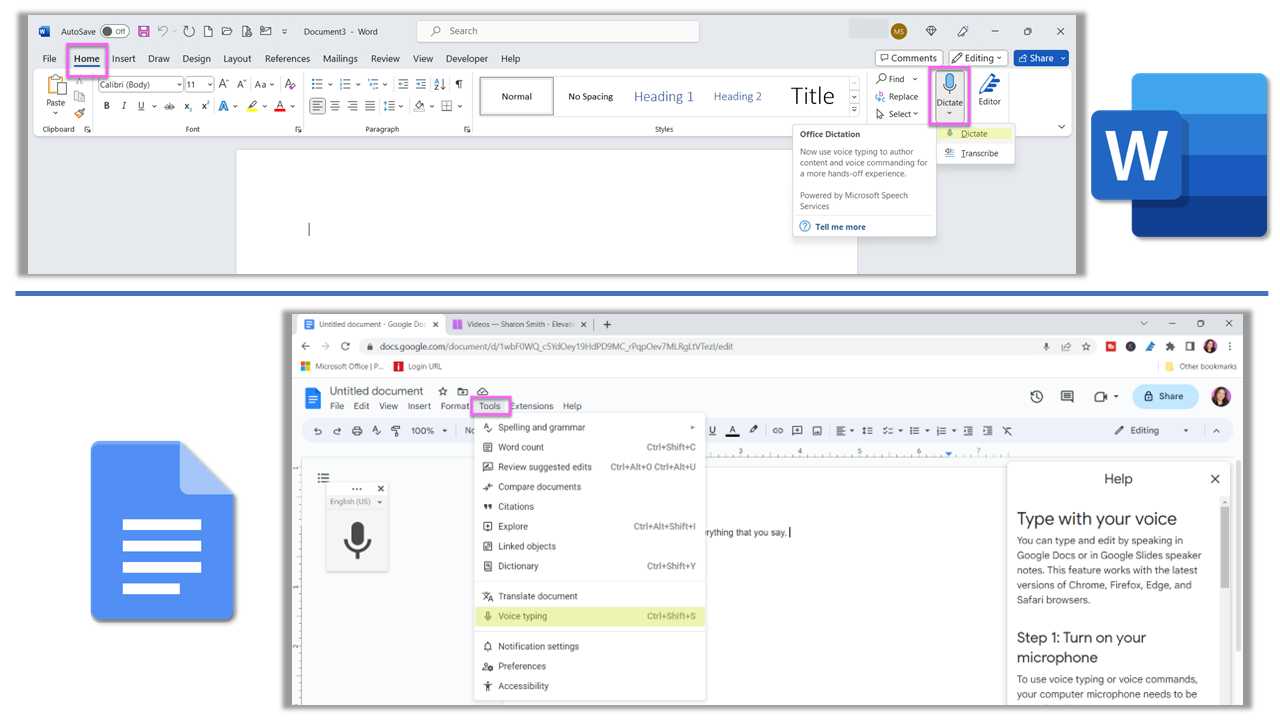
Most word processing apps like Microsoft Word, Google Docs, or Apple Pages support voice typing. Activate dictation within these apps and start speaking to create your document hands free.
Dictating Emails and Messages
Many email platforms and messaging apps have built-in voice input features. Use these to compose messages without touching your keyboard, perfect for quick replies or long emails.
Using Voice Commands for Editing and Proofreading
Commands like “delete that,” “select previous sentence,” or “capitalize that” help you edit your text more naturally. This reduces the need for manual corrections later.
Enhancing Your Hands-Free Experience with Accessories
Invest in a good quality microphone or headset to improve voice capture. A flexible microphone stand allows better positioning, making speech recognition more accurate. For mobile devices, consider using a lapel or lavalier microphone for convenience.
Customizing Dictation Settings for Better Performance
Adjust language preferences, speech rate, and microphone sensitivity. Personalizing these settings helps your software adapt to your voice and speaking style, improving accuracy.
Privacy and Security Considerations
Be aware that voice data can be stored or transmitted to cloud services for processing. Review privacy policies and choose secure options if you’re working with sensitive information. On some devices, you can limit data sharing or choose offline dictation options.
Future Trends in Hands-Free Typing
Emerging technologies are making dictation more intuitive and precise. Continuous improvements in AI and machine learning ensure better understanding of context and complex commands. The integration of voice with augmented reality and other interfaces will further enhance hands-free productivity.
Using dictation to type hands free is more accessible and efficient than ever. With proper setup and practice, you can enjoy a seamless hands-free typing experience across various devices and applications. Keep exploring new commands, accessories, and settings to optimize your dictation workflow and enjoy the benefits of voice recognition technology.
Voice Typing Changes Everything – So much more than Dictation!
Frequently Asked Questions
What are the prerequisites for setting up speech dictation on my device?
Ensure your device has a reliable internet connection and that speech recognition features are enabled in your settings. Update your device’s operating system if needed, and verify that your microphone is working properly by testing it with other applications. Additionally, you may need to enable language and voice profile settings to improve recognition accuracy.
How can I activate dictation mode during writing sessions?
Typically, you activate dictation mode by selecting the microphone icon or pressing a designated keyboard shortcut. On most devices, pressing the voice input button on the keyboard or enabling the microphone from the menu starts the dictation process. Make sure to be in a quiet environment and speak clearly to ensure your device transcribes your words accurately.
What should I do if my device isn’t transcribing my speech correctly?
If transcription isn’t accurate, check your microphone’s quality and position. Speak slowly and clearly, avoiding background noise. You can also adjust the language and voice recognition settings to match your accent or dialect. Restarting the device or updating the speech recognition software may resolve ongoing issues. Using a dedicated microphone can further improve transcription quality.
Are there specific commands I can use to control punctuation and formatting while dictating?
Yes, most dictation tools recognize commands like “comma,” “period,” “new paragraph,” and “bold” to help format your text. Familiarize yourself with the list of supported commands in your device’s documentation to improve your dictation efficiency. Speaking these commands clearly during your speech ensures proper punctuation and formatting in your document.
Can I use dictation effectively for long writing sessions?
Absolutely. To maintain accuracy and comfort, take regular breaks and stay hydrated. Use a high-quality microphone and speak in a steady tone. Introducing pauses allows the software to process your speech better and correct any misinterpretations. Over time, practicing your speech patterns can enhance the overall quality of your dictation sessions.
Final Thoughts
Using dictation to type hands free offers convenience and efficiency. Turn on voice recognition in your device settings and ensure your microphone is functioning properly. Speak clearly and naturally to improve accuracy, and use commands to add punctuation or new lines. Practicing regularly helps you become more comfortable with dictation. Remember, how to use Dictation to type hands free simplifies your writing process and saves time.
Similar Posts































