How to Connect Multiple 4K Monitors
Figuring out how to connect multiple 4K monitors shouldn't feel like solving a puzzle, but it often does. You've got the monitors, you've got the cables, and somehow the second screen is stuck at 1080p or running at a choppy 30Hz. The problem is almost never the monitor itself.
It's the connection method, the cable, or a port on your computer that doesn't have enough bandwidth to push that many pixels. For more background on real-world performance, read our breakdown of how to connect multiple monitors for premiere workflow.
The good news is that once you understand a few basics about ports, cables, and your GPU's capabilities, the whole thing clicks into place. Let's walk through it step by step, starting with what you're actually working with.
Quick Answer
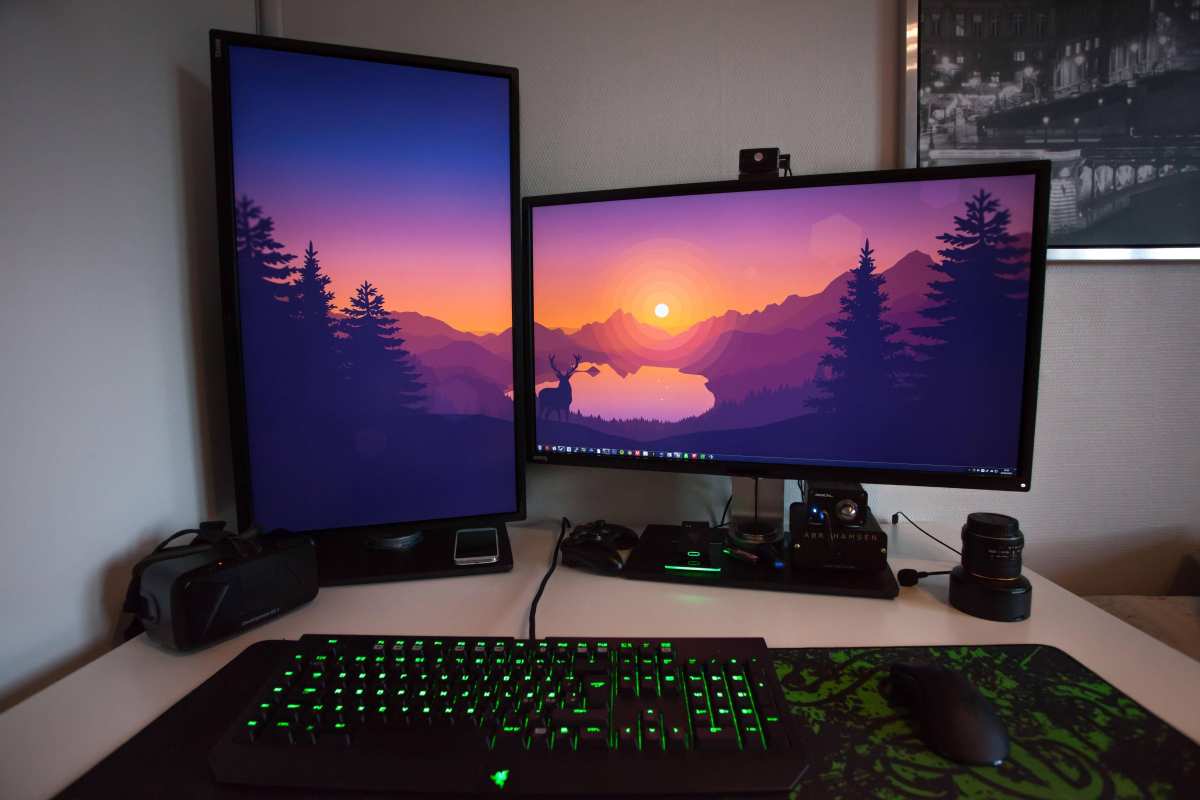
Connect each 4K monitor directly to a dedicated output on your GPU using DisplayPort 1.4 or HDMI 2.0 cables. If you don't have enough GPU outputs, use a Thunderbolt dock or DisplayLink adapter. Make sure each connection can handle at least 18 Gbps for 4K at 60Hz.
Check your display settings after connecting to confirm resolution and refresh rate. You can also reference our testing on whether touchscreen monitors connect to ipad when configuring your display.
First Things First: What Hardware Do You Actually Have?
Before you buy any cables or docks, you need to know what you're working with. The number and type of video outputs on your computer determine everything. A desktop gaming card is a very different beast from a thin laptop with a single USB-C port.
Check your GPU outputs
If you're on a desktop, your graphics card is where the magic happens. Most modern GPUs from NVIDIA and AMD have three to four display outputs, typically a mix of DisplayPort and HDMI. You'll find these on the back of your lower PCIe slots.
Count them. Write down the type and version if you can. An NVIDIA RTX 3060, for example, usually has three DisplayPort 1.4a outputs and one HDMI 2.1.
That means you can run up to four displays natively, no dock needed.
Laptop users need to look at what's on the sides of their machine. A single HDMI port and a single USB-C port doesn't necessarily mean two external displays. That USB-C port might be data-only.
We'll get into that.
Check your laptop ports (this is where most people get tripped up)
Not all USB-C ports are created equal. Some support video output through what's called DisplayPort Alt Mode. Others are purely for data and charging.
You need to check your laptop's spec sheet or look for a lightning bolt icon (Thunderbolt) or a "D" shaped icon (DisplayPort) next to the port.
Here's a quick breakdown of what you might see:
| Port Type | Supports Video? | Max 4K Displays at 60Hz |
|---|---|---|
| USB-C (data only) | No | 0 |
| USB-C (DP Alt Mode) | Yes | 1–2 (depends on bandwidth) |
| Thunderbolt 3 | Yes | 2 |
| Thunderbolt 4 | Yes | 2–4 (with dock) |
| HDMI 2.0 | Yes | 1 |
| HDMI 2.1 | Yes | 1 (but higher refresh possible) |
| DisplayPort 1.4 | Yes | 1 (or 2 via MST daisy chain) |
If your laptop only has one video-capable port and you need two external 4K monitors, you'll need either a Thunderbolt dock or a DisplayLink adapter. There's no way around it.
How many 4K@60Hz displays can your setup actually handle?
This comes down to bandwidth. A single 4K display at 60Hz with 8-bit color needs roughly 12.5 Gbps of data throughput. DisplayPort 1.4 handles 25.92 Gbps (after overhead), so one cable per monitor is fine.
HDMI 2.0 tops out at 18 Gbps, which is enough for one 4K at 60Hz but not much more.
The real question is how much total bandwidth your GPU or Thunderbolt controller can push across all outputs simultaneously. Most modern discrete GPUs handle three to four displays without breaking a sweat. Integrated graphics from Intel can usually manage two or three, depending on the generation.
The Three Main Ways to Connect Multiple 4K Monitors
There's no single "right" method. It depends entirely on your hardware and what you're trying to achieve. Here are the three main approaches, ranked from most reliable to most convenient.
Direct GPU connections (the gold standard)
This is the simplest and most reliable method. You plug each monitor directly into a dedicated output on your graphics card using the appropriate cable. No adapters, no docks, no middlemen.
For most desktop users, this is the answer. If your GPU has three DisplayPort outputs and one HDMI, you can run three or four monitors with zero fuss. Use DisplayPort cables where possible since they handle 4K at 60Hz cleanly and support features like daisy chaining and adaptive sync.
The downside? It only works well on desktops with capable GPUs. Laptops rarely have multiple native display outputs, so this approach doesn't apply to most portable setups.
USB-C and Thunderbolt docks (the clean setup)
A Thunderbolt dock is the go-to solution for laptop users who want a clean, single-cable setup. You plug one Thunderbolt cable into your laptop, and the dock gives you two, three, or even four video outputs along with USB ports, Ethernet, and charging.
The CalDigit TS4 is a popular Thunderbolt 4 dock that supports dual 4K monitors through its rear DisplayPort and Thunderbolt ports. It's a solid choice if your laptop supports Thunderbolt 4.
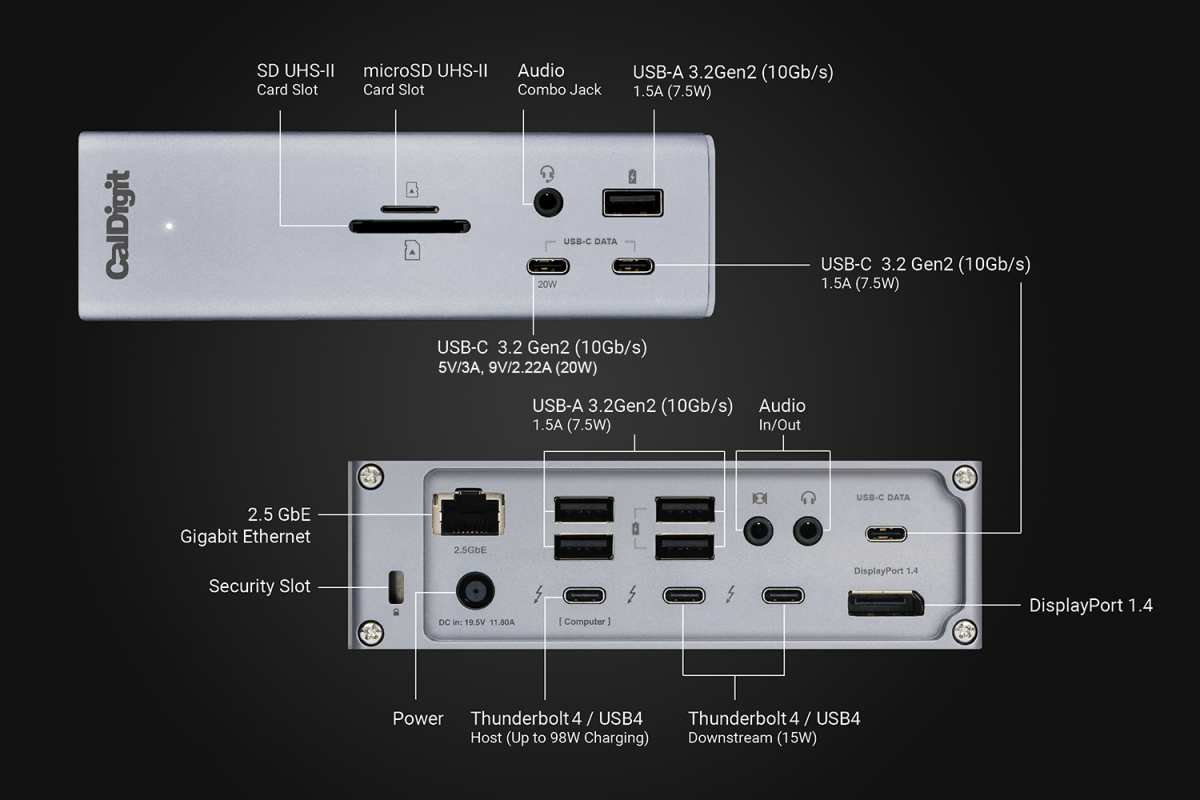
Here's the catch. Thunderbolt 4 provides 40 Gbps of total bandwidth, but that's shared across all the dock's functions. Running two 4K monitors at 60Hz uses most of that headroom.
If you're also pushing data through USB devices and charging your laptop simultaneously, you might hit limits on the third or fourth display.
Not all docks are equal. A basic USB-C hub with HDMI output often only supports one 4K display at 30Hz because it's limited by the single USB-C lane's bandwidth. Always check the dock's specs for the specific resolution and refresh rate it supports on each output.
DisplayLink adapters (the fallback option)
DisplayLink is a technology that compresses video data and sends it over a standard USB connection. It doesn't require DisplayPort Alt Mode or Thunderbolt. Any USB 3.0 port will work.
This makes DisplayLink adapters and docks the most universal option. If your laptop has a USB-C port that doesn't support video at all, a DisplayLink adapter is probably your best bet. Brands like Plugable and StarTech make reliable options.
The trade-off is that DisplayLink uses CPU and GPU resources to compress and decompress the video stream. You'll see slightly higher CPU usage, and fast-motion content like gaming or video playback won't be as smooth. For office work, coding, and general productivity, it's perfectly fine.
For gaming or color-critical video editing, stick with direct connections.
Daisy chaining via DisplayPort MST (the underrated method)
DisplayPort Multi-Stream Transport, or MST, lets you connect one monitor to your computer and then daisy chain a second monitor to the first. Both monitors run off a single DisplayPort output on your GPU.
This only works if your monitors have DisplayPort outputs (not just inputs). Many professional monitors from Dell, HP, and LG include DP Out ports specifically for this purpose. Gaming monitors often skip this feature.
The bandwidth math matters here. A single DisplayPort 1.4 connection can handle two 4K monitors at 60Hz using MST, since 32.4 Gbps is enough for roughly 25 Gbps of actual video data. But if you try to daisy chain three 4K monitors off one port, you'll hit the ceiling.
One important note for Mac users. macOS does not natively support DisplayPort MST. Apple Silicon Macs can only drive one external display per Thunderbolt port through MST. If you want multiple monitors on a Mac, you need separate connections for each one or a DisplayLink adapter.
Cable and Port Cheat Sheet: What Supports What
Cables are where most people go wrong. You grab whatever's in the drawer and wonder why the picture looks terrible or the refresh rate is locked at 30Hz. Here's what you actually need to know.
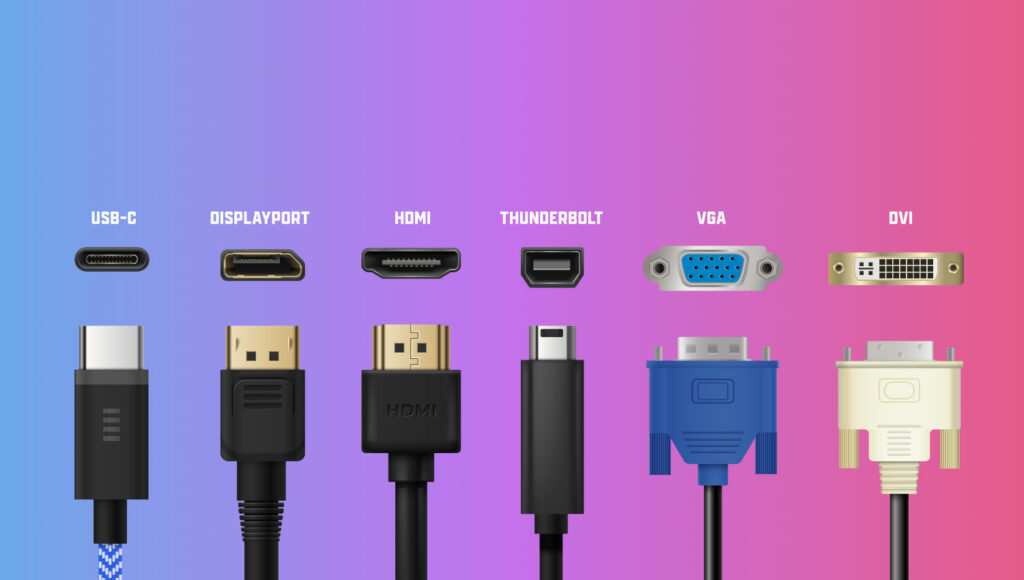
HDMI 2.0 vs HDMI 2.1 for multi-4K
HDMI 2.0 supports 4K at 60Hz with 4:4:4 chroma at 8-bit color. That's enough for most productivity and media consumption. It maxes out at 18 Gbps, which means one 4K at 60Hz per cable, no room for a second.
HDMI 2.1 bumps the bandwidth to 48 Gbps. That's enough for 4K at 120Hz or even 8K at 60Hz. If you're connecting a gaming PC to a 4K 120Hz monitor, you need an Ultra High Speed HDMI cable and an HDMI 2.1 output on your GPU.
For most multi-monitor office setups, HDMI 2.0 is perfectly adequate. You only need HDMI 2.1 if you're pushing high refresh rates or HDR at 10-bit color depth.
DisplayPort 1.2 vs 1.4 — why it matters more than you think
DisplayPort 1.2 maxes out at 17.28 Gbps of data throughput. That's enough for 4K at 60Hz, but only just, and only with reduced chroma subsampling. In practice, DP 1.2 can handle one 4K at 60Hz, but you might notice color compression.
DisplayPort 1.4 is the sweet spot for multi-4K setups. At 25.92 Gbps, it comfortably drives 4K at 60Hz with full 4:4:4 chroma and 8-bit color. It also supports DSC (Display Stream Compression), which allows higher resolutions and refresh rates without visible quality loss.
If your GPU and monitors both support DP 1.4, use DisplayPort cables for every connection. It's the most reliable path to 4K at 60Hz across multiple displays.
USB-C Alt Mode vs Thunderbolt — they're not the same thing
USB-C Alt Mode dedicates some of the USB-C cable's high-speed lanes to carry a DisplayPort signal. A single USB-C port with DP Alt Mode can output one 4K signal at 60Hz, sometimes two if the implementation splits the lanes.
Thunderbolt 3 and 4 go further. They package PCIe data and DisplayPort data together over the same cable. A Thunderbolt 4 port can carry two DisplayPort streams to a dock, which is why Thunderbolt docks can drive dual 4K monitors from one connection.
The practical difference for you: if your laptop has Thunderbolt, get a Thunderbolt dock. If it only has USB-C with DP Alt Mode, a basic USB-C hub with HDMI might work, but check the specs carefully. If it's plain USB-C with no video support, you're looking at DisplayLink.
Step-by-Step: Connecting Your Monitors Based on Your Situation
Now let's get your monitors actually connected. Pick the scenario that matches your setup and follow through.
You have a desktop with a dedicated GPU (2+ display outputs)
This is the easiest path. Turn off your computer. Plug each monitor into a separate output on your graphics card using DisplayPort cables where possible.
HDMI works too, but DP gives you more headroom for future upgrades.
Power everything back on. Windows should detect all monitors automatically within a few seconds. If one doesn't show up, check that the cable is fully seated and the monitor is set to the correct input source.
Then jump into your display settings to arrange them.
You have a laptop with one video output and want two 4K monitors
Your options depend on what that single port can do. If it's Thunderbolt 4, grab a Thunderbolt dock that supports dual 4K output. Connect the dock to your laptop with the included Thunderbolt cable, then run DisplayPort or HDMI cables from the dock to each monitor.
If your USB-C port supports DisplayPort Alt Mode but isn't Thunderbolt, a USB-C hub with dual video output might work. Check the hub's specs. Many cheaper hubs only mirror to one external display at 40Hz or 30Hz.
Look for hubs that explicitly state dual 4K at 60Hz support.
If your USB-C port is data-only, you'll need a DisplayLink adapter. Plug the adapter into any USB 3.0 port, install the DisplayLink driver from the manufacturer's website, then connect your monitors to the adapter.
You want three or four 4K monitors
For three or four displays, you're either using a desktop GPU with enough outputs or you're stacking connection methods. A common setup is two monitors direct to the GPU and two more through a Thunderbolt dock or DisplayLink adapter.
On the desktop side, most mid-range GPUs from the last five years support four simultaneous displays. Check your specific GPU model's spec sheet on the NVIDIA or AMD website. The "max displays" spec tells you exactly what you can run at once.
Bandwidth becomes a real concern at this scale. Four 4K monitors at 60Hz means your GPU is pushing over 50 Gbps of display data alongside whatever else it's doing. Make sure your GPU drivers are up to date.
Outdated drivers are a surprisingly common cause of detection issues with three or more monitors.
You're on a Mac (especially Apple Silicon)
Mac users face some unique limitations. Apple Silicon M1 and M2 chips officially support only one external display natively, even on MacBook Pro models. The M1 Pro supports two, and the M1 Max supports three or four, depending on the configuration.
If you're on a base M1 or M2 chip and need two external monitors, your only option is a DisplayLink adapter. It's not ideal, but it works for productivity tasks. The DisplayLink driver for macOS has improved significantly since its early days, though you may still notice slightly higher CPU usage.
DisplayPort MST daisy chaining does not work on macOS. Apple's graphics drivers simply don't support it. Each monitor needs its own connection path back to the Mac or dock.
For Intel-based Macs with Thunderbolt 3, you can use Thunderbolt docks the same way Windows laptops can. The MST limitation still applies, but Thunderbolt docks handle multiple displays through separate DisplayPort streams internally, so it works fine.
Getting the Settings Right After You're Plugged In
Plugging in the cables is only half the battle. You need to configure your operating system to actually use the monitors the way you want.
Windows display settings — arrangement, scaling, and refresh rate
Right-click on your desktop and select "Display settings." You'll see numbered boxes representing each monitor. Click "Identify" if you're not sure which number maps to which physical screen. Then drag the boxes to match the actual layout of your monitors on your desk.
For each monitor, scroll down and check these settings:
- Resolution: Should show 3840 x 2160. If it's stuck at 1920 x 1080, your cable or connection doesn't have enough bandwidth.
- Refresh rate: Should be 60Hz for most setups. If it's at 30Hz, the mouse cursor will feel sluggish and scrolling will look stuttery. Change this in "Advanced display settings."
- Scale and layout: At 4K on a 27-inch monitor, 150% scaling is usually comfortable. On a 32-inch, 125% or 100% might work better. If you have monitors of different sizes, you'll need to set scaling individually for each one.
macOS display settings — and its MST limitation
On a Mac, go to System Settings, then Displays. You'll see each monitor listed. You can set resolution, refresh rate, and arrangement separately for each one.
macOS uses a "Displays have separate Spaces" option by default in Mission Control. This means each monitor gets its own set of full-screen apps and desktops. If you want the menu bar on every monitor instead of just the main display, you can toggle this off.
The arrangement tab works the same as Windows. Drag the white menu bar to whichever monitor you want as your primary display. Drag the monitor icons to match your physical layout.
Remember, macOS does not support DisplayPort MST daisy chaining. If you've connected monitors in a daisy chain, macOS will only see the first one in the chain. You need separate connections for each display.
Why your monitors might not wake up from sleep
This is one of the most common multi-monitor frustrations. You wake your computer from sleep and one monitor stays black or shows "no signal." There are a few usual suspects.
First, try a different input source on the monitor and then switch back. Sometimes the monitor's EDID handshake with the GPU gets stuck after sleep. Second, update your GPU drivers.
Both NVIDIA and AMD have addressed sleep/wake detection bugs in recent driver releases. Third, check your power management settings. Windows has a setting called "Turn off the display" that can sometimes confuse multi-monitor setups.
Setting it to "Never" for testing can help isolate the issue.
If the problem persists, it's often a cable quality issue. A cable that works fine at boot might struggle with the re-negotiation that happens after sleep. Swapping in a VESA-certified DisplayPort cable usually fixes it.
Common Problems and How to Actually Solve Them
Even when everything is connected correctly, things can go sideways. Here are the most common issues and what actually fixes them.
Monitor detected but stuck at 30Hz or 1080p
This almost always comes down to cable bandwidth or port capability. A DisplayPort 1.2 cable will often negotiate 4K at 30Hz instead of 60Hz because it doesn't have the throughput for 60Hz. Swap to a DP 1.4 cable.
On the HDMI side, an older HDMI 1.4 cable maxes out at 4K at 30Hz. You need at least HDMI 2.0 for 4K at 60Hz. The cable itself doesn't have a version number printed on it in most cases, so check the packaging or product listing.
If you're using a USB-C hub, the hub might only support one 4K at 60Hz and drop the second to 30Hz due to bandwidth splitting. Check the hub's specs. Some hubs explicitly state "dual 4K at 30Hz" or "one 4K at 60Hz, one at 30Hz."
"No signal" on the third or fourth display
Your GPU might have hit its simultaneous display limit. Most consumer GPUs cap at four displays. Some older or budget models cap at three.
Check your GPU's spec sheet for "max displays supported."
If you're within the limit, the issue is often a bandwidth problem on the connection itself. Running three monitors from a single Thunderbolt dock, for example, can exceed the dock's total bandwidth. Try connecting one monitor directly to your computer instead of through the dock.
Another possibility is that your GPU driver isn't recognizing the display. Open your GPU's control panel (NVIDIA Control Panel or AMD Adrenalin) and look for a "Set up multiple displays" option. Sometimes a display shows up there that Windows doesn't detect on its own.
Blurry text and weird scaling on one monitor
This happens when you mix monitors of different sizes and resolutions, or when Windows applies the wrong scaling factor. A 27-inch 4K monitor and a 24-inch 1080p monitor will look terrible if they're both set to the same scaling percentage.
The fix is per-monitor scaling. In Windows display settings, click on each monitor individually and set its scaling level. Windows will sometimes suggest different values for each screen based on its size and resolution.
If text is still blurry on a specific app, that app might not be DPI-aware. Right-click the app's executable, go to Properties, Compatibility, and check "Change high DPI settings." Override the scaling behavior and set it to "Application" or "System (Enhanced)" to see which looks better.
Flickering, dropouts, or intermittent connection
Flickering on one monitor while others are stable usually points to a bad cable. Replace it with a certified cable. For DisplayPort, look for VESA certification.
For HDMI, look for "Premium High Speed" or "Ultra High Speed" certification labels.
If all monitors flicker simultaneously, the issue is likely your GPU driver. Do a clean driver installation using Display Driver Uninstaller (DDU) in Safe Mode, then install the latest driver from NVIDIA or AMD. This clears out any corrupted settings that might be causing the problem.
Electrical interference is rare but possible. If your power cables are running parallel to your display cables for long stretches, try separating them. This is more common in custom desk setups with lots of cable management bundled together.
Which Method Is Right for You? A Quick Decision Guide
Here's a straightforward way to figure out your best path forward.
If you have a desktop with a dedicated GPU and enough outputs: Connect each monitor directly with DisplayPort cables. This gives you the best performance, lowest latency, and fewest compatibility headaches.
If you have a laptop with Thunderbolt 4: Get a Thunderbolt dock that supports dual 4K at 60Hz. You'll get a clean single-cable setup with charging pass-through. The CalDigit TS4 and OWC Thunderbolt Dock are solid options.
If your laptop only has USB-C with DP Alt Mode: A USB-C hub with dual video output can work, but verify it supports 4K at 60Hz on both displays. Many don't.
If your USB-C port is data-only: DisplayLink is your answer. It's not perfect for gaming or video editing, but for office work and general use, it gets the job done.
If you want a Mac setup with multiple monitors: Check your chip first. Base M1 and M2 chips need DisplayLink. M1 Pro, M1 Max, M2 Pro, and M2 Max chips support multiple natively.
Intel Macs with Thunderbolt 3 work with Thunderbolt docks.
If you want to minimize cables and your monitors support it: DisplayPort MST daisy chaining cuts down cable clutter. Just remember it doesn't work on macOS.
Real-World Setups That Work (And What They Cost)
Let's put some real numbers on this. Here are three common multi-4K configurations with approximate costs as of 2026.
Budget desktop setup (two 4K monitors): Two 27-inch 4K monitors at $250 each, plus two DisplayPort cables at $10 each. Total: around $520. Connect both directly to your GPU.
No dock needed.
Laptop dock setup (two 4K monitors): Two monitors at $250 each, a Thunderbolt 4 dock at $250, and cables at $20 total. Total: around $770. This gives you a single-cable laptop connection with charging.
DisplayLink fallback (two 4K monitors on a basic laptop): Two monitors at $250 each, a DisplayLink adapter at $60, and cables at $20. Total: around $580. You'll need to install the DisplayLink driver, and performance won't match a direct connection.
High-end quad-monitor setup: Four monitors at $300 each, a Thunderbolt dock at $250, and a GPU with four outputs at $400 or more. Total: around $1,700 or more. This is for traders, developers, or content creators who genuinely need that much screen space.
The biggest cost people overlook is cables. A $5 cable from an unknown brand might work fine for 1080p, but it can cause real problems at 4K. Spending $10 to $15 on a certified DisplayPort or HDMI cable saves a lot of troubleshooting time.
Frequently Asked Questions
Can I run two 4K monitors from one USB-C port?
Yes, if the port supports DisplayPort Alt Mode or Thunderbolt. A Thunderbolt 4 port can drive dual 4K monitors through a dock. A basic USB-C port with DP Alt Mode might only support one 4K at 60Hz, depending on the implementation.
Why is my second 4K monitor only showing 30Hz?
Your cable or port doesn't have enough bandwidth for 4K at 60Hz. Switch to a DisplayPort 1.4 cable or an HDMI 2.0 or 2.1 cable. If you're using a hub, check whether it splits bandwidth between outputs.
Does daisy chaining monitors work on Mac?
No. macOS does not support DisplayPort MST daisy chaining. Each monitor needs its own connection to the Mac or to a Thunderbolt dock. This is a software limitation in Apple's graphics drivers, not a hardware issue.
Can I mix HDMI and DisplayPort cables in the same setup?
Absolutely. Most GPUs handle mixed connections without any issues. Just make sure each cable meets the bandwidth requirement for the resolution and refresh rate you want on that specific monitor.
How many 4K monitors can my GPU support?
Check your GPU's spec sheet. Most modern mid-range and high-end GPUs support three to four simultaneous displays. Some budget or older models cap at two or three.
Integrated Intel graphics typically support two or three, depending on the generation.
Do I need a powered USB-C hub for dual 4K monitors?
For most dual 4K setups through USB-C, yes. The power delivery ensures the hub has enough power to run the video circuitry alongside any connected peripherals. An unpowered hub might work for a single display but often struggles with two.

Similar Posts





















