How to Connect 144Hz Monitor with HDMI
If you've just plugged your 144Hz monitor into your GPU with an HDMI cable and you're still stuck at 60Hz, you're not alone. Figuring out how to connect a 144Hz monitor with HDMI is one of those topics that sounds simple until you realize three different components all need to agree on the same HDMI version. The cable you're using, the port on your graphics card, and the input on your monitor each play a role, and one weak link locks you at 60Hz.
Here's what makes this genuinely confusing: your monitor might be advertised as 144Hz, but that refresh rate could only be available through DisplayPort, not HDMI. HDMI 2.0 tops out at 144Hz only at 1080p, while 1440p usually drops to 120Hz unless your hardware supports HDMI 2.1. So before you buy any cable or tweak any settings, we need to check what your specific hardware chain can actually handle.
Quick Answer
Yes, you can run 144Hz over HDMI. It requires matching HDMI versions across your GPU, cable, and monitor. 1080p at 144Hz works over HDMI 2.0. 1440p typically needs HDMI 2.1. Enable it in Windows display settings after connecting.
Verify with testufo.com.
Why You're Probably Still at 60Hz (And It's Not a Defect)
The single most common reason people can't get 144Hz working over HDMI isn't a broken monitor or a bad cable. It's a version mismatch somewhere in the chain. Your GPU might have an HDMI 1.4 port.
Your cable might be from 2012. Your monitor's HDMI input might only support 120Hz even though the panel itself does 144Hz. Any one of those bottlenecks kills the higher refresh rate, and none of them give you a clear error message.
Craftsman tool showing cross-section, rated torque values.
The Version-Matching Problem
Think of HDMI versions like pipe bandwidth. HDMI 1.4 has enough bandwidth for 144Hz, but only at 1080p. Bump the resolution to 1440p and HDMI 1.4 chokes.
HDMI 2.0 opens the pipe wider, handling 144Hz at 1080p comfortably and usually 120Hz at 1440p. Full 1440p at 144Hz or 4K at 144Hz requires HDMI 2.1 with its 48 Gbps bandwidth.
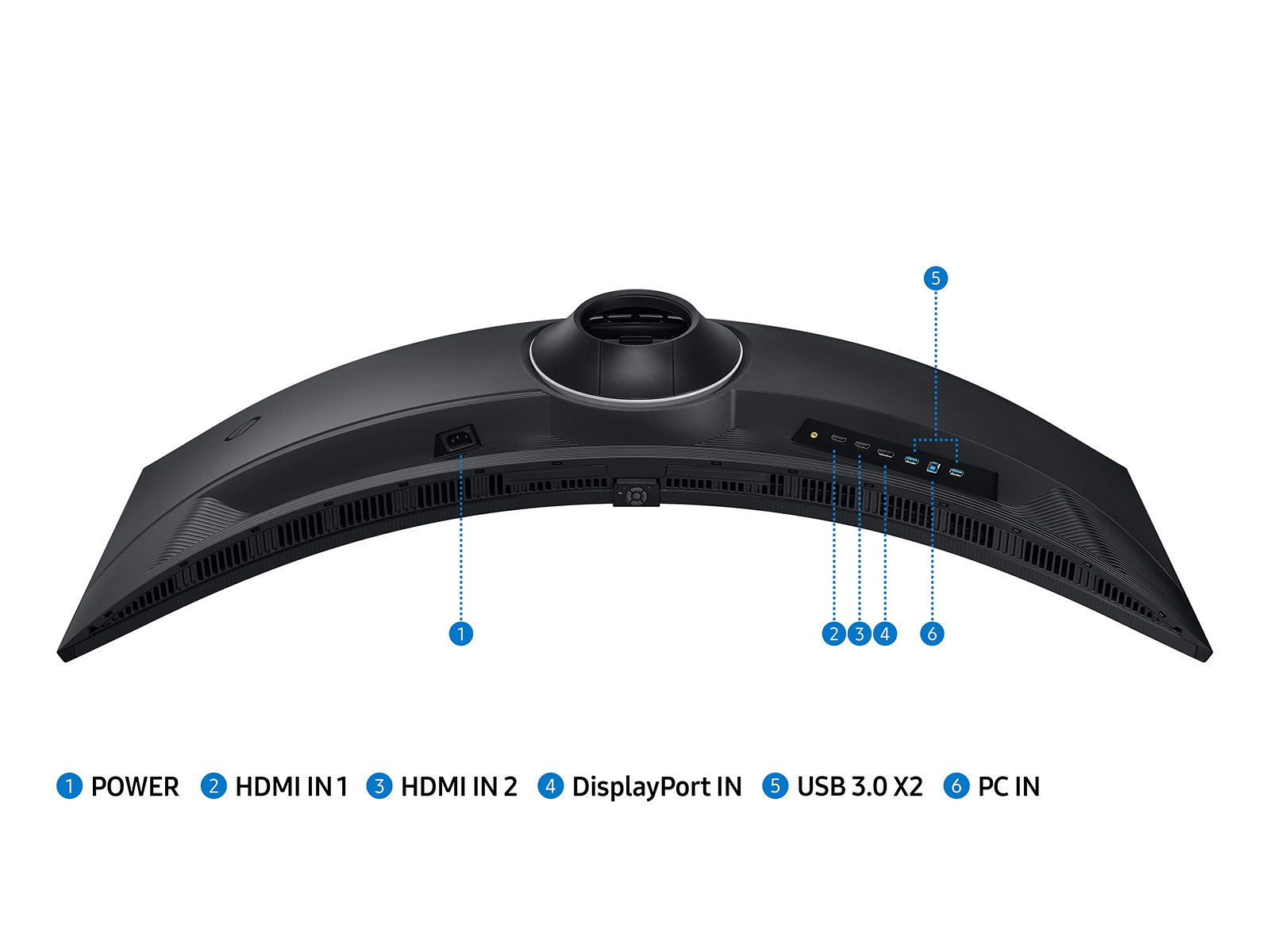
The frustrating part is that manufacturers don't always label which HDMI version a specific port supports. You'll see "HDMI" on the back of your GPU and "HDMI" on the back of your monitor, with no immediate way to tell whether they're 1.4, 2.0, or 2.1 without looking up the specs.
The Hidden Monitor Limitation
Here's something that catches a lot of people off guard: many 144Hz monitors only deliver that full refresh rate through DisplayPort. The HDMI port on the same monitor might cap at 120Hz or even 60Hz depending on the model. This is especially common in monitors released before HDMI 2.1 became widespread.
Always check your monitor's manual or spec sheet for per-input refresh rate limits. The "114Hz" or "120Hz over HDMI" limitation isn't a defect. It's just what that particular HDMI implementation supports.
Your next step is figuring out exactly what each piece of your setup can handle.
Step 1: Check Your GPU's HDMI Port Version
Your graphics card is the starting point. The HDMI port on your GPU determines the maximum signal it can output, and this varies hugely depending on which card you have and when it was manufactured.
How to Find Your GPU's HDMI Spec
The fastest way is to look up your exact GPU model's specifications. For NVIDIA cards, check the product page for your specific model on their site. For AMD, the same process applies on their product database.
Intel integrated graphics specs are listed on Intel's processor product pages.
Here's a quick reference for common generations:
- NVIDIA GTX 10 series and newer typically ship HDMI 2.0
- NVIDIA RTX 30 and 40 series generally include HDMI 2.1
- AMD RX 5000 series and newer usually have HDMI 2.1
- AMD RX 500 and older often limited to HDMI 1.4 or 2.0
- Intel integrated graphics (12th gen onward) typically HDMI 2.0 or 2.1 depending on the platform
The Laptop Problem
If you're on a laptop, this gets trickier. Many laptops route the HDMI port through the integrated GPU rather than the discrete graphics card, which can limit your output capabilities. Some laptops have multiple HDMI ports with different capabilities.
Check your laptop's technical specifications document, not just the marketing page, to confirm which GPU drives the HDMI output and what version it supports.
When the Port Version Is Good Enough
If your GPU supports HDMI 2.0, you're fine for 1080p at 144Hz. If you have HDMI 2.1, you've got headroom for higher resolutions at 144Hz. The problem only starts when your GPU is stuck at HDMI 1.4 and you're trying to push beyond 1080p at 144Hz.
In that case, you might need to use a different output on your GPU, like DisplayPort with an adapter, which we'll cover later.
Step 2: Check Your Monitor's HDMI Input Capabilities
Now look at the other end. Your monitor might be a 144Hz display, but that doesn't mean every input on it supports 144Hz. The HDMI port might have a lower ceiling than the DisplayPort input right next to it.
Where to Find This Information
Check your monitor's user manual or the manufacturer's spec sheet. Look specifically for "HDMI max refresh rate" or "max resolution and refresh rate by input." Some monitors list this clearly. Others bury it in a technical specifications document you have to download from their support page.
If you can't find it, try searching your monitor model number plus "HDMI 144Hz support." Community forums and manufacturer support Q&A sections often have this information when the official specs are unclear.
Common Monitor HDMI Limitations
- 1080p 144Hz monitors (2017, 2020 era): Often HDMI 1.4 or 2.0, meaning 144Hz at 1080p works but 1440p won't hit 144Hz
- 1440p 144Hz monitors (mid-range): Frequently limited to 120Hz over HDMI, with 144Hz only through DisplayPort
- 4K 144Hz monitors: Almost always require HDMI 2.1 for full refresh rate; many cap HDMI at 60Hz or 120Hz
Running Multiple Monitors
If you're using two monitors and only one is 144Hz, make sure the high-refresh monitor is connected to the best available port on your GPU. Don't daisy-chain through a lower-spec port just because it's more convenient. The physical port you choose directly affects the signal quality and refresh rate you'll get.
Step 3: Use the Right HDMI Cable
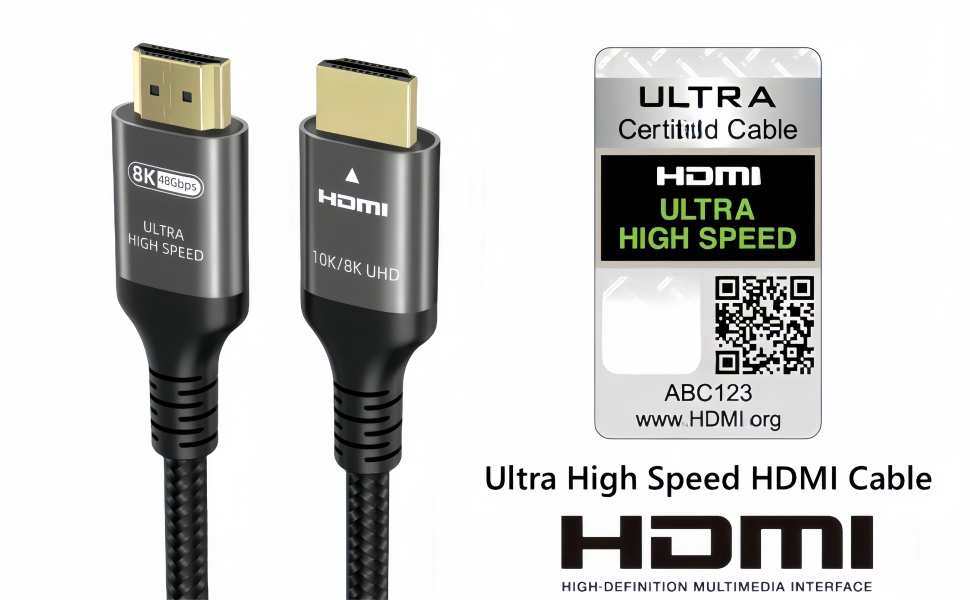
This is where most people go wrong. You probably have a drawer full of old HDMI cables, and they're not all created equal. An HDMI cable from 2015 doesn't support the same bandwidth as one manufactured in 2024, even though the connector looks identical.
HDMI Cable Versions Explained
| Cable Certification | Max Bandwidth | Supports 144Hz at 1080p | Supports 144Hz at 1440p | Supports 144Hz at 4K |
|---|---|---|---|---|
| Standard HDMI | 4.95 Gbps | No (max 60Hz) | No | No |
| High Speed HDMI | 10.2 Gbps | With HDMI 1.4 source and display* | No | No |
| Premium High Speed HDMI | 18 Gbps | Yes | At 120Hz typical | No |
| Ultra High Speed HDMI | 48 Gbps | Yes | Yes | Yes |
*High Speed HDMI cable with 1.4 at 1080p
Agion technology testing within cleanroom, ISO Class 5 environment.
A Standard HDMI cable physically cannot carry a 144Hz signal at any resolution. A High Speed HDMI cable might handle 1080p at 144Hz if both devices support HDMI 1.4. For anything beyond that, you need at least a Premium High Speed HDMI cable rated at 18 Gbps, and for 4K at 144Hz you need an Ultra High Speed HDMI cable rated at 48 Gbps.
Does the Cable Need to Be "Certified"?
Manufacturers sell "certified" HDMI cables with official logos. These have been tested by HDMI Licensing Administrator to meet the specified bandwidth standards. An uncertified cable that claims 48 Gbps might work, but there's no guarantee.
For a setup that needs every bit of bandwidth, a certified cable eliminates one variable from the troubleshooting equation.
Cable Length Matters
Signal degradation increases with cable length. Over 3 meters (about 10 feet), even a high-quality cable may struggle to maintain a stable 48 Gbps signal. If you need a longer run, look for active HDMI cables that include signal amplification.
For typical desk setups under 2 meters, a passive certified cable works fine.
What About Expensive "Gaming" Cables?
Don't buy a $50 cable thinking it'll unlock performance your hardware doesn't support. Once you have a certified cable that matches your HDMI version requirement, spending more money won't improve your signal. A certified Ultra High Speed HDMI cable for $15 works identically to an $80 one for this purpose.
The certification matters. The brand name doesn't.
Step 4: Enable 144Hz in Windows (The Step Everyone Skips)
You've got the right hardware, the right cable, everything's plugged in. But Windows doesn't automatically switch to 144Hz. It often defaults to 60Hz for compatibility, and you have to manually tell it to use the higher rate.
Windows 11 Steps
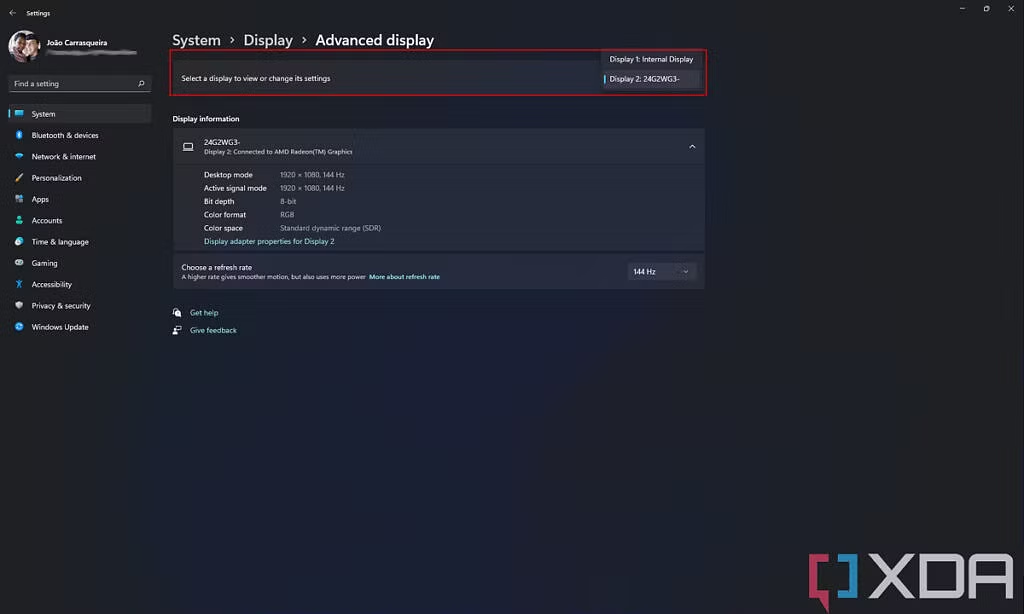
Right-click on your desktop background and select Display settings. Scroll down and click Advanced display. Under the "Choose a refresh rate" dropdown, select 144Hz if it's available.
If you only see 60Hz, your hardware chain has a bottleneck somewhere.
If 144Hz Doesn't Appear in the Dropdown
This is the moment where all the previous steps matter. Go back and verify:
- Your GPU's HDMI port supports the bandwidth you need
- Your monitor's HDMI input supports 144Hz (not just the display panel itself)
- Your cable is rated for the right HDMI version
- You've installed the latest GPU drivers
Outdated GPU drivers are a surprisingly common cause. A driver from six months ago might not expose all available refresh rate options. Update through your GPU manufacturer's app or their website.
NVIDIA Control Panel Path
If you have an NVIDIA GPU, you can also access refresh rate settings through the NVIDIA Control Panel. Right-click the desktop, open NVIDIA Control Panel, navigate to Display > Change resolution, and select the refresh rate from there. Sometimes options appear here that don't show in Windows Settings.
AMD Adrenalin Path
For AMD GPUs, open AMD Software Adrenalin Edition, go to the Display tab, and toggle the refresh rate options. AMD's software sometimes exposes custom resolution and refresh rate options if you're dealing with an edge case.
Step 5: Verify It's Actually Running at 144Hz
Selecting 144Hz in Windows is one thing. Confirming it's actually working is another. Your operating system settings might say 144Hz while the monitor is still receiving a 60Hz signal due to a cable or port issue.
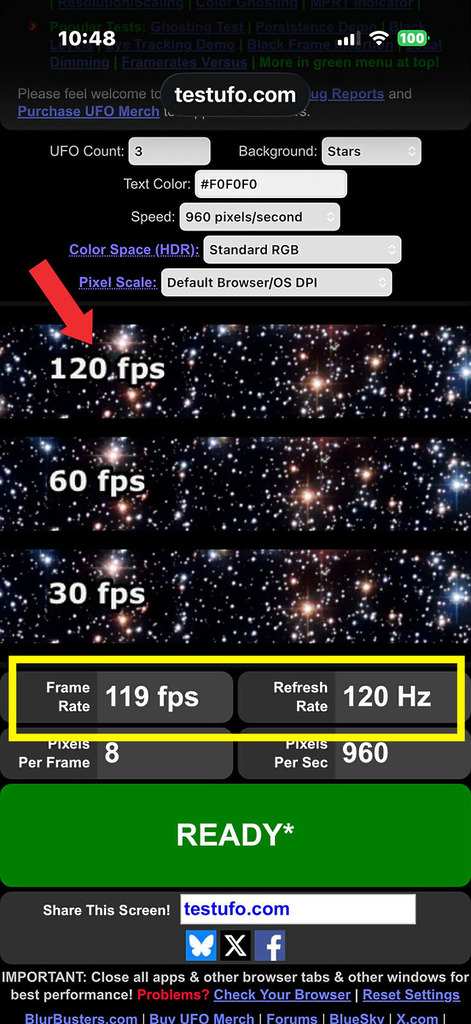
Use TestUFO
Open testufo.com in your browser. This site displays animated text and a moving pattern that visually confirms your refresh rate. It shows the actual refresh rate being detected by your browser and display.
If it says 60Hz, something in your chain is still limiting you.
Check Your Monitor's Built-In Display
Many gaming monitors have an on-screen display (OSD) option that shows the current input resolution and refresh rate. Pull up your monitor's menu, look for an "Information" or "Status" section, and confirm it reports 144Hz. This bypasses the operating system entirely and tells you what the monitor is actually receiving.
Other Verification Methods
- NVIDIA Control Panel: The resolution list shows the active refresh rate next to each resolution option
- AMD Software: The display overview panel shows current refresh rate
- Frame rate counter software: Tools like MSI Afterburner or FRAPS can report render rates, though this reflects GPU output more than display input
[SERIES_INTRO]
HDMI vs DisplayPort: When to Use Which for 144Hz
If you've gone through all the steps above and your hardware chain still won't deliver 144Hz over HDMI, the answer might be to stop using HDMI. DisplayPort has supported high refresh rates for longer and often has fewer limitations at the monitor input level.
Side-by-Side Comparison
| Feature | HDMI 2.0 | HDMI 2.1 | DisplayPort 1.4 |
|---|---|---|---|
| Max Bandwidth | 18 Gbps | 48 Gbps | 32.4 Gbps |
| 1080p 144Hz | Yes | Yes | Yes |
| 1440p 144Hz | 120Hz typical | Yes (with DSC) | Yes (with DSC) |
| 4K 144Hz | 60Hz max | Yes (with DSC) | Yes (with DSC) |
| VRR Support | Yes (2.1) | Yes | Yes |
| Cable Availability | Very common | Growing | Common |
| Monitor Input Prevalence | Universal | Newer monitors | Common on gaming monitors |
When DisplayPort Is the Clear Winner
Use DisplayPort when your monitor and GPU both have it and you're pushing beyond what your HDMI chain can handle. It's the safer choice for 1440p at 144Hz and above, especially on monitors from the HDMI 2.0 era. DisplayPort 1.4 supports 1440p at 144Hz natively with DisplayStream Compression, and it's been standard on gaming monitors since around 2016.
When HDMI Is Fine
For 1080p at 144Hz with HDMI 2.0 on everything, HDMI works perfectly. If your GPU has HDMI 2.1 and your monitor has HDMI 2.1, you don't need DisplayPort for any resolution at 144Hz. The cable you use still matters, but the interface itself isn't the bottleneck.
Laptop Users Without DisplayPort
Many gaming laptops only have HDMI and USB-C. If your USB-C port supports DisplayPort Alt Mode, a USB-C to DisplayPort cable gets you onto DisplayPort without a physical DP port on the laptop. Check your laptop's specs for "DP Alt Mode" or "DisplayPort over USB-C" support.
This is often the cleanest solution when HDMI won't deliver the refresh rate you need.
HDMI Version & Max Refresh Rate Reference Table
The table below shows what each HDMI version can handle at common gaming resolutions. These are theoretical maximums based on HDMI Licensing Administrator specifications. Real-world results may vary slightly depending on timing parameters and whether DisplayStream Compression is used.
| HDMI Version | Max Bandwidth | 1080p Max | 1440p Max | 4K Max |
|---|---|---|---|---|
| HDMI 1.4 | 10.2 Gbps | 144Hz | 60Hz | 30Hz |
| HDMI 2.0 | 18 Gbps | 144Hz | 120Hz | 60Hz |
| HDMI 2.1 | 48 Gbps | 240Hz+ | 144Hz+ | 144Hz+ |
Some HDMI 2.0 monitors and GPUs can push 144Hz at 1440p using reduced blanking intervals, but this isn't guaranteed and depends on both devices supporting the specific timing. HDMI 2.1 with Fixed Rate Link and DisplayStream Compression handles these resolutions and refresh rates comfortably.
What "With DSC" Means
DisplayStream Compression is a visually lossless compression standard that lets HDMI 2.1 and DisplayPort 1.4 carry higher resolution and refresh rate signals within their bandwidth limits. The compressed signal is indistinguishable from uncompressed to the human eye. Most modern GPUs and monitors support DSC transparently, so you don't need to enable anything manually.
Common Mistakes That Keep You Stuck at 60Hz
After covering the main troubleshooting steps, it's worth calling out the mistakes we see repeated most often. Avoiding these shortcuts most of the guesswork entirely.
Plugging Into the Motherboard Instead of the GPU
If you're on a desktop, your motherboard has HDMI ports. Those ports connect to the integrated graphics on your CPU, not your dedicated GPU. Always plug your monitor into the HDMI port on the graphics card itself.
On most builds, the GPU ports are lower on the back panel and horizontally oriented, while the motherboard ports are higher up in the vertical cluster with USB and audio.
Assuming the Monitor's "144Hz" Label Applies to Every Input
We've covered this, but it bears repeating. A monitor advertised as 144Hz might only support that refresh rate on its DisplayPort input. The HDMI port might cap at 120Hz or 60Hz.
Check the per-input specifications before troubleshooting anything else.
Using Whatever Cable Is in the Drawer
That HDMI cable that came with a TV in 2014 is not going to carry a 144Hz signal at any resolution. Cables don't have version numbers printed on them in most cases, so you can't tell by looking. If you're not sure what version your cable is, buy a new certified one.
It's the cheapest variable to eliminate.
Not Updating GPU Drivers
An outdated driver might not expose all available refresh rate options or might have bugs in its EDID parsing that prevent it from detecting your monitor's capabilities. Update to the latest driver from NVIDIA, AMD, or Intel before spending an hour troubleshooting settings.
Forgetting to Check the Monitor OSD
Some monitors have settings in their on-screen display that affect the input signal. Look for options like "HDMI Version," "HDMI 2.0 Mode," or "High Refresh Rate" that might need to be manually enabled. Not all monitors have these, but some do, and they default to the lower setting for compatibility.
Real Scenarios: How Different Users Solve This
To make this concrete, here are a few common setups and what actually works for each.
Budget Gamer: 1080p 144Hz Monitor, Mid-Range GPU
You have a 1080p 144Hz monitor and a GPU with HDMI 2.0. Use any High Speed HDMI cable or better. Plug into the GPU, not the motherboard.
Set the refresh rate to 144Hz in Windows display settings. Verify with testufo.com. This is the simplest scenario and should work without any issues.
1440p 1440p 144Hz Monitor Owner
You bought a 1440p 144Hz monitor and discovered your GPU only has HDMI 2.0. HDMI 2.0 tops out at 120Hz at 1440p. You have two options: accept 120Hz over HDMI, which is still very smooth, or use a DisplayPort cable to get the full 144Hz.
Most people can't perceive the difference between 120Hz and 144Hz, so 120Hz is a perfectly reasonable compromise.
Laptop User With External 144Hz Monitor
Your gaming laptop has an HDMI 2.0 port and a USB-C port that supports DisplayPort Alt Mode. The external monitor has both HDMI 2.0 and DisplayPort 1.4. For 1080p at 144Hz, HDMI works fine.
For 1440p at 144Hz, use a USB-C to DisplayPort cable to bypass the HDMI limitation entirely.
When You Need to Buy a DisplayPort Cable
If your GPU and monitor both have DisplayPort and your HDMI chain can't deliver the refresh rate you want, just use DisplayPort. A certified DisplayPort 1.4 cable costs around $10 to $15 and eliminates the HDMI version-matching problem entirely. This is often the simplest solution when HDMI won't cooperate.
Quick Troubleshooting: 144Hz Still Not Working
If you've checked everything above and you're still stuck, here's a rapid-fire troubleshooting sequence.
Option Not in Windows Dropdown
- Verify your GPU driver is up to date
- Check that your monitor's HDMI input supports 144Hz (not just the panel)
- Try a different certified HDMI cable
- Check if your monitor OSD has an HDMI version setting that needs switching
- Test with a DisplayPort cable if available
Black Screen After Selecting 144Hz
- Wait 15 seconds. Windows will automatically revert to the previous setting if you don't confirm
- If it doesn't revert, restart in safe mode and set the refresh rate back to 60Hz
- Your cable or port likely can't handle the bandwidth. Drop to a lower refresh rate or use a better cable
Refresh Rate Dropping Under Load
- This usually indicates a cable quality issue. The signal is marginal and fails when the GPU is pushing more data
- Try a shorter or better-certified cable
- Check that the cable isn't kinked or damaged
When to Suspect the Cable vs the Port vs the Settings
- Settings: Refresh rate option exists but selecting it doesn't stick
- Port: Option doesn't appear at all, even with correct drivers
- Cable: Option appears and selects, but you get flickering, black screens, or the monitor reports a lower rate in its OSD
Frequently Asked Questions
Can I get 144Hz through HDMI?
Yes, if your GPU, cable, and monitor all support HDMI 2.0 or higher for 1080p, or HDMI 2.1 for 1440p and above. The weakest link in the chain determines your maximum refresh rate.
Why is my 144Hz monitor only showing 60Hz?
The most common causes are using an old HDMI cable, plugging into the motherboard instead of the GPU, or not manually selecting 144Hz in Windows display settings. Check each link in the chain starting with the GPU port version.
Is HDMI or DisplayPort better for 144Hz?
DisplayPort is generally more reliable for high refresh rates, especially at 1440p and above. HDMI 2.1 matches DisplayPort 1.4 in capability, but HDMI 2.0 is more common and has lower bandwidth limits.
Do I need a special HDMI cable for 144Hz?
You need at least a High Speed HDMI cable for 1080p at 144Hz, a Premium High Speed HDMI cable for 1440p at 120Hz, and an Ultra High Speed HDMI cable for 4K at 144Hz. Certification matters more than brand.
Can I use an adapter from DisplayPort to HDMI for 144Hz?
Active DisplayPort to HDMI adapters can work, but they must support the bandwidth you need. Many cheap adapters are limited to HDMI 1.4 specs. If you need 144Hz at 1440p or above, make sure the adapter explicitly supports HDMI 2.0 or 2.1 output.
Does HDMI support VRR for gaming?
Yes. HDMI 2.1 includes Variable Refresh Rate support, and many HDMI 2.0 implementations also support VRR through manufacturer-specific extensions. Both NVIDIA G-Sync and AMD FreeSync can work over HDMI on supported hardware.
Final Recommendation: Your Decision Flow
Here's the fastest path to getting 144Hz working over HDMI. Work through these in order and stop when you hit a limitation.
- Check your GPU's HDMI version first. Look up your exact graphics card model on the manufacturer's website. If it's HDMI 1.4, you're limited to 1080p at 144Hz. Anything higher requires HDMI 2.0 or 2.1.
- Check your monitor's HDMI input specs second. Find your monitor model's technical specifications sheet. Confirm the HDMI port supports 144Hz at your target resolution. If it doesn't, you need DisplayPort.
- Use a certified cable that matches or exceeds your HDMI version requirement. For HDMI 2.0, use a Premium High Speed HDMI cable. For HDMI 2.1, use an Ultra High Speed HDMI cable.
- Update your GPU drivers to the latest version before changing any settings.
- Select 144Hz in Windows display settings or your GPU control panel.
- Verify with testufo.com and your monitor's built-in OSD info display.
If your HDMI chain can't deliver 144Hz at your desired resolution, the simplest fix is a DisplayPort cable. It eliminates the version-matching headache entirely for most gaming setups. A certified DisplayPort 1.4 cable costs under $15 and handles 1440p at 144Hz without any compression or compatibility concerns.
The bottom line: HDMI absolutely can do 144Hz, but only when every piece of the chain agrees on the version. One outdated port, one old cable, or one monitor input that caps below 144Hz will hold you back. Check each link, use the right cable, and you'll be running at full refresh in minutes.

Similar Posts





















