How To Clean Up Your Downloads And Desktop Folders?
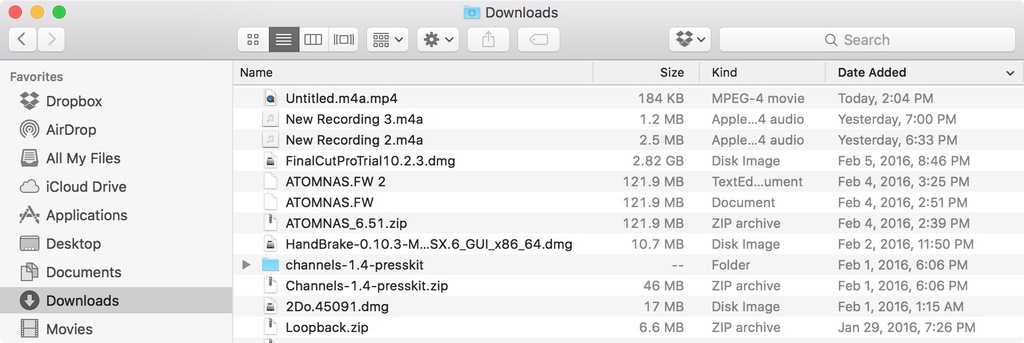

How to clean up your Downloads and Desktop folders
Why it’s important to keep your Downloads and Desktop folders tidy
Maintaining a clean Downloads and Desktop folder helps your computer run smoothly. Cluttered folders can slow down your system and make it harder to find important files. It also makes your workspace look neat and organized, reducing stress and saving time.Understanding the purpose of Downloads and Desktop folders
The Downloads folder stores files you get from the internet, email attachments, and software installers. Your Desktop acts as a quick-access area for documents, shortcuts, and recent files. Knowing what you keep in each helps you decide what to delete or organize.Getting ready to clean up
Before starting, back up important files to an external drive or cloud storage. This step ensures you don’t lose anything valuable by mistake. Set aside some quiet time to focus on cleaning, so you don’t rush through the process.Evaluating files in your Downloads folder
Open your Downloads folder to see what files are there. Look for files you have already used or no longer need. Files like installers, old PDFs, or duplicate documents are prime candidates for deletion or sorting.Organizing your Downloads folder
Create new folders within Downloads for different categories like Images, Documents, or Software. Move relevant files into these folders to keep your Downloads neat. This way, future downloads automatically get stored in organized sections.Steps to organize your Downloads folder effectively
- Review all files in the Downloads folder.
- Delete files you no longer need, such as outdated installers or duplicates.
- Move important files into categorized folders.
- Rename files if necessary, for better clarity.
- Set a reminder to review Downloads weekly or monthly.
Cleaning your Desktop for better productivity
A cluttered Desktop can distract you and make your computer feel slow. Aim to keep only frequently used files and shortcuts visible. Store everything else in appropriate folders to keep your Desktop clear.How to declutter your Desktop step-by-step
- Review all icons on your Desktop.
- Delete shortcuts or files that you no longer need quick access to.
- Create folders for groups of related files, such as Work, Photos, or Projects.
- Move files into their corresponding folders.
- Arrange remaining icons in a way that feels organized and clean.
Using automated tools to clean your folders
Many computers have built-in tools or third-party apps that help delete temporary, duplicate, or large files. Use disk cleanup utilities to remove unnecessary files safely. These tools can save time and ensure your folders stay clean.Popular tools for PC and Mac users
- For Windows: Disk Cleanup, CCleaner, Duplicate Cleaner
- For Mac: Finder’s storage management, Gemini 2, CleanMyMac
Setting up a regular cleaning schedule
Schedule weekly or monthly reviews of your Downloads and Desktop folders. Regular cleanups prevent clutter from piling up and make it easier to find important files when needed. Use calendar reminders to stay consistent.Tips for maintaining folder cleanliness
- Always delete files you no longer need promptly.
- Save files into organized folders immediately after download.
- Review and empty your Trash or Recycle Bin regularly.
- Use naming conventions for easier searching later.
Best practices for saving and organizing files
Develop a habit of saving files into specific folders right away. Use descriptive file names to identify content easily. Keep your Desktop minimal by only keeping essential shortcuts and files for quick access.Organizational tips for better file management
- Use date and descriptive keywords in filenames.
- Create a folder hierarchy for different projects or topics.
- Archive old files into separate storage if needed.
- Use cloud storage for backup and easy access across devices.
Advanced techniques for tidy folders
Automate organization by creating rules for file placement using scripting or folder actions. Use tags or labels if your operating system supports them. These techniques help maintain a clutter-free environment with minimal effort.Examples of automation methods
- Using folder rules in Windows File Explorer or macOS Automator.
- Employing third-party apps like Hazel or DropIt for automatic sorting.
- Setting up scripts to regularly move or delete files based on age or type.
Keeping your system healthy after cleanup
Regularly updating your operating system, antivirus software, and cleaning utilities ensures your computer stays healthy. Performing disk cleanups and defragmentation tasks can improve speed and reliability.Additional tips for system health
- Run virus scans regularly.
- Update software and drivers.
- Remove unnecessary programs you no longer use.
- Keep your backup copies current.
Helpful tricks to prevent future clutter
Create habits like saving new files into organized folders immediately. Avoid downloading files directly onto your Desktop. Use cloud services for storing documents to keep local folders clean.Pro tips for long-term organization
- Schedule weekly folder reviews.
- Use naming conventions consistently.
- Clear your Desktop daily or every few days.
- Set up automatic backups of important folders.
Summary of effective cleanup strategies
Combining manual review, automation tools, and regular maintenance creates an environment that stays organized with minimal effort. Staying vigilant with file management helps your system perform better and makes your digital life less stressful. Remember, developing good habits now prevents bigger messes later and keeps your files easy to find when you need them.5 Tricks to Clean Your Downloads Folder – MAC
Frequently Asked Questions
How can I quickly identify which files in my Downloads folder are no longer needed?
Sorting your Downloads folder by date helps you locate older files that may be outdated or unnecessary. You can also scan through filenames and file types to recognize documents, images, or installers that you no longer require. Using search filters or specific keywords can further narrow down files for review, making it easier to decide what to delete.
What is a good way to organize files on my Desktop to prevent clutter?
Create dedicated folders for different categories such as Work, Personal, or Projects. Move related files into these folders instead of leaving them scattered on your Desktop. Regularly review and clean your Desktop, deleting or relocating files as needed, to keep the workspace tidy and easier to navigate.
How can I automate the process of cleaning up my Desktop and Downloads folders?
Set up scheduled cleanup routines using system tools or third-party applications that automatically delete or move files older than a certain period. For example, you can configure your operating system to empty the Downloads folder weekly or move files from the Desktop to an archive folder. Automation reduces manual effort and helps maintain an organized workspace consistently.
Are there tools available that can help me manage duplicate files in my Downloads or Desktop folders?
Yes, several software options can scan your folders for duplicate files based on content or filename similarities. These tools allow you to review and remove duplicates, freeing up storage space and reducing clutter. Regularly running such scans keeps your folders streamlined and easy to browse.
What strategies can I use to prevent my Desktop from becoming cluttered again?
Adopt a habit of immediate file organization, such as moving downloaded files to appropriate folders right after download. Using shortcuts or symbolic links can also help access important files without cluttering the Desktop. Additionally, setting aside time weekly to review and tidy up your Desktop prevents accumulation of unnecessary files.
Final Thoughts
Cleaning up your Downloads and Desktop folders keeps your computer organized and efficient. Start by deleting files you no longer need and moving important ones to appropriate folders. Regularly review these folders to prevent clutter from piling up. Set aside a few minutes weekly to tidy these spaces, making future searches easier. Following these simple steps will maintain a neat workspace, improving your overall computer experience.
Similar Posts































