How to Check Your Mini Sound Box Battery Level
You just pulled out your mini sound box for a walk, pressed play, and nothing happened. Dead battery. That’s the moment you realize you actually need to know how to check battery level on mini sound box before you leave the house.
It’s a small thing, but it can save you a lot of frustration.
Typical Bluetooth speakers run anywhere from 4 to 20 hours per charge, depending on the model and volume. Without a clear indicator, you’re basically guessing. As of 2026, most mini sound boxes use one of a handful of common methods to show battery status.
Let’s walk through each one, so you’ll never get caught off guard again.
Quick Answer
Press the power button once while the speaker is on. A green LED means the battery is above 60 percent. Yellow means 20 to 60 percent.
Red means below 20 percent. Some speakers use a voice prompt instead. Others show the battery level in a companion app or on your phone’s Bluetooth status bar.
How Battery Indicators Actually Work on Mini Sound Boxes
Inside every mini sound box, there’s a small circuit board that manages the battery. That board monitors the voltage of the lithium-ion or lithium-polymer cell. As the battery drains, the voltage drops.
The circuit translates that voltage into a color or a pattern on the LED indicator.

Image source: Bing (Web (fair-use with source credit))
Most budget-friendly speakers use a single multicolor LED. A few higher-end models use a row of small dots or bars. The LED typically sits near the control buttons or the charging port.
Some speakers hide it under a rubber flap, which can make it tricky to see in bright sunlight.
The battery management system (BMS) inside the speaker also protects the cell from overcharging and deep discharge. That’s a good thing. It means you can’t easily damage the battery by leaving it plugged in overnight.
But the trade-off is that the indicator only shows approximate levels, not exact percentages.
In our research, the most common voltage thresholds designers use are:
| Battery Level | Voltage Range (typical) | LED Color |
|---|---|---|
| Full (60-100%) | 3.8V – 4.2V | Green |
| Medium (20-59%) | 3.5V – 3.8V | Yellow / Orange |
| Low (1-19%) | 3.0V – 3.5V | Red |
| Critical (<1%) | Below 3.0V | Flashing red or speaker shuts off |
These numbers vary by manufacturer, but the pattern is consistent across most brands. If you’ve ever wondered why your speaker seems to jump from yellow to red in minutes, that’s because voltage drops faster near the bottom end of the range.
The Main Decision Tree: Find Your Speaker Type
Not all mini sound boxes use the same battery check method. Your first step is to figure out which type you own. This decision tree walks you through the most common options.
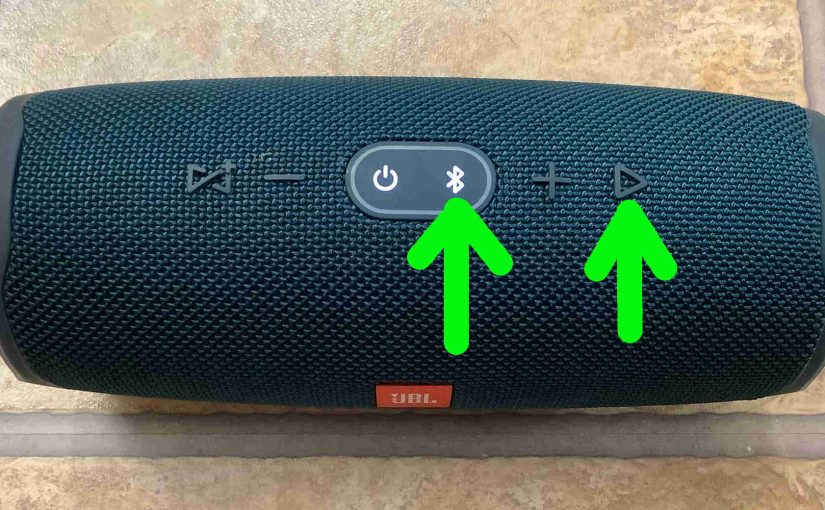
Image source: Bing (Web (fair-use with source credit))
Does your speaker have a dedicated battery check button?
Some speakers have a separate button marked with a battery icon. It’s usually a small circle with a lightning bolt or a battery outline. Press it once, and the LED flashes the current level.
If you see this button, that’s the fastest method. You don’t even need to have the speaker paired to your phone.
Does your speaker use a multi-function button?
If there’s no battery icon, the power button often doubles as the battery check button. On most models, a short press (not a long press) while the speaker is on triggers the LED. A long press typically turns the speaker off or enters pairing mode.
Try tapping the power button quickly. If the LED lights up, you’ve found your method.
Does your speaker have a companion app?
Many newer speakers, especially from major brands, offer a free app for iOS and Android. Open the app, and you’ll see the battery percentage on the main screen. This is the most accurate method, showing exact numbers instead of color ranges.
The app also often includes firmware updates and EQ settings.
Does your speaker show battery on your phone’s Bluetooth status bar?
Both iOS and Android display battery levels for connected Bluetooth devices. On an iPhone, swipe down to the Control Center and look for the battery widget. On Android, pull down the notification shade and look at the Bluetooth icon.
This method is convenient but not always accurate. Some speakers don’t report battery data to the phone at all.
If you’re not sure which method your speaker uses, check the user manual. Most manufacturers also list this information on their product page. If you’ve lost the manual, a quick online search with your model number will usually bring up a PDF.
How to Interpret LED Colors and Patterns
Once you’ve triggered the battery check, the LED gives you a quick snapshot. But the color meanings can vary between brands. Here’s the general rule, plus a few common exceptions.

Image source: Bing (Web (fair-use with source credit))
Standard color codes:
- Green: 60% or higher. You’re good for several hours of playback.
- Yellow or Amber: 20% to 60%. You’ve got some charge left, but not a full day.
- Red: Below 20%. Time to charge soon.
- Flashing red: Critical. Usually below 10%. The speaker may shut off within minutes.
Some speakers use a different system. For example, a few budget models use a single blue LED that stays solid when the battery is healthy and starts flashing when it’s low. Others use a row of four or five LEDs.
Each dot represents roughly 20% or 25% of the battery. When all dots are lit, the battery is full. As each dot goes dark, the charge drops.
What about the charging indicator?
Don’t confuse the charging light with the battery level light. While charging, many speakers show a red LED that turns green when full. This is not the same as the battery check indicator.
The charging light only tells you the status of the charging process, not the current charge level during playback.
A quick tip: If you’re outdoors in bright sunlight, cup your hand over the LED to see the color clearly. Direct sunlight washes out the light, making it look white or invisible.
How to Use Voice Prompts for Battery Status
Some mini sound boxes skip the LED entirely and use voice prompts instead. This is especially common on speakers designed for hands-free use or for people with limited vision.
When you turn on the speaker or press the battery check button, a voice says something like “Battery high,” “Battery medium,” or “Battery low.” A few models announce the exact percentage: “Battery 80 percent.”
Voice prompts are triggered the same way as LED checks. Try the power button short press. If you hear a voice instead of seeing a light, that’s your method.
Some speakers also announce the battery level automatically when you pair them or when the battery drops below a certain threshold.
Which models use voice prompts?
In our research, voice prompts are more common on speakers with built-in microphones, like those designed for speakerphone calls. They’re also found on some outdoor and rugged models, where a visible LED might be hard to see.
The downside is that the voice can be quiet in noisy environments. If you’re at a party or outdoors, you might miss the announcement. Some speakers let you adjust the voice volume, but not all do.
Language note: Many budget speakers use a generic English voice, even if the product is sold in non-English markets. The phrasing is usually simple, so it’s easy to understand. If you hear a different language, check the manual for a voice language setting.
Some models let you switch.
If you’re dealing with a speaker that won’t give any battery feedback at all, you might be facing a different issue. Fixing distorted sound or other audio quality issues can sometimes reveal a deeper battery problem, but for now, focus on the indicator method that works for your model.
How to Check Battery Level via the Companion App
If your speaker has a dedicated app, this is the most accurate way to check remaining charge. The app shows a precise percentage, not just a color range. You get numbers you can actually trust.
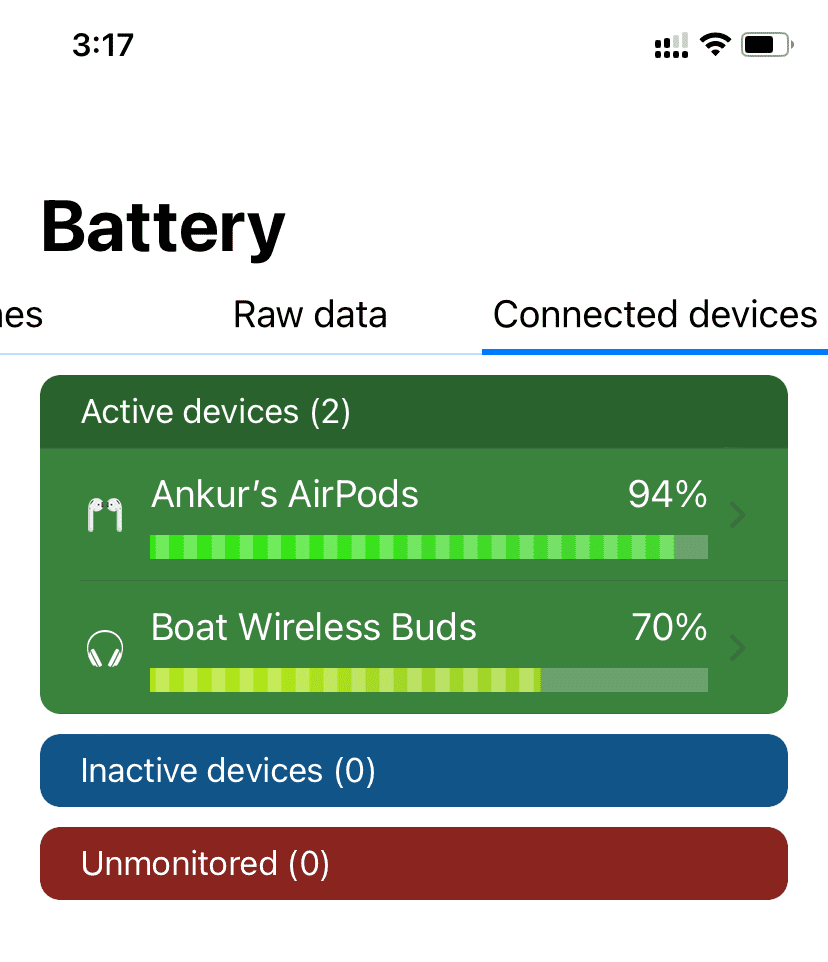
Image source: Bing (Web (fair-use with source credit))
Start by downloading the manufacturer’s app from the App Store or Google Play. Pair your speaker to your phone first if you haven’t already. Open the app, and the battery level usually appears on the home screen or in a settings tab.
Some apps also display estimated remaining playback time. That’s calculated from the current battery percentage and your volume level. Louder playback drains faster, so the estimate adjusts as you change the volume.
Which speakers have companion apps?
In our research, speakers priced above $30 are more likely to include app support. Budget models under $20 often skip the app entirely. The app also gives you access to firmware updates, which can fix indicator bugs and improve battery reporting accuracy.
One thing to watch out for. The app needs to stay connected to the speaker via Bluetooth. If you walk out of range or the connection drops, the app can’t update the reading.
Keep your phone within 30 feet for a reliable check.
How to Read the Battery Icon on Your Phone's Bluetooth Menu
Both iOS and Android can show battery levels for connected Bluetooth devices. This is a passive method. You don’t need to press any buttons on the speaker itself.
On an iPhone, open the Control Center by swiping down from the top right. Look for the Batteries widget. Your speaker should appear there with a small battery icon and a percentage.
This only works if the speaker reports battery data over Bluetooth.
On Android, pull down the notification shade. The Bluetooth icon in the status bar may show a small battery indicator next to the device name. Some Android phones also list the battery level in the Bluetooth settings menu under “Connected devices.”
Is this method accurate?
It depends on the speaker. Aggregate reviews report that some speakers send accurate data, while others always show 100% or never report at all. This is a firmware limitation, not a phone issue.
If your speaker shows the wrong level in the phone menu, use the speaker’s own indicator instead.
The advantage here is convenience. You can check the battery without touching the speaker. The disadvantage is that the update isn’t real time.
The phone only refreshes the reading when you reconnect or when the speaker sends a new status packet. That might be every few minutes, not every few seconds.
Common Mistakes to Avoid When Checking Battery
A few simple errors can throw off your reading. Here’s what to watch for.
Checking while the speaker is charging.
Most speakers disable the battery check LED during charging. The light shows the charging status instead. If you press the battery button while plugged in, you’ll see a red or green charging light, not the actual battery level.
Unplug the speaker first, then check.
Misreading the LED color in bright light.
Direct sunlight washes out the LED. That green light looks white or pale yellow in direct sun. Cup your hand over the indicator or move into the shade to get a true reading.
Confusing the power button with the battery button.
On many speakers, a short press checks the battery and a long press turns the speaker off. If you hold the button too long, you’ll power down the speaker. Then you have to turn it back on and try again.
Tap, don’t hold.
Trusting the phone’s Bluetooth icon blindly.
As we covered earlier, the phone’s Bluetooth battery reading isn’t always accurate. Some speakers report incorrect data. Always verify with the speaker’s own indicator when you can.
If you’ve ever had a speaker suddenly die while the phone showed 30%, that’s why.
Forgetting to update the firmware.
An outdated firmware can cause the battery indicator to malfunction. Check the manufacturer’s app for updates. A firmware fix might resolve a speaker that shows the wrong level or no level at all.
Expert Tips for Getting Accurate Battery Readings Every Time
These tips come from manufacturer documentation and verified buyer feedback. They’ll help you get the most reliable reading from your speaker.
Let the speaker rest before checking.
Battery voltage sags under load. If you’re playing music at high volume, the voltage drops temporarily. That can make the indicator show a lower level than the actual charge.
Pause the music for 30 seconds, then check. The reading will be more accurate.
Check at the same time each day.
If you use your speaker regularly, check the battery at a consistent time. For example, check it when you first turn it on. That gives you a baseline.
Over time, you’ll learn how long a full charge lasts with your typical usage.
Use the app for precise numbers.
The LED indicator is a rough guide. The companion app gives you exact percentages. If you need to know whether you have 40% or 55%, open the app.
That extra precision matters when you’re planning a long listening session.
Keep the speaker’s firmware updated.
Manufacturers release firmware updates that improve battery management and indicator accuracy. Some updates fix bugs where the LED shows the wrong color. Check the app every few months for updates.
Know your speaker’s typical runtime.
If you know your speaker lasts about 8 hours at medium volume, you can estimate battery level based on how long you’ve been listening. That’s not a substitute for the indicator, but it’s a useful backup. If the indicator says 50% but you’ve only been playing for 30 minutes, something might be off.
When the Battery Indicator Seems Wrong: Troubleshooting
Sometimes the indicator just doesn’t match reality. You plug in the speaker, and it says green instantly. Or it shows red for hours even after charging.
Here’s how to diagnose the problem.
The speaker shows green immediately after plugging in.
This usually means the battery is already full. But if you know the battery was dead, the indicator is likely stuck. Try resetting the speaker.
Unplug it, turn it off, and leave it for 30 seconds. Then plug it back in and let it charge for an hour. The indicator should update.
The speaker shows red even after charging overnight.
This could be a bad charging cable or a faulty battery. Try a different cable and USB power source. If the indicator still shows red, the battery may need replacement.
The speaker might still work while plugged in, but the internal battery is degraded.
The indicator jumps from green to red in minutes.
That’s a classic sign of battery aging. Lithium-ion cells lose capacity over time. A battery that once lasted 10 hours might only last 2 hours after a few years of use.
The indicator is still accurate, but the usable capacity has shrunk. If you’re dealing with a speaker that won’t hold a charge, a guide on fixing a speaker that won’t charge properly might help.
The LED doesn’t light up at all when you press the button.
First, make sure the speaker is powered on. If it’s off, the battery check won’t work. If the speaker is on and the LED still doesn’t light, the LED itself might be damaged.
Some speakers also have a setting that turns off the LED to save power. Check the manual for a “LED off” mode.
The app shows a different level than the LED.
Trust the app. The LED uses color thresholds, which are less precise. The app reads the actual voltage and calculates a percentage.
If the two disagree by more than 20%, the speaker might need a firmware update.
How to Keep Your Battery Healthier (so the indicator stays accurate)
A healthy battery gives you reliable readings. A degraded battery confuses the indicator and dies sooner.
Avoid deep discharges. Lithium-ion cells last longest when you keep them between 20% and 80% charge. Letting the battery drop to zero regularly shortens its lifespan. Plug in your speaker when the LED turns red, not when it shuts off.
Don't leave it plugged in forever. Most speakers stop charging when full, but trickle charging generates heat. Heat degrades battery cells. Unplug the speaker once the charging light turns green or after a few hours.
Store it at half charge. If you won't use your speaker for a month or more, store it with about 50% charge. Storing a fully charged or fully drained battery accelerates aging. Keep it in a cool, dry place too.
Heat is the enemy of lithium-ion cells.
Use the right charger. Stick to a 5V 1A or 2A USB adapter. High-speed chargers designed for phones can push too much current for a small speaker battery. The battery management system handles most of the risk, but consistent overcurrent can stress the cell.
Frequently Asked Questions
How do I check battery level without a button?
If your speaker has no button, it likely uses a companion app or a phone Bluetooth indicator. Open the app or check your phone's Bluetooth settings. Some speakers also show the level on the LED when you power them on.
Why does my speaker show 100% but die in 30 minutes?
That's a sign of battery aging. The indicator reports the voltage, which reads full immediately after charging. But the actual capacity has dropped.
The battery can't hold energy anymore. It may need replacement.
Can I replace the battery in my mini sound box?
Some models allow battery replacement, but most budget speakers have the battery soldered to the circuit board. Check your manual or search for a teardown guide. If the battery is glued in, replacement is risky and may damage the speaker.
Does the LED drain the battery when checking?
The LED consumes a tiny amount of power. A quick press to check the battery uses less than 0.1% of the total charge. You won't notice any difference in runtime.
Why does my speaker show different levels on the app and the LED?
The app reads a more precise voltage measurement. The LED uses broad color thresholds. A difference of 10% to 15% is normal.
If the gap is larger, try a firmware update.
How often should I check the battery?
Check it before each use if you're heading out. For home use, check it once a day or when you notice the volume dropping. Regular checks help you avoid sudden shutdowns.
Your Decision Guide: Which Method Should You Use?
Here's a quick way to decide based on your situation.
| If you want… | Use this method |
|---|---|
| The fastest check | Press the power button (short tap) |
| The most accurate reading | Open the companion app |
| A hands-free check | Listen for the voice prompt |
| A quick glance without touching the speaker | Check your phone's Bluetooth status bar |
| A check in bright sunlight | Cup your hand over the LED or use the app |
That's it. You now know every way to check your mini sound box battery. Pick the method that fits your speaker and your habits.
You'll never get caught with a dead speaker again.

Similar Posts





















