How To Charge Macbook Fast Tips For Quick Charging

How to Charge MacBook Fast: A Complete Guide
Understanding Your MacBook Power Needs
To charge your MacBook quickly, you first need to understand its power requirements. Different MacBook models have varied battery capacities, which influence charging speed. For example, a MacBook Air may require less power than a MacBook Pro, so the time to full charge can differ. Knowing the wattage of your charger is essential. Higher wattage chargers can deliver more power, resulting in faster charging times. MacBooks typically come with chargers ranging from 30W to 96W, depending on the model. Using the correct wattage charger is key for optimal and rapid charging.Choosing the Right Charger for Fast Charging
The most effective way to speed up your MacBook’s charge is to use a charger that matches or exceeds your device’s requirements. For example, newer MacBooks support fast charging with a 67W or higher charger.- Apple’s Official Chargers: Always opt for original Apple chargers or certified third-party options. These ensure safety and maximum compatibility.
- Power Delivery (PD) Compatibility: Choose chargers that support Power Delivery, a fast-charging protocol supported by MacBooks.
Using the Correct Cable and Port
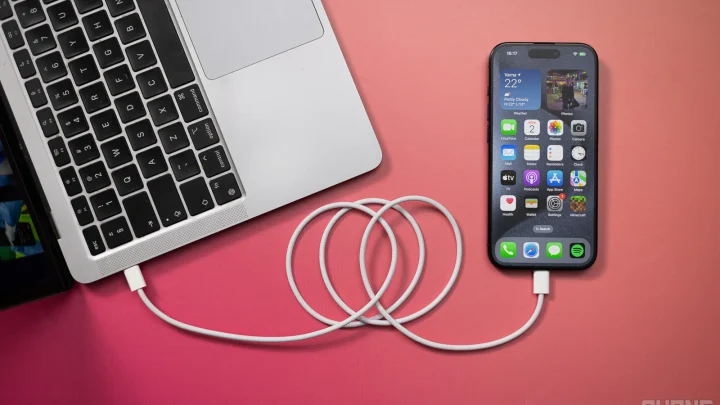
The cable you use can significantly impact charging speed. High-quality USB-C cables that support higher wattages allow for faster charging.- USB-C to USB-C Cables: Use these for most recent MacBook models. Ensure they support Power Delivery and high wattage transfer.
- Check for Certification: Use certified cables to avoid damage or slow charging caused by subpar quality.
Optimize Your MacBook Settings for Fast Charging
Adjusting some settings can help your MacBook charge faster.Disable Unnecessary Features
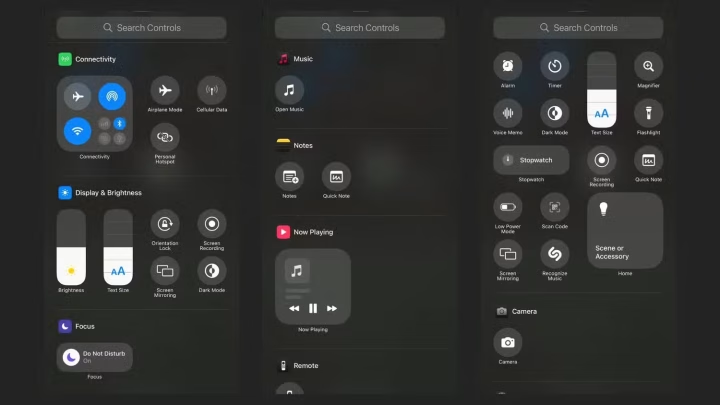
Turn off features like Bluetooth, Wi-Fi, and background apps that drain power. This reduces demand on the battery during charging.Enable Low Power Mode
If your MacBook supports it, activating Low Power Mode minimizes background activity and maximizes charging efficiency.Ensure Proper Charging Environment
Environmental factors can influence charging performance.Temperature Control
Charge your MacBook in a cool, well-ventilated area. Excessive heat can slow down charging and harm the battery.Avoid Charging in Extreme Conditions
Avoid charging in very cold or hot environments, which can impair battery efficiency and slow down the process.Maintaining Battery Health for Optimal Charging
A healthy battery charges faster and lasts longer.- Keep the Battery Between 20% and 80%: Avoid letting the battery drain completely or stay fully charged for extended periods.
- Update macOS: Keep your operating system updated, as software improvements often include battery management enhancements.
- Use Battery Management Features: Enable features like Optimized Battery Charging to prolong battery health, indirectly maintaining charging performance.
Additional Tips for Maximizing Charging Speed
Here are some extra tricks to get your MacBook charging as quickly as possible.Close Unnecessary Apps and Processes
Running multiple apps can consume power and slow down charging. Shut down or minimize background apps during charging.Use a Wall Outlet Instead of a Hub or Extension Cord
Plug your charger directly into a wall outlet to ensure maximum power flow. Avoid using power strips or extension cords that might limit wattage.Monitor Charging Progress
Keep an eye on your MacBook’s battery indicator. If it gets warm or the charging slows down, disconnect and reconnect the charger.Comparing Charging Methods: Wired vs Wireless
While wired charging is faster and more reliable, wireless charging options are emerging.Wired Charging
Provides the fastest and most consistent charge. Use high wattage, certified cables, and a matching charger for quick results.Wireless Charging
Currently slower but convenient. For faster wireless charging, ensure you use a compatible MagSafe or Qi-certified charger designed for MacBooks.Common Mistakes That Slow Down Charging
Avoid these pitfalls for faster charging.- Using Non-Certified Cables or Chargers: These can reduce charging speed and pose safety risks.
- Charging in Hot or Cold Environments: Extremes can impair battery function.
- Running Heavy Apps During Charging: They increase power demand, slowing down charging time.
Summary of Best Practices for Fast Charging MacBook
To recap, follow these pointers for rapid and safe charging:- Use a certified high-wattage charger compatible with your MacBook model.
- Connect with high-quality, Power Delivery-supporting USB-C cables.
- Ensure your environment is cool and well-ventilated.
- Disable unnecessary functions and background processes.
- Keep your software updated and follow battery health tips.
Frequently Asked Questions
What settings should I adjust to charge my MacBook more quickly?
To charge your MacBook faster, disable any background apps and processes that consume high power. Adjust your display brightness to a lower setting and disconnect unnecessary peripherals. Additionally, enabling airplane mode can prevent network activity from slowing down the charging process, allowing the battery to replenish more swiftly.
Does using a higher wattage charger speed up the charging process?
Yes, using a charger with a higher wattage compatible with your MacBook model can significantly improve charging speed. Ensure that the charger meets Apple’s specifications for your device to avoid potential damage. Using the correct high-wattage charger ensures your MacBook charges efficiently without risking hardware issues.
Is it better to keep my MacBook connected to power during heavy usage for faster charging?
Keeping your MacBook plugged in during intensive tasks supports faster charging because the device draws more power from the charger to meet its demands. However, avoid overloading the battery by keeping it on charge continuously for extended periods, as this may impact long-term battery health.
Are there specific accessories that help charge a MacBook faster?
Yes, using certified USB-C or MagSafe chargers designed for your MacBook can provide faster charging. Additionally, employing high-quality, compatible charging cables ensures efficient power transfer, reducing charging time. Always choose accessories that meet safety standards to protect your device.
Can adjusting display brightness influence charging speed?
Reducing your MacBook’s display brightness during charging can help conserve power and potentially accelerate battery recovery. Since the display consumes a significant portion of power, lowering its brightness minimizes overall energy usage, enabling your MacBook to charge more efficiently.
Final Thoughts
To charge your MacBook fast, use a higher wattage charger compatible with your device. Connect it directly to a power source and avoid using the MacBook during charging to speed up the process. Enable battery saver mode or close unnecessary apps to reduce power consumption. In conclusion, knowing how to charge MacBook fast involves using the right charger and optimizing your device’s settings. Following these tips ensures quick and efficient charging, saving you valuable time.
Similar Posts