How To Change Ipad Password: Step-By-Step Guide

How to Change iPad Password: A Step-by-Step Guide
Changing your iPad password is an important step to keep your device secure. Whether you’ve forgotten your current password or just want to update it for safety reasons, this process is straightforward. In this guide, we’ll walk you through every step in detail to help you change your iPad password with ease.Why Should You Change Your iPad Password?
Many users underestimate the importance of updating their passwords regularly. Changing your password can prevent unauthorized access if someone else learns your current code. It also helps protect your personal information, photos, and sensitive data stored on your device.Prerequisites Before Changing Your Password
Before you proceed, ensure the following:- Your iPad is charged or connected to power.
- You remember your current password or have access to your Apple ID credentials.
- Your device is connected to the internet if you’re using iCloud or iCloud Keychain services.
How to Change iPad Password via Settings
The easiest way to change your password is through the Settings app. Follow these simple steps:Step 1: Open the Settings App
Tap on the Settings icon on your iPad home screen. It looks like a gear symbol.Step 2: Access Face ID, Touch ID & Passcode
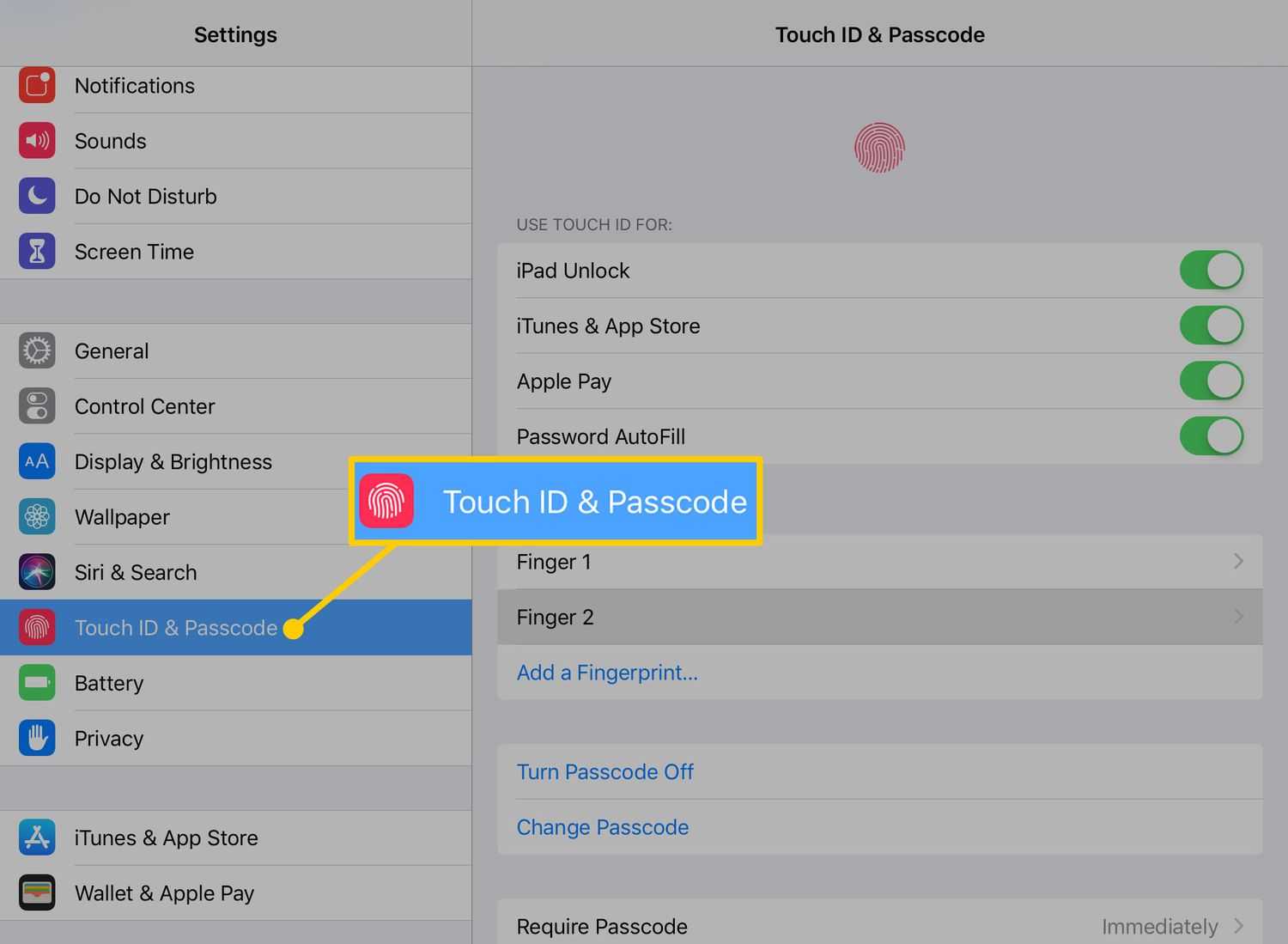
Scroll down and tap on Face ID & Passcode or Touch ID & Passcode. The text varies depending on your iPad model.Step 3: Enter Your Current Passcode
To proceed, you’ll be prompted to input your current password. Enter it carefully. If you don’t remember it, you’ll need to reset your device.Step 4: Tap on Change Passcode
Once inside the menu, tap on Change Passcode. You’ll be asked to verify your identity again for security purposes.Step 5: Enter Your Old Passcode
Input your current password. This step confirms that you’re authorized to make changes.Step 6: Create a New Passcode
Enter a new passcode. For better security, consider using a six-digit number or an alphanumeric code if your device supports it.Step 7: Confirm the New Passcode
Re-enter your new password when prompted. Once confirmed, your password will be updated immediately.Different Types of Passcodes You Can Set
Depending on your iPad model and iOS version, you may be able to select from various passcode options:- Six-digit numeric code: Common and secure for most users.
- Four-digit numeric code: Easier to remember but less secure.
- Custom alphanumeric code: Combines letters and numbers for enhanced security.
- Custom Numeric Code: Allows you to set a longer numeric code.
Using Face ID or Touch ID to Change Passcode
If your iPad supports biometric authentication, you can use Face ID or Touch ID to change your passcode quickly.Step 1: Enable Face ID or Touch ID
Navigate to Settings > Face ID & Passcode or Touch ID & Passcode. Make sure the feature is turned on, and your biometric data is registered.Step 2: Access Change Passcode
Follow the previous steps to open the change passcode menu. When prompted, authenticate using Face ID or Touch ID.Step 3: Set a New Passcode
Once authenticated biometrically, you can set a new passcode like in the previous method.Troubleshooting Common Issues When Changing Passcodes
Sometimes, users encounter problems during this process. Here are solutions to common issues:Forgot Your Current Passcode
If you forgot your current passcode, you need to erase your device and restore from backup. Follow these steps:- Connect your iPad to a computer with iTunes (Windows or macOS Mojave and earlier) or use Finder (macOS Catalina and later).
- Put your device into recovery mode by pressing specific buttons (refer to your model’s instructions).
- Choose ‘Restore’ to erase all data and settings.
- Set up your iPad again and restore from backup.
Unable to Change Passcode Due to Restrictions
Restrictions or parental controls might block passcode changes. Verify these settings in Settings > Screen Time > Content & Privacy Restrictions.Encountering Error Messages During Change
If errors appear, try restarting your iPad. Updating iOS to the latest version can also fix glitches related to security features.Using iCloud to Change Your Password Remotely
If you cannot access your device physically, you can change your passcode via iCloud. However, this method involves erasing your device, so back up important data first.Step 1: Visit iCloud.com
Log in to your iCloud account using your Apple ID and password.Step 2: Find Your iPad
Select Find iPhone, then choose All Devices and find your iPad in the list.Step 3: Erase Your iPad
Click on Erase iPad. This will wipe all data, including the old passcode.Step 4: Set Up Your iPad Again
After erasing, set up your device from scratch or restore from a previous backup.Best Practices for Creating a Strong iPad Password
A good password helps keep your device secure. Here are some tips:- Use a blend of letters, numbers, and symbols for complex passwords.
- Avoid obvious choices like birthdates or simple sequences.
- Change your passcode periodically to enhance security.
- Enable biometric authentication for quick access without compromising security.
- Keep your Apple ID credentials secure and up to date.
Summary of Key Points
To change your iPad password successfully:- Go to Settings > Face ID & Passcode or Touch ID & Passcode.
- Enter current passcode for verification.
- Select Change Passcode.
- Input your new passcode, then confirm.
How To Change Passcode On iPad! (2023)
Frequently Asked Questions
Can I change my iPad password without erasing all data?
Yes, you can change your iPad password without deleting any data. To do this, go to the Settings app, tap on “Face ID & Passcode” or “Touch ID & Passcode” depending on your device, then select “Change Passcode.” Follow the prompts to set your new password.
What steps should I follow if I forget my current iPad password?
If you forget your current password, you need to reset your iPad through recovery mode. Connect your iPad to a computer, open iTunes (or Finder on Mac), force restart your device, and choose the option to restore. Keep in mind this process erases your data, so ensure you have a backup.
Is it possible to set a longer or more complex password on my iPad?
Absolutely. When changing your passcode, you can select “Passcode Options” to choose a custom alphanumeric code. This allows you to set a longer and more secure password, enhancing the security of your device.
How can I enable automatic password changes on my iPad for better security?
While iPads don’t automatically change passwords regularly, you can enhance security by regularly updating your passcode and enabling features like Face ID or Touch ID. Regularly reviewing your security settings can help keep your device protected.
What precautions should I take before changing my iPad password?
Before changing your password, back up your data to iCloud or a computer. Ensure you know your current password so you can log in to your account if needed afterward. Avoid using easily guessable passwords to maintain strong security.
Final Thoughts
To change your iPad password, go to Settings and tap on Face ID & Passcode. Enter your current passcode, then select Change Passcode. Follow the prompts to create a new, secure password. Remember, keeping your password strong protects your data and privacy. If you forget your password, you can reset it through your Apple ID. In conclusion, knowing how to change iPad password helps you maintain security easily. Follow these simple steps to update your passcode whenever needed, ensuring your device remains protected.
Similar Posts































