How To Change Apple Id Of Ipad: Step-By-Step Guide

How to Change Apple ID of iPad: Step-by-Step Guide
Understanding Why You Might Need to Change Your Apple ID
Changing your Apple ID can be necessary for several reasons. You might want to switch accounts when you get a new email address or want to use a different account for personal or work purposes. Sometimes, users face issues with their current Apple ID, such as login problems or needing access to a different country’s content.Preparing Your iPad Before Changing Your Apple ID
Before making any changes, ensure your iPad is backed up. This helps protect your data during the transition. You can back up your device via iCloud or iTunes to keep all your photos, apps, and settings safe.Check Your Current Apple ID
To verify which account you’re using, go to Settings and tap your name at the top. Your Apple ID appears under your profile picture. This helps confirm the account you want to change.Sign Out of Your Current Apple ID
Navigate to Settings, tap your name, then scroll down and select Sign Out. Enter your Apple ID password when prompted. This logs you out, freeing your device for a new account.How to Change Apple ID on iPad: Step-by-Step Instructions
Follow these steps carefully to successfully switch your Apple ID on your iPad.Step 1: Sign Out of Your Existing Apple ID
Go to Settings, tap your name, and select Sign Out. Confirm your action by entering your password. Make sure you have your Apple ID credentials ready.Step 2: Decide on the New Apple ID
Choose whether to create a new Apple ID or use an existing one. If creating new, visit the Apple website or app to sign up with a new email address.Step 3: Create a New Apple ID (if needed)
Open Safari, go to the Apple ID account creation page, and follow on-screen instructions. Enter your email, set a password, and add security questions.Step 4: Sign Into Your New Apple ID
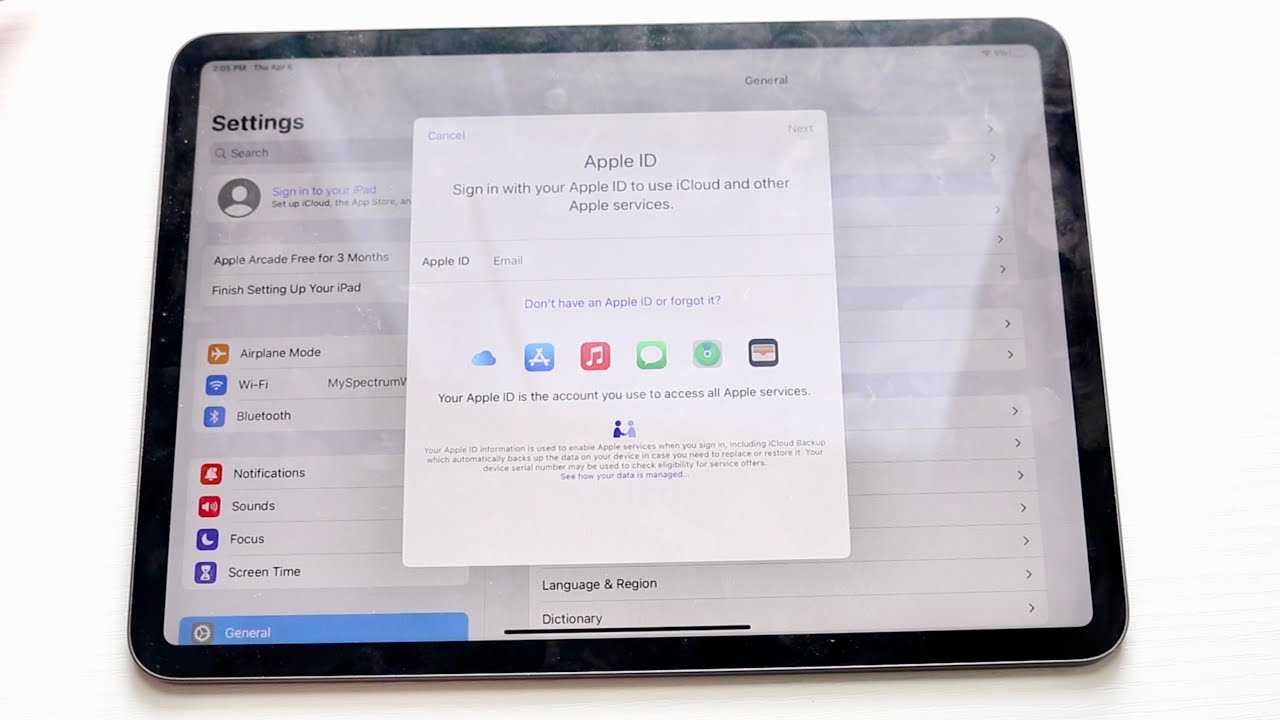
Go to Settings, tap Sign In to your iPad, and input your new Apple ID credentials. Follow prompts to verify your account via email or security questions.Step 5: Merge Data or Keep Separate
Apple prompts you to merge data from your previous account or keep the data separate. Choose the option that best suits your needs.Troubleshooting Common Issues When Changing Apple ID
Changing your Apple ID can sometimes lead to hiccups. Here are common problems and their solutions.Unable to Sign Out of Apple ID
If you cannot sign out, turn off Find My iPad under Settings > [your name] > Find My. You may need to enter your Apple ID password.Lost Access to Apple ID Email
Visit Apple’s account recovery page to reset your password or recover your email if you lost access.Problems with App Store Purchases
After changing your Apple ID, you might encounter issues with previous purchases. Refresh your purchase history under Settings > iTunes & App Store.Additional Tips for a Smooth Transition
Changing the Apple ID on your iPad becomes easier if you follow some best practices.Update Your Contact Information
Make sure your new Apple ID has updated contact details to prevent login issues.Check for Pending Updates or Downloads
Complete any ongoing downloads or updates before switching accounts to prevent data loss.Review Your Subscriptions
Subscriptions tied to your old Apple ID may need to be canceled or transferred to the new account.How Changing Your Apple ID Affects Your iPad
Switching Apple IDs can impact your device in various ways.Access to Purchased Apps and Media
You may lose access to apps or media purchased with the old account unless you merge data during sign-in.iCloud Data and Backup
Data stored in iCloud, like contacts and photos, depends on your account choice. Always back up beforehand.Device Activation and Security
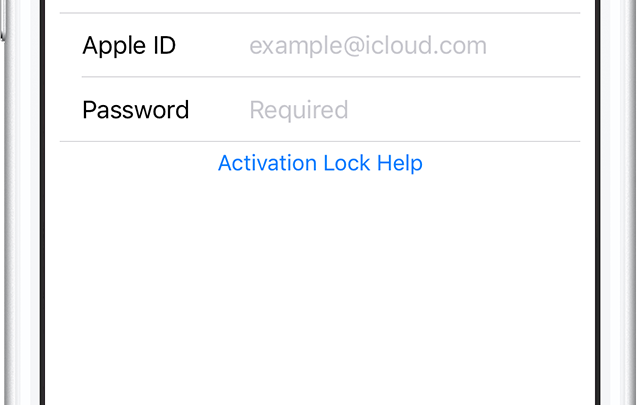
Changing accounts requires verifying your identity, especially if you have Find My turned on, to keep your device secure.Understanding Apple ID and iCloud Account Management
Managing your Apple ID involves more than just signing in and out.Linking Devices to Your Apple ID
Ensure all your devices are linked properly to your new account to sync contacts, calendars, and photos seamlessly.Sharing Apple ID with Family Members
If you use Family Sharing, changing your Apple ID affects shared purchases and subscriptions. Adjust sharing settings accordingly.Managing Multiple Apple IDs
It’s best to keep one primary Apple ID for consistent access but understand how to switch when necessary.Related Topics: Apple ID Security and Privacy
Protect your account during and after the change.Enable Two-Factor Authentication
Adding extra security helps keep your account safe during the transition.Update Security Questions and Recovery Options
Always review and update these details to ensure easy account recovery if needed.Beware of Phishing Scams
Be cautious of emails or links claiming to be from Apple asking for your credentials. Changing the Apple ID on your iPad is a straightforward process when prepared properly. Keep your credentials handy, back up your data, and follow step-by-step instructions. Always consider how the switch impacts access to purchased content and iCloud data. With careful planning, you can seamlessly transition to a new Apple ID and continue enjoying your device without issues.How To Change Apple ID On iPad – Full Guide
Frequently Asked Questions
What steps should I take before changing the Apple ID on my iPad?
Before changing your Apple ID, ensure you back up all your important data, such as photos, contacts, and app data. Sign out of any services or subscriptions linked to your current Apple ID to prevent issues. Additionally, verify that your iPad is connected to a stable Wi-Fi network and has enough battery life to complete the process without interruptions.
How do I sign out of my current Apple ID on the iPad?
Go to Settings, tap on your Apple ID banner at the top, then scroll down and select “Sign Out.” You may be prompted to enter your Apple ID password to turn off “Find My iPad” and confirm signing out. Follow the on-screen instructions to complete the process safely.
What should I do if I can’t sign out of my current Apple ID?
If you encounter issues signing out, check your internet connection and ensure you have the correct password. If “Find My iPad” is enabled, disable it first by entering your Apple ID password. Restart your device and attempt to sign out again. If problems persist, contact Apple Support for further assistance.
Is it necessary to deactivate iCloud or other services before changing the Apple ID?
Yes, it’s recommended to sign out of iCloud and other Apple services linked to your current account before switching to a new Apple ID. This step helps prevent syncing issues or data loss. Make sure to save any important data stored in iCloud before signing out.
Can I update my Apple ID directly on the iPad without signing out?
No, you cannot change your Apple ID without signing out first. To update the Apple ID, you need to sign out of your current account and then sign in with the new credentials. This process ensures your device links correctly to the new Apple ID and associated services.
Final Thoughts
To change the Apple ID of your iPad, first go to Settings and tap on your current Apple ID. Then select “Sign Out” and confirm your choice. After signing out, sign in with the new Apple ID credentials. Ensure you back up your data before making changes to avoid losing important information. In summary, changing the Apple ID of your iPad involves signing out and then signing in with the new account. This process is simple and helps keep your device linked to the right account.
Similar Posts