How To Change Your Ipad Name For Better Device Management
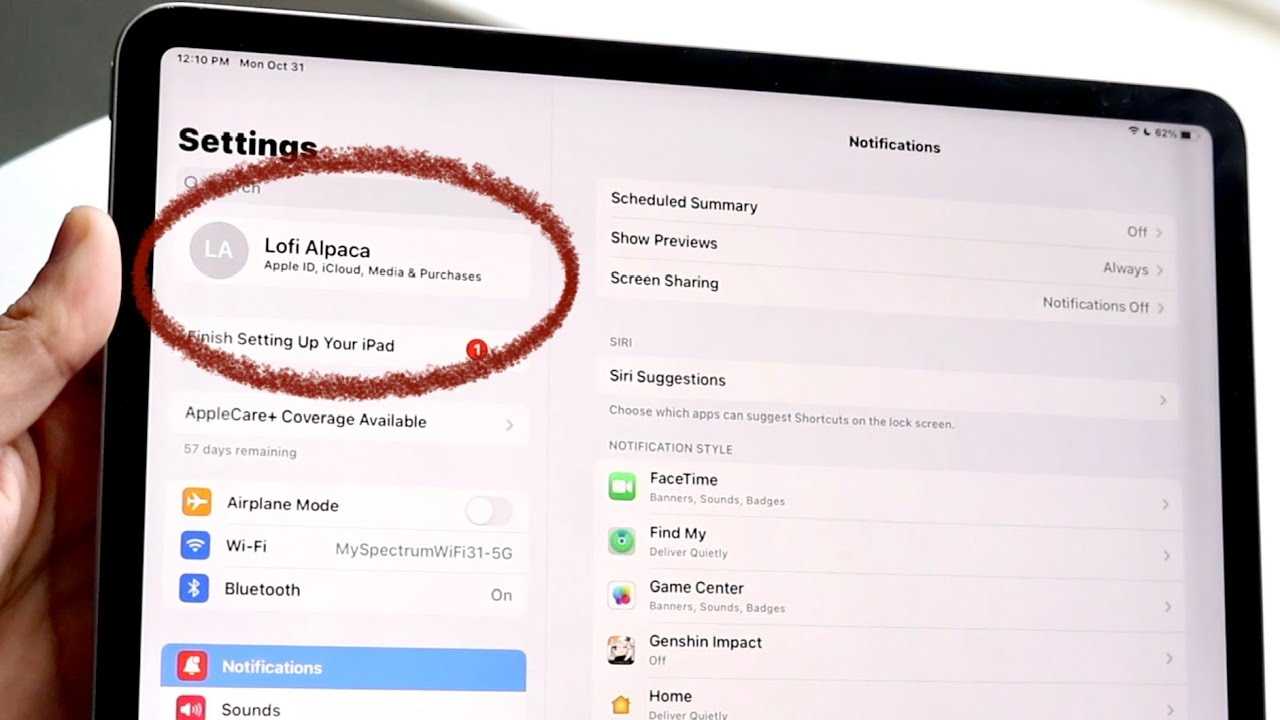

How to Change Your iPad Name: A Complete Guide
Changing the name of your iPad can make it easier to identify your device, especially when connecting to Wi-Fi, Bluetooth devices, or iCloud services. Whether you want a fun name, a professional label, or simply prefer something different, this process is straightforward. Let’s explore all the methods and tips to change your iPad’s name quickly and easily.Why Change Your iPad Name?
Changing your iPad’s name helps you manage multiple devices, especially if you own more than one. It can also improve the connection process with Bluetooth devices or Wi-Fi networks by clearly distinguishing your device. Additionally, a personalized name adds a touch of personality to your iPad experience.How to Change Your iPad Name Using Settings
The most direct way to change your iPad’s name is through the Settings app. Follow these steps:Step 1: Open the Settings App
Tap the Settings icon on your home screen to launch the app. The icon looks like gray gears.Step 2: Tap on ‘General’
Scroll down and select the ‘General’ option. This section contains most of your device’s basic settings.Step 3: Select ‘About’
At the top of the General menu, find and tap ‘About.’ This page displays your device’s current name along with other details.Step 4: Tap on ‘Name’
Tap the first item at the top labeled ‘Name.’ You’ll see your current device name displayed in a text box.Step 5: Enter a New Name
Use the keyboard to type in the new name you want for your iPad. Make it fun, professional, or simply recognizable.Step 6: Confirm the Change
Tap ‘Done’ on the keyboard or simply go back. Your new device name saves automatically.How to Change Your iPad Name Using a Computer
If you prefer using a computer, you can update your iPad’s name via iTunes (Windows or older macOS versions) or Finder (macOS Catalina and later).Using Finder (macOS Catalina and later)
- Connect your iPad to your Mac with a USB cable.
- Open Finder and locate your device in the sidebar.
- Click on your iPad’s name or icon.
- Click on the field displaying your current name.
- Type the new name and press ‘Enter’ to save.
Using iTunes (Windows or macOS Mojave and earlier)
- Connect your iPad to your PC or Mac with a USB cable.
- Open iTunes and wait for your device to appear.
- Click on the device icon.
- On the Summary tab, click on the current device name.
- Enter the new name and click ‘Done’ or press ‘Enter.’
Best Practices for Naming Your iPad
When choosing a new name, keep these tips in mind:- Select a name that’s easy to remember.
- Avoid using personal information for privacy reasons.
- Make it fun or professional based on your use.
- Stay within 20 characters for best compatibility.
Related Topics: Customizing Your iPad Experience
Besides changing the device name, you might want to explore other customization options, such as:Changing Wallpaper
Choose a background that fits your style. Go to Settings > Wallpaper > Choose New Wallpaper.Setting Up Widgets
Add useful widgets to your home screen for quick access. Tap and hold the home screen, then tap ‘+’ to add new widgets.Adding Shortcut Icons
Create shortcuts for your favorite apps or websites using the Shortcuts app. This can improve your workflow or browsing experience.Additional Tips for Managing Your iPad
Ensure your device stays secure and organized with these tips:- Regularly update to the latest iPadOS version for security and features.
- Use a passcode or Face ID for security.
- Back up your data periodically via iCloud or iTunes.
- Organize your apps into folders for a cleaner look.
Troubleshooting Common Issues When Changing Your iPad Name
Sometimes, changing the device name might not seem to work immediately. Here are quick solutions:Restart Your iPad
A simple restart can solve minor glitches. Hold the power button and slide to power off, then turn it back on.Check Your Connection
Ensure your iPad is connected to Wi-Fi or your computer properly during the process.Update Your Software
Make sure your iPad runs the latest iPadOS version by navigating to Settings > General > Software Update.Reattempt the Name Change
Sometimes a second try helps. Repeat the steps and ensure you save your changes.Summary: Making Your iPad Truly Yours
Changing your iPad’s name is simple but impactful. It enhances device management and personalizes your experience. Use the Settings app for quick changes or connect to a computer for more control. By following these comprehensive steps, you can effortlessly update your device’s name whenever needed. Remember to choose a name that suits your style and needs, and explore other customization options to make your iPad uniquely yours.How To Change iPad Name!
Frequently Asked Questions
Can I change my iPad’s name without connecting to a computer?
Yes, you can change your iPad’s name directly on the device. Go to Settings, tap on “General,” then select “About.” Tap on the current device name and enter your preferred new name. Confirm the change, and your iPad will display the updated name.
What steps should I follow to update my iPad’s name through iCloud?
To change your iPad’s name via iCloud, sign in to your iCloud account on a computer or another device. Navigate to “Find iPhone,” select your iPad from the device list, and click on “Rename.” Enter a new name and save the changes, which will sync with your device automatically.
Will changing my iPad’s name affect any of my apps or data?
No, altering your iPad’s name does not impact your apps, data, or settings. It only updates the device’s display name used for identification in network connections, iCloud, and other services.
Is it possible to revert to the original iPad name after changing it?
Yes, you can revert to your previous or default name by following the same steps used to change it. Simply go to Settings, tap “General,” then “About,” select the current name, and enter the desired original or new name to update.
How do I change my iPad’s name if I reset it to factory settings?
If you reset your iPad to factory settings, it will revert to the default device name. After setup, you can personalize the name again by accessing Settings > General > About and editing the name field. This helps you identify your device easily in networks and other services.
Final Thoughts
To change your iPad name, begin by opening the Settings app. Tap on your Apple ID banner at the top of the screen, then select “Name, Phone Numbers, Email.” Next, tap “Name” and enter your preferred device name. After entering the new name, confirm your changes by tapping “Done.” This update will reflect across your connected services and devices. In conclusion, understanding how to change your iPad name helps personalize your device and improve connectivity. Follow these simple steps to update your device name quickly and easily.
Similar Posts































