How To Change Passwords On Ipad Tips For Secure Access

How to Change Passwords on iPad: A Complete Guide
Understanding the Importance of Changing Your iPad Password
Changing your iPad password regularly is essential for keeping your device secure. It prevents unauthorized access and protects your personal information. Whether you suspect someone knows your password or you just want to upgrade your security, knowing how to change your password is crucial.Preparing to Change Your iPad Password
Before changing your password, ensure your device is updated to the latest iOS version. This ensures compatibility and access to all security features. Also, remember your current password, as you’ll need it to make changes in settings.How to Change Your iPad Password via Settings
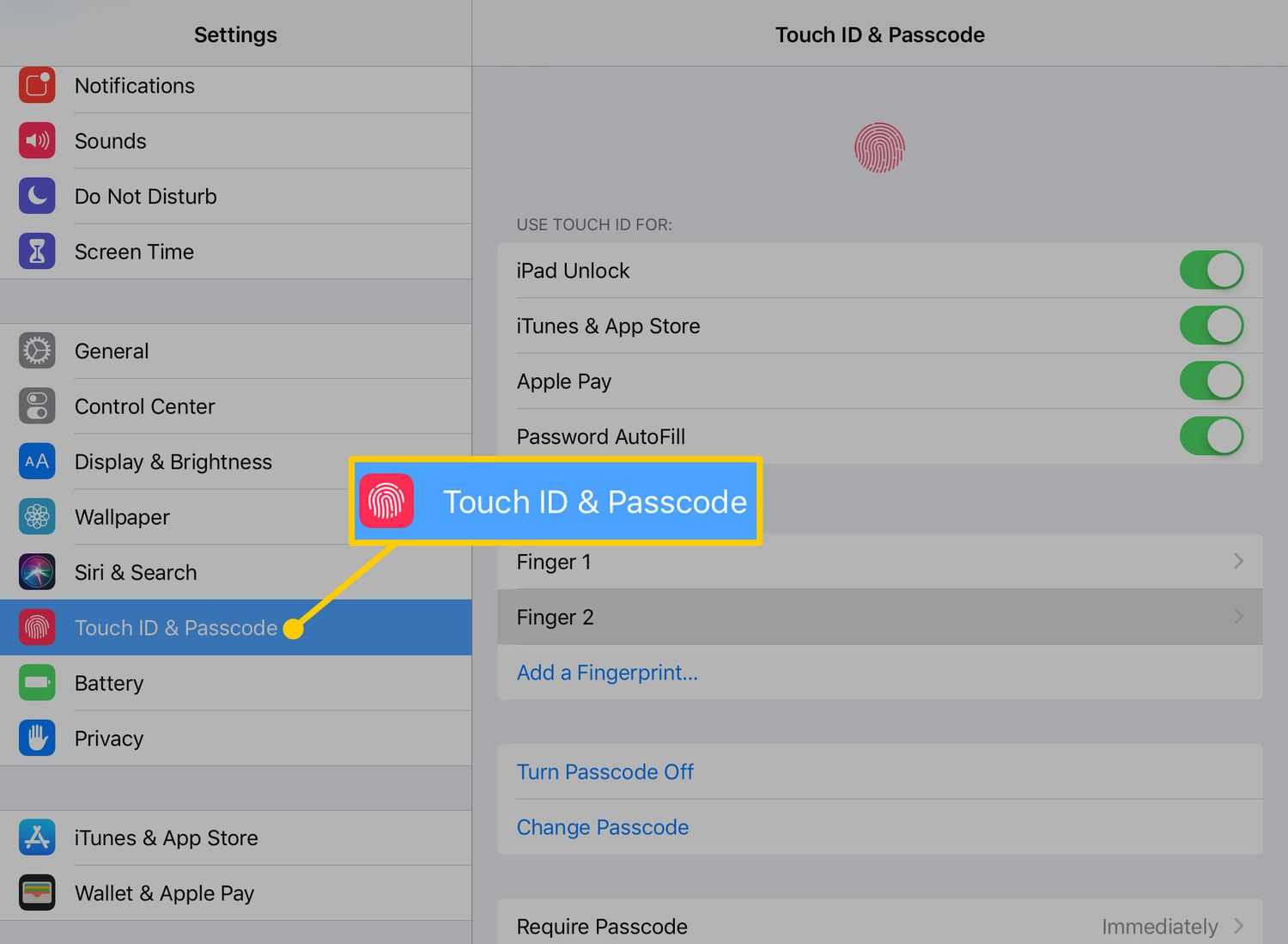
Changing your password through the device settings is the most straightforward method. Follow these steps carefully:- Unlock your iPad and open the Settings app. This is usually represented by a gear icon.
- Scroll down and tap on Touch ID & Passcode or Face ID & Passcode, depending on your device model.
- Enter your current password when prompted.
- Tap on Change Passcode.
- Enter your old passcode again for verification.
- Type in your new passcode. You can choose a 6-digit code, a 4-digit code, or a custom alphanumeric code for higher security.
- Confirm your new passcode by entering it again.
- Your password is now updated. Make sure to remember your new passcode for future use.
Alternative Methods to Change Your iPad Password
While the Settings app is the main method, other options exist, especially if you forget your current password.Using Find My iPad (if you forgot your password)
If you are locked out, you can erase your device using Find My iPad:- Visit iCloud.com on your computer or another device.
- Log in with your Apple ID credentials.
- Click on Find iPhone and select your iPad from the list of devices.
- Choose Erase iPad. This deletes all data and settings, including the forgotten password.
- After erasing, set up your iPad again and assign a new password during the setup process.
Restoring Your iPad with Recovery Mode
If Find My iPad isn’t available, recovery mode offers another way:- Connect your iPad to a computer with the latest version of iTunes or Finder (Mac).
- Put your iPad into recovery mode. For different models, the process varies (see specific instructions below).
- On iPad with Face ID: Press and quickly release volume up, then press and quickly release volume down. Then press and hold the top button until the recovery mode screen appears.
- On iPad with Home button: Press and hold both the Home and top buttons simultaneously until the recovery mode screen appears.
- When prompted on your computer, choose Restore. This deletes all data and resets your device.
- Set up your iPad again, creating a new password during setup.
Important Tips for Choosing a Strong Password
Selecting the right password enhances your device’s security. Here are some tips:- Use a mix of uppercase and lowercase letters.
- Include numbers and special characters.
- Make it at least 8 characters long.
- Avoid common words, personal information, or simple sequences.
Enabling Two-Factor Authentication for Enhanced Security
Two-factor authentication adds an extra layer of security:- Go to Settings >Apple ID >Password & Security.
- Tap on Two-Factor Authentication.
- Follow on-screen instructions to enable it.
Managing Passwords for Multiple Accounts on iPad
Your iPad stores passwords for various apps and websites. Managing these is just as important:- Open the Settings app and select Password & Accounts.
- Tap on Passwords or AutoFill Passwords.
- Use Face ID, Touch ID, or your current password to view saved credentials.
- Update or delete passwords as needed.
Using Password Managers for Better Security
Password managers store and generate complex passwords easily:- Choose a reputable app like LastPass, Bitwarden, or 1Password.
- Sync your passwords across devices securely.
- Use the password generator feature to create strong passwords when changing or creating new accounts.
Best Practices for Secure Password Management on iPad
To keep your passwords safe, follow these best practices:- Never share your passwords with others.
- Update passwords regularly, especially if you notice suspicious activity.
- Avoid using the same password for multiple accounts.
- Enable biometric authentication (Face ID or Touch ID) for quick and secure access.
- Keep your device’s software up to date to patch security vulnerabilities.
How To Change Passcode On iPad! (2023)
Frequently Asked Questions
What steps should I follow to change my Apple ID password on an iPad?
To change your Apple ID password on an iPad, open the Settings app and tap on your name at the top. Select “Password & Security,” then tap “Change Password.” Enter your current device passcode when prompted, and then create a new password. Confirm your new password, and tap “Change” to finalize the process.
How can I update my saved passwords for apps and websites on my iPad?
Go to Settings and select “Passwords.” Use Face ID, Touch ID, or your device passcode to access your saved passwords. Browse the list or use the search bar to find the specific account. Tap on it, then tap “Edit” if necessary, and update your password details accordingly. Save the changes to ensure your credentials are current.
Is it possible to change my Wi-Fi password directly from my iPad?
You cannot change your Wi-Fi password directly from the iPad. Instead, access your Wi-Fi router’s settings through a web browser by entering its IP address, usually found on the router or in its manual. Log in with your administrator credentials, locate the Wi-Fi settings, and update your password. After saving, reconnect your iPad using the new password.
How do I reset my password if I forget it on my iPad?
If you forget your device password, try entering the wrong password multiple times until the option to erase appears. Alternatively, connect your iPad to a computer with iTunes (or Finder on Mac) and follow the prompts to restore the device. This process will erase all data, so ensure you have a backup before proceeding. After resetting, you can set up your iPad anew and create a new password.
Can I set up a different password for my device and Apple ID?
Yes, you can set a passcode for your iPad separate from your Apple ID password. To do this, go to Settings, tap “Face ID & Passcode” or “Touch ID & Passcode,” and then set a new device passcode. Your Apple ID password remains unchanged unless you update it specifically within the “Password & Security” section of Settings. Use distinct passwords for added security and ease of management.
Final Thoughts
Changing passwords on your iPad is simple and quick. First, open the Settings app and tap on your Apple ID at the top. Select “Password & Security,” then choose “Change Password.” Follow the prompts to verify your identity and create a new password. Always use a strong, unique password to keep your account secure. Regularly updating your passwords protects your personal information from unauthorized access. In conclusion, knowing how to change passwords on iPad helps maintain your privacy and security. Keep your account safe by updating your password whenever needed.
Similar Posts































