Mini Sound Box for Laptop: Yes or No?
Of course you can. Most mini speakers work with laptops right out of the box. The real question is which connection method fits your specific laptop and what you're trying to do with it.
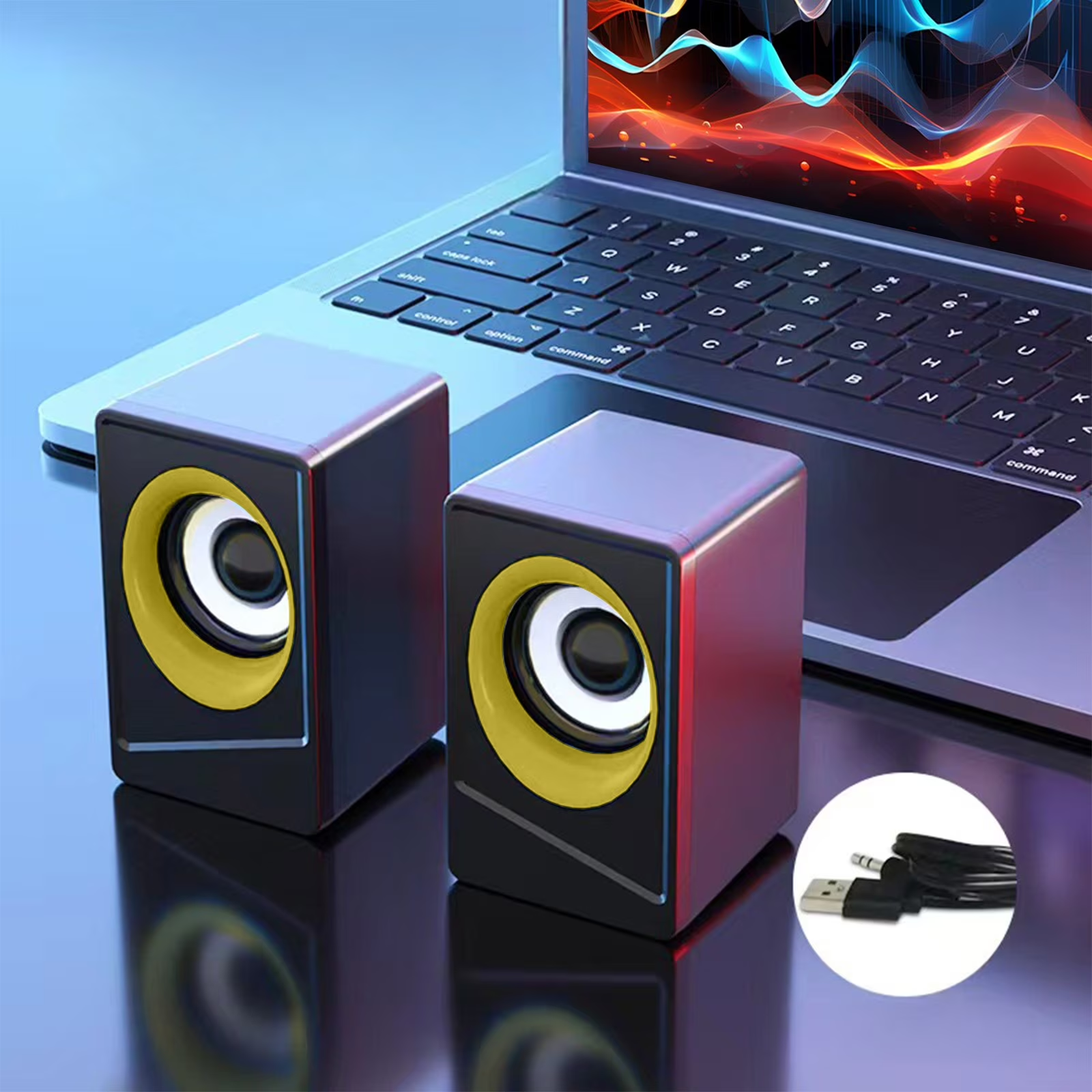
Here's the thing, a mini sound box is essentially a portable speaker. It's designed to connect to phones, tablets, and yes, laptops. In our research, the vast majority of models support Bluetooth, a 3.5mm aux input, or both.
As of 2026, even budget speakers under $20 include Bluetooth 5.0 or higher, which provides a stable connection at up to 30 feet. The only real friction points come down to your laptop's available ports, the audio latency you can tolerate, and whether you want a wired or wireless setup. Let's walk through each scenario so you know exactly what to expect.
Quick Answer
Yes, you can use a mini sound box with a laptop. Most connect via Bluetooth or a 3.5mm aux cable. Check your laptop's ports first.
If it has Bluetooth, pairing takes under a minute. If it has a headphone jack, plugging in is instant. For newer laptops without a jack, use a USB-C to 3.5mm adapter or a Bluetooth dongle.
Audio latency is the main downside with Bluetooth, especially for video and gaming.
Does Your Laptop Have the Right Ports? (Bluetooth vs. 3.5mm vs. USB-C)
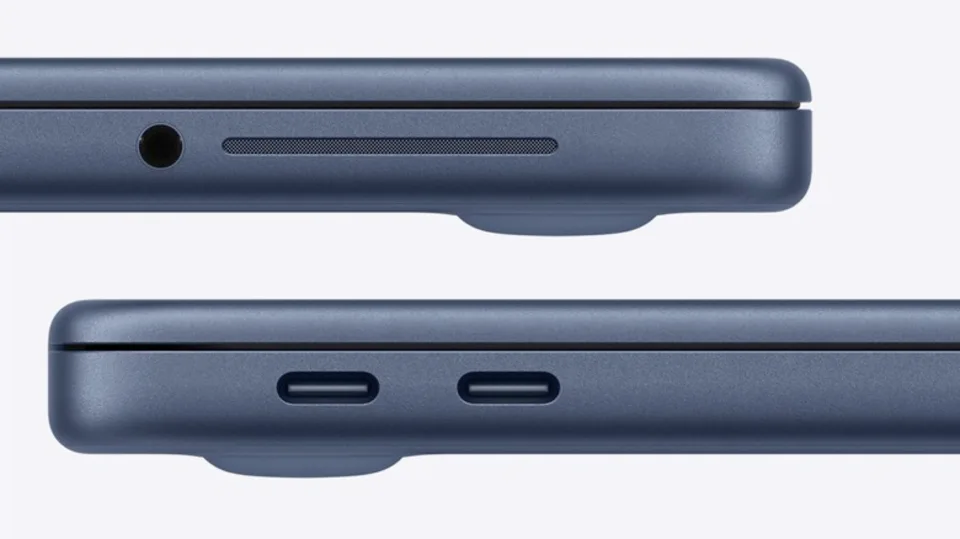
Before you do anything else, look at the sides of your laptop. What you find there determines which connection methods are available to you.
(Image shows a laptop side with a 3.5mm headphone jack and USB-C ports clearly visible.)
Scenario A: Your laptop has a 3.5mm headphone jack. This is the easiest route. The vast majority of mini sound boxes include a 3.5mm aux cable in the box. Plug one end into the speaker, the other into your laptop's headphone jack, and you're done.
No pairing, no drivers, no latency.
Scenario B: Your laptop has Bluetooth built in. Almost every laptop made after 2016 includes Bluetooth. Look for the Bluetooth icon in your system tray (Windows) or menu bar (macOS). If you see it, you can pair wirelessly.
This is convenient, but it introduces a small delay between the audio and video.
Scenario C: Your laptop has neither. This is rare, but some ultra-thin laptops and Chromebooks have dropped the headphone jack entirely. If that's your situation, you have two options: a USB-C to 3.5mm adapter, or a Bluetooth USB dongle. Both cost under $15 and work with any mini speaker.
If you're unsure what your laptop has, check the manufacturer's spec sheet online. Or just look at the ports, the 3.5mm jack is the small round one, usually marked with a headphone icon. If you're still trying to figure out what a mini sound box actually is, we've covered that in detail in our guide to what a mini sound box is.
Bluetooth Pairing: When It's Easy and When It's Not
Bluetooth pairing is straightforward most of the time. But it can get frustrating when it doesn't work. Here's what to expect.
The easy scenario: You turn on the speaker, put it in pairing mode (usually holding the power button or a dedicated Bluetooth button for 3 seconds), and it shows up in your laptop's Bluetooth menu. You click it, and within 10 seconds, you hear a confirmation tone. That's it.
The speaker remembers your laptop, so next time you just turn it on and it reconnects automatically.
The tricky scenario: Your laptop doesn't discover the speaker. Or it connects but no sound comes out. Or it keeps disconnecting.
These are the most common Bluetooth headaches.
If you run into the pairing process, we have a full guide on how to pair a mini sound box with Bluetooth that covers the troubleshooting steps in detail. But here are the quick fixes:
- Make sure the speaker is in pairing mode. Most speakers flash a blue or red light to indicate they're ready to pair.
- Remove the speaker from your laptop's Bluetooth device list and start fresh.
- Check that your laptop's Bluetooth is turned on. It sounds obvious, but it's easy to toggle it off accidentally.
- If the speaker connects but no audio plays, right-click the speaker icon in your system tray, select "Open Sound Settings," and make sure the mini speaker is set as your default output device.
When Bluetooth is a bad choice: If you're gaming, watching videos, or doing video calls, Bluetooth introduces a noticeable delay. We'll get into that in a moment. For music listening, though, Bluetooth is perfectly fine.
If you're dealing with frequent disconnections, our guide on why your mini sound box disconnects frequently covers the most common causes and fixes.
The Aux Cable Route: Simple, Reliable, No Latency
If you want the simplest possible setup with zero audio delay, use an aux cable. This is the wired connection method, and it's almost foolproof.

(Image shows a 3.5mm aux cable plugged into both a laptop and a mini speaker.)
What you need: A 3.5mm aux cable. Most mini speakers come with one in the box. If yours didn't, they cost about $5 to $10 for a decent braided one.
The cable length matters, for a desk setup, 3 feet is plenty. For a living room setup, 6 feet gives you more flexibility.
How to set it up:
- Plug one end of the aux cable into the speaker's AUX IN port.
- Plug the other end into your laptop's headphone jack.
- Turn on the speaker. Most speakers auto-detect the aux input and switch to it automatically.
- Adjust the volume on both the speaker and your laptop. Start with the speaker at medium volume, then adjust from your laptop.
Why this is better than Bluetooth for most people:
- Zero latency. The audio is perfectly synced with the video every time.
- No pairing. You plug it in, it works. No menus, no passwords, no troubleshooting.
- No battery drain. The speaker uses less power in aux mode because it's not running Bluetooth.
- Better sound quality. The aux cable carries an analog signal that doesn't compress the audio like Bluetooth does.
The downside: You're tethered to your laptop. The cable limits how far you can move the speaker. For a desk setup, this rarely matters.
For a room where you want the speaker on a shelf across the room, Bluetooth is more convenient.
If you're wondering about sound quality, our analysis of whether a mini sound box can produce good bass explains what you can realistically expect from a small speaker.
What If Your Laptop Has No Headphone Jack? (USB-C Adapters and Bluetooth Dongles)
Modern ultrabooks, MacBooks, and some Chromebooks have ditched the 3.5mm headphone jack. If your laptop is one of them, you have two solid workarounds.
Option 1: USB-C to 3.5mm adapter
This is the simplest fix. You buy a small adapter that plugs into your laptop's USB-C port and gives you a standard headphone jack. They cost between $8 and $15.
Most are about the size of your thumb and work with any aux cable.
Here's what to look for in an adapter:
- Built-in DAC: Some cheap adapters don't have a proper digital-to-analog converter, which can cause static or low volume. Look for adapters that mention "built-in DAC" in the specs.
- USB-C male to 3.5mm female: This is the standard format. One end plugs into your laptop, the other accepts the aux cable.
- Compatibility: Most adapters work with Windows, macOS, and Chrome OS. Check the product page to confirm.
To use it, plug the adapter into your laptop's USB-C port, plug the aux cable into the adapter, and you're done. The laptop treats it as a standard audio output.
Option 2: Bluetooth USB dongle
If your laptop doesn't have Bluetooth, or if its built-in Bluetooth is old and unreliable, you can buy a Bluetooth USB dongle. These are tiny receivers that plug into a USB-A or USB-C port and add Bluetooth capability to any laptop.
A good Bluetooth dongle costs $10 to $20. Look for one that supports Bluetooth 5.0 or higher. Older versions (4.0, 4.2) work but have shorter range and worse audio quality.
To set it up, plug the dongle into your laptop. Windows and macOS will automatically install the drivers. Then pair your mini speaker the same way you would with built-in Bluetooth.
Which option should you choose?
If you care about audio sync and don't mind the cable, go with the USB-C adapter. It's cheaper, simpler, and has zero latency.
If you want the convenience of wireless and don't mind a small audio delay, go with the Bluetooth dongle. It's better for music listening and desk cable management.
If you're on a budget and wondering whether a cheap speaker is worth it, our take on whether a budget sound box is worth buying might help you decide.
Audio Lag: The Biggest Problem with Bluetooth for Video and Gaming
Here's the thing nobody tells you about Bluetooth speakers. The audio and video can drift out of sync. This is called latency, and it's the main reason some people hate using Bluetooth with a laptop.
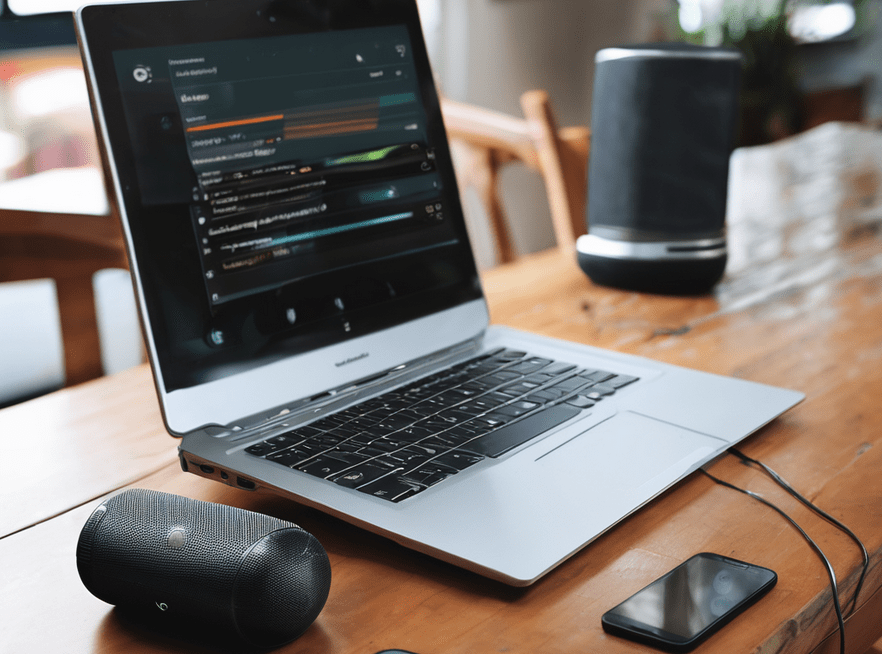
(Image shows a laptop playing a video with a Bluetooth speaker nearby, illustrating the setup where audio lag can cause lip-sync issues.)
How bad is the delay? Standard Bluetooth audio has a latency of 150 to 300 milliseconds. That's noticeable. When someone on screen speaks, you hear their voice a fraction of a second later.
For movies, this is annoying. For video calls, it's awkward. For gaming, it can be a dealbreaker.
Why does this happen? Bluetooth compresses the audio, transmits it wirelessly, and then decompresses it. That process takes time. The speaker's hardware also adds a small buffer.
The result is a delay between what you see and what you hear.
When is it a problem? Here's a quick breakdown:
| Activity | Latency tolerance | Bluetooth verdict |
|---|---|---|
| Casual music listening | 100ms+ | Fine |
| Watching movies | Under 50ms | Noticeable delay |
| Video calls | Under 30ms | Annoying echo |
| Gaming (casual) | Under 40ms | Playable but off |
| Gaming (competitive) | Under 20ms | Not recommended |
When is it not a problem? If you're just playing background music while you work, the delay doesn't matter. You're not watching the source. The audio just needs to sound good, and Bluetooth compression is fine for casual listening.
If you run into audio sync issues, switching to an aux cable solves it instantly. That's the simplest fix. But if you want to stick with wireless, there are other options.
How to Fix Bluetooth Latency (AptX, Low-Latency Codecs, and Workarounds)
You can reduce Bluetooth latency, but it requires the right hardware. Both your laptop and your speaker need to support the same low-latency codec.
The codec chain matters. Bluetooth audio works through codecs. These are compression algorithms that shrink the audio data for wireless transmission. The standard codec is SBC, which has higher latency.
Better codecs include:
- AptX Low Latency (AptX LL): Reduces latency to about 40 milliseconds. This is the gold standard for video and gaming. Both your laptop and speaker need to support it.
- AptX Adaptive: Adjusts latency based on what you're doing. When you're watching video, it drops to low-latency mode. When you're listening to music, it prioritizes quality.
- AAC: Common on Apple devices. Latency is better than SBC but not as good as AptX LL.
- LDAC: Sony's high-quality codec. Great for music, but latency is similar to SBC.
Can you add AptX to a laptop? Maybe. Some laptops support AptX through their Bluetooth chipset. You can check by going into your Bluetooth settings and looking for codec information.
If your laptop doesn't support it, you can buy a USB Bluetooth dongle that supports AptX LL. These cost $15 to $30.
A simpler workaround: Use the speaker's aux input. If your speaker has a 3.5mm jack, plugging in a cable bypasses Bluetooth entirely. The latency drops to zero.
This is the cheapest and most reliable fix.
A software workaround: Some media players let you add a manual audio delay. You can shift the audio forward or backward to match the video. VLC media player has this feature under "Audio > Audio Delay." It's a band-aid, not a fix, but it works.
Step-by-Step Setup: From Box to Sound
Let's run through the full setup process. Whether you're using Bluetooth or aux, the steps are straightforward.
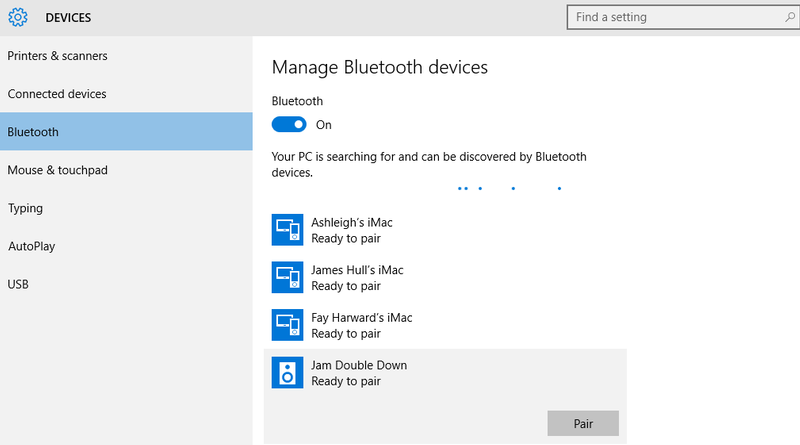
(Image shows a laptop screen with Bluetooth settings panel open and a mini speaker in pairing mode nearby.)
1. Power On and Pair the Speaker
Turn on the speaker by pressing the power button. Usually, you hold it for 2 to 3 seconds. If the speaker has a Bluetooth button, press it to enter pairing mode.
Most speakers flash a blue or red light to indicate they're ready.
If you're having trouble with the pairing process, our guide on how to pair a mini sound box with Bluetooth covers the step-by-step details for different speaker models.
2. Connect via Bluetooth or Cable
For Bluetooth: Open your laptop's Bluetooth settings. On Windows, go to Settings > Bluetooth & devices. On macOS, go to System Preferences > Bluetooth.
Find your speaker in the list and click "Pair" or "Connect."
For aux cable: Plug one end into the speaker's AUX IN port and the other into your laptop's headphone jack. Turn on the speaker. It should automatically switch to aux mode.
If not, press the mode button until you see "AUX" on the display.
3. Set the Speaker as Your Default Audio Device
After connecting, your laptop should automatically switch audio to the speaker. If it doesn't, right-click the speaker icon in your system tray (Windows) or menu bar (macOS). Select "Open Sound Settings" or "Sound Preferences." Under "Output," choose your mini speaker.
4. Test and Adjust Volume Levels
Play a short video or song. Check that the audio is coming from the speaker. Adjust the volume on both the speaker and your laptop.
A good rule of thumb is to set the speaker volume to about 70 percent and use your laptop for fine adjustments.
If the speaker is too quiet even at full volume, our guide on how to increase volume on a mini sound box has some practical tips.
Common Mistakes to Avoid (And What to Do Instead)
Mistakes happen. Here are the most common ones we see with mini sound box setups, and how to avoid them.
Mistake 1: Leaving the speaker in pairing mode. If you don't connect within a minute or two, most speakers time out. They stop being discoverable. You have to restart the pairing process.
Always have your laptop's Bluetooth menu open before you put the speaker in pairing mode.
Mistake 2: Plugging the aux cable into the wrong port. Some speakers have a USB charging port and an AUX IN port that look similar. Check the labels. Plugging the aux cable into the USB port won't work and could damage the port.
Mistake 3: Not charging the speaker first. A dead speaker won't pair. Charge it fully before your first use. Most speakers take 2 to 3 hours to charge.
If yours isn't charging, our guide on how to fix a mini sound box not charging can help.
Mistake 4: Forgetting to adjust the laptop's audio output. The speaker connects, but no sound comes out. This is almost always because the laptop is still sending audio to its built-in speakers. Check your sound settings and select the mini speaker as the output device.
Mistake 5: Using Bluetooth for video calls. The latency makes you sound delayed. If you're on a Zoom call, use the aux cable. It's not just about what you hear.
The other person hears you with a delay if your speaker's microphone is in use.
When a Mini Sound Box Won't Cut It (And What to Use Instead)
Mini sound boxes are great for many things. They're not great for everything. Here's when you should consider a different approach.
Scenario 1: Large rooms. A mini speaker can't fill a living room or a classroom. Its small driver and limited battery mean it runs out of volume fast. If you need to fill a space larger than a typical bedroom, look for a larger Bluetooth speaker or a set of powered bookshelf speakers.
Scenario 2: Professional audio work. If you're editing audio or video, you need accurate sound. Mini speakers color the sound. They boost bass and cut treble to sound more impressive.
That's fine for casual listening but terrible for mixing. Use studio monitors or good headphones instead.
Scenario 3: Competitive gaming. The latency issue we discussed makes Bluetooth a poor choice for fast-paced games. Even with AptX LL, the delay is noticeable in shooters and rhythm games. Use a wired gaming headset or wired speakers.
Scenario 4: Extended use without recharging. Mini speakers typically last 6 to 12 hours on a charge. If you work all day, you'll need to recharge by lunch. Consider a speaker that can play while plugged in, or keep a charging cable at your desk.
If you're trying to decide whether a mini speaker is right for your daily routine, our take on whether a mini sound box is good for daily use covers the main pros and cons based on typical usage patterns.
Real Scenarios: Student, Remote Worker, Gamer, Traveler
Student in a dorm room. You want better sound than your laptop speakers without disturbing your roommate. A mini speaker on your desk with an aux cable works perfectly. Keep the volume reasonable and you're good.
Remote worker on video calls. Use the aux cable. Bluetooth latency makes you sound delayed on Zoom calls. If your speaker has a built-in microphone, test it first.
Some mini speakers have terrible mic quality.
Casual gamer. For single-player games, a Bluetooth speaker is fine. The audio delay is noticeable but not game-breaking. For competitive shooters, stick with headphones.
Traveler. A mini speaker is great for hotel rooms. Bluetooth is more convenient when you're moving around. Just remember to pack the charging cable.
Frequently Asked Questions
Can I use a mini sound box with a laptop that has no Bluetooth?
Yes. Use a 3.5mm aux cable if your laptop has a headphone jack. If it doesn't, buy a USB-C to 3.5mm adapter or a Bluetooth USB dongle.
Both cost under $15.
Will a mini sound box sound better than my laptop speakers?
Almost always. Most laptop speakers are tiny and lack bass. A mini speaker has a larger driver and enclosure.
The difference is significant, especially at higher volumes.
Can I leave my mini speaker plugged in all the time?
Most modern speakers have overcharge protection, so it's safe. But it can degrade the battery over time. If you always use it at your desk, consider a speaker that runs on USB power instead of battery.
Why does my mini speaker keep disconnecting from my laptop?
Bluetooth interference is the most common cause. Move your laptop and speaker closer together. Remove other Bluetooth devices from the list.
If the problem persists, check our guide on frequent disconnections.
Does a mini sound box work with a Chromebook?
Yes. Chromebooks support Bluetooth and 3.5mm audio just like Windows and macOS laptops. The setup process is the same.
Open settings, pair the speaker, and select it as the output device.
Final Verdict: Should You Use a Mini Sound Box with Your Laptop?
Yes, in most cases. A mini sound box is a cheap, portable upgrade to your laptop's built-in audio. The best setup depends on what you're doing.
For music and casual use, Bluetooth is fine. For video calls and gaming, use the aux cable. For laptops without a headphone jack, a USB-C adapter solves the problem.
Avoid mini speakers if you need to fill a large room, do professional audio work, or play competitive games.
The bottom line is simple. If your laptop's speakers sound weak and tinny, a mini sound box is the easiest fix. It takes two minutes to set up and costs less than dinner out.
Give it a try.

Similar Posts





















