

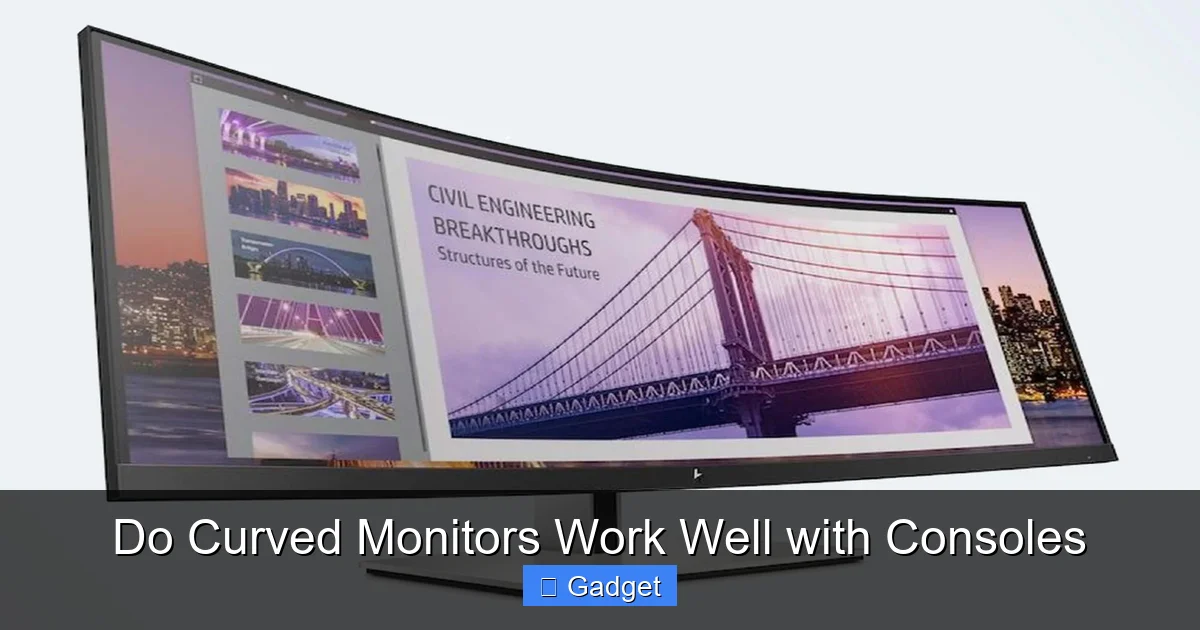
Curious if curved monitors enhance your console gaming experience? This guide dives deep into the pros and cons, helping you decide if a curved display is a worthwhile upgrade for your PlayStation, Xbox, or Nintendo Switch. We cover everything from visual immersion and eye comfort to potential compatibility issues and optimal setup, ensuring you make an informed choice for your next gaming setup. Get ready to unlock a more engaging way to play.
 The short answer is: yes, curved monitors generally work very well with consoles. The technology is quite compatible. Most modern consoles output standard video signals that any monitor, curved or flat, can interpret. The real question is *how well* they enhance your gaming experience. Let’s break down the benefits and drawbacks.
Curved monitors offer several compelling advantages that can significantly enhance your console gaming sessions.
While curved monitors offer many benefits, they aren’t without their potential downsides.
The short answer is: yes, curved monitors generally work very well with consoles. The technology is quite compatible. Most modern consoles output standard video signals that any monitor, curved or flat, can interpret. The real question is *how well* they enhance your gaming experience. Let’s break down the benefits and drawbacks.
Curved monitors offer several compelling advantages that can significantly enhance your console gaming sessions.
While curved monitors offer many benefits, they aren’t without their potential downsides.
Do Curved Monitors Work Well with Consoles
So, you’re thinking about upgrading your console gaming setup. Maybe you’re eyeing a new PlayStation 5 or an Xbox Series X, and you’re wondering if a curved monitor is the way to go. It’s a common question, and for good reason. Curved monitors have become increasingly popular, promising a more immersive and comfortable viewing experience. But do they actually deliver when it comes to console gaming? Let’s dive in and find out. In this comprehensive guide, we’ll explore the world of curved monitors and their compatibility with your favorite gaming consoles. We’ll break down the advantages, the potential drawbacks, and what you need to consider before making the switch. By the end, you’ll have a clear understanding of whether a curved monitor is the right choice for your gaming adventures.Contents
- 1 Key Takeaways
- 2 Understanding Curved Monitors
- 3 Do Curved Monitors Work Well with Consoles? The Big Question
- 4 Advantages of Using Curved Monitors with Consoles
- 5 Potential Drawbacks and Considerations
- 6 Setting Up Your Curved Monitor with Your Console
- 7 Troubleshooting Common Issues
- 8 Which Curved Monitor is Right for Your Console?
- 9 Conclusion: A Worthy Upgrade for Many
Key Takeaways
- Curved monitors offer increased immersion by wrapping the image around your field of view, pulling you deeper into the game.
- Eye comfort can be improved due to the reduced need for eye movement and a more natural viewing angle, especially during long gaming sessions.
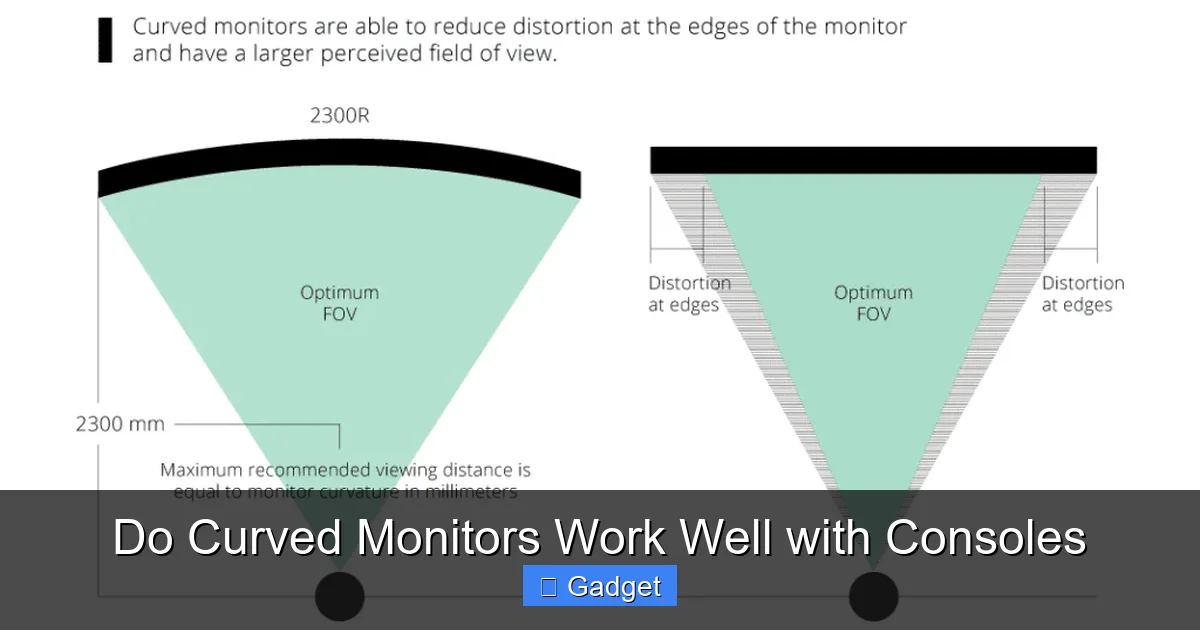
- Picture distortion is minimized on curved screens, particularly on ultrawide or larger displays, as the edges are angled towards the viewer.
- Compatibility with consoles is generally excellent, with most modern consoles supporting common resolutions and refresh rates needed for curved displays.
- Setup is straightforward, typically involving standard HDMI or DisplayPort connections, just like with flat monitors.
- The primary considerations are personal preference and budget, as the benefits are subjective and curved monitors can sometimes be pricier.
- Game design can influence the experience; games with wide field-of-view options or ultrawide support often benefit more from curved displays.
Understanding Curved Monitors
Before we talk about consoles, let’s quickly understand what makes a monitor curved. Unlike traditional flat screens, curved monitors have a subtle arc. This curvature is designed to mimic the natural curve of the human eye. The idea is to bring the edges of the screen closer to you, creating a more encompassing visual experience.The Science Behind the Curve
Think about how your eyes naturally perceive the world. They see in a curve, not a straight line. A curved monitor attempts to replicate this by drawing you into the center of the screen. This can make the game world feel larger and more engaging. It’s all about filling your peripheral vision a bit more.Common Curve Radii
You’ll see different numbers associated with curves, like 1800R, 1500R, or 1000R. These numbers indicate the radius of the curve in millimeters. A smaller number, like 1000R, means a tighter, more aggressive curve. A larger number, like 1800R, means a gentler, wider curve. Generally, tighter curves are more noticeable and immersive, especially on larger or ultrawide monitors.Do Curved Monitors Work Well with Consoles? The Big Question
Visual guide about Do Curved Monitors Work Well with Consoles
Image source: viewsonic.com
Advantages of Using Curved Monitors with Consoles
Visual guide about Do Curved Monitors Work Well with Consoles
Image source: cdn.shopify.com
1. Enhanced Immersion
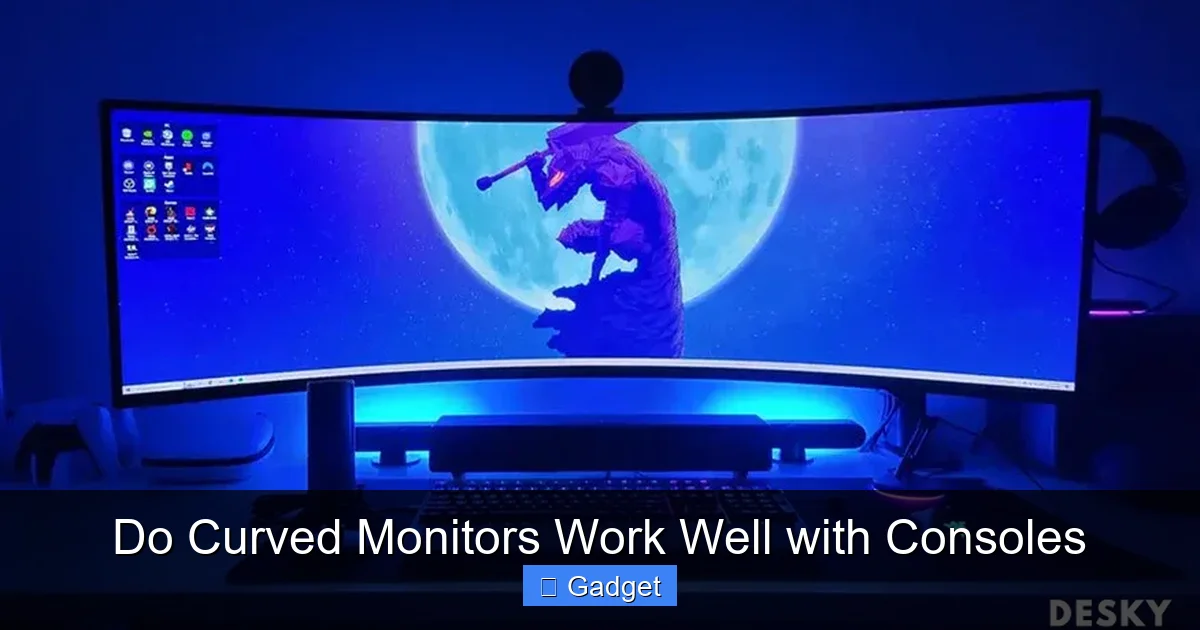
This is the main selling point of curved monitors, and it’s definitely true for console gaming. When you’re playing a game, especially one with a wide field of view, the curve pulls the action into your peripheral vision. It feels like you’re more “in” the game world. Driving games, space sims, or even open-world adventures can feel much more engaging. * Example: Imagine playing a racing game. With a curved monitor, the track seems to wrap around you, making you feel like you’re actually in the cockpit. The sense of speed and presence is amplified. For more insights on how display shape impacts racing titles, check out our article on whether ultrawide monitors are better for racing games.2. Improved Eye Comfort
Long gaming sessions can lead to eye strain. Curved monitors can help alleviate this. Because the edges of the screen are closer to your eyes and angled inwards, your eyes don’t have to work as hard to focus on different parts of the screen. The distance between your eyes and different points on the screen is more consistent. * Benefit: This means less “panning” your eyes from side to side and reduced eye fatigue, allowing you to play for longer periods without discomfort.3. Reduced Visual Distortion
On larger or ultrawide flat monitors, the edges can sometimes appear distorted or stretched because they are further away from your direct line of sight. A curved monitor mitigates this. The inward curve brings those edges closer and angles them correctly, presenting a more uniform and natural image across the entire screen. * Consideration: This is particularly noticeable on ultrawide (21:9 aspect ratio) curved monitors, which are becoming popular for gaming. If you’re considering an ultrawide, learn more about whether ultrawide monitors support 4K resolution and other key specs.4. Aesthetic Appeal
Let’s be honest, curved monitors often look sleek and modern. They can add a touch of sophistication to your gaming setup. The curve itself can be a conversation starter and contribute to a more unified desk or entertainment center look.Potential Drawbacks and Considerations
Visual guide about Do Curved Monitors Work Well with Consoles
Image source: i.ytimg.com
