Where Do Airpods Show Up On Iphone Guided Tips
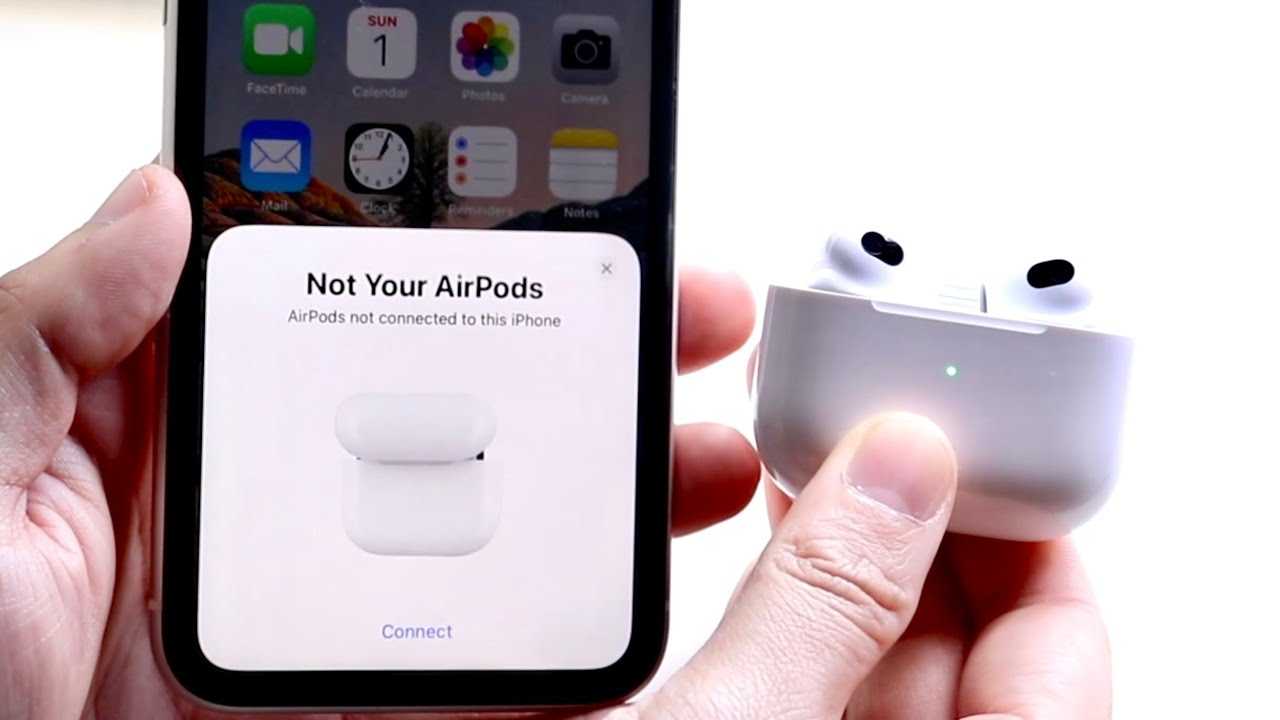
AirPods typically show up effortlessly on your iPhone, making it easy to connect and manage your wireless earbuds. When they’re nearby and paired, you’ll find them listed in your Bluetooth settings or as a quick toggle in the Control Center. If you’re wondering where exactly to look on your iPhone to see your AirPods, don’t worry — it’s straightforward once you know the steps.
In short, your AirPods will appear under the Bluetooth section in Settings or as an audio device in the Control Center. You can also see their status and switch between audio sources there. Knowing where to find your AirPods ensures you can connect, troubleshoot, or customize your listening experience quickly and easily.
Finding your AirPods on your iPhone is simple and intuitive. Usually, they show up in the Bluetooth menu when they’re connected or nearby. If you’re trying to see if your AirPods are linked, just open Settings, tap Bluetooth, and look for your AirPods in the list of devices. Alternatively, a quick swipe to access the Control Center will also display your AirPods as an audio output option, allowing you to manage or switch between devices seamlessly. Whether you’re setting up new AirPods or checking their connection, these are the main places to look on your iPhone.

Where Do AirPods Show Up on iPhone?
Understanding How AirPods Connect to Your iPhone
AirPods pair with your iPhone through Bluetooth, making the connection quick and seamless. Once paired, your AirPods automatically show up on your device, ready to use without extra steps. Knowing where and how they appear helps you manage your audio devices easily.
Where Do AirPods Appear on iPhone?
Your AirPods appear primarily in the Bluetooth settings of your iPhone. When connected, they also show up as an audio output option, making it easy to switch between speakers, headphones, and AirPods. Let’s explore these locations in detail.
Bluetooth Settings
Open the Settings app on your iPhone and tap on Bluetooth. Here, you will see a list of devices your iPhone has previously paired with. Your AirPods will appear under “My Devices” once they are turned on and within range.
Audio Output List
While playing music or other audio, tap the AirPlay icon or the volume control. A list of available output devices will appear, showing your AirPods as an option. Selecting them switches the audio output from your iPhone speakers or other devices.
How to Confirm Your AirPods Are Connected on iPhone
Once your AirPods are connected, a small AirPods icon appears on the status bar at the top of your iPhone screen during active use. This icon indicates your AirPods are functioning and ready for use.
Status Bar Icon
The AirPods icon appears as an outline of headphones or a small wireless symbol, showing that your AirPods are actively connected. If you see this icon, your AirPods are recognized and ready to listen to audio.
Control Center Indicator
You can also check the Control Center by swiping down from the top right corner of your iPhone. The battery level of your AirPods and their connection status appear here, confirming their active connection.
Managing Your AirPods Connection and Visibility
Proper management ensures your AirPods appear correctly on your iPhone when needed. You can customize settings to make connections smoother and troubleshoot issues.
Automatic Device Switching
iOS devices can automatically switch between your iPhone, iPad, or Mac when using AirPods. This feature makes sure your AirPods show up on the device you’re actively using, without manual reconnection.
Renaming Your AirPods
Changing the name of your AirPods in the Bluetooth settings makes them easier to identify when they appear on your iPhone. Simply tap the info icon next to your device and select “Rename.”
Common Troubleshooting Tips for AirPods on iPhone
Sometimes, your AirPods may not show up correctly. Here are simple steps to fix common issues and ensure they appear as expected.
Restart Your iPhone
Turning your iPhone off and on again can resolve connectivity issues. It refreshes the Bluetooth and helps your AirPods appear properly.
Reset Your AirPods
If your AirPods aren’t showing up, resetting them can help. Place them in the case, press and hold the setup button until the status light flashes amber, then white.
Ensure Bluetooth Is Enabled
Make sure Bluetooth is turned on in Settings. Without Bluetooth active, your iPhone won’t detect or display your AirPods.
Related Topics: Using AirPods with Multiple Devices
Many users connect their AirPods to various Apple devices. Managing their appearance and connection between devices is straightforward with iCloud.
Switching Between Devices
Your AirPods can automatically switch between your iPhone, iPad, Mac, and other Apple devices linked to the same Apple ID. Check your device’s Bluetooth list and select your AirPods if needed.
Checking Connection Status on Different Devices
On each device, you can verify if your AirPods show up as connected. For example, on Mac, click the Bluetooth icon in the menu bar, and on iPad, go to Settings > Bluetooth.
How to Disconnect or Remove AirPods from iPhone
If you no longer want your AirPods to appear on your iPhone, you can disconnect or forget them.
Disconnecting
Simply turn off Bluetooth or disable the AirPods in the Bluetooth settings. The AirPods will no longer appear as an active device.
Forgetting Your AirPods
To remove your AirPods completely, tap the info icon next to your device in Bluetooth settings, then select “Forget This Device.” This ensures they no longer show up on your iPhone.
Using the Find My App to Locate AirPods
If your AirPods are misplaced, the Find My app can help. When connected, it shows their last known location and can help you find them.
How Do AirPods Show Up in Find My?
Connected AirPods appear as a device in the Find My app, displaying their current or last known location. If they’re out of range, you’ll see the last time they were connected.
Playing a Sound to Find AirPods
You can make your AirPods emit a sound, helping locate them nearby. This feature is available when your AirPods are within Bluetooth range and connected to your iPhone.
Extensions: Using AirPods with Non-Apple Devices
While primarily designed for Apple devices, AirPods can work with Android and other Bluetooth-capable devices. However, showing up on these devices is different.
Connection on Android Devices
Pairing AirPods with Android involves Bluetooth pairing, similar to other wireless headphones. They will appear as a generic device name, such as “AirPods.”
Limitations When Using on Non-Apple Devices
Some features, like automatic switching and battery status, won’t be available outside of Apple devices. They will still show up as connected Bluetooth devices.
Summary
In essence, your AirPods show up on your iPhone mainly in the Bluetooth settings and as audio output options. They are also visible via the status bar and in the Control Center during active use. Managing these connection points makes your audio experience smooth and effortless.
Managing your AirPods’ appearance on your iPhone involves understanding their connection points, troubleshooting common issues, and utilizing Apple’s ecosystem features. Whether you are changing devices, resetting your AirPods, or locating misplaced units, knowing where and how your AirPods show up helps you get the most out of your wireless earbuds.
Frequently Asked Questions
How can I locate my AirPods on my iPhone?
You can locate your AirPods using the Find My app on your iPhone. Open the app, select the Devices tab, and choose your AirPods from the list. If they are nearby, you will see their current location on the map. If they are not nearby, the app shows the last known location when they were connected to your device.
What details appear about AirPods in the Find My app?
The Find My app displays the current or last known location of your AirPods on a map. It also indicates if they are connected or disconnected. If your AirPods are out of range or turned off, the app shows the last time they were connected, helping you track down their recent location.
Can I play a sound to find my missing AirPods?
Yes, if your AirPods are within Bluetooth range and connected to your iPhone, you can use the Find My app to play a sound. This feature helps you locate them by emitting a loud noise, making it easier to find them nearby.
Will my AirPods show up on the map if they are inside a closed case?
No, AirPods typically do not show up on the map when they are inside a closed case because they are not actively connected to your iPhone. For the best chance to locate them, ensure the AirPods are removed from the case and within range of your device.
How does the location history of AirPods work on the iPhone?
The location history updates when your AirPods are connected to your iPhone and within Bluetooth range. The Find My app records the last known location, but it does not track real-time movement when the AirPods are disconnected or out of range. Reviewing this history can help you narrow down where you last used or saw your AirPods.
Final Thoughts
AirPods connect seamlessly with iPhone and show up in specific locations on the device. Usually, they appear in the Bluetooth settings menu, under the “My Devices” section. You can also access their status via the Control Center or the AirPlay icon during playback.
Knowing where do airpods show up on iphone helps you manage connections easily. When your AirPods are nearby, they appear automatically for quick pairing or switching. This makes using your AirPods more convenient and efficient.

Similar Posts































