What To Do If Airpods Are Not Connecting Effectively
If your AirPods refuse to connect, don’t panic—there are simple steps to fix the issue quickly. First, ensure your AirPods are charged and within Bluetooth range. Resetting your AirPods or reconnecting them to your device often resolves the problem. Sometimes, a quick Bluetooth toggle or updating your device’s software can also do the trick.
In short, check your AirPods’ charge level and Bluetooth connection, then try resetting or re-pairing them. If that doesn’t work, restart your device or update its software. These straightforward steps typically fix most connectivity glitches, letting you enjoy your music seamlessly again.
When your AirPods won’t connect, it can be frustrating, especially when you’re eager to listen to your favorite tunes or attend a call. Connectivity issues can stem from various causes, like software bugs, Bluetooth interference, or simple pairing glitches. Fortunately, most problems are easy to troubleshoot with a few quick steps. Whether your AirPods are not showing up in Bluetooth devices, keep disconnecting, or just refuse to pair at all, this guide will walk you through effective solutions to get them working again. From checking your device’s Bluetooth settings to resetting the AirPods themselves, you’ll find everything you need to quickly resolve the issue and get back to enjoying wireless freedom.

What to Do if AirPods Are Not Connecting
1. Check the Bluetooth Connection
If your AirPods are not connecting, the first thing to do is verify that Bluetooth is turned on. On your device, go to Settings and make sure Bluetooth is active. Sometimes, disabling and re-enabling Bluetooth can fix minor glitches that prevent connection.
Ensure AirPods Are in Range
AirPods work best when they are close to your device. Keep your AirPods within a few feet of your phone, tablet, or computer. If they are too far away, the connection may drop or fail to establish.
Disconnect Other Devices
If your AirPods are connected to multiple devices, conflicts can happen. Disconnect or forget AirPods from other devices to ensure they connect to your current device smoothly. This avoids confusion and ensures a clean pairing process.
2. Restart Your Device and AirPods
Sometimes, simply restarting your device can resolve connectivity issues. Turn off your phone or tablet, wait a few seconds, then turn it back on. Also, restart your AirPods by placing them back into the charging case, closing the lid, and waiting for about 15 seconds before opening it again.
Reset AirPods
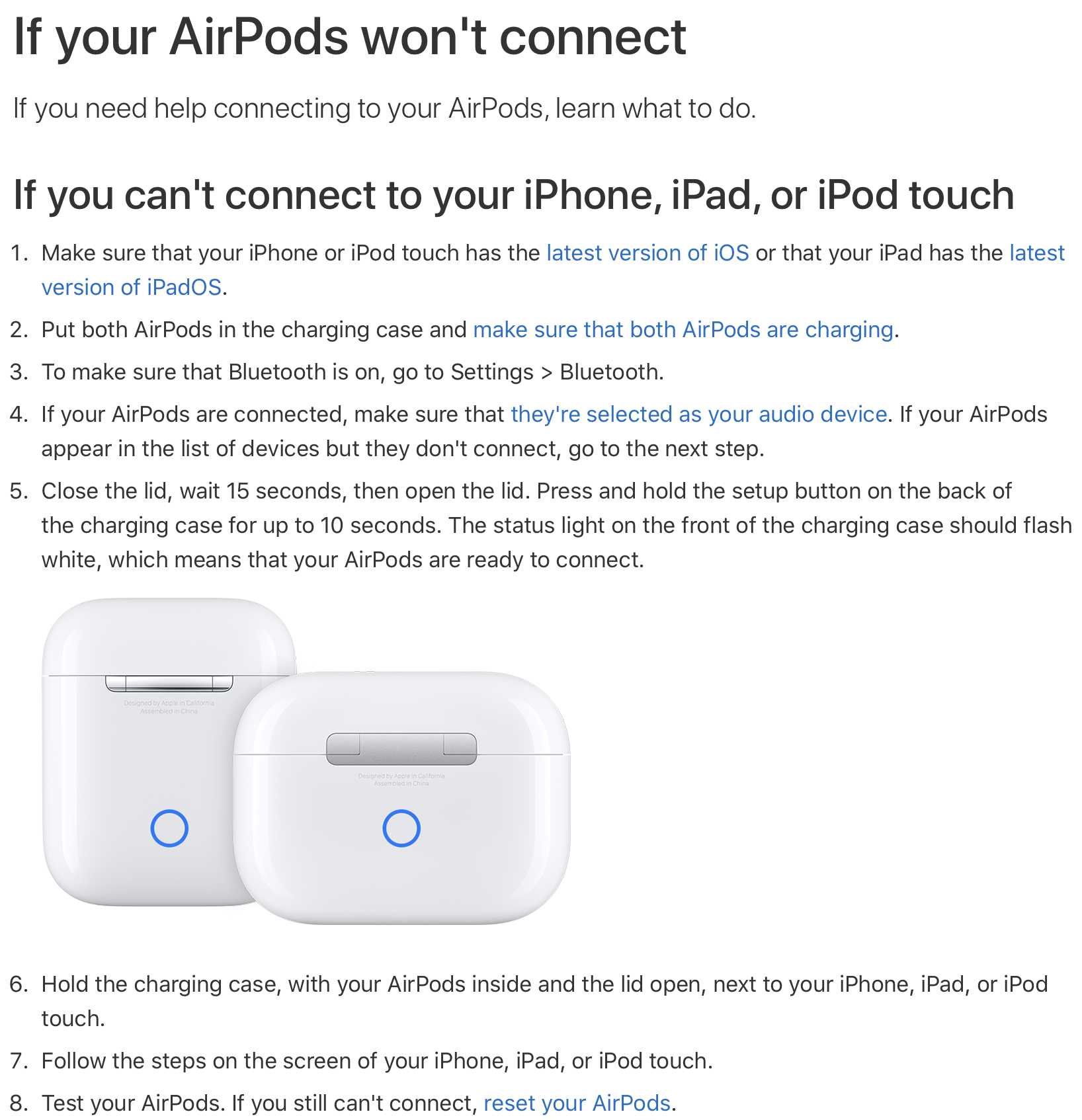
If restarting doesn’t work, consider resetting your AirPods. To do this, press and hold the setup button on the back of the case until the status light flashes amber then white. This resets the AirPods to factory settings and often fixes persistent connection problems.
3. Update Firmware and Software
Outdated software can cause connection issues. Make sure your device’s operating system is up to date. To check for updates:
- Go to Settings on iPhone or iPad
- Select General
- Tap Software Update
Similarly, ensure your AirPods firmware is current. Firmware updates are installed automatically when AirPods are connected to your device and charging.
Check Firmware Version
You can’t manually update AirPods, but you can check their firmware version in the device settings under Bluetooth. If you’re unsure, re-pairing your AirPods will prompt an update when available.
4. Troubleshoot Hardware Problems
Hardware issues are common causes of connection failures. Inspect your AirPods and charging case for physical damage or debris. Clean the charging contacts and the AirPods themselves gently.
Test with Different Devices
Try connecting your AirPods to another device. If they work fine elsewhere, the problem likely lies with your original device. If not, your AirPods may need professional repair or replacement.
Check for Water Damage
Water can cause internal damage that affects connectivity. If your AirPods have been exposed to moisture, they might not connect properly and could need servicing.
5. Reset Network Settings
Network settings sometimes interfere with Bluetooth connections. On your device, go to Settings > General > Reset > Reset Network Settings. Confirm your choice; note that this will erase saved Wi-Fi passwords and network configurations.
Re-establish Bluetooth Settings
After resetting, turn Bluetooth off and on again. Re-pair your AirPods and see if they connect successfully.
6. Clear Bluetooth Cache or Forget and Re-Pair
On some devices, clearing the Bluetooth cache helps fix stubborn connection issues. For iOS devices, this is achieved by toggling Bluetooth off and on. On Android, you may need to access Bluetooth app settings and clear cache.
Forget Device and Reconnect
Remove your AirPods from the device’s Bluetooth list. To do this, go to Settings > Bluetooth, find your AirPods, and select Forget This Device. Then, put your AirPods back into pairing mode and reconnect.
7. Check for Interference
Other electronic devices can interfere with Bluetooth signals. Keep your AirPods away from Wi-Fi routers, microwaves, or cordless phones during pairing. Move to a different location if necessary.
Minimize Physical Barriers
Walls, metal objects, and other obstacles can weaken Bluetooth signals. Try to keep a clear line of sight between your device and AirPods during setup.
8. Use the Correct Audio Output Settings
Sometimes, connection issues stem from incorrect audio settings. Make sure your device is set to output audio to your AirPods. On iOS, swipe down for Control Center and select your AirPods as the audio output.
Check Volume and Mute Settings
Ensure the volume isn’t muted or set very low. Sometimes, connection is fine but audio doesn’t play due to volume issues.
9. Troubleshooting Common Error Messages
If you see specific error messages, follow tailored solutions. For example, if your device says “Cannot connect,” try restarting Bluetooth or resetting your AirPods.
Handling Persistent Connection Failures
Persistent errors often require a fresh pairing. Remove your AirPods from device settings and re-pair them from scratch.
10. Contact Apple Support or Visit a Service Center
If all else fails and your AirPods still won’t connect, it might be time to seek professional help. Contact Apple Support or visit an authorized service provider for further diagnosis.
Warranty and Repair Options
Check if your AirPods are still under warranty. Damaged hardware may need repair or replacement, especially if caused by manufacturing defects or water damage.
Related Topics:
- How to Update AirPods Firmware
- How to Clean Your AirPods and Charging Case
- Best Practices for Maintaining Bluetooth Devices
- Connecting AirPods to Non-Apple Devices
- How to Troubleshoot Audio Issues with AirPods
This comprehensive guide should help you troubleshoot and resolve most connection issues with your AirPods. Remember, regular maintenance and updates can prevent many common problems. If problems persist, professional support is the best next step to get your AirPods working smoothly again.
Why Won't My AirPods Connect?
Frequently Asked Questions
Why isn’t my AirPods appearing in the Bluetooth devices list?
If your AirPods don’t show up in your Bluetooth devices list, ensure that they’re charged and close to your device. Turn your AirPods back into their case, then open the lid and hold the pairing button until the LED flashes white. Also, check if your device’s Bluetooth is turned on and functioning correctly. Restart your device to refresh its Bluetooth connections.
How can I reset my AirPods to resolve connection issues?
To reset your AirPods, place them in their charging case and keep the lid open. Press and hold the setup button on the back of the case for about 15 seconds until the status light flashes amber, then white. After resetting, try reconnecting your AirPods to your device. This process often resolves persistent connection problems.
What steps should I take if my AirPods keep disconnecting during use?
If your AirPods keep disconnecting, ensure your device’s software is up to date. Turn off and then turn back on Bluetooth. Clean your AirPods and charging case to remove any debris that might interfere with the connection. Also, avoid using your AirPods too far from your device, and try resetting them if issues persist.
Can interference from other devices affect AirPods connectivity?
Yes, other wireless devices can interfere with your AirPods’ connection. Keep your AirPods away from Wi-Fi routers, microwaves, or other Bluetooth devices when using them. Moving to a different location or turning off nearby devices can often improve connection stability.
Is it necessary to update the firmware of my AirPods to fix connection issues?
Firmware updates can improve AirPods’ performance and fix known issues. Keep your AirPods regularly connected to your iPhone or compatible device, which will automatically install updates when available. Ensuring your device’s software is current also helps maintain optimal connectivity.
Final Thoughts
If your AirPods are not connecting, start by ensuring Bluetooth is enabled on your device. Restart both your AirPods and your device to reset the connection. If issues persist, forget the AirPods from your Bluetooth settings and pair them again.
In conclusion, knowing what to do if AirPods are not connecting helps restore your audio experience quickly. Follow these simple steps to troubleshoot and reconnect seamlessly.

Similar Posts































