Iphone Setting Icons


Understanding iPhone Setting Icons: Your Guide to Navigating iPhone Settings Easily
When you pick up an iPhone, you notice a variety of icons on the Settings app. These icons are small images or symbols that represent different functions and features of your device. Knowing what each icon means can seem confusing at first, but once you understand them, adjusting your iPhone becomes much simpler. In this guide, we’ll explore all the important iPhone setting icons in detail. We’ll tell you what each icon stands for, how to find it, and what you can do with it. Whether you want to change your Wi-Fi connection, manage notifications, or adjust your screen brightness, understanding these icons will help you navigate your iPhone more confidently.Why Are iPhone Setting Icons Important?
Knowing what the icons mean helps you:- Quickly find and change settings
- Identify connection status like Wi-Fi or Bluetooth
- Manage notifications and alerts
- Adjust display and sound options easily
- Protect your privacy with security settings
The Main Types of iPhone Setting Icons
iPhone icons fall into several categories:- Connectivity icons
- Notification icons
- Battery and power icons
- Display and sound icons
- Privacy and security icons
Connectivity Icons: Staying Connected with Wi-Fi, Cellular, and Bluetooth
These icons show how your iPhone connects to the internet and other devices.Wi-Fi Icon
The Wi-Fi icon looks like waves radiating upward. When it’s visible, your phone is connected to a Wi-Fi network. If you see a slash through the icon, it means Wi-Fi is turned off or there’s no connection. Tapping the icon in the Control Center allows you to turn Wi-Fi on or off quickly.Cellular Signal Icon
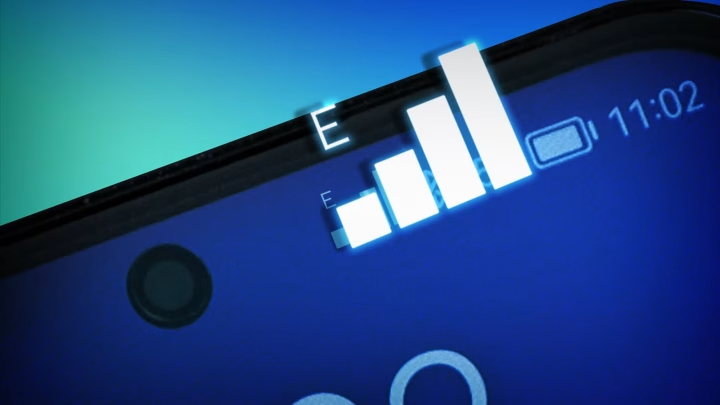
This icon displays signal strength with bars. More bars mean a stronger connection. If you see “No Service” or an exclamation mark, your phone isn’t connected to the cellular network. You can check your cellular settings by tapping the icon to access network options.Bluetooth Icon
This icon looks like a stylized “B” with waves on each side. When visible, Bluetooth is active and your iPhone is either connected to a device or ready to connect. Turning Bluetooth off when not in use saves battery, and you can manage this from the Control Center.Notification and Alert Icons: Managing Your Alerts
Notifications keep you informed about messages, emails, and app alerts.Red Dot Indicator
Many apps use a small red dot in the top corner to show new notifications. You can view and manage these notifications in the Notification Center.Do Not Disturb Icon
This icon resembles a crescent moon. When active, your iPhone silences calls, alerts, and notifications. You can schedule Do Not Disturb or turn it on manually through the Control Center or Settings.Battery and Power Icons: Monitoring Your Battery Life
Keeping an eye on your battery helps you avoid unexpected shutdowns.Battery Percentage
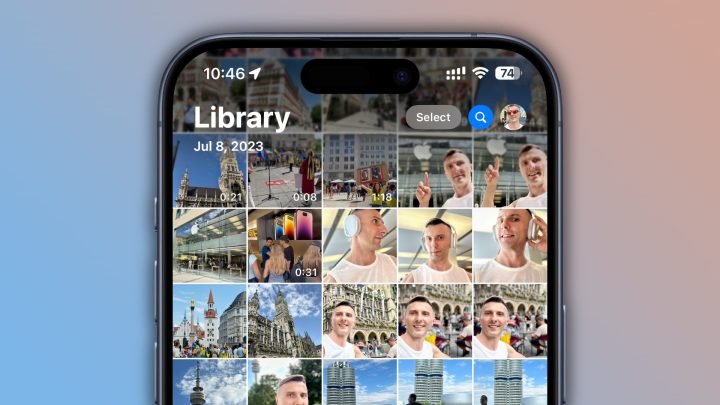
This icon shows the remaining battery percentage. You can enable this feature in Settings to see exactly how much power is left.Battery Icon
The icon can appear as a lightning bolt inside the battery outline, indicating charging. An empty or low battery icon warns you to connect your device to power soon.Charging Icon
When your iPhone is charging, a lightning bolt appears inside the battery icon. If your device is charging via MagSafe or cable, this icon helps you identify its charging status.Display and Sound Icons: Adjusting Visual and Audio Settings
These icons help you control how your iPhone looks and sounds.Brightness Slider
While not an icon, the brightness control appears as a sun icon. You can adjust screen brightness from the Control Center to make your display brighter or dimmer.Sound and Volume Icons
The speaker icon indicates whether your phone is on silent or sound mode. When silent, a bell with a line through it appears.Do Not Disturb Icon
This crescent moon icon also appears in this category because it controls incoming alerts and vibrations.Privacy and Security Icons: Protecting Your Data
These icons are essential for managing your privacy.Lock Icon
A lock icon appears when your device is secured with a passcode, Touch ID, or Face ID. It shows that your data is protected.Location Services Icon
This looks like a small arrow. When active, certain apps can access your location. You can enable or disable location services by tapping this icon.VPN Icon
When connected to a VPN, a small icon with a key or “VPN” appears. This encrypts your internet connection, keeping your data safe online.Managing iPhone Setting Icons for Better Usability
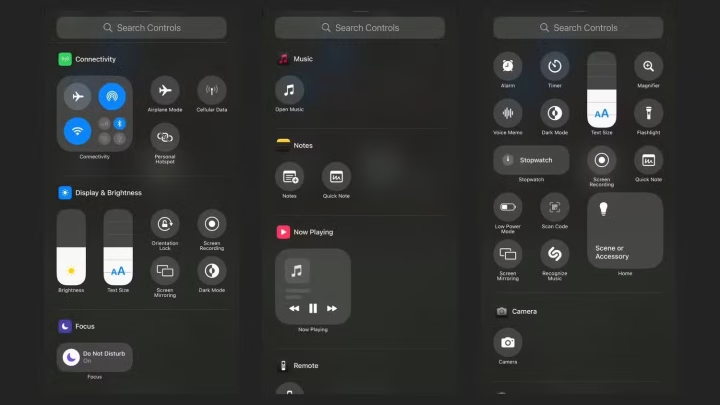
To make full use of your device, learn how to:- Customize which icons appear in the Control Center
- Enable or disable icons for quick access
- Understand notifications and how icons alert you
- Open Settings
- Tap on Control Center
- Add or remove icons as needed
Common Problems with iPhone Setting Icons and How to Fix Them
Sometimes icons act up or don’t display correctly. Here are a few common issues:- The Wi-Fi icon is missing: Restart your device or toggle Wi-Fi off and on.
- Battery icon not showing: Turn on “Battery Percentage” in Settings > Battery.
- Icons aren’t updating: Restart your iPhone or update to the latest iOS version.
Final Tips for Recognizing and Using iPhone Setting Icons
– Spend a little time exploring your Control Center and Settings app. – Use the icons as quick shortcuts to adjust what you need. – Keep your device updated for the best icon functionality. – Remember, each icon has a purpose, from connecting to the internet to managing your privacy. Understanding these symbols can help you get the most out of your iPhone. With familiar icons, adjusting your settings becomes quicker, and your device becomes easier to use every day.Frequently Asked Questions
How can I customize the icons within the iPhone Settings app?
Apple does not allow users to directly customize the icons inside the Settings app itself. However, you can organize your Settings menu by rearranging primary options or creating shortcuts on your Home Screen using the Shortcuts app. This way, you can access specific settings more quickly and personalize how you navigate your device.
What do the different icon styles in iPhone Settings indicate?
The icons in the Settings app serve as visual cues for different categories and functions. For example, a Wi-Fi icon shows network connections, a Bluetooth icon indicates Bluetooth status, and a lock icon signifies security-related settings. Recognizing these icons helps you quickly identify and access the desired settings without confusion.
Are there any hidden settings accessible through specific icons?
Some icons in the Settings app lead to hidden or less obvious options. For instance, tapping on the battery icon reveals detailed information about battery usage, while the privacy icon guides you to data and app permissions. Exploring these icons can help you find advanced settings that improve your device’s performance and security.
Can I add or remove icons from the main Settings menu?
You cannot directly add or remove icons from the Settings app itself, as Apple controls the layout to maintain consistency. However, you can hide certain settings by restricting access through Screen Time or create shortcuts to specific functions to customize your experience on the Home Screen.
What steps should I follow to identify an unknown icon in iPhone Settings?
To understand an unfamiliar icon, tap on it to see the corresponding options or descriptions. You can also consult the iPhone user guide or Apple’s official support website for detailed explanations. Recognizing these icons helps you navigate the Settings app more efficiently and manage your device effectively.
Final Thoughts
In summary, understanding iPhone setting icons helps you navigate your device more efficiently. Recognizing symbols like Wi-Fi, Bluetooth, and battery icons allows quick access to essential functions. Being familiar with these icons enhances your user experience and saves time. The ‘iphone setting icons’ are key to customizing your device smoothly and confidently.
Similar Posts