How To Reset A Frozen Ipad Quickly And Effectively


How to Reset a Frozen iPad: A Complete Guide
If your iPad becomes unresponsive and stops reacting to your taps or gestures, it is likely frozen. This situation can be frustrating, especially if you’re in the middle of something important. Fortunately, there are effective ways to reset a frozen iPad and get it working again. In this section, we will explore the most reliable methods to fix this common problem.
Understanding Why Your iPad Freezes
Before performing a reset, it helps to know why your iPad froze. Common reasons include software glitches, apps crashing, or insufficient memory. Sometimes, updates or bugs can cause your device to freeze unexpectedly.
Knowing these causes can help prevent future freezes and keep your iPad running smoothly.
Different Methods to Reset a Frozen iPad
There are several techniques to reset a frozen iPad, and choosing the right one depends on the situation. Here are the main methods to consider:
Force Restart Your iPad
The most common solution is to force restart your device. This method doesn’t erase any data and is usually enough to fix a frozen screen.
Using a Hard Reset for iPads Without a Home Button
For newer iPads with Face ID, a specific button combination is needed to perform a hard reset. Follow the steps carefully to avoid complications.
Performing a Reset on Older iPads with a Home Button
If your iPad has a physical Home button, the reset process differs slightly. Ensure you follow the right steps based on your device model.
Step-by-Step Guide to Force Restart Your iPad
Here is how to perform a force restart for different iPad models:
iPads with Face ID
- Press and quickly release the Volume Up button.
- Press and quickly release the Volume Down button.
- Press and hold the Top button until the Apple logo appears.
This process may take up to 20 seconds. Release the button once you see the Apple logo on the screen.
iPads with a Home Button
- Press and hold both the Home button and the Top (or Side) button simultaneously.
- Keep holding both buttons until the Apple logo appears.
- Release the buttons to complete the reset.
This method forces your device to restart without deleting any data.
Additional Tips for a Successful Reset
Before performing a reset, ensure your iPad has sufficient battery life. Connect it to a charger if needed to prevent power loss during the process.
If your device still remains frozen after attempting a reset, try connecting it to a computer with iTunes or Finder installed.
Using iTunes or Finder to Fix a Frozen iPad
This method involves connecting your iPad to a computer and restoring it. It is more advanced but effective if other methods fail.
- Connect your iPad to your computer using a lightning or USB-C cable.
- Open iTunes on Windows or macOS Mojave and earlier, or Finder on macOS Catalina and later.
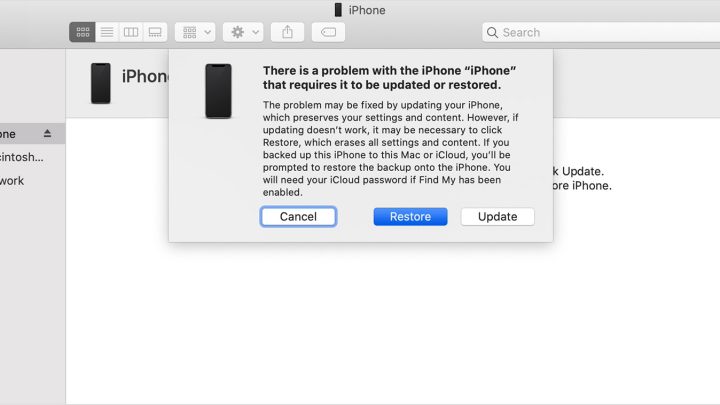
- Follow the force restart steps but keep holding the buttons even after the Apple logo appears, until the recovery mode screen shows up.
- You will see options to Restore or Update your iPad. Choose Update to reinstall iOS without deleting your data.
What to Do If the Reset Doesn’t Work
If your iPad remains frozen after multiple reset attempts, consider a full restore. This process erases all data, so ensure you have backups before proceeding.
Contact Apple Support if none of the methods work or if your device shows signs of hardware issues.
Additional Troubleshooting for Persistent Freezing
Update Your iPad Software
Keeping your iOS updated minimizes bugs and glitches. Visit Settings > General > Software Update to check for latest updates.
Free Up Storage Space
Low storage can cause performance issues. Delete unnecessary apps, photos, or files to free up space.
Close Background Apps
Having many apps open can lead to freezes. Double-press the Home button or swipe up from the bottom to view and close apps.
Prevent Future iPad Freezes
- Regularly update your iOS software.
- Avoid overloading your device with too many apps or large files.
- Restart your iPad periodically to clear temporary data.
- Keep your device charged and avoid using it in extreme temperatures.
Summary
Resetting a frozen iPad quickly restores its responsiveness and prevents potential data loss. The most straightforward method is a force restart, suitable for most freeze situations. If problems persist, connect your device to a computer and use iTunes or Finder to perform a restore or update. Regular maintenance and updates can reduce the chances of your iPad freezing in the future, ensuring smooth performance when you need it most.
How To Restart iPad 10th Generation (Even If FROZEN)
Frequently Asked Questions
What steps should I follow if my iPad’s screen is unresponsive?
If your iPad’s screen isn’t responding, try force restarting it. For iPads with a Home button, press and hold the Home button along with the Power button until the Apple logo appears. For newer models without a Home button, quickly press and release the volume up button, then the volume down button, followed by pressing and holding the side button until the Apple logo shows. This method often resolves temporary glitches causing the freeze.
How can I reset my iPad if it’s completely frozen and won’t turn off?
When your iPad becomes completely frozen and won’t respond, performing a force restart is the best option. Quickly press and release the volume up button, then the volume down button, and press and hold the side button until the device restarts and the Apple logo appears. This process forces your iPad to reboot and often clears the freeze.
Is there a way to reset my iPad without losing data when it’s frozen?
Performing a force restart does not erase any data; it simply reboots the device to resolve the freeze. If the issue persists after restarting, you may consider connecting your iPad to a computer and using iTunes or Finder to restore it. Keep in mind that restoring can erase data, so ensure you have a backup before proceeding if necessary.
What should I do if my iPad remains frozen after multiple restart attempts?
If your iPad stays unresponsive despite multiple force restarts, try connecting it to a computer with the latest version of iTunes or Finder. Put the device into Recovery Mode by following the specific button sequence for your model, then choose the option to Restore or Update. Updating may fix the issue without erasing data, while restoring will reset the device to factory settings.
Final Thoughts
Pour finir, knowing how to reset a frozen iPad is essential for quick troubleshooting. If your device becomes unresponsive, perform a force restart by pressing the appropriate buttons. This simple step often resolves the issue and restores normal function. Remember, a hard reset can resolve many common problems. Keep this technique in mind when your iPad freezes, and you’ll get back to using it smoothly without frustration.
Similar Posts