How To Erase An Ipad Effectively For Privacy And Reset
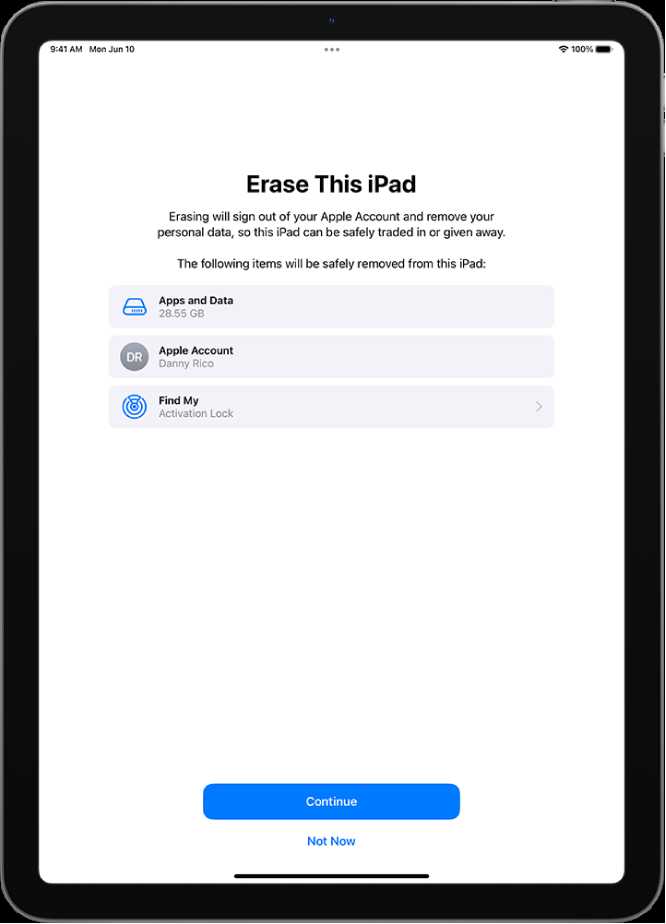

How to Erase an iPad: A Complete Guide
Erasing an iPad might seem simple, but there are important steps to follow to do it correctly. Whether you’re giving away your device, selling it, or just want a fresh start, knowing how to erase an iPad keeps your personal data safe. This guide will walk you through every step clearly and thoroughly.
Understanding Why You Might Need to Erase Your iPad
Erasing your iPad helps protect your personal information when you’re switching devices or selling your current one. It also clears all content and settings for a clean, new beginning.
Before erasing, make sure you back up important data to iCloud or your computer, so you won’t lose anything valuable. Remember, once erased, data cannot be recovered unless you have a backup.
Preparing Your iPad Before Erasing
Backing Up Your Data
Before erasing your iPad, back up your data either to iCloud or your computer using iTunes or Finder. This ensures you have a copy of your photos, contacts, and apps.
Signing Out of Apple ID
To avoid activation issues later, sign out of iCloud and your Apple ID. This is especially important if you plan to sell or give away the device.
Disabling Find My iPad
Turning off Find My iPad prevents problems during the erase process. You can do this in Settings under your Apple ID profile.
How to Erase an iPad Using Settings
Step-by-step Process
- Open the Settings app on your iPad.
- Tap your Apple ID at the top of the screen.
- Scroll down and select “Sign Out.” Enter your Apple ID password if prompted.
- Return to Settings main menu and tap “General.”
- Scroll down and tap “Reset.”
- Select “Erase All Content and Settings.”
- Enter your passcode or Apple ID password when prompted.
- Confirm the action by tapping “Erase” and wait for the process to complete.
The erase process can take a few minutes, and your iPad will restart as a new device after completion.
Using iTunes or Finder to Erase Your iPad
Connect Your iPad to a Computer
Use a Lightning or USB-C cable to connect your iPad to a Mac or Windows PC. Make sure you have the latest version of iTunes or Finder open.
Put Your iPad into Recovery Mode
Follow specific steps depending on your iPad model to enter recovery mode. For example, press and quickly release volume up, then volume down, then hold the top button until the recovery screen appears.
Restore Your iPad
In iTunes or Finder, select your device, then click “Restore.” Confirm when prompted. This action wipes everything and installs a fresh iOS version.
Once completed, your iPad will restart and be ready for setup or sale.
Erasing an iPad Using iCloud (Find My iPad)
Access iCloud.com
Log into iCloud with your Apple ID from a web browser on any device.
Locate Your iPad
Click on “Find iPhone,” then select your iPad from the device list.
Erase Your Device
Choose “Erase iPad” and confirm your choice. You may need to enter your Apple ID password.
This method is useful if your iPad is lost or stolen, and you want to erase it remotely.
Important Tips and Precautions
Double-Check Backup
Always verify your backup before erasing to prevent data loss. This can save you time and trouble later.
Ensure Your Battery Is Sufficient
Charge your iPad to at least 50% before starting the reset process to avoid interruptions.
Consider Time and Internet Connection
The process may take some time, especially when downloading software updates. A stable internet connection speeds up the process.
Troubleshooting Common Problems
iPad Won’t Reset
If your device doesn’t erase, try restarting it or putting it in recovery mode again. Make sure your software is up to date.
Forgot Apple ID or Password
If you can’t sign out or erase because of account issues, visit Apple’s account recovery page for assistance.
Device Stuck During Erase
If the process hangs, force restart your iPad and try again. Using recovery mode is often helpful in such cases.
Final Thoughts on Erasing Your iPad
Knowing how to erase an iPad correctly helps protect your personal information and prepares your device for its next owner or a fresh start. Follow each step carefully, and always back up your data before initiating the reset process. With patience and proper preparation, erasing your iPad can be quick and seamless, giving you peace of mind that your information remains private.
How To Completely Erase iPad Data Before Selling..
Frequently Asked Questions
What steps should I follow to erase all content from my iPad?
To erase all content from your iPad, start by opening the Settings app. Tap on your Apple ID at the top, then select “Erase All Content and Settings.” Enter your device passcode or Apple ID password when prompted. Confirm the action, and your iPad will begin the process of wiping all data and settings, returning it to factory defaults.
Can I erase my iPad without using a computer?
Yes, you can erase your iPad directly from the device without needing a computer. Navigate to Settings > General > Reset. Tap “Erase All Content and Settings,” then enter your passcode or Apple ID credentials if prompted. Confirm your choice, and the device will wipe itself clean.
What should I do before erasing my iPad to ensure my data is secure?
Before erasing your iPad, back up any important data to iCloud or your computer. Sign out of iCloud, iTunes, and App Store to prevent activation issues later. Removing these accounts helps ensure your information stays private and that you can set up the device smoothly after the erase process.
How long does it take to erase an iPad, and what should I expect after?
The time required to erase an iPad varies depending on the amount of data stored. Usually, it takes just a few minutes. After the process completes, your iPad restarts to a setup screen, as if it were a new device. You can then set it up fresh or restore from a backup if needed.
Final Thoughts
Pour effacer un iPad, commencez par sauvegarder vos données si vous souhaitez les conserver. Accédez ensuite aux réglages, puis sélectionnez “Général” et “Réinitialiser”. Choisissez “Effacer contenu et réglages” et confirmez votre choix. Votre iPad demandera votre mot de passe ou identifiant Apple pour valider l’action. Le processus supprime toutes les données et désactive la sécurité associée à votre appareil. Une fois terminé, votre iPad sera remis à neuf. En résumé, comprendre comment effacer un iPad permet de protéger votre vie privée ou préparer le dispositif pour une vente.
Similar Posts































