How To Power Macbook Pro Effectively For Optimal Use


How to Power MacBook Pro
Understanding the Power Requirements of Your MacBook Pro
To keep your MacBook Pro running smoothly, it is essential to understand its power needs. Each model has specific power specifications that ensure optimal performance and safety. Check your model’s technical specifications to find out the recommended wattage for the charger. Using the correct charger prevents damage and prolongs the life of your device.Choosing the Right Charger for Your MacBook Pro
Your MacBook Pro typically comes with a power adapter, but replacing or upgrading it requires careful selection. Use only chargers approved by Apple to avoid compatibility issues. Apple offers different wattage options, such as 61W, 87W, or 96W, based on your MacBook Pro size and model. Proper wattage ensures fast and safe charging without risking battery health.What to Look for in an External Charger
- Compatibility with your MacBook Pro model
- Wattage suitable for fast charging
- Compatibility with USB-C Power Delivery standards
- Certified safety features, such as over-current and over-voltage protection
How to Properly Connect Power to Your MacBook Pro
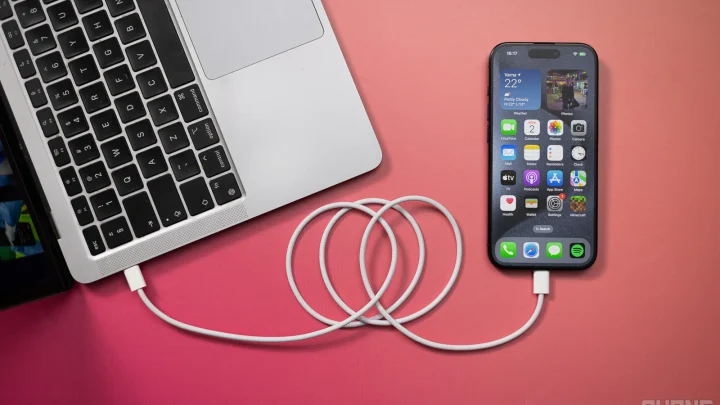
Connecting your MacBook Pro to power correctly is simple but important. Use the USB-C cable that comes with your charger or an Apple-certified cable. Plug the connector securely into the port, and connect the other end to the power adapter. Then, plug the adapter into a reliable power outlet.Tips for Safe Charging Practices
- Avoid using damaged cables or chargers.
- Always connect to a grounded outlet to prevent electrical issues.
- Keep your charging port clean and free from debris.
- Do not force connectors into ports; ensure proper alignment.
Understanding MacBook Pro Battery Indicators
Your MacBook Pro has visual cues to show battery status. The battery icon on the menu bar indicates charge level and charging status. When plugged in, it should display a lightning bolt indicating charging. You can also check battery health through system settings.Checking Battery Health and Performance
- Click the Apple menu and select “System Preferences.”
- Choose “Battery” to view current charge level and usage.
- Click “Battery Health” to see if your battery is functioning optimally.
Maximizing Your MacBook Pro Battery Life
Proper charging habits can extend your MacBook Pro’s battery lifespan. Avoid letting the battery fully drain often, and try to keep the charge between 20% and 80%. Regularly updating your software also helps optimize power consumption.Additional Tips for Battery Preservation
- Use energy-saving settings like “Battery Saver.”
- Reduce screen brightness when possible.
- Close unnecessary applications that drain power.
- Avoid exposing your MacBook to extreme temperatures.
Dealing with Power Issues and Troubleshooting
Sometimes, your MacBook Pro might not charge properly or turn off unexpectedly. In such cases, troubleshooting steps can help resolve common problems. Check connections, try a different outlet, or reset the SMC if necessary.Common Power-Related Problems and Solutions
| Issue | Possible Cause | Solution |
|---|---|---|
| MacBook not charging | Damaged cable or port | Inspect and replace damaged components |
| Battery not charging fully | Battery health issues | Calibrate or replace the battery |
| Unexpected shutdown | Power supply interruption or software bug | Restart your Mac or reset SMC |
How to Reset SMC for Power Issues
The System Management Controller (SMC) manages power functions. Resetting it can fix charging and power problems. The process varies depending on your MacBook Pro model.Resetting SMC on MacBook Pro with T2 Chip
- Shut down your MacBook Pro.
- Press and hold the power button for 10 seconds.
- Release the button and wait a few seconds.
- Turn on your Mac as usual.
Resetting SMC on Older MacBook Pro Models
- Shut down your MacBook Pro.
- Plug in the power adapter.
- Hold the Shift + Control + Option keys and the power button simultaneously for 10 seconds.
- Release all keys and the power button.
- Press the power button to turn on your Mac.
Using Battery Monitoring and Power Management Software
Many tools can help you track power consumption and optimize battery use. System information provides basic insights, while third-party apps offer advanced features.Built-in Mac Tools for Power Management
- Battery Status menu for quick info
- System Preferences “Battery” section for detailed stats
- Energy Saver settings to control power usage
Third-Party Applications
- Battery health monitoring apps
- Power usage analyzers
- Automation tools to adjust settings based on activity
Related Topics
Using External Displays with MacBook Pro
Connecting external monitors affects power consumption, so choosing energy-efficient displays and adjusting settings can help extend battery life.Managing Power Settings for Optimal Performance
Adjusting sleep, display brightness, and other preferences can conserve power during extended use or when unplugged.Upgrading Your MacBook Pro Battery
If your battery no longer performs well, replacing it can restore full battery life. Follow Apple’s guidelines or visit an authorized service provider. Maintaining proper power management practices for your MacBook Pro ensures it functions efficiently and lasts longer. Selecting the right charger, connecting it correctly, monitoring battery health, and troubleshooting common issues are key steps. Remember to handle chargers safely and keep your software updated for the best performance. By following these tips, you keep your MacBook Pro powered up and ready to work whenever you need it.Frequently Asked Questions
How do I connect my MacBook Pro to a power source correctly?
To connect your MacBook Pro to a power source, plug the USB-C or MagSafe cable into your laptop’s charging port. Then, connect the other end to a compatible power adapter plugged into a wall outlet. Ensure the connection is secure, and you should see a charging icon on the menu bar indicating that the device is charging.
What should I do if my MacBook Pro isn’t charging?
If your MacBook Pro isn’t charging, first check that the power adapter and cable are working properly. Try unplugging and reconnecting the charger or using a different outlet. Inspect the charging port for debris or damage. If the issue persists, reset the SMC (System Management Controller) to resolve power-related problems.
Can I charge my MacBook Pro with a third-party charger?
Yes, you can use a third-party charger, but it must meet Apple’s specifications for wattage and safety. Use chargers from reputable brands that comply with standards. Avoid cheap or uncertified chargers, as they can damage your MacBook Pro or pose safety risks. Using the correct wattage ensures your laptop charges efficiently.
How long does it typically take to fully charge a MacBook Pro?
The time to fully charge your MacBook Pro depends on the model and current battery level. Generally, it takes about 2 to 3 hours to reach full capacity from a low battery. Using your MacBook while charging might extend this time slightly. For optimal charging, avoid using the device heavily during the process.
Is it safe to leave my MacBook Pro plugged in all the time?
Yes, modern MacBook Pro models are designed to handle being plugged in continuously. Apple’s battery management system prevents overcharging, protecting your battery’s health. However, it’s good practice to occasionally unplug and use your laptop on battery power to maintain battery longevity over time.
Final Thoughts
To power a MacBook Pro, connect it to a compatible charger and ensure the power source is active. Keep the charger cable in good condition and plug it into the port securely. Monitor the battery status on your screen; if it shows charging, your MacBook Pro is powering up properly. In conclusion, how to power MacBook Pro involves using the right charger and checking connections. Properly charging your device guarantees smooth usage and longevity.
Similar Posts