How To Make Your Icons Smaller On Android: Simple Steps
To make your icons smaller on Android, simply adjust the icon size in your launcher settings or use a third-party app. **Most Android devices allow quick customization through the home screen settings.** If you want your icons more compact, explore your device’s display or home screen options. Changing icon size makes your interface cleaner and more efficient without needing to install additional apps. Just a few taps, and your icons will be perfectly tailored to your preferences.

How to Make Your Icons Smaller on Android
When your Android device’s icons appear too large or clutter your home screen, it can make your device feel crowded and difficult to navigate. Luckily, there are simple ways to adjust icon sizes, helping your screen look cleaner and more organized. In this guide, we’ll explore in detail how to make your icons smaller on Android, covering various methods and tips to customize your device to fit your preferences.
Understanding Why Icons Might Be Too Large
Before diving into the steps to resize icons, it’s helpful to understand why they might seem too big in the first place. Common reasons include:
- Default launcher settings that favor larger icons for easier tapping.
- Accessibility settings enabled to improve visibility, which can increase icon size.
- Custom launchers or themes that have larger default icons.
- Android OS updates that change default icon sizes.
Knowing why your icons look the way they do allows you to choose the most appropriate method to resize them.
Adjusting Icon Size via Launcher Settings
Many Android devices use a default launcher (the app that manages your home screen and app dock), and it often offers options to change icon sizes directly. Here’s how to check and modify these settings:
Using the Built-in Launcher Settings
Most Android phones from manufacturers like Samsung, Google, or OnePlus provide options to customize icons:
- Long-press on an empty space on your home screen: This action usually opens a menu with customization options.
- Tap on “Home Settings” or “Settings”: This opens the launcher’s options menu.
- Look for “Icon Size” or “Display” options: The exact wording varies by device.
- Adjust the slider to make icons smaller: Moving the slider toward the “Small” or “Compact” end reduces icon size.
Sometimes, these options are not available in the default launcher. If that’s the case, consider switching to a more customizable launcher app.
Using a Custom Launcher for Greater Control
Third-party launchers like Nova Launcher, Action Launcher, or Lawnchair give more flexibility:
- Download a launcher app: Head to Google Play Store and install your preferred launcher.
- Set it as your default launcher: Follow the prompts to make it your primary home app.
- Open launcher settings: Usually by long-pressing on home screen or through the launcher app icon.
- Locate “Icon Size” or similar options: Most launchers have a dedicated menu to resize icons.
- Adjust icon size: Move the slider or choose from predefined sizes to make icons smaller.
Using a custom launcher gives you a higher level of control over icon appearance and overall home screen layout.
Changing Icon Size Through Accessibility Settings
If your device has accessibility features enabled to enhance visibility, these settings might increase icon size. You can modify or disable them:
Adjust Accessibility Font and Display Settings
Follow these steps:
- Open Settings: Tap the gear icon from your app drawer or notification shade.
- Select Accessibility: Depending on your device, it could be under “Additional Settings” or “Accessibility Features.”
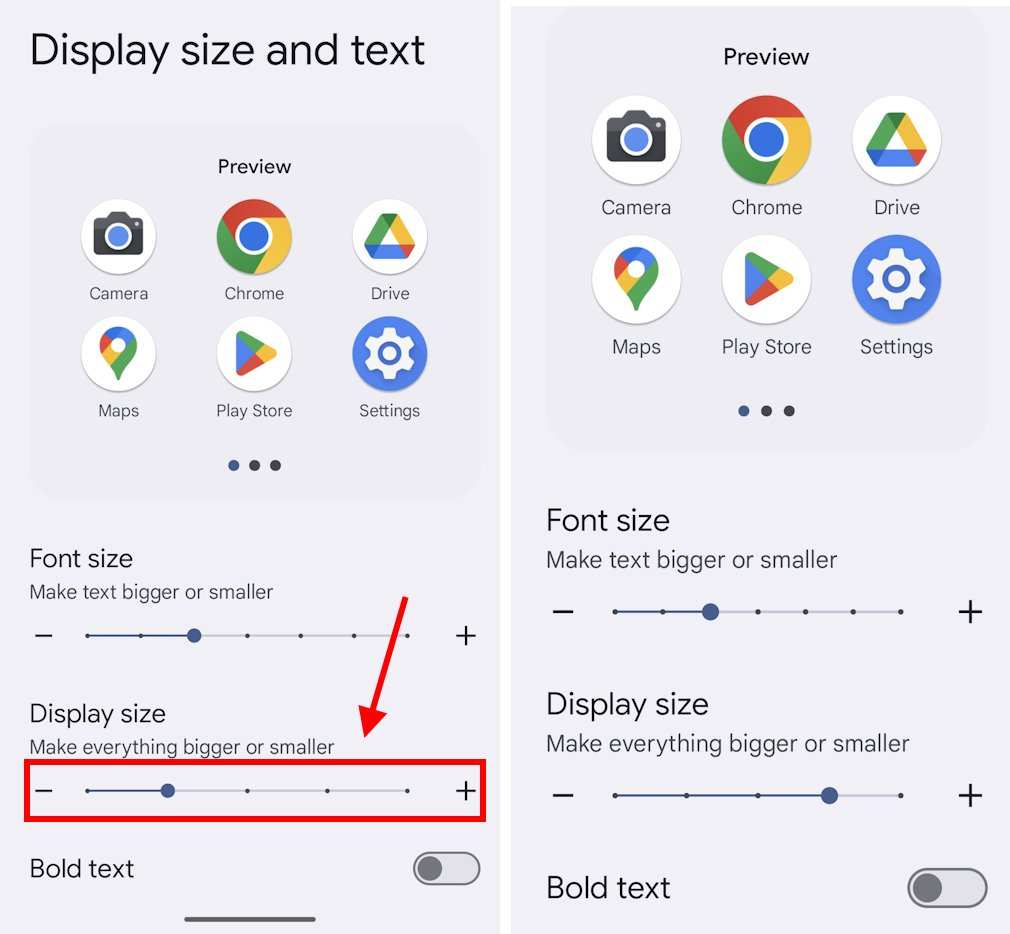
- Look for “Display Size” or “Font Size”: Adjust these sliders to reduce size if they’re set to larger options.
- Check for “Magnification” or similar features: Turn off or customize these to prevent automatic enlarging of UI elements.
Note that reducing font size or display size might also impact other UI elements, not just icons.
Using Android Settings to Resize Icons (If Supported)
Some Android devices, especially Pixel phones and Samsung Galaxy devices, include options to personalize icon sizes directly:
Adjusting Icon Size via Device Settings
Here’s how to check:
- Go to Settings: Tap the gear icon on your device.
- Navigate to Display or Home Screen: Depending on your device, it may be labeled differently.
- Look for “Icon Size” or “Home Screen Layout”: Some devices offer a slider or options to resize icons on the home screen.
- Set to a smaller size: Use the available controls to decrease icon size.
Remember that options vary widely between devices, so consult your device’s user guide if necessary.
Using Widgets and Icon Packs for Visual Adjustment
Another creative way to manage icon appearance is by customizing with widgets or icon packs:
Applying Icon Packs for Smaller Icons
Apps like Nova Launcher support custom icon packs:
- Download icon packs from Google Play: Search for well-rated icon packs that offer smaller icons.
- Install and apply in your launcher settings: Usually found within “Appearance” or “Look & Feel.”
- Adjust icon size within launcher options: Combine icon packs with launcher settings for the best fit.
Using Widgets for a Clean Look
Widgets like minimalist digital clocks or small grid icons can reduce clutter, making your icons seem smaller:
- Add smaller widgets: Long-press on home screen and select “Widgets.”
- Choose compact or small widgets: For example, small weather or clock widgets.
- Arrange icons around widgets: This creates a balanced, less crowded appearance.
This approach doesn’t change icon size directly but helps create a cleaner overall layout.
Tips to Keep in Mind When Making Icons Smaller
To ensure the best experience:
- Test different sizes: Small adjustments can make big differences in usability.
- Balance icon size with finger reach: Make sure icons are still easy to tap.
- Combine methods: Use launcher settings with accessibility adjustments for a tailored look.
- Update your launcher: Ensure your app is up-to-date to access the latest features.
- Backup your layout: Before making major changes, backup your home screen layout to restore if needed.
Making icons smaller helps create a more minimalistic and efficient interface, but maintaining usability is key.
Summary of Key Steps to Make Icons Smaller on Android
Here’s a quick recap:
| Method | Steps |
|---|---|
| Launcher Settings | Long-press home, go to settings, adjust icon size slider |
| Custom Launcher | Download, set as default, modify icon size in launcher options |
| Accessibility Settings | Adjust display or font size from accessibility menu |
| Device Settings | Navigate display options, modify icon size if available |
| Icon Packs & Widgets | Download packs, apply in launcher, add small widgets for layout |
By exploring these options, you can personalize your Android home screen to better suit your preferences and make your icons fit comfortably without overcrowding.
—
Remember, the key to successfully making your icons smaller is consistency. Try different methods, see what feels most natural to you, and adjust until you find the layout that works best. A tidy, streamlined home screen not only looks good but can also make navigating your device more efficient and enjoyable.
Frequently Asked Questions
Can I resize icons directly through my Android home screen settings?
Most Android devices do not allow users to resize icons directly via the home screen settings. Instead, you need to adjust the overall display size or use launcher options that support icon resizing. Typically, these options can be found within the device’s display settings or by installing a custom launcher that offers more control over icon sizes.
What steps can I take to reduce icon size using a custom launcher?
First, download and install a launcher that provides icon customization options, such as Nova Launcher or Action Launcher. Once installed, open the launcher’s settings and look for icon size or appearance customization options. Adjust the slider to make icons smaller, then save your changes. This method offers precise control over icon size without affecting overall display settings.
How do display size adjustments impact app icons on Android?
Changing the display size affects the size of all elements on your screen, including app icons. To make icons smaller, navigate to your device’s Settings > Display > Display size or Screen size. Reduce the slider to decrease the size of icons and other interface elements. Keep in mind that this adjustment affects readability and overall interface scale.
Are there any third-party apps that can help resize icons on Android?
Yes, some third-party apps and launchers offer additional customization options for icons, including resizing. Apps like Nova Launcher, Action Launcher, or Lawnchair Launcher allow users to modify icon sizes directly. Download and install one of these launchers, then explore their settings to find options for adjusting icon dimensions to your preference.
Will changing icon size affect how I interact with my device’s interface?
Yes, modifying icon sizes can influence how easily you navigate your device. Smaller icons allow you to fit more applications on your screen, providing a cleaner look. However, very small icons might be harder to tap accurately. Find a size that balances visual aesthetic with usability to ensure comfortable interaction with your device.
Final Thoughts
To make your icons smaller on Android, start by accessing the Settings menu. Tap on Display or Home Screen options, then choose Icon Size. Adjust the slider or toggle to decrease icon size.
You can also try using custom launchers like Nova Launcher or Action Launcher, which offer more control over icon dimensions. Install one from the Play Store, then customize icon size in its settings.
In summary, how to make your icons smaller on Android involves adjusting display settings or using a customizable launcher. This allows for a cleaner, more personalized screen appearance.

Similar Posts































