How To Make Your Instagram Black On Android In Easy Steps
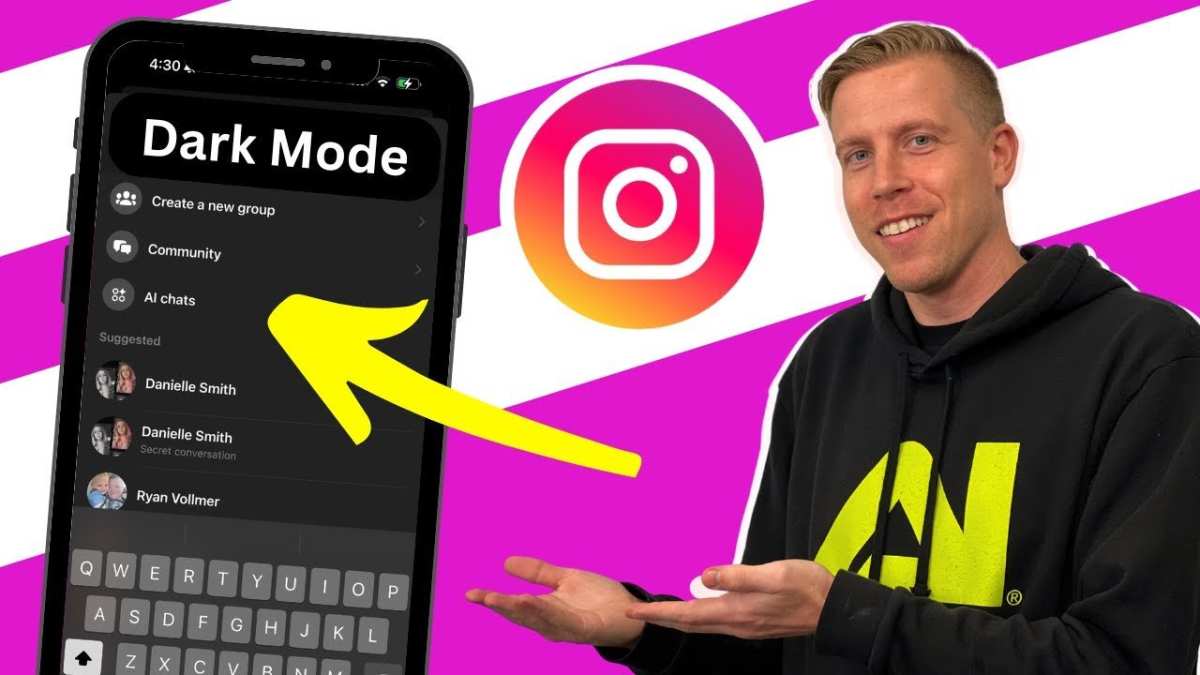
To make your Instagram black on Android, simply enable dark mode in your device settings or within the app itself. This change instantly gives your Instagram a sleek, dark appearance. If you want to know how to make your instagram black on android, switching to dark mode is the quickest way to achieve this. No need for third-party apps or complicated steps—just adjust your settings and enjoy the new look. It’s a simple upgrade that offers a fresh, stylish experience every time you scroll.

How to Make Your Instagram Black on Android
If you love the idea of having a sleek, dark look for your Instagram, you’re in the right place. Many users prefer a black theme because it looks modern, is easier on the eyes, especially at night, and can even save battery life on phones with OLED screens. Whether you want to switch to dark mode, use third-party apps, or customize your experience, this guide covers everything you need to know about how to make your Instagram black on Android.
Understanding Instagram’s Dark Mode Feature
Before diving into the how-to steps, it’s helpful to understand what dark mode is and why it matters. Dark mode changes the background and interface of apps from light colors to darker shades, generally black or dark gray. On Android, Instagram’s dark mode is designed to match the system-wide theme, giving your entire phone a consistent look.
When your Android device supports system-wide dark mode, Instagram can automatically switch to a dark theme. If it doesn’t switch automatically, you might need to enable or force dark mode manually. Learning how this works will help you customize your Instagram experience effectively.
Enabling System-Wide Dark Mode on Android
Most modern Android devices support dark mode across all apps, including Instagram. Here’s how you can turn on dark mode for your entire device:
- Open your device’s Settings app.
- Scroll down and tap on Display.
- Look for the option called Dark theme or Dark mode.
- Toggle the switch to activate dark mode.
Once you enable system-wide dark mode, compatible apps like Instagram will switch to a darker theme automatically. If Instagram doesn’t switch immediately, try restarting the app or your device.
Forcing Dark Mode on Instagram Manually
If your device doesn’t support system-wide dark mode or the app isn’t switching automatically, you can force Instagram into dark mode using developer options or third-party apps. Here’s how:
Using Developer Options
- Go to Settings >About Phone.
- Tap on Build Number seven times to unlock developer options.
- Back in Settings, open Developer Options.
- Find the Override force-dark option and turn it on.
This setting forces all apps, including Instagram, into dark mode. However, it can cause some display glitches, so use it carefully.
Using Third-Party Apps
- Download apps like Dark Mode or Night Mode from the Google Play Store.
- Open the app and follow its instructions to enable dark themes for compatible apps, including Instagram.
Be cautious with third-party apps, ensuring you download from trusted sources. Some apps may require root access, which could void your device warranty.
Using Instagram’s Built-In Dark Mode (If Available)
Instagram has introduced a built-in dark mode for some users. To check if you can enable it:
- Open the Instagram app.
- Go to your profile by tapping the bottom right icon.
- Tap the hamburger menu (three lines) in the top right corner.
- Select Settings.
- Look for Theme or Appearance.
- If available, choose Dark.
If you don’t see this option, your app might not support it yet, or your device’s Android version may need an update.
Updating Your Instagram App and Android Version
To ensure you access the latest features, keep your Instagram app and Android operating system up to date:
- Visit the Google Play Store.
- Search for Instagram.
- Tap Update if available.
For Android updates:
- Open Settings.
- Navigate to System >Software Update.
- Download and install the latest version available.
Updated apps and OS versions are more likely to support dark mode features fully.
Customizing Your Instagram Theme for a Dark Look
If you’re eager to customize your Instagram beyond just enabling dark mode, consider these options:
| Method | Description |
|---|---|
| Using Third-Party Mods | Mods or modified apps can offer a dark theme for Instagram. However, these can be risky, violating terms of service and risking security. |
| Using Browser Version | Access Instagram via a web browser and use browser extensions like Dark Reader to apply a dark theme. |
Remember, using third-party mods or browser extensions may not be as safe or reliable as official features. Always prioritize your device security.
Benefits of Having Instagram in Black or Dark Mode
Switching to a black or dark theme offers several advantages:
- Less strain on your eyes: Especially useful during late-night scrolling or low-light environments.
- Battery savings: Screens with OLED displays use less power displaying black pixels.
- Modern aesthetic: Many users find dark themes more stylish and appealing.
Potential Drawbacks and Troubleshooting Tips
While dark mode has plenty of benefits, some users might experience issues:
- Colors may appear muted or less vibrant.
- Some images or interface elements might not display correctly.
- Not all Android devices support dark mode seamlessly.
To address these problems, make sure your device’s software is up to date. Restart the app or device if needed. Consider switching back to light mode if dark mode causes usability issues.
Summary and Final Tips
Getting your Instagram to appear black or in dark mode on Android is straightforward once you know the right steps. Use the system-wide dark theme settings for a seamless experience. If that doesn’t work, explore forcing dark mode through developer options or third-party apps, but always prioritize safety. Keep your Instagram app and Android OS updated to access the latest features. With a little effort, you can enjoy a sleek, eye-friendly Instagram interface that suits your style.
Frequently Asked Questions
Can I enable a dark mode for Instagram on my Android device without using third-party apps?
Yes, if your Android device runs Android 10 or later, you can activate dark mode for the entire system, which also applies to Instagram. To do this, go to your device’s Settings, select Display, then choose Dark Theme or Dark Mode. Once enabled, Instagram automatically shifts to its dark interface if it follows system-wide theme settings.
What steps should I follow to switch Instagram to dark mode through device settings on Android?
Navigate to your device’s Settings and tap on Display. Look for the Dark Theme or Dark Mode option and enable it. Instagram is designed to adapt its appearance based on the system theme, so once you activate the system-wide dark mode, your Instagram interface will turn black or dark gray accordingly.
Are there any specific Android versions or device requirements for enabling dark mode on Instagram?
Yes, enabling dark mode for Instagram depends on your Android version and device support. Android 10 and above natively support system-wide dark mode, which Instagram can follow automatically. If you use an earlier Android version, you might need to update your device or use alternative methods such as third-party apps or app-specific settings if available.
How can I manually switch Instagram to dark mode if it doesn’t follow system settings?
If your Instagram app doesn’t automatically switch to dark mode with system settings, you might find an in-app theme option. Open Instagram, go to your profile, tap the menu icon, then Settings. Look for Appearance or Theme options and select Dark or Night Mode manually. If this option isn’t available, updating the app or your device software could help.
Is there a way to schedule dark mode for Instagram on Android instead of switching it on or off manually?
Some Android devices and apps offer scheduling options for dark mode. Check your device’s display settings or the Instagram app settings for a schedule or automatic toggle feature. If available, set the preferred time for dark mode to activate. Otherwise, third-party apps can help schedule system-wide themes, which also affect Instagram’s appearance.
Final Thoughts
To make your Instagram black on Android, you can enable Dark Mode in your device settings or through the Instagram app itself. Adjust your phone’s display settings for a system-wide dark theme, which also affects compatible apps. Alternatively, toggle the app’s appearance in Instagram’s settings if available.
Using Dark Mode not only reduces eye strain but also conserves battery life on Android devices. Remember, the main steps involve enabling system-wide dark settings or updating your Instagram app.
In conclusion, how to make your instagram black on android is straightforward by activating dark mode via device or app settings. Keep your interface comfortable and aesthetically pleasing by following these simple steps.

Similar Posts































