How To Make Your Instagram Dark Mode On Android In 2023
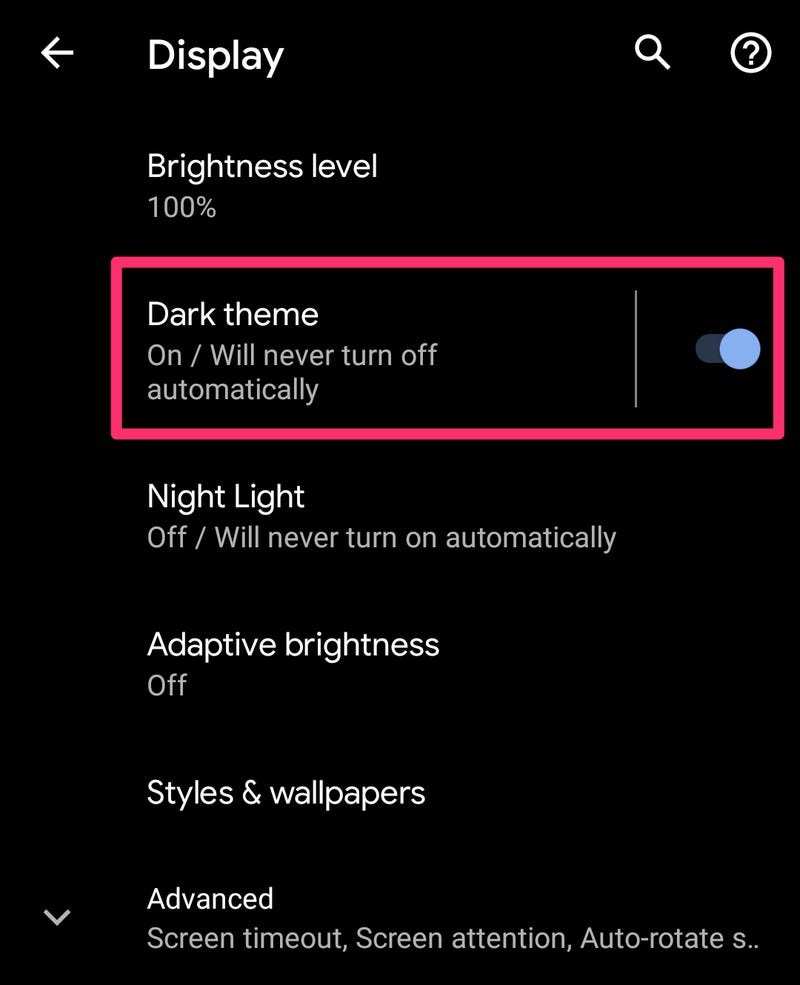
To activate dark mode on Instagram for Android, simply switch your device to dark theme in settings, and the app will follow suit. Wondering how to make your Instagram dark mode on Android? It’s straightforward and quick.
Just enable dark mode in your Android settings, and your Instagram will automatically adapt. This makes browsing more comfortable and extends your device’s battery life. A simple change, but it makes a big difference in your daily use.

How to Make Your Instagram Dark Mode on Android
Getting your Instagram to switch to dark mode on your Android device can make scrolling more comfortable, especially in low-light conditions. This feature not only looks sleek but also helps save your phone’s battery life. If you’re wondering how to activate dark mode on Instagram specifically for your Android device, read on. We’ll walk you through every step, including how it works, troubleshooting tips, and some additional tricks to enhance your experience.
Understanding Dark Mode and Why It Matters
Dark mode changes the background color of apps from bright white to a dark, often black or gray tone. It benefits users by reducing eye strain, especially when you use your phone at night or in dim environments. Plus, dark mode can help extend your device’s battery life because screens consume less power displaying dark pixels.
On Instagram, enabling dark mode offers a more visually appealing and easier-on-the-eyes experience. Not all phones have dark mode enabled by default, so you might need to activate it manually.
How Android Devices Support Dark Mode
Different Android phones support dark mode in different ways. Some phones have a system-wide dark mode that turns all compatible apps dark automatically, while others require you to set dark mode per app.
Here’s a quick overview:
- System-wide dark mode: Applies to all supported apps once enabled in settings.
- App-specific dark mode: You need to turn it on within individual apps like Instagram.
Knowing which mode your device supports helps you decide the best way to activate dark mode for Instagram.
Activating Dark Mode on Android for the Entire Device
First, let’s see how to enable dark mode across your entire Android device, which automatically makes compatible apps like Instagram go dark. Here’s how:
Step-by-step Guide
- Open the Settings app on your Android phone.
- Scroll down and tap on Display.
- Look for the option labeled Dark Theme or Dark Mode.
- Toggle the switch to activate dark mode.
Once you switch to dark theme here, Instagram will also switch to dark mode if it supports system-wide settings.
Note:
Some Android phones might have different paths. For example, on Samsung devices, you might find dark mode under Display & Wallpaper. Always explore your device’s settings if you don’t see the options listed above.
Enabling Dark Mode Inside Instagram
If you prefer to keep your device in light mode but want Instagram itself to be dark, you can enable dark mode directly within the app. Here’s how:
For Instagram Version 114 and Above
Instagram updated its settings, making it easier to toggle dark mode directly within the app. Follow these steps:
- Open the Instagram app on your Android device.
- Tap on your profile picture in the bottom right corner.
- Tap the three horizontal lines in the top right corner to open the menu.
- Select Settings from the menu.
- Go to Appearance.
- Choose Dark to enable dark mode.
This setting overrides your device-wide theme, allowing you to have dark mode just for Instagram.
For Older Versions of Instagram
If your app doesn’t have the Appearance option, you might need to update Instagram via the Google Play Store. To check:
- Visit the Google Play Store.
- Search for Instagram.
- If an update is available, tap Update.
Once updated, repeat the steps above.
Using Developer Options to Force Dark Mode
For advanced users who want to force Instagram into dark mode regardless of app or system settings, Android offers a developer feature:
Activating Force Dark Mode
- Open the Settings app.
2. Scroll down and tap About Phone.
3. Find the Build Number and tap it seven times to enable Developer Options.
4. Return to Settings and tap Developer Options.
5. Look for Override force-dark and toggle it on.
This setting applies dark themes to all apps that support it, including Instagram.
**Warning:** Use this feature carefully. Forcing dark mode in apps that don’t support it may cause display issues or glitches.
Troubleshooting Common Issues
Sometimes, dark mode might not activate as expected. Here are solutions to common problems:
Dark Mode Doesn’t Apply to Instagram
- Ensure your Instagram app is updated to the latest version.
- Check whether your device’s dark mode is enabled if you rely on system-wide settings.
- Force close the Instagram app and reopen it after changing settings.
- If using developer options, restart your phone to apply changes.
Dark Mode Causes Display Glitches
If you notice glitches or weird display issues:
- Disable Developer Options override.
- Update Instagram and your device’s software.
- Clear cache for Instagram via Settings > Apps > Instagram > Storage > Clear Cache.
Additional Tips for an Optimal Dark Mode Experience
To maximize comfort and make the most of dark mode on Instagram:
Adjust Brightness Settings
Reduce your phone’s screen brightness to prevent eye strain when using dark mode.
Use Night Light or Blue Light Filter
Most devices have a feature that reduces blue light, which can complement dark mode. Turn it on from Quick Settings or Display settings.
Customize Your Phone’s Display
Explore accessibility settings to enhance contrast or enable color inversion if needed.
Consider Using Themes and Apps
Some third-party apps and themes can improve the appearance of Instagram and other apps in dark mode.
Getting Instagram to display in dark mode on your Android phone is straightforward once you know the right steps. Whether you enable system-wide dark theme or activate it directly within the app, both options improve your viewing comfort. Remember to keep your app updated and explore device settings for the best experience. Dark mode not only looks stylish but also helps you save battery and reduces eye fatigue, making your Instagram browsing more enjoyable at any time of day.
Frequently Asked Questions
How can I enable dark mode for Instagram on my Android device?
To enable dark mode on Instagram, first ensure your device’s system-wide dark mode is turned on. Open your device’s Settings, go to Display, and activate Dark Theme. Instagram automatically switches to dark mode if the app detects the system setting. If it doesn’t, update the app to the latest version from the Google Play Store and check if the theme option appears within the app’s settings.
What should I do if Instagram doesn’t switch to dark mode automatically?
If Instagram doesn’t change to dark mode automatically, verify that your app is updated to the latest version. Open the Google Play Store, search for Instagram, and update it if available. You can also check within Instagram: go to your profile, tap the menu icon, select Settings, then Theme. If the option exists, select Dark to manually enable it.
Can I enable dark mode on Instagram without changing my device’s system settings?
Yes, you can manually toggle dark mode within Instagram if the app provides a theme setting. Tap your profile icon, then the menu (three lines), select Settings, and look for the Theme option. From there, choose Dark to activate dark mode regardless of your device’s system-wide theme.
Does enabling dark mode improve my Instagram experience on Android?
Activating dark mode can make browsing more comfortable by reducing eye strain, especially in low-light environments. It also helps conserve battery life on devices with OLED screens. Many users find the darker interface aesthetically pleasing, enhancing their overall app experience.
Are there any specific Android versions required to enable dark mode for Instagram?
Most Android devices running Android 10 or higher support system-wide dark mode, which Instagram detects automatically. If you use an older version, you may need to update your device’s software or enable dark theme within the app settings if available. Always ensure both your operating system and Instagram app are up to date for the best experience.
Final Thoughts
To make your Instagram dark mode on Android, start by updating the app to the latest version. Then, enable dark mode through your device settings or within the Instagram app settings. This mode reduces eye strain and conserves battery life.
In conclusion, knowing how to make your Instagram dark mode on android helps you enjoy a more comfortable viewing experience. Follow these simple steps to enable dark mode and personalize your app effortlessly.

Similar Posts































