How To Make Tiktok Dark Mode Android For Better Viewing
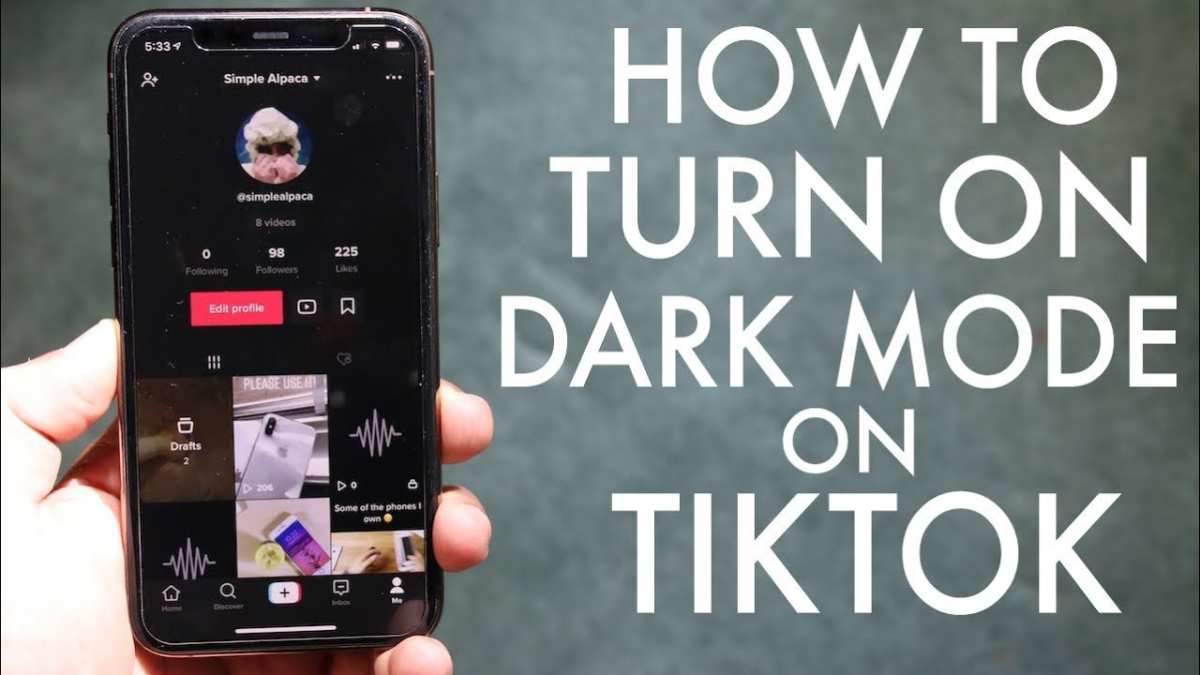
To enable dark mode on TikTok for Android, simply update the app and switch the theme in settings. If you’re wondering how to make TikTok dark mode android, it’s a straightforward process. By accessing your profile, tapping settings, and choosing the display options, you can switch to dark mode instantly. This makes browsing more comfortable at night and saves battery life. No complex steps needed—just a few taps to enjoy TikTok in a sleek dark interface.

How to Make TikTok Dark Mode Android
If you love using TikTok but find the bright interface a bit harsh on your eyes, especially at night, then switching to dark mode might be just what you need. Dark mode not only reduces eye strain but also helps save battery life on your Android device. In this guide, we’ll walk through easy and step-by-step methods to enable dark mode in TikTok on your Android phone. Whether TikTok has a built-in dark mode or you prefer a system-wide dark mode that applies to all apps, we’ll cover everything in detail.
Understanding Why Dark Mode Matters
Before diving into the how-to part, it’s good to understand why dark mode has become so popular.
- Reduces Eye Strain: Bright screens can cause discomfort, especially when you use your phone late at night. Dark mode uses darker color schemes, making it easier on your eyes.
- Enhances Battery Life: Dark backgrounds require less power on OLED and AMOLED screens, which many Android phones have today.
- Offers a Sleek Look: Many users find dark mode stylish and modern, making their app experience more pleasant.
Knowing these benefits can motivate you to enable dark mode and enjoy TikTok in a more comfortable way.
Checking TikTok for Built-in Dark Mode Options
The first thing to do is see if TikTok itself offers a built-in dark mode setting. TikTok has been updating its interface, and dark mode is now available for many users.
Steps to Enable Dark Mode in TikTok
- Open the TikTok app on your Android device.
- Tap on your profile icon, usually located at the bottom right corner of the screen.
- Tap on the three-dot icon (or the burger menu) at the top right to access settings.
- Scroll down to find the ‘Settings and Privacy’ menu and tap it.
- Look for the ‘Display’ or ‘Appearance’ option and select it.
- If you see the ‘Dark Mode’ toggle, turn it on.
Once you activate dark mode through TikTok’s settings, the app interface will switch to a darker color scheme.
Troubleshooting if Dark Mode Doesn’t Appear
If you follow these steps but don’t see the dark mode option:
- Make sure your TikTok app is updated to the latest version from the Google Play Store.
- Check your device’s system settings; sometimes, TikTok may adhere to system-wide display preferences.
- Restart your device after updating apps or system settings to ensure changes take effect.
If after checking everything dark mode still doesn’t appear, it might mean your version of TikTok does not support it yet or your device isn’t compatible.
Using System-wide Dark Mode on Android
If TikTok doesn’t provide a built-in dark mode option or you want all apps to follow a darker theme, enabling system-wide dark mode is a good alternative.
Steps to Enable Dark Mode in Android Settings
- Open the ‘Settings’ app on your Android device.
- Scroll down to find ‘Display’ or ‘Screen’ settings.
- Look for the ‘Dark Mode’ or ‘Dark Theme’ option.
- Toggle it on to activate dark mode system-wide.
When you turn on system-wide dark mode, supported apps—like TikTok—will automatically switch to dark themes where available.
Why Use System-wide Dark Mode?
- Consistency: All your apps follow the same dark theme, providing a seamless experience.
- Ease of Activation: A single toggle switch enables dark mode for most compatible apps.
- Battery Saving: Especially on dark backgrounds, your device consumes less power.
Additional Tips to Enhance Dark Mode Experience on Android
To get the most out of dark mode in TikTok and other apps, consider these tips:
Adjust Screen Brightness
– Reduce screen brightness manually to prevent glare and reduce eye strain.
– Use adaptive brightness if available, so your device adjusts automatically.
Use Dark Mode Widgets and Shortcuts
– Add dark mode toggle widgets to your home screen for quick access.
– Enable quick settings tiles in your notification shade for instant switching.
Customize Color Settings for Better Comfort
– Some Android devices allow color adjustments in accessibility settings.
– Lower blue light emissions by turning on ‘Night Mode’ or ‘Blue Light Filter’ for additional eye protection.
Third-Party Apps to Force Dark Mode in TikTok
In case your Android device doesn’t support dark mode natively or TikTok lacks a built-in option, certain third-party apps can help.
Popular Apps for Forcing Dark Mode
- Dark Mode Enabler: An app that applies dark themes across various apps, including TikTok.
- Stubborn Dark: Allows you to force dark mode on apps that don’t officially support it.
- Night Mode Enabler: Switches your device into a dark mode environment, impacting most compatible applications.
**Note:** Use these apps carefully, and ensure they are downloaded from trusted sources like the Google Play Store to avoid security issues.
Ways to Customize Your TikTok Dark Mode Experience
Once you enable dark mode, you might want to personalize your experience further:
- Adjust the contrast and color schemes if your device allows customization in display settings.
- Change the app’s font size or style for easier reading in dark mode.
- Use screen filters or glasses that reduce blue light for extra eye comfort during late-night TikTok sessions.
Keeping Your App Updated for Better Compatibility
As TikTok continually updates its features, keeping your app current ensures access to new themes, including potential enhancements to dark mode:
- Set your device to automatically update apps in the background.
- Visit the Google Play Store regularly to check for updates manually.
- Read app release notes to learn about new dark mode features or improvements.
Summary of Key Steps
To summarize, here are the main ways to make TikTok dark mode on Android:
- Check if TikTok has a built-in dark mode, and enable it via settings.
- If not available, activate system-wide dark mode through your device settings.
- Consider third-party apps if neither option works for you.
- Adjust device display and blue light filters to enhance comfort.
- Keep TikTok and your device’s system updated for the best experience.
Switching TikTok to dark mode on your Android device is easier than ever, whether through the app itself or system-wide settings. It offers a more comfortable viewing experience, especially in low light conditions, and can help extend your device’s battery life. Remember, the steps might slightly vary depending on your Android version and device model, but the overall process remains similar. Take a moment to explore these options, and enjoy your TikTok sessions in a darker, more soothing environment.
Frequently Asked Questions
Can I enable dark mode for TikTok on an Android device without updating the app?
No, you need to have the latest version of TikTok installed to access the dark mode feature. Updating the app ensures that you have the newest options and settings, including dark mode. If your app is outdated, visit the Google Play Store, locate TikTok, and update it before proceeding to enable dark mode.
Will switching to dark mode affect my TikTok content or recommendations?
No, enabling dark mode only changes the visual appearance of the app’s interface. Your content feed, preferences, and recommendations remain unaffected. This setting provides a darker background for easier viewing, especially in low-light conditions, without altering how TikTok functions or suggests videos.
Are there alternative ways to enable dark mode on TikTok if the option doesn’t appear in settings?
If you don’t see the dark mode option within TikTok’s settings, check if your device’s system-wide dark mode is active. Some apps, including TikTok, automatically switch to dark mode when your phone is set to dark theme. To enable system-wide dark mode, go to your device settings, select Display, then activate Dark theme or Night mode. This can prompt TikTok to switch to dark mode automatically.
Does enabling dark mode save battery life on my Android device?
Yes, using dark mode can help conserve battery power, especially on OLED screens, by reducing the amount of light emitted from pixels. When you switch TikTok to dark mode, it minimizes the use of bright colors and backgrounds, leading to potentially better battery performance during extended use.
Can I schedule dark mode to turn on and off automatically on TikTok or my device?
While TikTok doesn’t offer a built-in scheduling feature for dark mode, you can set your device to switch between light and dark themes automatically based on a schedule. To do this, go to your device’s Settings, then Display, and activate the automatic dark mode option with your preferred schedule. This way, TikTok will follow your system theme, toggling dark mode on and off as set.
Final Thoughts
To make TikTok dark mode on Android, start by opening the app and tapping your profile icon. Then, go to Settings and select Display. Choose the Dark Mode option to enable it.
In summary, how to make tiktok dark mode android is straightforward through the app settings. Enabling this feature enhances viewing comfort during nighttime. It also reduces battery consumption and provides a sleek look.

Similar Posts