How To Make Your Facebook Dark Mode On Android In 2023
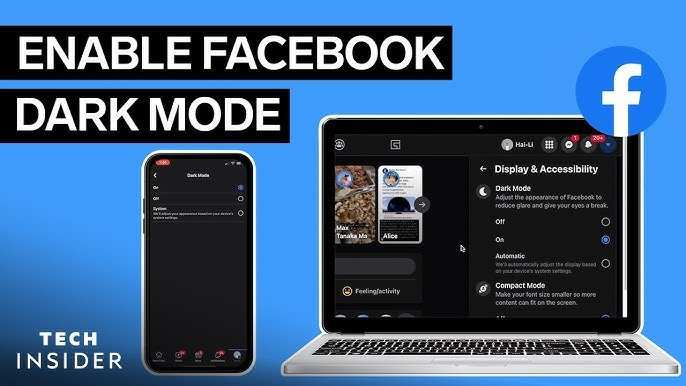
To activate dark mode on Facebook for Android, simply go to your app settings, tap on Dark Mode, and select ‘On.’ It’s a quick process that enhances your browsing experience, especially at night. Wondering how to make your Facebook dark mode on Android? Just follow these easy steps, and you’ll enjoy a sleek, eye-friendly interface in no time. Dark mode reduces eye strain and conserves battery life, making it a practical choice for daily use. Get ready to enjoy Facebook in a whole new, darker light with just a few taps.

How to Make Your Facebook Dark Mode on Android
Getting your Facebook app to display in dark mode on your Android device makes browsing more comfortable, especially in low-light environments. It can reduce eye strain, save battery life, and give your app a sleek, modern look. If you’re wondering how to switch Facebook to dark mode on Android, you’ve come to the right place. Let’s walk through the process step-by-step, explore troubleshooting tips, and learn about additional customization options.
Understanding Why You Should Enable Dark Mode on Facebook
Before diving into the how-to, it’s helpful to grasp why many users prefer dark mode. Here are some key benefits:
- Reduces Eye Strain: Dark backgrounds lessen the amount of bright light hitting your eyes, making long sessions more comfortable.
- Saves Battery: On devices with OLED screens, dark mode consumes less power because black pixels turn off completely.
- Modern and Stylish: Many users find the dark aesthetic more pleasing and less cluttered.
- Improves Sleep: Reducing blue light exposure before bedtime can help you sleep better.
Now, let’s explore how to activate this feature on your Android device.
Enabling Dark Mode in Facebook App on Android
The primary way to switch Facebook to dark mode is directly within the app’s settings. Here’s how to do it:
Step-by-step Guide to Enable Dark Mode in Facebook
- Open the Facebook App: Tap on the Facebook icon on your Android device to launch the app.
- Access the Menu: Tap on the three horizontal lines (also called the hamburger menu) located at the top right corner of the screen.
- Scroll Down to Settings & Privacy: Find this section, then tap to expand it.
- Select ‘Settings & Privacy’: A list of options appears. Tap on this to open further settings.
- Tap on ‘Dark Mode’: Usually, this option appears near the top of the menu or within the display settings.
- Choose Your Preference: You’ll see options like ‘On,’ ‘Off,’ or ‘Use system settings.’ Select ‘On’ to activate dark mode immediately.
- Dark Mode Enabled: The interface switches instantly, giving you a darker background across the app.
The process is straightforward, but keep in mind that sometimes the interface might differ slightly depending on app updates or your device’s Android version.
Using System-Wide Dark Mode to Change Facebook Appearance
If you prefer to change the appearance of all apps that support dark mode, including Facebook, you can enable Android’s system-wide dark mode. This is especially useful if you want a uniform look across your device.
Activating Android’s Dark Theme
- Open your device’s **Settings** app.
- Scroll down and tap on **Display**.
- Look for the **Dark Theme** or **Dark Mode** toggle; turn it on.
- Android will automatically switch compatible apps, including Facebook, to dark mode.
Note that some apps might not fully support system-wide dark mode, but Facebook is typically compatible.
Ensuring Facebook App Is Updated for Dark Mode Support
Sometimes, dark mode options only appear after updating the app. Here’s how to check for updates:
Steps to Update Facebook on Android
- Open the **Google Play Store** app.
- Tap on your profile icon at the top right corner.
- Select **Manage apps & device**.
- Under the **Updates available** section, look for Facebook.
- If an update is available, tap **Update** next to Facebook.
Keeping your app up-to-date ensures access to the latest features, including dark mode enhancements.
Troubleshooting Common Issues with Facebook Dark Mode on Android
Sometimes, users face challenges when trying to enable dark mode. Here are some common issues and how to fix them:
Dark Mode Not Appearing in Facebook Settings
- Ensure the App Is Updated: An outdated app might not support dark mode. Update it through the Play Store.
- Clear Cache and Data: Go to **Settings > Apps > Facebook > Storage**, then tap **Clear Cache** and **Clear Data**.
- Reinstall the App: Uninstall Facebook and reinstall it from the Play Store.
Dark Mode Won’t Activate or Looks Glitched
- Check System Settings: Make sure Android’s dark theme is enabled if you’re depending on system-wide settings.
- Restart Your Device: Sometimes, a quick restart fixes display glitches.
- Wait for App Updates: Developers often release bug fixes, so keep your Facebook app updated.
Additional Tips for Better Dark Mode Experience
To maximize your comfort and efficiency, consider these extra steps:
Adjust Brightness and Blue Light Settings
- Lower your device’s brightness to reduce glare.
- Use blue light filter apps or built-in features to lessen blue light exposure further.
Customize Dark Mode Intensity
While Facebook itself doesn’t offer different levels of dark mode, some Android devices or third-party apps allow you to tweak display settings for a more personalized experience.
Use Dark Mode on Other Apps
Maximize the benefits by enabling dark mode on other social media, messaging, and browsing apps.
What to Do When Facebook Dark Mode Isn’t Available
Although most recent versions support dark mode, some older devices or app versions might lack this feature. If you find that dark mode options aren’t appearing:
- Check your device’s Android version. Updating to the latest OS can add more features.
- Ensure you have the latest Facebook app version installed.
- Visit Facebook’s help center for specific guidance related to your device.
- Consider using third-party apps that force dark themes on apps, but proceed with caution and check reviews before installation.
Switching your Facebook app to dark mode on Android is simple and can significantly improve your user experience. Whether you prefer toggling it directly within the app settings or adopting system-wide themes, the options are flexible. Remember to keep your app updated to access the latest features and fixes. If you encounter issues, try troubleshooting by clearing cache, updating your device, or reinstalling the app. Embrace dark mode to enjoy a more relaxing, battery-friendly, and stylish Facebook browsing experience.
Frequently Asked Questions
Can I enable Facebook dark mode directly through the app settings on Android?
Yes, you can activate dark mode directly within the Facebook app on your Android device. Open the app, tap the menu icon (three horizontal lines), scroll down and select “Settings & Privacy,” then tap “Dark Mode.” Choose “On” to enable dark mode immediately.
Is it necessary to update the Facebook app to access dark mode on Android?
Typically, yes. Ensure you update your Facebook app to the latest version from the Google Play Store. New features like dark mode are often included in recent updates, and updating ensures compatibility and smooth functionality.
How can I switch dark mode on and off easily on my Android device for Facebook?
You can quickly toggle dark mode on or off by accessing the Facebook app’s quick settings. Tap the menu icon, go to “Settings & Privacy,” then “Dark Mode,” and toggle the switch to your preferred setting. Alternatively, enable dark mode system-wide on your device to have Facebook follow that setting automatically.
Does enabling dark mode affect the overall performance of Facebook on Android?
Enabling dark mode generally does not impact Facebook’s performance negatively. It can even help reduce battery consumption on devices with OLED screens and decrease eye strain during prolonged use, providing a more comfortable browsing experience.
Are there any additional tips for customizing dark mode on Facebook on Android?
Yes, aside from turning dark mode on or off, you can customize related display settings by adjusting your device’s system-wide themes. Also, keep your app updated to access any new customization options and ensure the best visual experience while using dark mode on Facebook.
Final Thoughts
To make your Facebook dark mode on Android, open the app and tap the menu icon. Navigate to Settings & Privacy, then select Dark Mode. Turn it on by choosing the “Dark Mode” option.
Enabling dark mode reduces eye strain and saves battery life. The process is quick and straightforward, requiring just a few taps. Enjoy browsing with a more comfortable visual experience.
In summary, knowing how to make your Facebook dark mode on Android enhances your app usage. It’s an easy feature to activate that can improve your overall experience.

Similar Posts































