How To Make Your Emojis Black On Android: Simple Guide

How to Make Your Emojis Black on Android
If you’ve ever wanted to change the appearance of your emojis on your Android device to a sleek black style, you’re not alone. Many users prefer a more uniform or minimalist look for their emojis, especially when customizing their phone’s appearance. This guide will walk you through various methods to make your emojis black on Android, covering everything from native settings to third-party apps and custom solutions. Whether you’re a novice or someone with a bit of experience customizing your device, you’ll find detailed steps here to help you achieve the exact look you want.Understanding Why Emojis Change Appearance
Before diving into how to make emojis black, it’s important to understand why emojis can look different across devices. Emojis don’t have a single universal design; instead, they vary based on:- Operating System: Android, iOS, Windows, each has its own emoji style.
- App Rendering: Messaging apps like WhatsApp, Messenger, or default texting apps may display emojis differently.
- Device Customizations: Some phones come with custom skins and themes that affect emoji appearance.
Using Built-in Themes and Dark Mode Options
Many Android phones now include system-wide themes or dark modes that subtly influence emoji styles, often making them darker or more uniform. Here is how you can access these features:Activating Dark Mode on Android
Dark mode often darkens the background and can sometimes affect emoji colors indirectly:- Go to Settings on your Android device.
- Select Display.
- Tap on Dark Theme or Dark Mode.
- Toggle it on.
Custom Themes and Icon Packs
Android allows users to install custom themes and icon packs that change the overall look of the system, including emojis:- Visit the Google Play Store and search for emoji themes or icon packs.
- Install a theme that offers black or dark-themed emojis.
- Follow the app’s instructions to apply the theme via your device’s theme manager or custom launcher.
Changing Emoji Style with Third-Party Keyboard Apps
One of the most effective ways to customize your emojis is by using third-party keyboard apps that let you choose emoji styles, including black emojis. Here are some popular options and how to set them up:Using Gboard with Custom Emojis
Google’s Gboard is a versatile keyboard that supports emoji customization:- Download Gboard from the Google Play Store if it’s not already installed.
- Open Settings on your device.
- Go to System >Languages & Input.
- Select Keyboard & Input Methods and then Manage Keyboards.
- Enable Gboard.
- Open an app where you want to use emojis and switch to Gboard from the keyboard selection.
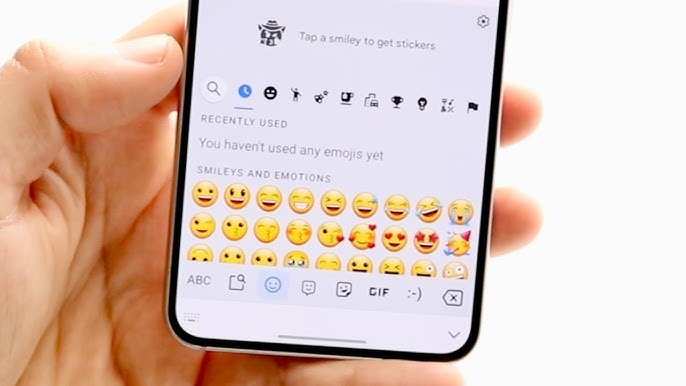
- In Gboard, tap the emoji icon, then explore the options. Some versions or updates of Gboard offer themed emojis, including dark or black styles.
Using Specialized Emoji Apps
Apps like Bitmoji, Zemoji, or Emoji Switcher can provide a broader range of emoji styles:- Download and install the app from Google Play.
- Follow the app-specific instructions to set it as your default keyboard or to access emojis directly.
- Search within the app for black or dark-themed emojis.
Creating Custom Emojis with Image Editing
If you want absolute control over your emojis’ appearance, including making them black, editing images manually becomes an effective method. Here is how you can do it:Using Image Editing Apps
Apps like Pixlr, Photoshop Express, or Photopea can help you modify emoji images:- Search for emoji images online or take a screenshot of an emoji.
- Open the image in your chosen editor.
- Use tools like the brush, fill, or color adjustment options to turn the emoji black.
- Save the edited emoji as an image file.
Setting Custom Emojis as Stickers or Keyboard Images
After editing, you can:- Use apps like Sticker Maker or Personal Sticker for WhatsApp to convert images into stickers.
- Import the stickers into messaging apps that support custom stickers.
- Select your black emojis whenever you wish to send a message.
Using Custom ROMs or Root Access for Advanced Users
For users comfortable with deeper device modifications, rooting your Android device or installing custom ROMs allows extensive customization:Installing Custom Fonts and Emoji Packs
Rooted devices can access system files:- Use root file explorers like Solid Explorer or FX File Explorer.
- Navigate to system directories where emojis are stored.
- Replace default emoji images with black-themed versions.
- Restart your device to see the changes.
Risks and Considerations
Be aware that rooting and modifying system files can:- Void your device warranty.
- Lead to potential system instability if not done correctly.
- Require a backup before proceeding.
What Not to Do When Customizing Emojis
While exploring ways to make your emojis black, avoid:- Using untrusted sources for emoji packs or themes, which can compromise your device’s security.
- Trying to modify system files without proper knowledge, risking bricking your device.
- Overloading your device with too many themes or apps that can slow down performance.
Summary of Methods to Make Emojis Black on Android
Here’s a quick overview of the options available:| Method | Description | Ease of Use |
|---|---|---|
| System Dark Mode & Themes | Activate dark mode or install themes that modify emoji appearance | Easy |
| Third-Party Keyboards & Apps | Use keyboards or emoji apps supporting style customization | Moderate |
| Image Editing & Custom Stickers | Edit emojis manually and create stickers or images | Advanced |
| Rooting & Custom ROMs | Deep system modifications for total control | Expert level |
Frequently Asked Questions
Can I change the color of emojis directly on my Android device?
Android devices do not allow users to directly change the color of emojis through system settings. However, you can achieve different emoji styles by installing custom keyboards or third-party apps that offer a variety of emoji designs and themes. These apps often include options for customizing the appearance, including color variations.
Are there specific apps that let me customize emoji colors on Android?
Yes, several third-party apps and custom keyboards enable you to personalize emoji styles, including their colors. Popular options include Gboard with themed emoji packs or dedicated emoji keyboard apps like Emoji Keyboard by Facemoji. Make sure to review app permissions and choose those with good ratings for safe customization options.
How can I use keyboard themes to change emoji appearance on my Android?
Most keyboard apps provide themes or skins that alter the visual style of emojis. To do this, download and install a keyboard app with theme support, set it as your default keyboard, and browse through the available themes to select one that offers the emoji style you prefer. This method can give the illusion of different emoji colors and styles.
Is it possible to edit individual emojis to make them appear black on Android?
Editing individual emojis to change their appearance, including making them black, requires image editing skills and custom emoji images. You can replace default emojis with custom images in specific messaging apps, but this process is complex and often not supported officially. It’s generally easier to use third-party keyboards that offer a variety of emoji styles.
What safety tips should I follow when using third-party apps to change emoji styles?
Always download apps from trusted sources like the Google Play Store. Check user reviews and app permissions carefully before installation. Prefer apps with high ratings and active development. Keep your device’s security settings updated and avoid granting unnecessary permissions that could compromise your privacy.
Final Thoughts
Making your emojis black on Android is simple with a few adjustments. First, access your device settings and navigate to display options. Use a custom theme or launcher that allows emoji color changes. You can also install third-party apps or emoji packs that offer black emoji variants. These options give you greater control over your visual style. In summary, to make your emojis black on Android, customize your theme or use specific emoji packs. Remember, how to make your emojis black on android primarily depends on your app choices and personalization settings.
Similar Posts































