How To Make Status Bar Black On Android: Easy Steps
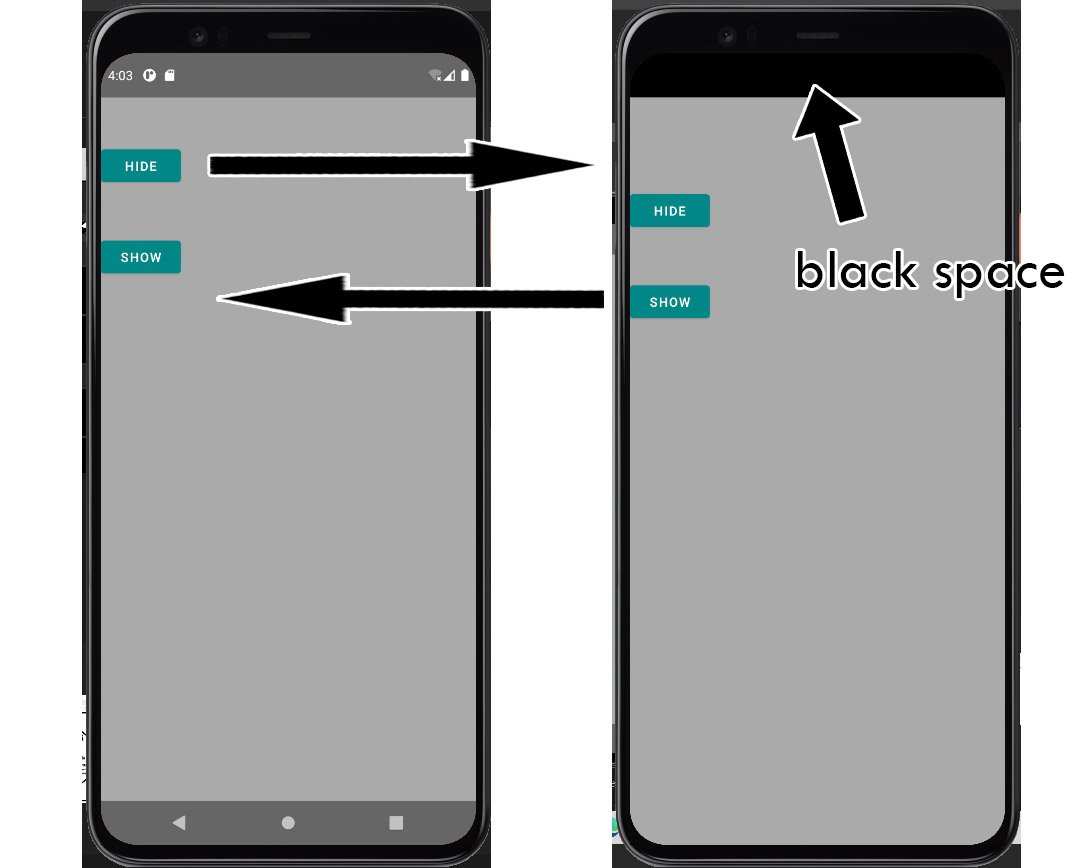

How to Make the Status Bar Black on Android
When you want to customize your Android device to better match your style or improve visibility, changing the color of the status bar is a simple yet effective step. The status bar, located at the top of your screen, displays important information like signal strength, Wi-Fi status, battery life, and notifications. Making it black can make your device look sleeker, especially when combined with a dark-themed wallpaper or app interface. In this guide, we will explore various methods to change the status bar color, so you can find the perfect look for your Android device.Understanding Why the Status Bar Color Matters
Before diving into the how-to steps, it’s good to understand why changing your status bar color can make a difference:- Visual Consistency: Matching the status bar with your wallpaper or app themes creates a uniform and aesthetically pleasing look.
- Improved Readability: Darker status bars can make icons and notifications stand out more clearly, especially in low-light situations.
- Personalization: Customizing your device makes it feel more unique and tailored to your preferences.
How to Make the Status Bar Black on Android: Basic Methods
Getting your status bar to turn black is easier than you might think. Depending on your device’s Android version and manufacturer, different methods might work better. Let’s go through the most straightforward options first.Method 1: Enable Dark Mode or Night Mode
Many Android devices come with a dark or night mode setting that automatically adjusts UI elements, including the status bar, to darker colors.- Open your device’s Settings menu.
- Scroll and select Display.
- Look for options like Dark Mode or Night Mode.
- Toggle the dark mode on.
Method 2: Use Built-in Themes or Customization Options
Many Android devices, especially those from brands like Samsung, Google Pixel, OnePlus, and others, allow you to change themes or customize the status bar color.- Go to Settings >Themes or Display.
- Browse available themes with dark or black color options.
- Select a theme that includes a black status bar or customize the UI colors if the option exists.
Advanced Methods to Make Your Status Bar Black
If basic options don’t give you the desired level of customization, you can explore more advanced techniques. These typically involve tweaking system settings or installing third-party apps.Method 3: Modify System UI Flags via Developer Options
This method requires enabling developer options and using certain system flags to change the status bar appearance.- Open Settings.
- Navigate to About phone.
- Tap on Build number seven times to activate developer options.
- Go back to Settings and select Developer options.
- Scroll down to find Simulate color space or similar options if available. This isn’t always accessible but can influence UI appearance.
Method 4: Use Third-Party Apps for Customization
Third-party apps can help you change the status bar color more precisely, especially if your device doesn’t support the change natively.- Material Status Bar: Allows you to set custom colors for the status bar and navigation bar.
- Substratum Themes: Offers extensive theming options if your device supports custom ROMs.
- Theme Park: An app by Google that enables customization of system UI elements, including the status bar.
- Download and install your preferred app from the Google Play Store.
- Grant necessary permissions.
- Navigate to the app’s settings and select the color black or dark themes for the status bar.
- Apply the changes and reboot your device if necessary.
Customizing Status Bar Icons and Notifications for a Blacker Look
Changing the background to black is just part of the process. You can also modify how icons and notifications appear to match the dark theme.Adjust Notification Panel Brightness and Icons
Most Android devices automatically adapt icons to dark backgrounds, but some allow manual settings.- Go to Settings.
- Select Display.
- Find options like Status bar icons or similar to toggle dark icons.
Use Custom Icons and Notification Styles
Apps like Material Notification Shade enable you to customize notification styles, including icon colors and backgrounds, for a consistent dark look.Tips for Ensuring Your Status Bar Looks Perfect
Here are some quick tips to help you keep your status bar looking sharp and professional after making changes:- Choose wallpapers and themes that complement a black or dark status bar for a cohesive device appearance.
- Regularly update your device’s software and apps to ensure theme compatibility and smooth customization.
- Back up your current settings before making significant modifications—this way, you can revert if needed.
- Reboot your device after applying changes to ensure the new settings take effect properly.
Potential Challenges and How to Overcome Them
While customizing your Android’s status bar to be black is usually straightforward, some issues may arise:Limited Support on Stock Android
Not all devices support deep customization without root access or third-party apps. If you find that your device’s default options are limited, consider rooting your device or using specialized apps.App Compatibility
Some apps may override system UI elements, preventing your customization from appearing correctly. In such cases, look for app-specific settings to tweak their appearance or use third-party theming apps compatible with your device.Rooting Risks and Benefits
Rooting can open up full control over your device’s UI, including the status bar color, but it also carries risks like voiding warranties or bricking devices. Proceed carefully and only if you are comfortable with technical procedures. Making your status bar black on Android can greatly enhance the look of your device and improve visual clarity. Whether through built-in settings, themes, or third-party apps, you can achieve a sleek, dark aesthetic that matches your personal style. Remember to explore all options based on your device’s capabilities and Android version, and don’t hesitate to experiment to find what looks best for you. With a few simple steps, you can give your device a fresh, modern appearance that’s both stylish and functional.Frequently Asked Questions
Can I change the status bar color to black without rooting my Android device?
Yes, many Android devices allow you to change the status bar color through built-in settings or quick settings panels. You can check your device’s display or notification options to see if a theme or style setting is available that lets you set the status bar to black. If your device doesn’t support this natively, you might need to use third-party apps or customize your device with specific launcher options.
What are the steps to set a black status bar on Android using developer options?
To set a black status bar via developer options, enable developer options by tapping the build number seven times in your device settings. Then, navigate to the ‘Simulate color space’ option within developer options and select ‘Monochromacy’ or a similar setting to alter display colors. This method can make the status bar appear darker or black, depending on your device’s compatibility.
Are there specific apps that can help me customize my status bar color to black?
Yes, several apps available on the Google Play Store allow customization of the status bar, such as customizing colors, transparency, and styles. Apps like Substratum Theme Engine or Nova Launcher can help you set a black or dark-themed status bar. Make sure to select apps compatible with your device and Android version for optimal results.
Final Thoughts
Making the status bar black on Android enhances your device’s appearance and readability. You can do this by adjusting the system UI flags or through your device settings, depending on your Android version. Using third-party apps can also help customize the status bar color to your preference. In summary, to make status bar black on android, follow the available options based on your device and Android version. These steps ensure a sleek, unified look that improves user experience.
Similar Posts































