How To Make Status Bar Disappear Android: Simple Guide
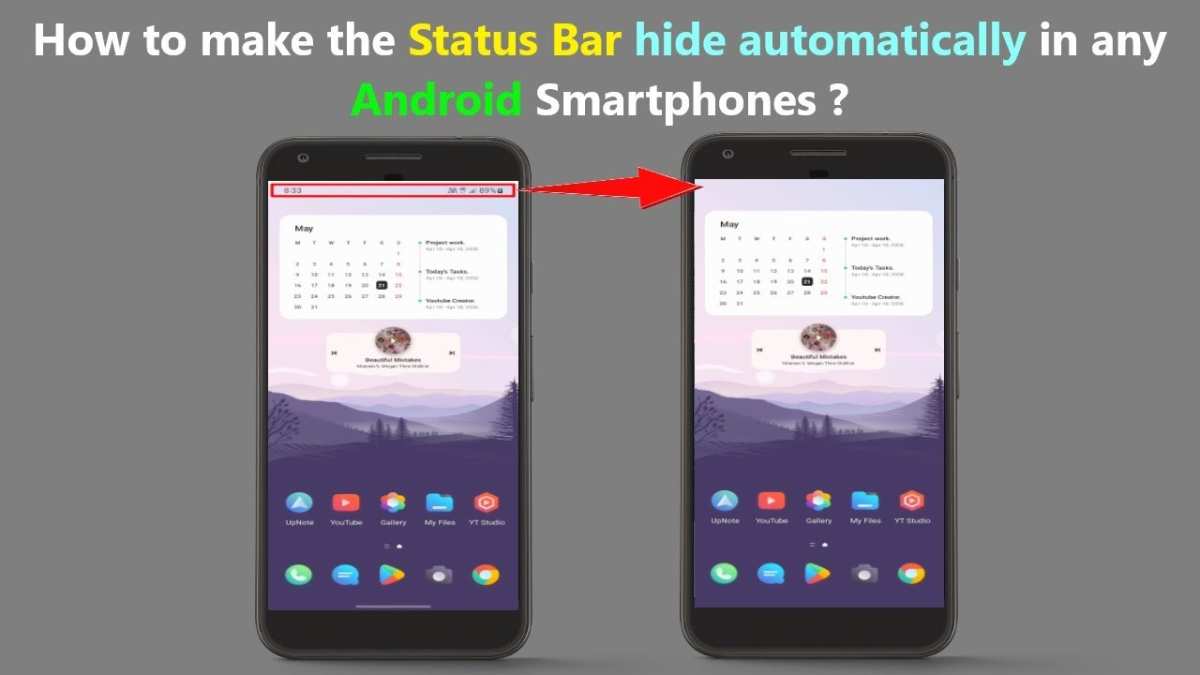

How to Make the Status Bar Disappear on Android Devices
Many Android users want a cleaner look for their screens, especially when watching videos, playing games, or taking selfies. One way to achieve this is by hiding the status bar, which usually shows time, notifications, battery level, and network signals. Removing this bar creates a more immersive experience, making the content more engaging and free of distractions. In this detailed guide, we explore the different methods to hide the status bar on Android devices, including settings adjustments, app solutions, and custom modifications. We will also cover important things to consider before hiding the status bar, potential limitations, and tips for a seamless experience.Understanding the Android Status Bar
Before diving into how to make the status bar disappear, it’s helpful to understand what it is and why it’s there. The status bar is a part of the screen at the top that provides quick access and information about your device. It includes elements such as:- Time and date
- Battery level and charging status
- Wi-Fi, mobile data, and Bluetooth icons
- Notification icons for messages, emails, and app alerts
- Alarm and other system icons
Reasons to Hide the Status Bar
People choose to hide the status bar for various reasons:- To get a full-screen experience during videos, games, or presentations
- To focus on content without distractions
- To take better screenshots or recordings without overlay elements
- To improve aesthetics for custom wallpapers or themes
- To create a more professional look during demonstrations or public displays
Methods to Make the Status Bar Disappear on Android
Using Built-in Developer Options
Android’s developer options include an easy way to hide the status bar temporarily. These options are designed mainly for developers but are accessible to regular users.- Enable Developer Options:
- Go to Settings
- Tap on About Phone
- Find the Build Number and tap it seven times quickly. You should see a message confirming developer mode is active.
- Access Developer Options:
- Go back to Settings
- Scroll down and tap on Developer Options
- Hide Status Bar:
- Look for the setting called “Simulate color space” or “Force activities to be resizable” (depending on device and Android version). Some devices have a specific toggle for status bar related options.
- Alternatively, you can enable “Full-screen mode” by toggling “Display cutout” or “Hidden status and navigation bars” options if available.
Using System Settings for Full-Screen Mode
Most Android devices have a built-in feature to enable full-screen mode, removing the status bar.- Open Settings
- Look for Display or Screen options
- Tap on Full Screen or Full-Screen Display
- Enable the toggle for Full Screen Mode
Using Third-Party Apps
Apps can help you manually hide or auto-hide the status bar while using your device. Popular options include:- GMD Full Screen Immersive Mode: This app provides a simple toggle to hide system bars for a fully immersive experience.
- Navigation Gestures: Besides customizing gestures, it offers options to hide the status bar, especially useful for newer Android versions.
- Immersive Mode Sets: Some apps enable you to set immersive mode globally or per app.
Customizing with Android ADB Commands
A more advanced method involves using Android Debug Bridge (ADB) commands. It’s suitable for users comfortable with command-line tools.- Enable Developer Options and USB Debugging:
- Go to Settings > About Phone
- Tap Build Number seven times to activate Developer Options
- Return to Settings > Developer Options and enable USB Debugging
- Connect your device to a computer with ADB installed.
- Open a command prompt or terminal window and type:
adb shell settings put global policy_control immersive.status=full
- This command activates immersive mode, hiding the status bar across the system. To revert, use:
adb shell settings put global policy_control null
Custom ROMs and Rooted Devices
If you have a rooted Android device or custom ROMs like LineageOS, you can modify system files for complete control over the status bar.- Using Xposed modules, such as GravityBox, allows you to hide or customize system UI elements.
- Editing system files or using custom themes can also disable the status bar permanently, but this involves a higher risk for system stability.
Things to Keep in Mind
While hiding the status bar offers a sleek look, it can also lead to some inconveniences:- Notifications won’t be visible unless you access the notification shade manually.
- Quick access to battery info, network status, or alarms may become less convenient.
- Some apps might not work correctly without the status bar, especially those relying on system notifications.
- Full-screen mode can affect navigation gestures—ensure your device supports gestures if you rely on them.
Tips for a Better Experience
To get the most out of hiding the status bar, consider these tips:- Use apps designed for immersive mode that can toggle the status bar automatically when needed.
- Combine full-screen mode with gesture navigation to enhance the experience.
- Save your preferred settings or app configurations as shortcuts or in custom profiles for quick access.
- Be cautious with root methods; always back up your data before making system modifications.
Frequently Asked Questions
What settings can I adjust to hide the status bar on my Android device?
You can go to your device’s Settings, then navigate to Display or Notifications. From there, look for options such as ‘Hide status bar’ or ‘Full screen mode.’ Enabling these will temporarily or permanently hide the status bar, especially when you’re using certain apps or in specific modes.
Are there third-party apps that allow me to hide the status bar?
Yes, several third-party applications in the Google Play Store offer the ability to hide or customize the status bar. Apps like ‘Immersive Mode’ or ‘GMD Full Screen Immersive’ can provide more control over your screen display, enabling you to remove the status bar when needed.
How can I hide the status bar during video playback or gaming sessions?
Many Android devices and apps support full-screen modes that automatically hide the status bar during video playback or gaming. You can enable full-screen mode within the app settings or activate immersive mode through your device’s display options, ensuring an unobstructed viewing experience.
Final Thoughts
Making the status bar disappear android can enhance your app’s immersive experience. Use full-screen mode or hide the system UI through developer options for quick results. Adjusting your settings makes your app look cleaner and more professional. Remember, knowing how to make status bar disappear android is essential for creating a seamless interface.
Similar Posts































