How To Make Youtube Screen Smaller On Android

How to Make YouTube Screen Smaller on Android
Watching videos on your Android device is a common activity, but sometimes the full-screen view can feel overwhelming, especially when you want to multitask or browse other apps while watching a YouTube video. If you’re asking, “How can I make the YouTube screen smaller on Android?” you’re in the right place. This guide will walk you through various methods to resize your YouTube screen for a better viewing experience. We’ll explore simple gestures, built-in features, third-party apps, and setting adjustments to help you watch YouTube videos at a smaller size.Understanding the Importance of Resizing YouTube Screen
Before diving into the steps, let’s understand why resizing the YouTube screen matters. When your screen is large, it consumes a lot of space, making it difficult to do other tasks simultaneously. Resizing allows you to:- Watch videos while browsing social media or messaging apps
- Improve multitasking by viewing two apps at once
- Reduce eye strain by adjusting the video size
- Customize your viewing experience to match your preferences
Using Picture-in-Picture Mode on Android
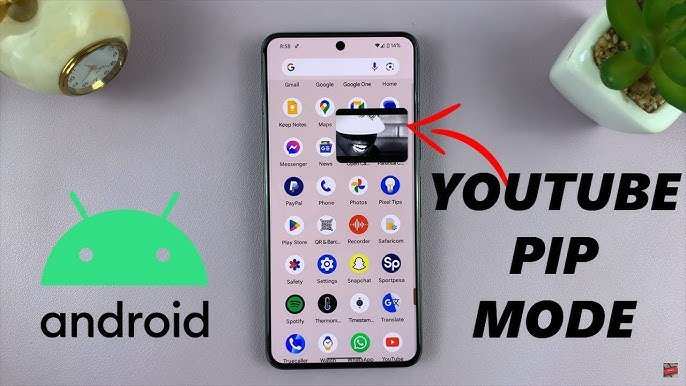
One of the most straightforward ways to make YouTube videos smaller on Android is by using the Picture-in-Picture (PiP) mode. This feature reduces the video to a small floating window, allowing you to continue browsing or chatting underneath. Here’s how to activate and use PiP mode effectively:Enable Picture-in-Picture Mode
– Open your device’s **Settings**. – Tap on **Apps & notifications** or **Apps**. – Find and select **Special app access** or **Advanced** options. – Tap on **Picture-in-picture**. – Locate **YouTube** in the list and toggle the switch to enable PiP for YouTube. *Note:* Your device must run Android 8.0 Oreo or above to support PiP mode.Using Picture-in-Picture with YouTube
– Launch the **YouTube app** and start playing a video. – Tap the **Home** button or navigate away from the app. – The video should automatically shrink into a small window, floating over your home screen or other apps. – You can drag this window to any corner for convenience. – Tap the window to pause or drag the edges to resize it further, depending on your device and app updates. **Tips for Smooth Usage**:- Make sure PiP is enabled for YouTube in your settings.
- Use latest app versions to access all features smoothly.
- If PiP doesn’t activate, double-check the permission settings or restart your device.
Using the YouTube App’s Mini Player Feature
In recent Android and YouTube updates, Google introduced a built-in mini player feature, allowing you to watch videos in a smaller window within the app itself.Activate the Mini Player
– Open the **YouTube app**. – Play any video. – Tap the **Minimize** icon (usually a small rectangle with an arrow pointing downward) at the top right corner of the video. – The video will shrink into a small floating window, which remains in your view while you scroll through content or explore other videos.Adjusting the Mini Player for a Smaller Screen
– Tap and hold the mini player. – Drag it to your preferred position on the screen. – To resize, look for options like pinch-to-zoom or a resize handle (depending on app updates). – You can also close the mini player by tapping the **X** icon or swiping it away. This feature offers a seamless way to keep watching while browsing, making the screen smaller without leaving the app.Third-Party Apps for Resizing YouTube Screen
While Android’s core features are powerful, some users prefer third-party solutions for more control over the YouTube window size. Several apps allow you to overlay YouTube videos and resize them freely.Popular Third-Party Apps
- Floating Apps: Lets you open YouTube videos in a floating window that can be resized and moved around.
- Mini Screen Video Players: These apps provide a mini-player mode similar to PiP but with additional customization options.
- Split Screen View: Android’s native split-screen feature enables viewing YouTube alongside other apps, effectively resizing each window.
How to Use These Apps
– Download and install the app from Google Play Store. – Open the app and grant necessary permissions. – Launch YouTube through the app’s interface or open YouTube separately. – Use the overlay or split-screen feature to resize the video window. – Adjust the size and position to your convenience. **Important Tips**:- Check app reviews for stability and safety.
- Ensure your device supports overlay permissions if apps require them.
- Be cautious when granting permissions; only use reputable apps.
Using Android’s Split-Screen Feature
Android phones running Android 7.0 Nougat and above support split-screen mode, enabling you to run YouTube in one part of the screen and another app in the other. This effectively reduces the YouTube window in size.How to Activate Split-Screen Mode
– Open the **Recent Apps** view (typically through the square or multitasking button). – Find the **YouTube** app. – Tap the app’s icon or hold it, then select **Split Screen**. – Choose another app to open in the other part of the screen. – Adjust the slider to resize the YouTube window as needed. This method is especially useful for multitasking but can also serve as a way to keep YouTube at a smaller size.Adjusting System Settings for Better Resizing Control
Your device’s display settings can influence how videos scale and how you can resize windows.Changing Screen Size and Display Scaling
– Open **Settings**. – Tap **Display**. – Find **Screen size** or **Display size**. – Adjust the slider to make everything, including videos, appear smaller or larger. – Apply changes and relaunch YouTube if necessary. Such adjustments can help in making videos look smaller or bigger according to your preferences, especially if combined with other methods.Best Practices for Resizing YouTube on Android
To get the most out of resizing options, consider these tips:- Keep your YouTube app updated to access new features.
- Use the latest Android version for compatibility with PiP and split-screen modes.
- Adjust display settings for a more comfortable viewing size.
- Combine methods for a customized experience—use PiP for quick smaller views, split-screen for multitasking, and third-party apps for added control.
- Ensure your device supports necessary permissions and features before attempting advanced resizing.
Summary of Methods to Make YouTube Screen Smaller on Android
| Method | Device Compatibility | How It Works | Ease of Use | |—————————-|————————|————————————————|————————-| | Picture-in-Picture Mode | Android 8.0+ | Shrinks video into a floating window | Very simple | | Mini Player | Recent versions of YouTube | Minimizes within the app itself | Easy and integrated | | Third-party Overlay Apps | Varies | Adds customizable floating windows | Moderate, requires apps | | Split Screen Mode | Android 7.0+ | Divides screen into two parts, each with an app | Moderate to advanced | | Display & Screen Settings | All Android devices | Adjusts overall screen size and scaling | Basic to moderate | Choosing the right method depends on your device’s capabilities and your preferences. For quick resizing, PiP mode or mini player suffices. For more flexibility and multitasking, split-screen and third-party overlay apps are better options. In conclusion, making the YouTube screen smaller on Android is achievable through various built-in features and third-party solutions. Whether you prefer a simple PiP overlay or a more customized floating window, these options enhance your ability to watch videos comfortably while performing other tasks. Experiment with these methods to find the one that best fits your needs and enjoy a more adaptable viewing experience on your Android device.Frequently Asked Questions
How can I resize the YouTube video to make it smaller on my Android device?
To resize a YouTube video, simply tap the picture-in-picture (PiP) icon if available, or press the home button while watching to minimize the video into a smaller window. You can then drag this window to your preferred part of the screen. This allows you to continue browsing or using other apps while keeping the video accessible in a smaller size.
Is it possible to switch YouTube to a mini-player on Android without additional apps?
Yes, YouTube’s built-in picture-in-picture mode allows you to watch videos in a smaller window. To enable this, ensure PiP mode is active in your device settings and then start playing a video. Press the home button, and the video will automatically shrink into a small floating window, letting you continue browsing other apps seamlessly.
How do I enable picture-in-picture mode for YouTube on my Android device?
Go to your device settings, find the Apps & Notifications section, then navigate to Special App Access or Picture-in-Picture. Locate YouTube and toggle on the PiP option. Once enabled, open the YouTube app, play any video, and pressing the home button will minimize the video into a smaller floating window.
Can I resize the minimized YouTube window on Android?
Yes, when using picture-in-picture mode, you can usually drag the small video window to different areas of your screen. However, resizing the window beyond its default size isn’t supported on all devices. Some devices might allow pinch-to-zoom gestures within the PiP window, but this feature varies depending on your Android version and device model.
Are there third-party apps to make YouTube videos smaller on Android?
While some third-party apps claim to modify YouTube’s display, they often violate YouTube’s terms of service and may compromise your device’s security. It’s safer to use the native picture-in-picture feature provided by Android, which offers a reliable way to watch videos in a smaller window without risking issues related to unauthorized apps.
Final Thoughts
To make YouTube screen smaller on Android, you can easily use the picture-in-picture mode. Simply open a video, tap the home button, and the video shrinks into a small window. You can move this window around your screen for better multitasking. Alternatively, some Android devices offer a quick toggle in the notification panel to enable picture-in-picture mode manually. Adjusting these settings helps you customize your viewing experience. In conclusion, how to make youtube screen smaller on android involves using the picture-in-picture feature or quick settings. These methods allow you to watch videos while performing other tasks seamlessly and efficiently.
Similar Posts































