How To Make Youtube Play With Screen Off Android
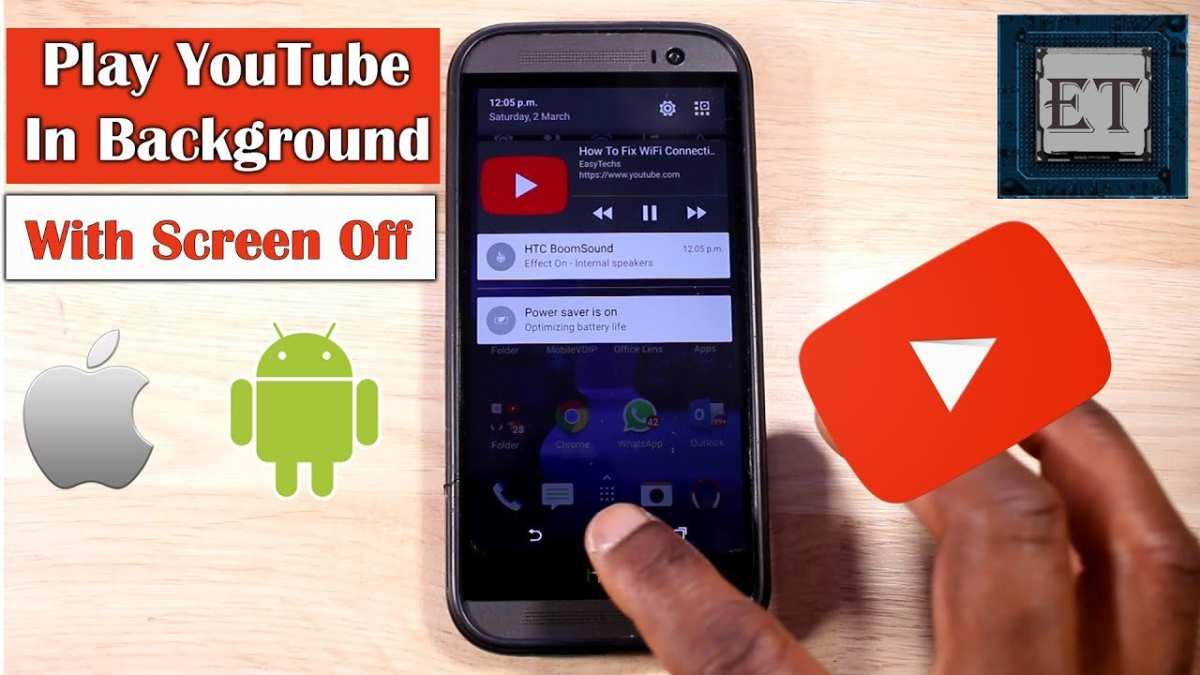

How to Make YouTube Play with Screen Off on Android
Many Android users love to listen to YouTube videos while doing other tasks or when their screen is off. Unfortunately, YouTube’s standard app doesn’t support background play, which can be frustrating. Luckily, there are several ways to enjoy your favorite videos without keeping the screen on. This guide walks you through these methods step-by-step, helping you maximize your YouTube experience even when the screen is off.Understanding Why YouTube Plays Only with Screen On
Before diving into solutions, it’s good to understand why YouTube usually stops playing when the screen turns off. The main reason involves app design and energy-saving features. YouTube’s official app prioritizes saving battery life and reducing data usage by pausing or stopping videos when the screen is off unless you have a YouTube Premium subscription. YouTube’s rules for background play are strict:- The free app stops playing when the screen is turned off or the app is minimized.
- You need a premium account for official background play support.
Method 1: Using the YouTube App with a Browser (YouTube in Chrome or Firefox)
One of the easiest ways to play YouTube with the screen off is by using your phone’s browser instead of the YouTube app.Steps to Play YouTube with Screen Off in Browser
- Open your preferred browser (Google Chrome, Firefox, or Microsoft Edge).
- Navigate to youtube.com.
- Search for your favorite video.
- Tap the three-dot menu icon (usually on the top right corner) and select “Desktop site” or “Request desktop site”.
- Start playing the video.
- Press the home button or switch to another app. The video might pause, but in most browsers, a small media controller appears in the notification panel.
- Pull down the notification shade and look for the media controls.
- Tap the play button attached to the notification controls to resume playback, even with the screen off.
Tips for a Better Experience
- Use browsers like Chrome, Firefox, or Opera for better media control support.
- Ensure your phone’s battery optimization settings exclude the browser from restrictions.
- Pin the tab with your video to keep it active in the background.
Method 2: Using YouTube Website in Desktop Mode
Some users find it helpful to enable desktop mode for better media control when using their browsers.How to Enable Desktop Mode
- Open your browser and go to youtube.com.
- Tap on the menu icon (usually three dots).
- Select “Desktop site” or “Request desktop site”.
- Start your video, then switch to another app or turn off the screen.
- If media controls don’t appear automatically, pull down the notification panel for playback options.
Method 3: Using Third-Party Apps for Background Play
If browser methods don’t fit your needs, there are third-party apps designed specifically to enable background music and video playback from YouTube.Popular Apps for Background Playback
- NewPipe: An open-source app that allows background play, pop-up mode, and downloads. It bypasses restrictions set by Google Play.
- YouTube Vanced: A modified version of YouTube with extra features like background playback and ad-blocking.
- YMusic: Specializes in playing YouTube videos as audio in the background.
How to Use These Apps
- Download the app from a trusted source (official websites or app stores if available).
- Install the app following on-screen instructions.
- Search for your video within the app.
- Start playback and then press the home button; the video will continue playing in the background.
- Control playback from your notification panel or lock screen.
Important Note
Always be cautious when downloading third-party apps, and make sure to get them from safe sources. Also, keep in mind that using modified apps may violate YouTube’s terms of service.Method 4: Using YouTube Premium for Official Background Play
The most straightforward official method involves subscribing to YouTube Premium. This service allows you to play videos in the background or even when your device is locked.Steps to Enable Background Play with YouTube Premium
- Subscribe to YouTube Premium through the app or website.
- Open the YouTube app on your Android device.
- Play a video of your choice.
- Press the home button or turn off the screen; the video continues playing in the background.
- Use your notification panel to control playback.
Additional Tips for Better Background Playback
- Ensure your device’s battery saver is turned off or set to allow background activity for your browser or apps.
- Keep your apps updated to prevent compatibility issues.
- If you experience interruptions, restart your device or clear app cache.
- Adjust your device’s settings to prevent app restrictions when the screen is off.
Potential Troubleshooting Steps
If background playback isn’t working as expected, try the following:
- Close unnecessary apps to free up resources.
- Update your browser or app to the latest version.
- Check your device’s power-saving settings and disable restrictions for the app you’re using.
- Clear cache or data of the browser or app involved.
- Restart your device to refresh system processes.
Summary of Methods and Their Use Cases
| Method | Ease of Use | Cost | Official Support |
|---|---|---|---|
| Browser in Desktop Mode | Easy | Free | No |
| Third-Party Apps | Moderate | Varies, some free | No |
| YouTube Premium | Easy and Reliable | Monthly fee | Yes |
Frequently Asked Questions
How can I enable background playback for YouTube on my Android device?
To enable background playback, you can subscribe to YouTube Premium. This allows videos to continue playing even when you switch to another app or turn off the screen. Alternatively, some browsers or third-party apps can facilitate background playback, but they may not be official or reliable. Always use trusted methods to avoid security risks.
Are there specific settings on Android that allow YouTube videos to play with the screen off?
Android’s built-in settings do not directly support playing YouTube videos with the screen off unless you’re using YouTube Premium. However, enabling Picture-in-Picture (PiP) mode can help, but it works only when you’re actively using the app. For continuous playback with the screen off, a subscription or third-party tools are often necessary.
Can I use third-party apps or tools to keep YouTube playing in the background on Android?
Yes, some third-party apps claim to allow background playback of YouTube videos without a premium account. However, these apps may violate YouTube’s terms of service and pose security risks. If you choose to use them, ensure you download from reputable sources and understand the potential consequences.
What are the risks of using unofficial methods to play YouTube with the screen off?
Using unofficial apps or methods can lead to security vulnerabilities, data breaches, and possible account suspension. You might also experience reduced video quality or functionality. Always prefer official solutions like YouTube Premium to ensure a safe and consistent experience.
Does enabling developer options or adjusting system settings help in playing YouTube with the screen off?
Adjusting developer options or system settings generally does not enable background playback of YouTube videos. These settings are more suited for debugging and app development. For continuous playback with the screen off, subscribing to YouTube Premium remains the most reliable approach.
Final Thoughts
To make YouTube play with screen off on Android, you can use picture-in-picture mode or third-party apps. Enable picture-in-picture in settings, then open YouTube and start playing a video. Tap the home button to minimize the app while keeping the video playing. Alternatively, apps like Floating Apps or free third-party tools provide more flexibility for background playback. Always ensure your device supports these features and update your YouTube app accordingly. In conclusion, how to make youtube play with screen off android involves using built-in features or suitable apps. These methods enable continuous playback without keeping the screen on, enhancing your viewing experience effortlessly.
Similar Posts































