How To Make Youtube Play In Small Window Android
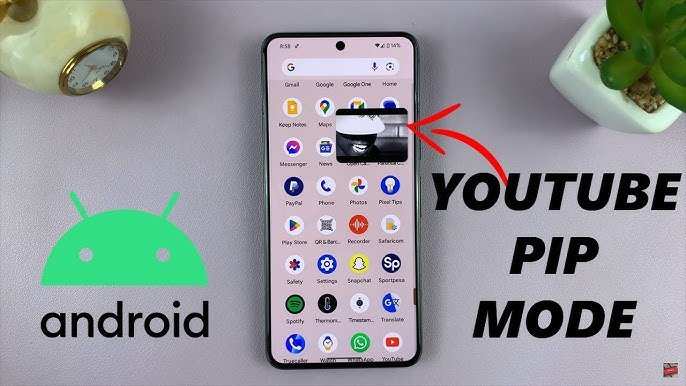

How to Make YouTube Play in Small Window on Android
Watching YouTube videos on your Android device can be a fun way to unwind or stay informed. But sometimes, you want to do more than just watch videos in full-screen mode. Maybe you need to check your messages, browse other apps, or compare information while still keeping the video playing. The good news is, Android offers a feature called Picture-in-Picture (PiP), which allows you to watch YouTube videos in a small, resizable window while using other apps. In this guide, we will walk you through how to enable and enjoy YouTube in small window mode on your Android device, with detailed steps and helpful tips.Understanding Picture-in-Picture Mode on Android
Before diving into the steps, it’s important to understand what Picture-in-Picture (PiP) mode is. PiP mode lets you continue viewing a video in a small window that stays on top of other apps. You can move this window around, resize it, or hide it temporarily. This feature is especially useful when multitasking on your Android device. Not all Android devices support PiP natively, and some apps may restrict its use. For example, YouTube’s official app limits PiP mode to YouTube Premium users. However, there are ways around these restrictions, either through your device settings or alternative apps.How to Enable Picture-in-Picture Mode on Your Android Device
Before you can watch YouTube videos in a small window, you need to enable PiP mode in your device settings.Check Your Android Version
Make sure your Android device runs Android 8.0 Oreo or higher, as PiP was introduced in this version.- Go to Settings
- Select About phone
- Look for Android version
- If it’s 8.0 or above, you’re good to go. If not, consider updating your device if possible.
Enable PiP in Settings
Once your device supports PiP, enable it for YouTube or other apps.- Open Settings
- Scroll down to Apps & notifications and tap on it
- Tap on Special app access
- Select Picture-in-picture
- Find YouTube in the list and toggle the switch to Allow picture-in-picture
Using YouTube in PiP Mode on Android
Now that PiP is enabled, let’s see how to use it with YouTube.For YouTube Premium Users
If you have a YouTube Premium subscription, enabling PiP is straightforward:- Open the YouTube app and play any video
- Press the home button or swipe up from the bottom (depending on your device) to go to the home screen
- The video will automatically shrink into a small window that stays on top of your home screen and other apps
- You can drag this window to any position or resize it by dragging the edges
For Free Users or Restricted Devices
YouTube limits PiP mode for free users, but there are workarounds:- Use the browser version of YouTube (like Chrome or Firefox)
- Play your video on the browser
- Tap the three dots menu or the “Picture-in-Picture” icon if available
- Choose Open in Picture-in-Picture
- This should open the video in a small floating window
Best Tips for a Smooth PiP Experience
To get the most out of PiP mode with YouTube, consider these tips:Keep Your App and Device Updated
New updates often improve functionality and fix bugs, ensuring your PiP experience is smooth.Use Compatible Apps
Some third-party browsers like Kiwi Browser or Yandex Browser support PiP mode for YouTube videos more easily.Adjust Window Position and Size
Once the small window is on your screen:- Drag it to move it around
- Use pinch gestures to resize the window if your device supports it
- Tap on the window to access controls like pause, play, or close
Multitask Efficiently
You can run multiple apps alongside YouTube in PiP mode. For example:- Chat with friends while watching a video
- Read articles or browse social media
- Use navigation apps while keeping an eye on a tutorial
Limitations and Troubleshooting
While PiP mode is powerful, some limitations may affect your experience:Device Compatibility
Not all Android devices support PiP, especially older models or budget phones.App Restrictions
YouTube’s official app restricts PiP for free users. If you’re facing issues, double-check your subscription status and settings.Common Problems and Solutions
- PiP doesn’t activate: Ensure PiP is enabled in settings, and restart your device if needed.
- Video freezes or glitches: Clear cache of YouTube or your browser, or reinstall the app.
- Floating window is too small or unresponsive: Try resizing or restarting the app.
Alternative Methods to Watch YouTube in Small Window
If native PiP mode doesn’t work for your needs, here are some alternatives:Using YouTube in a Browser with PiP Support
Some browsers support PiP directly:- Open YouTube in Chrome or Firefox
- Tap the video to bring up the video controls
- Tap the PiP icon or select it from options
- The video will pop out into a small floating window
Third-Party Apps and Tools
Apps like Floating Apps or Video Popout can create floating windows for videos from various sources. Use these carefully and only from trusted sources.Using Desktop Mode or Screen Mirroring
You can mirror your phone screen to a larger device or switch to desktop mode on your phone to access more flexible options for multitasking.Final Tips for the Best YouTube Small Window Experience on Android
– Keep your device’s firmware and apps up to date to maximize compatibility. – Use a compatible browser if the YouTube app restricts PiP. – Experiment with different apps and settings to find what works best for your device. – Remember, some features may vary depending on your Android version, device model, or region. By following these steps and tips, you can easily watch YouTube videos in a small window on your Android device, making multitasking simpler and more enjoyable. Whether you’re catching up on tutorials, watching your favorite music videos, or just browsing while keeping an eye on your videos, PiP mode enhances your experience without interrupting your workflow.Frequently Asked Questions
Can I enable picture-in-picture mode for YouTube videos on all Android devices?
Picture-in-picture (PiP) mode is supported on most newer Android devices running Android 8.0 Oreo or higher. To enable it, go to your device’s settings, select ‘Apps & notifications,’ then ‘Advanced,’ and tap on ‘Special app access.’ Find ‘Picture-in-picture’ and ensure YouTube is allowed. Keep in mind that some devices or Android versions may have limited PiP support, so check your device specifications.
Is there a way to activate small window playback without subscribing to YouTube Premium?
Yes, you can use the free version of YouTube with supported browsers or third-party apps that enable PiP functionality. For example, some browsers like Chrome or Firefox offer a picture-in-picture option when you select the video and choose the PiP icon. However, note that YouTube’s built-in PiP feature is generally available only for Premium subscribers, so alternative methods may have limitations.
How can I enable PiP mode for YouTube videos directly within the app on Android?
To use PiP mode directly from the YouTube app, ensure your app is updated to the latest version. Then, go to your device’s system settings, find ‘Apps & notifications,’ select YouTube, and toggle on ‘Picture-in-picture.’ When watching a video, press the Home button or use gestures to minimize the app, and the video should continue playing in a small window if the feature is enabled properly.
What troubleshooting steps can I take if YouTube videos don’t play in small window on my Android device?
First, ensure your device supports PiP mode and that the feature is enabled in system settings. Update the YouTube app to the latest version. Restart your device to apply changes. If the problem persists, clear the app cache or reinstall YouTube. Additionally, test PiP mode with other apps to identify if the issue is specific to YouTube or broader system compatibility.
Are there any third-party apps that facilitate smaller window playback for YouTube on Android?
Yes, some third-party apps can help you watch YouTube videos in a small window. These apps often function as floating video players that overlay other apps on your screen. Be cautious when selecting such apps, ensuring they are from reputable sources, and keep in mind they may not be officially supported by YouTube. Using these apps can sometimes violate YouTube’s terms of service, so proceed with awareness of potential risks.
Final Thoughts
To make YouTube play in small window on Android, users can use the picture-in-picture feature. Simply start playing a video, then press the home button to activate the small window mode if your device supports it. You can resize or move the window to your preferred position for convenience. Ensure your YouTube app and Android system are updated to access this feature smoothly. This allows multitasking without stopping video playback. Mastering how to make YouTube play in small window Android enhances your multitasking efficiency and viewing experience.
Similar Posts































