How To Make Youtube Play In Background On Android
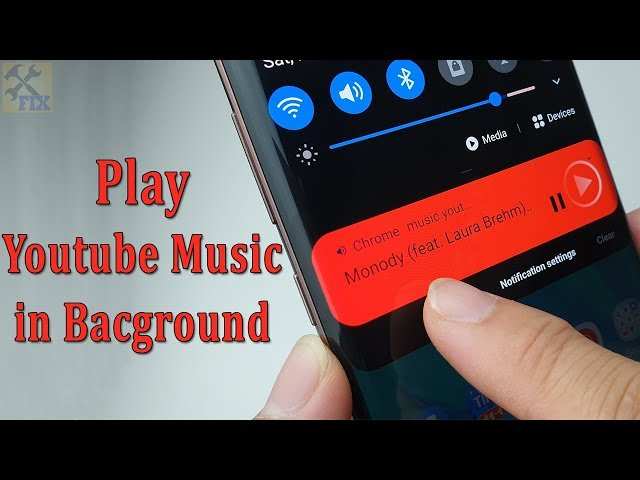

How to Make YouTube Play in Background on Android
If you enjoy listening to YouTube videos or music on your Android device, you might have noticed a common problem: when you switch to another app or turn off the screen, the video stops playing. This can be frustrating, especially if you want to listen to music or podcasts without keeping the YouTube app open all the time. Fortunately, there are several ways to make YouTube play in the background on Android devices. In this guide, we’ll explore simple and effective methods to achieve this, so you can enjoy your favorite content seamlessly.Understanding Why YouTube Stops Playing When You Switch Apps
Before diving into the solutions, it helps to understand why YouTube videos pause when you leave the app. The main reason is that the free version of YouTube is designed to stop playback when the app isn’t actively open, mainly to encourage users to subscribe to YouTube Premium. Android’s operating system also restricts background activity for apps to save battery life and optimize performance. As a result, YouTube videos tend to halt as soon as you switch apps or turn off the screen. Knowing this, the goal is to bypass these restrictions without violating terms of service or risking security issues. YouTube’s policies are strict, so some methods might work better than others depending on your device and app versions. Let’s look at the popular ways to play YouTube videos in the background.Using YouTube Premium for Background Play
The most straightforward and reliable method is subscribing to YouTube Premium. This service officially offers background play and is supported by YouTube itself.Benefits of YouTube Premium
- Background playback, including when the screen is off
- Ad-free experience for uninterrupted listening
- Download videos for offline viewing
- Access to YouTube Music premium
How to Subscribe to YouTube Premium
- Open the YouTube app on your Android device.
- Tap on your profile picture in the top right corner.
- Select “Paid Memberships” from the menu.
- Follow the prompts to subscribe to YouTube Premium. Usually, you can start with a free trial.
Using YouTube Premium for Background Play
Once you subscribe, background play is activated automatically. Simply start playing a video and then minimize the app or turn off the screen. The audio continues to play seamlessly. This is the most stable and recommended way to listen to YouTube content in the background on Android.Using Web Browser Methods
If you prefer not to pay for a subscription, there are alternative ways to listen to YouTube in the background using your Android browser. These methods involve tricking YouTube into thinking you’re watching a video on a desktop browser.Playing YouTube in Desktop Mode
- Open your preferred web browser (Chrome, Firefox, etc.) on your Android device.
- Navigate to youtube.com.
- Tap on the three-dot menu in the top right corner of your browser.
- Select “Desktop site” or “Request Desktop Site” option.
- Find the video you want to play and start streaming it.
- Press the home button or switch to another app. The video will stop playing if you leave the page, but there are tricks to make it continue in the background.
Using the Browser’s Video Player
To keep YouTube playing in the background: – Some browsers, like Kiwi Browser or Yandex Browser, allow you to keep YouTube playing when you switch apps by enabling a feature called “Picture-in-Picture” (PiP).Enabling Picture-in-Picture Mode
- Start playing a YouTube video in your browser.
- Tap the PiP icon (usually appears as a small rectangle or a button in the video player controls).
- The video shrinks into a floating window over your home screen or other apps.
- You can move this window around or tap it to bring the video back to full screen.
- This allows continuous audio playback while browsing or doing other tasks.
Third-Party Apps and Tools
There are also apps available on the Google Play Store that claim to let you play YouTube videos in the background without a Premium subscription. However, not all are reliable or safe, so use caution when downloading third-party tools.Popular Apps That Support Background Play
- NewPipe
- YouTube Vanced (discontinued but previously popular)
- YT Music (for music videos and playlists)
Using NewPipe for Background Playback
NewPipe is an open-source app that allows background playback, downloads, and more, without using the official YouTube app. To use it:- Download the APK file for NewPipe from its official website or trusted sources.
- Allow installation from unknown sources in your device settings.
- Install and open NewPipe.
- Search for your favorite videos and play them.
- Press the home button to return to your home screen. The audio will continue playing in the background.
Adjusting Android Settings for Better Background Playback
Sometimes, Android’s battery optimization and app restrictions interfere with background playback. Adjusting your device’s settings can improve your experience.Disable Battery Optimization for YouTube or Browsers
- Go to your device’s Settings app.
- Select “Apps & Notifications” or “Apps.”
- Choose the app you use (YouTube, Chrome, Firefox, etc.).
- Tap on “Battery” or “Battery Usage.”
- Look for “Battery Optimization” and disable it for the selected app.
Allow Background Data Usage
– Ensure that the app isn’t restricted from using data in the background, which may stop playback.Additional Tips for Seamless Background Playback
– *Keep your app updated:* Developers regularly fix bugs that might interfere with background playback. – *Use headphones or Bluetooth speakers:* For better sound quality when listening in the background. – *Close other apps:* To prevent system restrictions that may pause YouTube playback. – *Monitor your device’s battery:* Streaming videos in the background can drain your battery faster.Important Considerations and Legal Aspects
While exploring different methods, remember that some techniques might violate YouTube’s terms of service or copyright policies. Using third-party apps or modified versions can pose security risks or lead to account restrictions. Always prioritize legal and safe methods, such as subscribing to YouTube Premium or using official features.Summary of Effective Methods
| Method | Cost | Reliability | Ease of Use |
|---|---|---|---|
| YouTube Premium | Paid | High | Easy |
| Web Browser with PiP | Free | Moderate | Moderate |
| Third-Party Apps (e.g., NewPipe) | Free | Variable | Moderate |
Frequently Asked Questions
Can I play YouTube videos in the background without a YouTube Premium subscription?
Yes, you can play YouTube videos in the background without a Premium subscription by using certain browser features or third-party apps. For example, opening YouTube in a browser like Chrome and requesting the desktop site allows you to start playback and then switch to another app or lock your screen. Some browsers also have a picture-in-picture mode that enables video playback over other apps.
What steps can I follow to enable background playback using Chrome on Android?
To play YouTube videos in the background with Chrome, open the YouTube website and tap the three-dot menu in the browser. Select “Desktop site” to access the full version of YouTube. Play your video, then minimize Chrome or lock your device. The audio will continue playing, but video will stop unless you use picture-in-picture mode, which can be activated by tapping the picture-in-picture icon if available.
Are there any settings within the YouTube app that allow background play without Premium?
The official YouTube app restricts background playback to Premium users. Without a subscription, you can’t enable background play directly within the app. However, using alternative methods like browser playback or third-party apps can help you listen to videos in the background without upgrading your account.
How does picture-in-picture mode help to keep YouTube playing in the background on Android?
Picture-in-picture mode allows you to keep watching videos in a small window on your screen while using other apps or navigating your device. When enabled, you can tap the PiP icon during video playback, and the video minimizes to a movable window. This method works in supported apps and browsers and ensures continuous audio playback even when you switch to other tasks.
Are there any third-party apps I can use to play YouTube videos in the background?
Yes, some third-party apps and browser extensions enable background playback of YouTube videos on Android. These apps often utilize built-in browsers or specialized features to bypass restrictions. Remember to download apps from trusted sources and consider the privacy implications before using third-party solutions, as they may not be officially endorsed by YouTube.
Final Thoughts
To make YouTube play in background on Android, you need to use specific methods or apps. One popular option is to subscribe to YouTube Premium, which allows background playback seamlessly. Alternatively, using the desktop site in your browser or certain third-party apps can also work. Remember, these options enable you to listen to YouTube videos while using other apps or when your screen is off. Following these steps makes background listening simple and efficient, fulfilling your multitasking needs confidently.
Similar Posts































