How To Make Youtube A Small Window Android For Multitasking
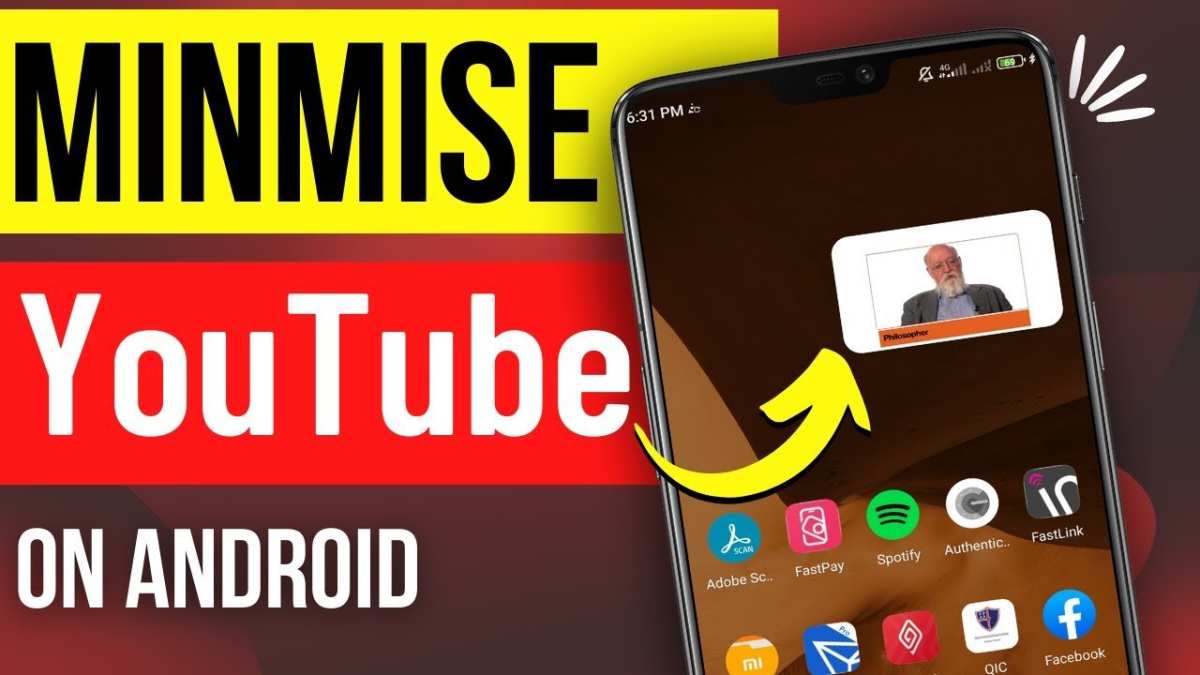
To make YouTube a small window on Android, enable Picture-in-Picture (PiP) mode. **This feature allows you to watch videos while using other apps seamlessly.** If your device supports PiP, just open YouTube, play a video, then tap the home button or use gestures to activate PiP.
You can also enable PiP in your device settings under apps. Once set, watching YouTube in a minimized window becomes quick and simple, giving you more control over multitasking on your Android device.
How to Make YouTube a Small Window on Android
Watching YouTube videos while doing other tasks on your Android device can be tricky if you’re used to the traditional full-screen view. Luckily, you don’t have to choose between browsing your favorite videos and multitasking on your phone. Android offers several ways to keep YouTube in a small, movable window that stays on top of other apps. This feature makes it easier to keep watching videos while chatting, browsing, or working on other apps. In this article, we’ll walk through different methods to make YouTube a small window on Android, examine the advantages of picture-in-picture mode, and provide step-by-step guides to help you get started.
Understanding Picture-in-Picture Mode on Android
Before diving into the practical steps, it’s essential to understand what picture-in-picture (PiP) mode is and how it works on Android devices. PiP allows a video or app to continue running in a floating window that you can move around on your screen. This feature supports multitasking by keeping the video visible while you navigate through other apps.
- Most modern Android devices running Android 8.0 Oreo or later support PiP mode.
- YouTube’s PiP feature works best with the YouTube app’s premium version or with specific settings enabled on your device.
- PiP mode is ideal for quick viewing, tutorials, music videos, or podcasts while you’re handling other tasks.
Understanding these basics will help you troubleshoot any issues and select the best method for your needs.
Enable Picture-in-Picture Mode on Your Android Device
To make YouTube a small window on your Android phone, you first need to activate PiP mode in your device’s settings.
Steps to Enable PiP for YouTube
- Open the Settings app on your phone.
- Scroll down and tap Apps & Notifications or simply Apps.
- Choose Special app access. (On some devices, this could be under Advanced or similar menu.)
- Find and tap on Picture-in-picture.
- Scroll through the list and locate YouTube.
- Ensure the toggle next to YouTube is turned on. This allows YouTube to run in PiP mode when you navigate away from the app.
Once enabled, you’ll need to adjust your YouTube app settings to support PiP mode.
Adjust YouTube Settings for PiP Compatibility
- Open the YouTube app.
- Tap on your profile icon in the top right corner.
- Select Settings.
- Navigate to General or Background & downloads depending on your app version.
- Find and enable Picture-in-picture mode.
Now, you’re ready to start using YouTube in a small window.
Using PiP Mode with YouTube on Android
Once everything is set up, here’s how to activate the small window feature during your YouTube sessions.
Starting YouTube in PiP Mode
- Open the YouTube app and play any video.
- Tap the home button or press the device’s home gesture (swipe up), depending on your device.
- If PiP is enabled, the video will shrink into a small, movable window that appears on your home screen or over other apps.
You can now drag the small window to any position on your screen. Resize it by pinching if needed, depending on your device.
Managing the Small Window
- Tap and hold the window to move it around your screen.
- Use gestures to resize or close the window—usually by tapping an ‘X’ or dragging it to the edge of your screen.
- To maximize the video again, tap on the small window and then tap the maximize icon or tap the app icon on the window.
This method works seamlessly for most videos, but some restrictions apply, especially with free YouTube accounts, which may not support PiP for all content.
Alternative Method: Using Browser-Based Picture-in-Picture
If you prefer watching YouTube videos through a browser or want an even easier approach, browsers like Google Chrome and Firefox support picture-in-picture mode directly through their interface.
How to Use Browser PiP for YouTube
- Open your preferred browser (Google Chrome, Firefox, or Edge).
- Navigate to youtube.com and find the video you want to watch.
- Start playing the video.
- Right-click twice on the video (or tap the menu options) to see a context menu.
- In Chrome, select Picture in picture. In Firefox, you can click the PiP icon in the video controls if available.
- The video will detach into a small floating window you can drag around your screen.
This method is convenient if you don’t want to bother with app settings or if PiP isn’t supported fully in the YouTube app on your device.
Additional Tips for a Better YouTube Small Window Experience
To make the most of your multitasking with YouTube in a small window, consider these helpful tips:
Optimize Your Device Settings
- Ensure your device supports PiP and that it’s enabled for all relevant apps.
- Keep your YouTube app updated to the latest version for the best compatibility.
- Use a screen with higher resolution to avoid pixelation when resizing windows.
Choosing the Right Apps and Tools
- Some third-party apps, such as floating window managers, can enhance your multitasking capabilities beyond native PiP support.
- Apps like “Floating Apps” or “Assistive Multi-Window” can provide extra flexibility and features.
- Always download such apps from trusted sources to avoid security risks.
Limitations to Keep in Mind
- Free YouTube accounts may not support PiP for all videos due to restrictions from YouTube’s policies.
- Some devices or Android versions might have limited support for PiP mode.
- Not all browsers or apps may support picture-in-picture mode equally.
Summary of Methods to Make YouTube a Small Window on Android
Here’s a quick recap of the available options:
| Method | Supports | Ease of Use | Best For |
|---|---|---|---|
| Official PiP via YouTube App | Yes (with Premium or supported devices) | Moderate | Watching videos while multitasking |
| Browser Picture-in-Picture | Yes | Easy | Quick and flexible viewing |
| Third-party Floating Apps | Yes (extra features) | Variable | Enhanced multitasking features |
By choosing the method that best fits your device and preferences, you can enjoy YouTube videos in a small, customizable window while performing other tasks on your Android device.
This device feature significantly improves your ability to multitask, watch videos conveniently, and stay productive or entertained without constantly switching between apps. Remember, keeping your apps and device software updated ensures the smoothest experience when using PiP mode.
Frequently Asked Questions
How can I enable picture-in-picture mode for YouTube on my Android device?
To use picture-in-picture mode on Android, ensure your device runs Android 8.0 (Oreo) or higher. Open the YouTube app, tap on your profile picture, go to Settings, then select “General.” Enable the “Picture-in-picture” option. When you play a video and press the home button, the video will shrink into a small window that stays on your screen.
What steps do I take to resize the YouTube window on my Android device?
Resize the YouTube window by dragging its edges once picture-in-picture mode is active. You can move the small window around your screen to place it where you prefer. Some devices or app versions might limit resizing options, but generally, dragging the window’s corners allows you to adjust its size.
Why does YouTube not appear as a small window even after enabling picture-in-picture mode?
If YouTube doesn’t open as a small window, verify that your device’s Android version supports picture-in-picture and that the feature is enabled in app settings. Also, ensure you are playing a video and not using the app in full-screen mode or with certain restrictions, such as a YouTube Premium account or specific app versions.
Is there a way to make YouTube always open in a small window on Android?
While Android doesn’t offer a universal setting for always opening YouTube in a small window, you can use third-party apps or split-screen mode to keep the app accessible alongside other tasks. Some launchers or multitasking tools enable you to create shortcuts that open YouTube minimized or in a floating window, depending on your device capabilities.
Can I use third-party apps to get a floating YouTube window on my Android device?
Yes, third-party apps available on the Play Store, such as Floating Apps or Video Popout, can create floating windows for YouTube. Install these apps, grant necessary permissions, and follow the in-app instructions to open YouTube videos in a small, movable window. Be cautious and choose reputable apps to ensure your device’s security.
Final Thoughts
To make YouTube a small window on Android, first open the YouTube app. Tap the recent apps button and select YouTube. Then, tap the icon at the top of the window and choose “Picture-in-Picture” mode.
Ensure your device supports PiP mode and enable it in settings. This allows you to float YouTube over other apps seamlessly.
In conclusion, understanding how to make YouTube a small window Android helps you multitask comfortably. This simple feature improves your productivity and entertainment experience.

Similar Posts































