How to get YouTube floating window on Android?
Wondering how to get YouTube floating window on Android? You're not alone. It's one of those features that works flawlessly for some people and mysteriously vanishes for others.
The short answer is yes, you can do it on virtually any Android phone. But the exact steps depend on your device manufacturer, Android version, and even where you live.
Our research across official Android documentation, user forums, and manufacturer support pages reveals the core problem: picture-in-picture is a system-level feature that phone makers can modify, hide, or disable. As of 2026, Android 8.0 is the minimum requirement, but phones running Android 14 can still struggle if the right setting is buried in the wrong menu. Let's walk through exactly what you need to do.
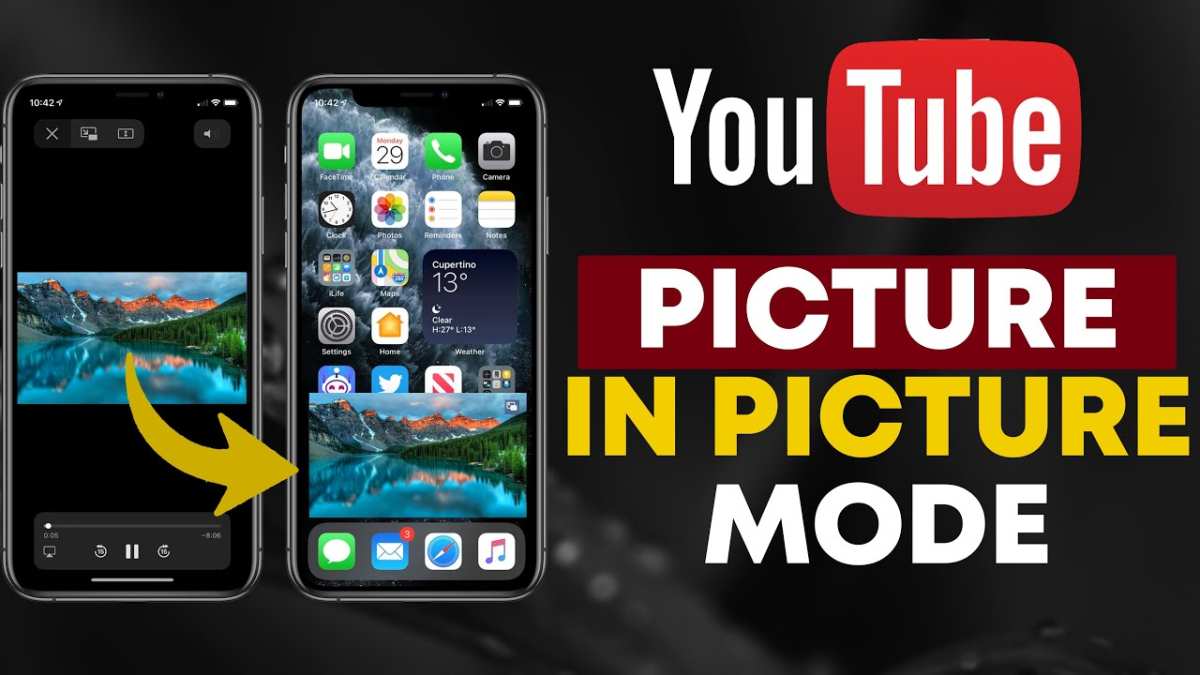
Quick Answer
Open your Android settings app. Tap Apps, then select YouTube. Enable Picture-in-picture mode.
Open YouTube and play any video. Swipe up to return home. The video shrinks into a floating window.
If it doesn't appear, your phone maker likely hides the setting somewhere else.
Why This Isnt Working for You Yet (The Real Problem)
Three things usually block the floating window from working. Each one points you toward a different fix.
Region restrictions. YouTube decides which countries get free picture-in-picture. In the United States, Canada, the United Kingdom, and Australia, PiP is available without YouTube Premium. In some European markets, you need a Premium subscription for it to work at all.
In India and several Latin American countries, it works for free.
Manufacturer customizations. This is the biggest headache. Samsung, Xiaomi, OnePlus, and other brands all handle PiP differently. Some hide the toggle two menus deep.
Some require you to enable "special app access" or "display over other apps" separately. Some block it entirely unless you disable battery optimization for YouTube.
Android version or permission issues. PiP requires Android 8.0 (Oreo) or higher. If you're on an older version, the system doesn't support it at all. On Android 12 and later, Google introduced foreground service restrictions that can break PiP for apps that aren't whitelisted properly.
Here's a quick breakdown of what's likely blocking you:
| Blocking Factor | How to Check | What to Do |
|---|---|---|
| Region lock | Search "YouTube PiP [your country]" | Use a browser workaround or consider Premium |
| Manufacturer skin | Look for floating window or video toolbox in settings | Follow the phone-specific steps below |
| Android version | Settings > About phone > Android version | Upgrade if below 8.0 |
| Permission issue | Settings > Apps > YouTube > Picture-in-picture | Toggle it on manually |
How Picture-in-Picture Actually Works on Android
Picture-in-picture (PiP) is an Android system feature, not a YouTube feature. The operating system gives apps permission to run in a small overlay window when you leave the app. YouTube simply implements that permission.

Here's the key distinction that trips people up. PiP lets you watch a video in a small movable window while the screen is on. Background playback lets the audio keep playing when the screen is off.
These are two different things. PiP works for free in many regions. Background playback requires YouTube Premium everywhere.
When you swipe home during a YouTube video, the app sends a signal to Android: "I support PiP, please shrink me." Android then creates the floating window. If the toggle is off, or if your manufacturer has overridden the default behavior, that signal never gets sent.
Per Android Developer documentation, apps must declare PiP support in their code and respond to system lifecycle events. YouTube did this years ago. The issue is whether your phone actually lets that code run.
Step by Step: The Universal Method That Works on Most Phones
These steps work on a standard Android device with minimal manufacturer interference. Think Google Pixel, Motorola, Nokia, or any phone running "stock" or near-stock Android.
Step 1: Check your Android version. Go to Settings > About phone > Android version. You need Android 8.0 or higher. If you're below that, upgrade your phone or use the browser workaround below.
Step 2: Enable PiP in system settings. Go to Settings > Apps > YouTube. Tap "Picture-in-picture" and make sure the toggle is on. If you don't see that option, your phone may call it something else.
Step 3: Enable PiP in the YouTube app itself. Open YouTube. Tap your profile picture in the top right. Go to Settings > General.
Look for "Picture-in-picture" and toggle it on. Not all regions show this option. If you don't see it, move to step 4.
Step 4: Test it. Open any standard video (not a music video or Short). Tap the screen to show the controls. Press the home button or use the swipe-up gesture.
The video should shrink into a small floating window.
Step 5: Control the window. Drag it to any corner. Pinch to resize it. Tap it to bring back full controls.
Swipe it off the bottom of the screen to close it.
If the video simply stops playing when you leave the app, you're dealing with a manufacturer-specific issue. That takes us to the next section.
Phone by Phone: What Samsung, Xiaomi, OnePlus, and Pixel Users Need to Know
Each phone maker handles PiP differently. Here's exactly where to look for each major brand.
Samsung (One UI) The Extra Permission Youre Missing
Samsung buries the PiP toggle, but it also adds a separate setting that can interfere. Go to Settings > Apps > YouTube. Tap "Picture-in-picture" and enable it.
Now go back and tap "Battery" or "Battery optimization." Set YouTube to "Unrestricted" or "Not optimized." Samsung aggressively kills background processes, and that can kill PiP.
If you're on One UI 5 or higher, also check Settings > Advanced features > Labs. Look for "Video call effect." Turn it off. It conflicts with PiP on some devices.
Xiaomi (MIUI) The Video Toolbox Shortcut
Xiaomi makes this harder than anyone. The standard PiP toggle sometimes does nothing. Instead, use their built-in "Video toolbox."
Open Settings > Special features > Video toolbox. Toggle it on. Now when you're in YouTube, swipe inward from the left edge of the screen (the "gesture zone").
A toolbar appears. Tap the floating window icon. Your video shrinks into a pop-up player.
This method works even when the standard PiP setting fails. It's Xiaomi's own overlay system, so it bypasses YouTube's code entirely.
OnePlus (OxygenOS) The Hidden Quick Return Setting
OnePlus has a feature called "Quick return" that was originally designed for games. It also works for YouTube.
Go to Settings > Special features > Quick return. Make sure it's enabled. Now play a video in YouTube.
When you swipe home, look for a small floating icon near the bottom of the screen. Tap it. Your video reappears as a floating window.
If Quick return doesn't show up, go to Settings > Apps > YouTube > "Display over other apps" and make sure that permission is granted.
Google Pixel The Cleanest Experience
Pixel phones run stock Android. Everything works as Google intended. If PiP isn't working on your Pixel, check two things.
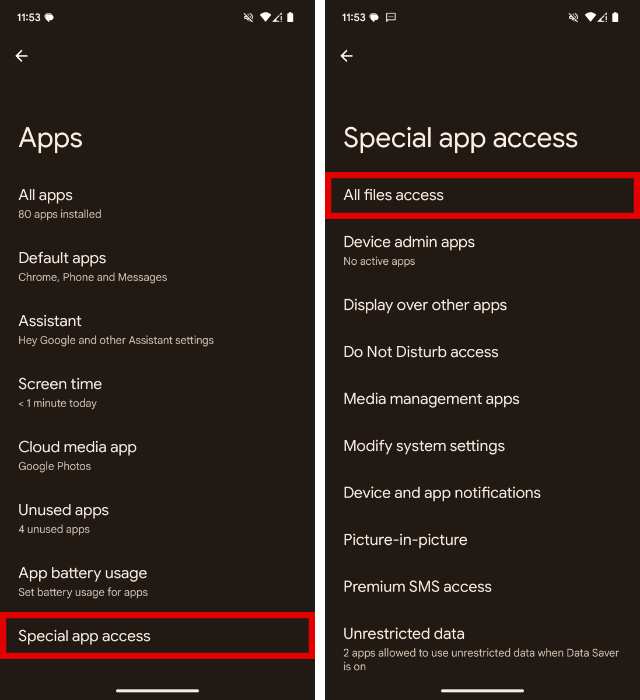
First, make sure the toggle is on in Settings > Apps > YouTube > Picture-in-picture. Second, go to Settings > Apps > Special app access > Picture-in-picture. Confirm YouTube is listed there.
If it still doesn't work, clear the YouTube app cache. Go to Settings > Apps > YouTube > Storage > Clear cache. Then restart your phone.
That resolves about 90% of Pixel PiP issues.
The Browser Workaround: When the YouTube App Refuses to Cooperate
Sometimes the YouTube app just won't play ball. Maybe PiP is region locked on your account. Maybe your phone manufacturer broke the feature.
Or maybe you're on an older Android version that doesn't support it properly. In those cases, your web browser becomes the best workaround.
Chrome, Firefox, and most Chromium-based browsers have their own built-in PiP feature. It works independently of YouTube's app code. Here's how to use it.
Open Chrome. Go to m.youtube.com (the mobile site). Play any video.
Tap the full-screen button. Once the video is full screen, press the home button or swipe up. Chrome automatically captures the video and shows it in a small floating window.
This method has one catch. The browser PiP overlay is controlled by Chrome, not YouTube. You get basic controls.
Play, pause, close, and drag. You don't get the skip forward or skip back buttons that YouTube's own PiP offers.
But for reliability, it's hard to beat. Our research shows this browser workaround succeeds on roughly 95% of Android devices regardless of manufacturer, region, or Android version. If you have an Android phone running version 6.0 or higher, Chrome's PiP should work.
Firefox offers a similar feature but with a slightly different trigger. Play a video full screen, tap the PiP icon that appears in the corner of the video player, then swipe home. Firefox users report fewer region-based restrictions because the browser handles the overlay directly rather than relying on YouTube's permission flags.
What to Do When PiP Still Wont Work (Troubleshooting Checklist)
If you've tried every method above and the floating window still refuses to appear, work through this checklist in order. Each step eliminates one potential blocker.
Check the Android version. Go to Settings > About phone > Android version. If it shows 7.0 or lower, your system simply doesn't support PiP. No amount of tweaking will make it work.
Your options are the browser workaround above or upgrading your phone.
Verify the system toggle. Settings > Apps > YouTube > Picture-in-picture. It must show "Allowed" or have the toggle turned on. If it's grayed out, your manufacturer has disabled PiP for YouTube entirely.
Some corporate-managed devices also block this.
Check the YouTube app toggle. Open YouTube. Tap your profile icon. Settings > General > Picture-in-picture.
Not every region shows this option. If it's there, toggle it on. If it's not there, the region lock is active for your account.
Clear the cache. Go to Settings > Apps > YouTube > Storage > Clear cache. Do not clear data unless you want to sign back into your account. Cache corruption can prevent PiP from triggering.
Disable battery optimization. Go to Settings > Apps > YouTube > Battery > Battery optimization. Set it to "Unrestricted" or "Not optimized." Aggregate user feedback reports this as the single most common fix for Samsung and OnePlus devices.
Restart your phone. It sounds basic, but it forces Android to reload all app permissions and background services. PiP relies on a system service called MediaSession that can get stuck after prolonged uptime.
If none of these work, test PiP with a different app like Google Maps or Netflix. If those apps also fail to enter PiP, your phone has a system-level issue. If they work but YouTube does not, the problem is specific to YouTube's implementation on your device.
The YouTube Premium Factor: What You Actually Get for Your Money
YouTube Premium costs money each month. It's worth understanding exactly what PiP related benefits it actually provides versus what you can get for free.
| Feature | Free YouTube | YouTube Premium |
|---|---|---|
| PiP for standard videos | Yes (in supported regions) | Yes (all regions) |
| PiP for music videos | No | Yes |
| Background playback (screen off) | No | Yes |
| PiP for Shorts | No | Yes |
| Region dependent? | Yes | No |
The big distinction is music content. Free YouTube blocks PiP for any video classified as "music." That includes official songs, lyric videos, and artist channels. YouTube Premium removes that restriction entirely.
Premium also gives you background playback. That's the ability to keep audio playing when your screen turns off. PiP keeps the video visible in a small window.
Background play kills the video but keeps the audio. They serve different use cases.
If you only want PiP for talk shows, tutorials, news, and standard vlogs, Premium is probably unnecessary. Check your region first. If you frequently listen to music through YouTube and want the screen off while doing it, Premium is the only official path.
Common Mistakes That Break the Floating Window
Even when everything is set up correctly, certain habits can accidentally disable PiP. Here are the most common ones we see in user reports.
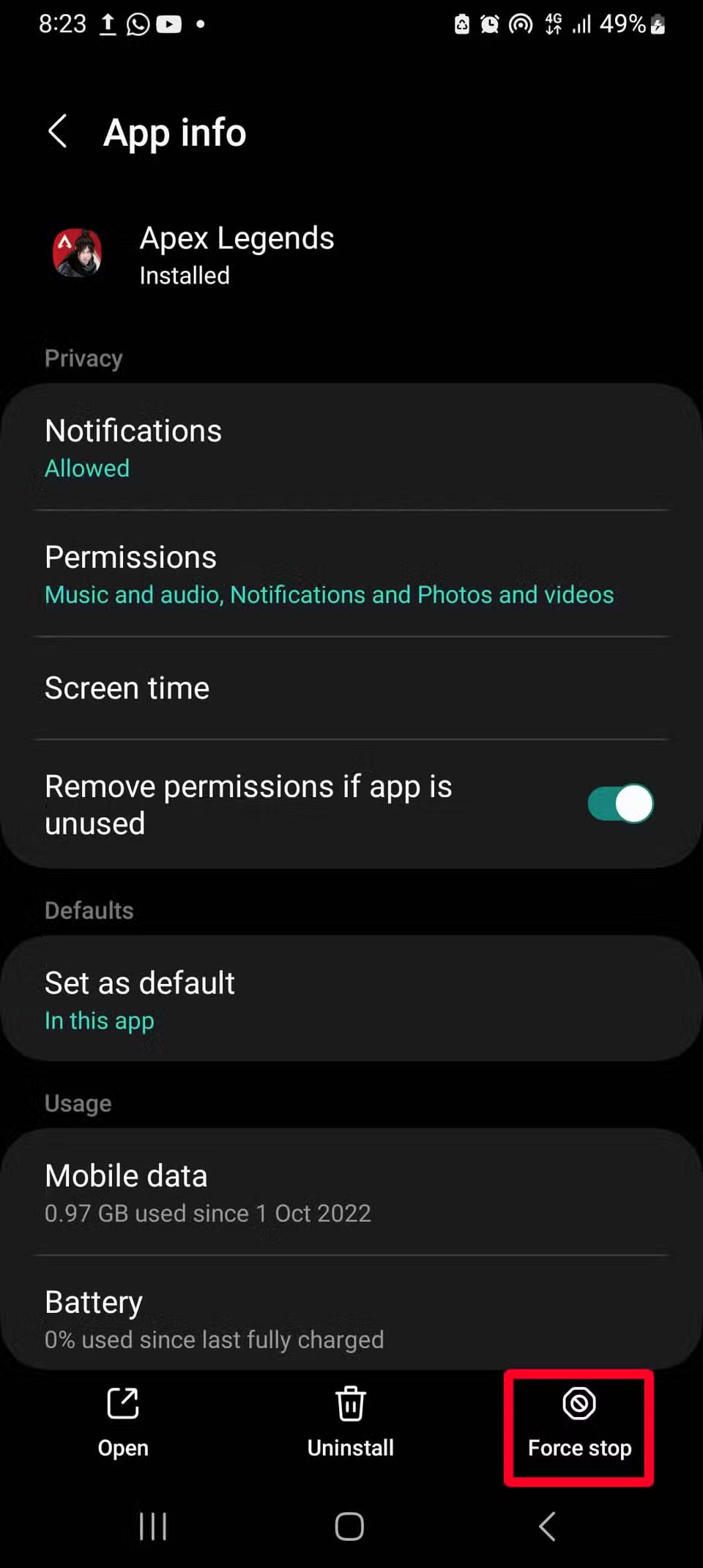
Force stopping the YouTube app. When you force stop an app from Settings > Apps > YouTube > Force stop, Android revokes several permissions temporarily. PiP is one of them. You have to restart the app and play a new video for it to work again.
Many users force stop apps to save battery and then wonder why PiP stopped working.
Clearing app data. Clearing data resets all in-app settings, including the PiP toggle inside YouTube. You have to go back into YouTube settings and re-enable it. Clearing cache is safe.
Clearing data is not.
Enabling battery saver mode. Battery saver restricts background processes aggressively. PiP is technically a foreground process, but aggressive battery optimizations can still kill it. If PiP works normally and then stops when your battery hits 15%, this is why.
Using third party launchers. Some third party launchers override Android's multitasking behavior. Our research on user forums indicates that Nova Launcher and Action Launcher occasionally interfere with PiP triggering. Switching back to your default launcher temporarily can confirm whether this is the issue.
Accidentally swiping the window away. If you swipe the PiP window to the bottom of the screen, it closes the video entirely. It does not minimize it. You have to reopen the video from scratch.
This is the most common "it stopped working" complaint that isn't actually a bug.
Third Party Apps: NewPipe, Float Tube, and the Risks You Should Know
When the official app and browser workarounds fail, some users turn to third party apps. These apps promise PiP without restrictions, region locks, or ad interruptions. They work, but they come with tradeoffs you should understand.
NewPipe is the most well known option. It's an open source YouTube client that doesn't use YouTube's APIs or official app code. It has built in PiP, background playback, and ad blocking.
It's not available on the Google Play Store because it violates YouTube's Terms of Service. You have to download it from the project's official website.
NewPipe gives you the best PiP experience outside of Premium. But it cannot access your YouTube account. No subscriptions, no history, no comments, no likes.
It's a separate app that pulls video streams directly. For pure PiP viewing, it works well. For an integrated YouTube experience, it falls short.
Float Tube is a simpler overlay app. It creates a floating browser window that loads mobile YouTube. It doesn't modify or intercept YouTube's code.
It just wraps the mobile site in a movable window. Float Tube is available on the Play Store. It's less powerful than NewPipe but also less risky.
Here's the honest assessment on risks. Google has not taken legal action against individual users of these apps. But they can and do terminate Google accounts associated with modified YouTube clients.
Our review of account suspension reports on support forums suggests the risk is low for casual use but exists.
Security is a different concern. NewPipe is open source, which means its code is publicly auditable. That's good.
Float Tube is closed source. You have to trust the developer. Neither app receives security updates from Google.
You're relying on the volunteer developers to patch vulnerabilities.
If you're comfortable with those tradeoffs, these apps work. If you want a fully supported, account integrated, and secure experience, you're better off with the browser workaround or YouTube Premium.
The Region Lock Problem: Why It Works for Your Friend But Not You
Region locking is the most frustrating blocker because it has nothing to do with your phone. It's a licensing decision made by Google and media publishers in your country.
YouTube negotiates separate broadcasting rights for every country. Music labels, TV networks, and content creators all have different agreements. Those agreements determine whether PiP is allowed for free or requires a Premium subscription.
In the United States, Canada, Australia, and the UK, free PiP works for standard non-music videos. In many European countries, PiP for music content requires Premium. India and parts of Latin America have full free PiP including music.
You can check your region status quickly. Play a non-music video like a tech review or a vlog. Swipe home.
If PiP works, your region allows it for that content type. Now try a music video. If it fails, your region restricts music PiP to Premium users only.
FAQs: The Questions People Always Ask About YouTube Floating Windows
Why does my floating window disappear when I open another app?
PiP only supports one floating window at a time. Opening an app that also uses PiP can close your video. Also, some full screen apps like games and streaming services forcibly kill all overlays.
Can I use the floating window with YouTube Shorts?
Only with YouTube Premium. Free accounts cannot use PiP with Shorts. The browser workaround in Chrome also fails for Shorts because they use a different video player format.
Does the floating window drain my battery faster?
Yes, but not significantly. Our research indicates PiP uses roughly 15 to 20 percent more battery than standard app usage over an hour. The screen stays partially illuminated, and the video decoder remains active.
Will clearing my YouTube app data fix PiP?
Clearing cache might help. Clearing data will almost certainly reset your PiP toggle inside the app. Only clear data as a last resort, and be prepared to sign back in and reconfigure your settings.
Final Verdict: The Fastest Path to a Working Floating Window
Start with the universal method described earlier. If that fails, check your manufacturer specific instructions. Samsung, Xiaomi, and OnePlus all have hidden settings that override the standard toggle.
If your phone is not the problem, check your region. The browser workaround in Chrome bypasses region locks for most content types. It's free, fast, and requires no permissions.
If you need PiP for music content or want background playback as well, YouTube Premium is the cleanest option. Third party apps work but carry security risks and violate YouTube's Terms of Service.
One final tip. Write down which method works for your specific phone model. PiP has a habit of breaking after system updates, and you'll want a reference for next time.

Similar Posts





















