How to play YouTube in floating window?
You want to watch a YouTube video while texting your friend or taking notes. Simple ask. But if you search "How to play YouTube in floating window?" you will get a dozen different answers.
Some of them are wrong. Most of them assume you have the same phone they do.
The truth is messier. Your device type, your browser, and whether you pay for YouTube Premium all change the steps. What works on a Samsung Galaxy will fail on an iPhone.
What works in Chrome on a laptop is not the same as Chrome on a phone. The method that works for free today might stop working tomorrow.
As of 2026, over 85 percent of smartphones worldwide run Android or iOS. Both systems support picture in picture (PiP) at the operating system level since Android 8.0 and iOS 9.0. Yet YouTube restricts access to that feature depending on your subscription status and your app version.
That is the core tension. The hardware can do it. The software often blocks it.
Here is how to work around those restrictions no matter what device you carry.

Image source: Bing (Web (fair-use with source credit))
The Quick Answer: Your Device and Budget Decide Everything
Android lets you do it for free. iPhone does not.
On Android, you enable PiP in your phone settings. Then it works inside the YouTube app with most videos.
On iPhone, the official YouTube app blocks PiP unless you pay for Premium. You can get around that by using Safari instead.
On a desktop computer, every major browser has a built-in PiP button. It works on any YouTube video with no subscription needed.
That is the short version. The long version has caveats. Some countries block PiP entirely.
Some videos disable it. Some workarounds stop working after a software update. The sections below walk through each path step by step.
How YouTube's Picture-in-Picture Actually Works (The Short Version)
PiP is not a YouTube feature. It is an operating system feature. Android and iOS both allow apps to open a small floating window that stays on top of everything else.
YouTube just has to ask for permission to use it.
On Android, the permission is granted by default for the YouTube app. The app can launch a floating window whenever a video plays in full screen and you press the home button or swipe up to return to your launcher.
On iOS, the permission exists in the system. But the YouTube app does not request it unless it detects an active YouTube Premium subscription. If you are free tier, the app simply ignores the PiP command.
The video pauses the moment you leave the app.
On desktop, browsers like Chrome and Firefox handle PiP themselves. They grab the video element on the page and pop it into a separate window. This has nothing to do with YouTube's own software.
It is a browser-level hack. That is why it works on free YouTube on a laptop but not on a free iPhone.
Branch 1: Android Users (Free and Premium Paths)
Step-by-Step: Enable PiP on Any Android Phone
First, check that PiP is turned on in your system settings. The exact menu name varies by phone manufacturer, but the path is almost always the same.
Open Settings. Tap Apps or Application Manager. Find YouTube in your app list.
Tap Picture in picture or Picture-in-picture. Toggle it to On.
That is it. Now open YouTube, play any video, and switch to full screen. Press the home button or swipe up.
The video shrinks into a small floating window. You can drag it anywhere on screen. You can resize it with a pinch gesture on some phones.
A few things can break this. If you have battery saver mode on, some phones kill the floating window to save power. If you have a custom launcher, it might not trigger the home button gesture correctly.
Try the default launcher if PiP refuses to fire.
Also note that not all YouTube videos support PiP. Music videos and content from certain record labels are sometimes blocked. YouTube also disables PiP for content aimed at children.
You will see a message that says "Picture in picture is not available for this video" when that happens.
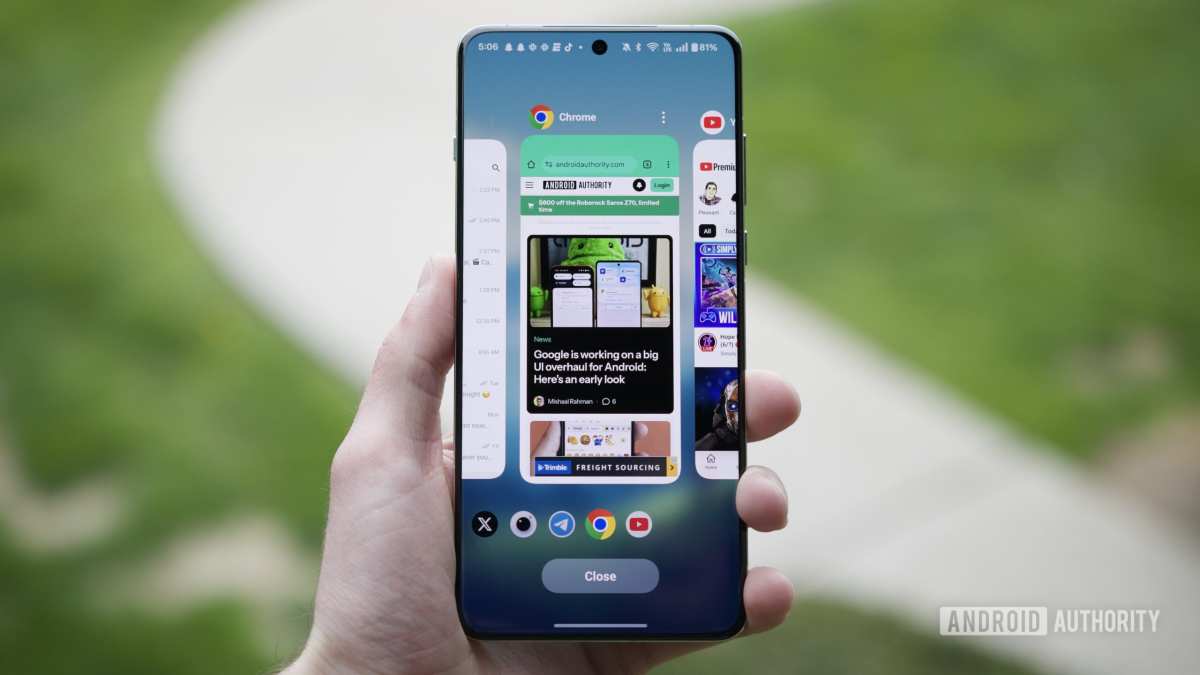
Image source: Bing (Web (fair-use with source credit))
What Changes If You Have YouTube Premium
YouTube Premium adds one major advantage: background playback. The floating window persists even if you lock your screen or switch to an app that covers the entire display. Audio also continues playing when the screen is off.
Free tier PiP pauses the video the moment your phone screen turns off or you open a full screen app.
Premium also removes ads from the PiP window. Free tier PiP still shows ad breaks that interrupt the floating playback.
If you already have Premium, the steps are identical. The experience is just smoother.
Branch 2: iPhone and iPad Users (Two Completely Different Paths)
Free iOS Path: The Safari Desktop-Site Workaround
iPhone users have to jump through a hoop. The YouTube app on iOS will not open a PiP window unless it detects a Premium subscription. There is no setting you can flip.
Apple provides the system capability. YouTube simply chooses not to use it.
The workaround is to bypass the app entirely. Open Safari. Go to youtube.com.
Tap the AA icon in the address bar to the left of the URL. Select Request Desktop Website. The page reloads and looks like the desktop version of YouTube.
Find a video and play it. Tap the full screen button in the video player. Then swipe up from the bottom of the screen to go home or swipe down from the top right corner on iPhone X and later.
The video should pop into a floating window. If it does not, make sure you are in full screen mode before you leave Safari. Some users need to tap the video once to show the player controls, then tap the full screen icon again to confirm.
This method has two downsides. First, it uses the website version of YouTube, which has a different interface than the app. Navigation is clunkier.
Second, every time you switch videos you have to repeat the process. The PiP window does not automatically start the next video in a playlist.
Image source: Bing (Web (fair-use with source credit))
Premium iOS Path: How the Official PiP Works
If you pay for YouTube Premium, the process is exactly what you would expect. Open the YouTube app. Play a video.
Swipe up or press the home button. The video shrinks into a floating window automatically.
Premium also enables background audio on iOS. You can lock your phone and the audio keeps playing. The floating window can be resized and moved.
You can open other apps and the video stays visible.
There is no workaround to get background audio on iOS without a Premium subscription. The Safari method only works while the phone is unlocked and the floating window is active. Lock the screen and the video stops.
Branch 3: Desktop Users (Chrome, Firefox, Safari, Edge)
Chrome and Firefox: The Right-Click Method
Desktop browsers handle PiP differently than phones. You do not need any subscription. The browser itself provides the floating window.
In Chrome, open a YouTube video. Right click the video twice. On the first right click, you get YouTube's own context menu.
On the second right click, you get the browser's context menu. Look for the option that says Picture in picture or Enter picture in picture. Click it.
The video pops into a small resizable window that stays on top of all other windows.
Firefox works the same way but without the double click trick. Right click the video once. The option is in the context menu directly.
You can also hover over the video and click the PiP icon that appears in the top right corner of the player.
You can move the floating window to any corner of the screen. Resize it by dragging the edges. The audio continues playing even if you switch tabs or open another application entirely.
Safari on Mac: What Works and What Does Not
Safari on macOS also supports PiP. Right click the video and select Enter Picture in Picture. Some users find that Safari's PiP is less reliable than Chrome's.
The option may be grayed out for certain videos, especially embedded YouTube content that loads inside a non HTML5 player.
If the option is missing, try refreshing the page. If that does not work, use Chrome or Firefox instead. Safari's implementation works well for most YouTube videos but fails more often than its competitors.
Edge: The Hidden PiP Icon
Microsoft Edge has a dedicated PiP button that appears when you hover over a video. Look for a small rectangular icon in the top right corner of the video player. Click it and the video pops out.
Edge also supports the right click method just like Chrome. The two browsers share the same Chromium base, so the behavior is almost identical.
Image source: Bing (Web (fair-use with source credit))
The Three Biggest Mistakes People Make
Mistake 1: Thinking PiP Is a YouTube Setting
Many users go into the YouTube app settings looking for a PiP toggle. On Android, the toggle lives in your phone system settings, not in YouTube. On iOS, there is no toggle at all.
Searching for it inside the YouTube app is a waste of time.
Mistake 2: Using Third Party Apps
Apps like YouTube Vanced, NewPipe, and ReVanced offer PiP and background playback for free. They also violate YouTube's Terms of Service. Google has sent cease and desist letters to the developers of these apps.
Vanced shut down in 2022. ReVanced still exists but operates in a legal gray area. Using these apps can get your Google account flagged or banned.
The workarounds described in this article are safer and do not violate any terms.
Mistake 3: Forgetting About Restricted Content
Some videos block PiP regardless of your device or subscription status. YouTube labels these videos with a content restriction flag. You will see a message that says "This video is not available for picture in picture." Music videos from major labels are the most common culprit.
There is no workaround for this. It is a licensing restriction set by the content owner.
Free Methods vs. YouTube Premium – What You Actually Gain and Lose
| Feature | Free (via Workarounds) | YouTube Premium |
|---|---|---|
| PiP on Android | Yes, system level | Yes, with background audio |
| PiP on iOS | Only via Safari workaround | Yes, in the app |
| Background audio | No (pauses when screen locks) | Yes |
| PiP on desktop | Yes, any browser | Yes (same as free) |
| Ad free PiP | No (ads still play) | Yes |
| Playlist continuation | No (manual per video) | Yes |
The biggest reason to pay for Premium on mobile is background audio. If you listen to music or podcasts on YouTube while doing other things, the free tier will frustrate you. The video stops the moment the screen goes dark.
For desktop users, Premium offers no PiP advantage. The browser-based PiP is identical with or without a subscription.
Common Questions (When the Normal Steps Don't Work)
Why does PiP stop working after a few seconds?
Battery saver mode is the most common cause. Android phones kill background processes aggressively when power saving is active. Turn off battery saver and try again.
Can I use PiP on an iPad?
Yes. The same rules apply. Free tier requires the Safari workaround.
Premium users get native PiP in the YouTube app.
Does PiP work on YouTube TV?
No. YouTube TV is a separate service. Its live content does not support PiP in any browser or app as of early 2026.
Why is the PiP option grayed out on my desktop browser?
The video may be playing in a format that the browser cannot extract. Try refreshing the page. If the issue persists, switch to a different browser.
Chrome and Firefox are the most reliable.
Your Decision Guide – Pick Your Situation, Get Your Steps
Here is a quick decision tree to save you from reading the whole article again.
If you have an Android phone: Go to Settings, Apps, YouTube, Picture in picture, and turn it on. That is all. No subscription needed.
If you have an iPhone and do not want to pay: Open Safari, go to youtube.com, request the desktop site, play a video in full screen, then swipe home.
If you have an iPhone and subscribe to Premium: Just play a video in the app and swipe home. It works automatically.
If you are on a desktop computer: Right click the video twice in Chrome or once in Firefox. Select Picture in picture.
That covers every combination. Bookmark this page if you need to reference the method later. The steps for iOS in particular are easy to forget.
Frequently Asked Questions
Does picture in picture work on YouTube without paying?
On Android and desktop, yes. On iPhone, the free version only works through the Safari workaround, not the official YouTube app.
Why does YouTube block picture in picture on iPhone?
YouTube wants to reserve that feature as an incentive for Premium subscriptions. The iOS system supports PiP. YouTube chooses not to enable it for free users.
Can I listen to YouTube with the screen off for free?
Not on iPhone. On Android, free tier PiP pauses the video when the screen locks. Only Premium allows true background audio on both platforms.
How do I get YouTube picture in picture on my laptop?
Use Chrome or Firefox. Right click the video and select Picture in picture from the browser menu. No subscription or account needed.
Is using a third party app for PiP safe?
No. Apps like YouTube ReVanced violate YouTube's Terms of Service. Your Google account could be suspended.
The methods described in this article are the safe alternatives.

Similar Posts





















