How To Make Youtube Shorts On Android In Easy Steps
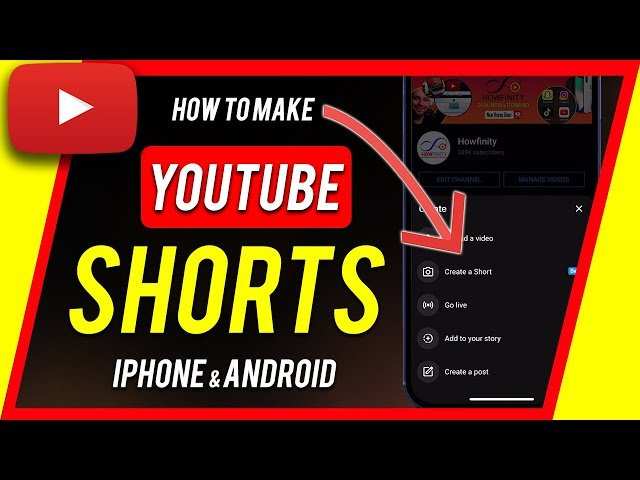

How to Make YouTube Shorts on Android
Making YouTube Shorts on an Android device is easier than ever. With the rise of short-form videos, creators want quick and simple ways to share engaging content. This guide walks you through each step, from planning your video to uploading it. Whether you’re new to video editing or have some experience, you’ll find tips and tricks to make your Shorts stand out.Understanding YouTube Shorts and Why They Matter
Before diving into how to make Shorts, it’s helpful to understand what they are and why they’re popular. YouTube Shorts are videos that are 60 seconds or less. They are designed to be quick, fun, and easy to watch, perfect for getting your message across in a short amount of time. YouTube promotes Shorts heavily because they attract new viewers and keep audiences engaged longer. Why make Shorts on Android?- Most smartphones are Android devices, making it convenient to create content without extra equipment.
- Android offers many free and paid apps that are perfect for editing and enhancing videos.
- You can shoot, edit, and upload directly from your phone without needing a computer.
Planning Your YouTube Shorts Content
A good Short begins with a good idea. Planning your content ensures your video is clear, focused, and engaging. Here’s how to plan your Shorts effectively:Choose a Clear Topic or Theme
Start with a simple idea that can fit into a minute. It could be a funny moment, a quick tutorial, or a special trick. Make sure your topic is interesting for your audience.Storyboard Your Video
Sketch out how your video will look. Think about:- What will happen in the shot?
- Any actions or movements needed?
- What message or sound will accompany the video?
Gather Your Equipment
You only need your Android phone and maybe some simple accessories:- Tripod or stand to keep your phone steady
- Good lighting, like natural sunlight or a ring light
- Microphone if you want better audio quality
Shooting Your Short on Android
Now, let’s look at how to shoot your video. Android phones have powerful cameras, so use them to your advantage.Set Up Your Shooting Space
Choose a quiet area with good lighting. Clean the background so it doesn’t look cluttered. Position yourself or your subject so they are well-lit and centered in the frame.Adjust Camera Settings
Most Android phones allow you to tweak settings:- Set the resolution to 1080p or higher for good quality
- Use grid lines to keep your shot straight
- Enable HDR for better contrast and color
Film in Short Takes
Since Shorts are brief, film small clips instead of one long shot. This makes editing easier and allows for creative cuts later on.Record Clear Audio
Speak loudly and clearly if you’re talking. Use an external microphone if available. Keep background noise to a minimum.Editing Your Shorts Directly on Android
Editing is a crucial step. Thankfully, Android offers many free and paid apps to help you craft a professional-looking Short.Select the Right Editing App
Some popular options include:- InShot
- CapCut
- Kinemaster
- Adobe Premiere Rush
Import Your Clips
Open your editing app and start a new project. Import all the clips you shot. Arrange them in the order you want them to appear.Add Transitions and Effects
Make your video smooth with transitions between clips:- Fade in and fade out
- Slide or wipe effects
Incorporate Music and Sound Effects
Add background music from your device or the app’s library. Sync sound effects to actions in your video to boost engagement.Trim and Adjust Timing
Make sure each clip is the right length. Keep your total video under 60 seconds.Optimizing Your Shorts for YouTube
Once your video is edited, it’s time to prepare it for upload.Choose an Engaging Thumbnail
Select a frame that grabs attention. Many apps allow you to add text or effects to make it stand out.Add a Catchy Title and Description
Use keywords like “YouTube Shorts,” “funny,” or “tutorial” to help people find your video. Keep titles short and interesting.Use Hashtags Strategically
Include hashtags like#Shorts and other relevant tags to increase visibility in Shorts feeds. Set Proper Privacy Settings
Decide whether your Short will be public, unlisted, or private. Most creators choose public to reach the widest audience.Uploading Your Shorts to YouTube from Android
Finally, upload your video directly from your Android device.Open the YouTube App
Make sure you are signed into your account. Tap the camera icon to start a new upload.Select Your Video
Find your edited Short in your gallery or file manager and select it.Fill in Details
Write your title, description, and add relevant tags. Make sure to include#Shorts in the title or description to be categorized properly. Adjust Settings and Publish
Choose your audience (Kids or not). Review the video and tap “Upload” to share it with the world.Tips for Creating Successful Shorts on Android
To make your Shorts more appealing and increase views, follow these tips:- Keep videos short and to the point
- Use bright lighting and clear audio
- Add fun effects or annotations to keep viewers interested
- Engage viewers with questions or calls to action
- Consistently upload content to grow your channel
Additional Tools and Resources for Making YouTube Shorts on Android
There are many apps and tools that can help you get better at making Shorts:| App | Best For |
|---|---|
| InShot | Easy editing with filters, music, and effects |
| CapCut | Advanced editing features, animations |
| Kinemaster | Layered editing, complex projects |
| Adobe Premiere Rush | Professional-quality editing |
Frequently Asked Questions
What steps should I follow to record a short video directly on my Android device for YouTube Shorts?
To record a short video on your Android device, open the camera app and switch to the video mode. Tap the record button to start filming, and tap again to stop. Ensure your video is under 60 seconds to qualify as a Short. You can also use the built-in camera features like filters or stabilization to enhance your footage before uploading.
How can I edit my video on Android before uploading it as a YouTube Short?
You can use editing apps available on the Play Store, such as KineMaster, InShot, or Adobe Premiere Rush. Import your recorded video into the app, trim unwanted parts, add music or text, and adjust the speed if needed. Once editing is complete, save the final version to your device for uploading.
What is the best way to add music or effects to my Shorts on Android?
Many editing apps provide access to a library of music and effects. Choose an app like InShot or KineMaster, import your video, and browse the available audio tracks or effects. Add your chosen music or effects, synchronize them with your video, then export your creation. Ensure you have the rights to use the music to avoid copyright issues.
How do I upload my completed Shorts directly from my Android device?
Open the YouTube app, tap the plus (+) icon at the bottom, and select ‘Create a Short’ or ‘Upload a video.’ Choose your edited video from your gallery, add a title, description, and relevant hashtags like #Shorts. Make sure your video meets all YouTube guidelines, then tap ‘Upload’ to publish it.
Are there any specific tips for capturing high-quality content for Shorts on Android?
Use good lighting and stabilize your device to avoid shaky footage. Film in a vertical orientation to suit Shorts format. Keep your shots clear and focused, and plan your content to make the most of the 60-second limit. Utilizing the camera’s manual settings, if available, can also improve video quality.
Final Thoughts
To make YouTube Shorts on Android, start by opening the YouTube app and tapping the create (+) button. Select the “Create a Short” option, then record your video directly or upload clips from your gallery. Edit with available tools, adding music or text as needed. When satisfied, add a title and description before publishing. Understanding these steps simplifies the process. In conclusion, knowing how to make YouTube shorts on Android becomes easy with a straightforward approach, allowing you to quickly produce engaging content.
Similar Posts































