How To Make Youtube Small On Android For Better Viewing

How to Make YouTube Small on Android
If you love watching videos on YouTube but sometimes want to do other things on your Android device without interrupting your video, resizing the app can be a real game-changer. Making YouTube smaller on Android allows you to keep watching your favorite clips while browsing the web, checking your messages, or using other apps. Don’t worry—this is easier than you think! In this section, we will explore all the different ways to shrink YouTube on your Android device, so you can multitask smoothly and keep enjoying your content. Let’s go through each method step by step and understand how you can make YouTube smaller effortlessly.Using Picture-in-Picture Mode
What is Picture-in-Picture Mode?
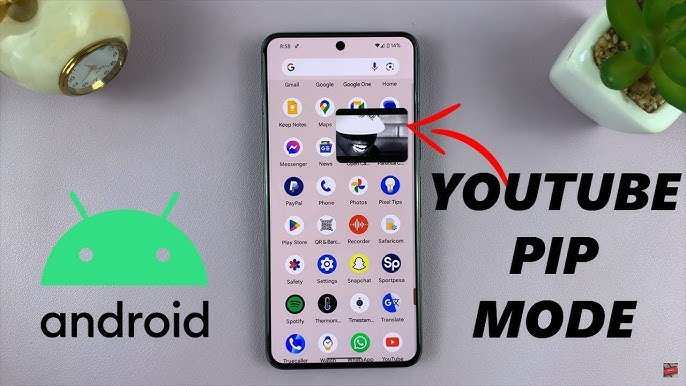
Picture-in-Picture (PiP) mode is a feature available on many Android devices that lets you watch a video in a small window while using other apps. Think of it as having a mini TV floating on your screen that you can move around and resize. This feature is perfect if you want to continue watching YouTube videos while browsing the internet or chatting.How to Enable PiP Mode
To start using PiP mode for YouTube, follow these simple steps:- Open your Android Settings app.
- Scroll down and tap on Apps & Notifications or just Apps.
- Look for Special app access or Advanced settings.
- Tap on Picture-in-picture.
- Find YouTube in the list and make sure the toggle is turned on.
How to Use PiP Mode While Watching YouTube
Here’s how to activate PiP mode:- Open the YouTube app on your Android device.
- Start playing any video.
- Press the Home button or swipe up, depending on your device, to go to the home screen.
- The video will automatically minimize into a small floating window.
Tips for Better PiP Experience
- Make sure your device supports PiP mode—most Android Oreo (8.0) and above do.
- Update your YouTube app and Android system for the best performance.
- Use gestures to quickly access PiP from any app.
Using the YouTube App’s Built-in Features
Using the Minimize Button
Some versions of the YouTube app have a built-in minimize or ‘Pop-out’ feature. To use this:- Open YouTube and play your favorite video.
- Tap the mini-player icon (a small rectangle with an arrow) at the corner of the video.
- The video will shrink into a small window, and you can move it around your screen.
Using the YouTube Premium Picture-in-Picture
If you subscribe to YouTube Premium, you get full PiP support, even if your device doesn’t support it natively. To activate it:- Subscribe to YouTube Premium through your account.
- Ensure your app and device are updated.
- Start watching a video and then press the Home button.
- The video should automatically resize into a small overlay.
Using Third-Party Apps to Resize YouTube
Floating Apps and Multitasking Tools
You can also use third-party apps designed for multitasking and creating floating windows. These apps allow you to open YouTube in a small window and resize it however you want. Some popular options include:- Floating Apps Free
- Multi Window Manager
- DRAG & FLOAT videos
- Download and install one of the floating window apps from Google Play.
- Open the app and select YouTube or any video app you want to resize.
- Adjust the window size and position as you prefer.
Resizing YouTube with Custom Launchers and Widgets
Creating Quick Access Widgets
Android allows you to add widgets to your home screen for faster access. Some third-party launchers and widget apps enable you to customize YouTube’s appearance and size. Here’s what you can do:- Download a launcher like Nova Launcher or Action Launcher.
- Add a YouTube widget to your home screen.
- Resize the widget to a small one—some launchers support multiple widget sizes.
- Tap the widget whenever you want to start watching YouTube in a small window.
Adjusting Screen Size with Android Accessibility Features
Using Display Size Settings
Android also provides accessibility options to help you resize app windows and text. To make YouTube appear smaller:- Go to Settings and find Accessibility.
- Look for options like Display size or Screen zoom.
- Adjust the slider to make app windows, including YouTube, appear smaller.
Tips for Viewing YouTube Smarter and More Efficiently
- Always keep your apps updated for the latest features and improvements.
- Use different techniques depending on your device’s Android version and hardware capabilities.
- Experiment with multiple methods to find what works best for your needs.
- Be cautious with third-party apps—download from trusted sources.
- Combine PiP with split-screen mode where supported for enhanced multitasking.
Frequently Asked Questions
Can I resize the YouTube app on my Android device?
While you can’t directly resize the YouTube app itself, you can use split-screen mode or picture-in-picture to view YouTube in a smaller window alongside other apps. To do this, open YouTube, then tap the recent apps button and select split-screen mode if supported on your device. This allows you to keep YouTube in a smaller, movable window.
How do I activate picture-in-picture mode for YouTube on Android?
To enable picture-in-picture (PiP) mode for YouTube, first ensure your device runs Android 8.0 or higher. Open the YouTube app and go to Settings > General. Toggle on the “Picture-in-picture” option. When you’re watching a video, press the home button or use gestures to minimize YouTube, and it will automatically appear in a small floating window if PiP is active.
What steps can I take to minimize YouTube videos while browsing other apps?
Use the picture-in-picture feature to keep YouTube videos playing in a small window while browsing other applications. Start playing a video, then press the home button or swipe to go to the home screen. YouTube will continue playing in a tiny window that you can move around on your screen for easy multitasking.
Is there an app that allows me to resize YouTube videos on Android?
No third-party app can modify the size of the YouTube app itself directly. However, using the built-in split-screen or picture-in-picture modes provides a way to control the viewing size and position of YouTube videos while multitasking on your Android device.
Can I use gestures to make the YouTube player smaller on Android?
Gesture controls depend on your device’s Android version and the YouTube app’s current features. Typically, closing the app or switching to another app while a video plays, then returning to it in picture-in-picture mode, allows you to keep the video in a smaller, movable window. Some devices may also support pinch-to-zoom within the app, but this does not resize the app interface itself.
Final Thoughts
To make YouTube small on Android, use the picture-in-picture mode. Tap the home button while watching a video, and it will shrink into a small window. You can move this window around your screen for convenience. Adjusting the size is simple with pinch gestures. Ensure your device runs Android 8.0 or higher, as this feature is supported from that version onward. Update the YouTube app if needed for the latest functionality. In conclusion, how to make youtube small on android involves using picture-in-picture mode effectively. This feature allows you to multitask without stopping your video. Keep these steps in mind for a seamless experience.
Similar Posts