How To Make Youtube Smaller On Android Easily
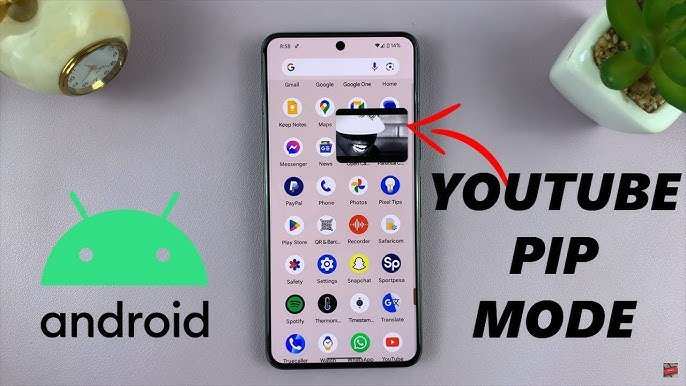
To make YouTube smaller on Android, simply enable the picture-in-picture mode or resize the video window. **This allows you to watch videos while using other apps seamlessly.** If you wonder how to make YouTube smaller on Android, start by tapping the home button or using the multitasking feature while the video plays. Adjust the size by dragging the video corner or activating picture-in-picture mode through settings. It’s a quick way to multitask without pausing your favorite content.

How to Make YouTube Smaller on Android
When you watch YouTube videos on your Android device, sometimes the full-screen view can take up the entire screen, making it hard to do other tasks at the same time. If you want to continue browsing or chatting without leaving the video, shrinking the YouTube window is a perfect solution. Learning how to make YouTube smaller on Android unlocks a smoother, multitasking experience, especially when you need to keep watching videos while doing other things on your device. In this guide, we’ll explore several methods to resize your YouTube screen, from using built-in features to employing third-party apps, all explained step by step.
Understanding Picture-in-Picture Mode on Android
One of the most significant features that allows you to make YouTube smaller on Android is Picture-in-Picture (PiP) mode. This feature lets you keep a small, floating window of a video while you browse or chat on other apps. Many modern Android devices support PiP, but availability can depend on your device’s manufacturer and Android version.
What is Picture-in-Picture Mode?
PiP mode creates a small, movable window that hovers over your screen, showing the video content. You can drag this window to any corner, resize it, or even move it around while using other apps. It is especially useful for multitasking, such as messaging friends or browsing the web while watching a video.
How to Enable PiP Mode on Your Android Device
To start making YouTube smaller using PiP, you first need to ensure the feature is enabled:
- Go to your device’s Settings.
- Scroll down and tap on Apps & Notifications.
- Tap Special app access.
- Select Picture-in-picture.
- Find YouTube in the list and ensure the toggle is turned on.
Once activated, PiP mode becomes available whenever you minimize or switch away from the YouTube app.
Using PiP Mode to Make YouTube Smaller
Follow these simple steps:
- Open the YouTube app and start playing a video.
- Tap the home button or use the gesture to go to the home screen.
- You should see the video automatically shrink into a small floating window.
- If it doesn’t, tap the square or home button, and the video should resize.
- You can drag this floating window to any part of the screen and resize it by pinching with two fingers.
Keep in mind that PiP mode works best with videos played in the YouTube app. If it doesn’t activate, double-check your PiP settings.
Using the YouTube App’s Minimize Button
Some Android devices or versions of the YouTube app offer a built-in minimize button, especially when using the YouTube Premium subscription. This feature allows you to reduce the video to a smaller window without activating PiP manually.
Steps to Minimize YouTube Using Built-in Features
- Start a YouTube video and look for the minimize or picture-in-picture icon; it often appears as a small rectangle or a box with an arrow.
- Tap this icon, and the video will shrink into a smaller, movable window.
- You can then move the window around your screen and continue browsing other apps.
Note: The minimize button’s availability depends on your device and app version. Keep your YouTube app updated for the latest features.
Employing Third-Party Apps for Custom Resizing
If your device or YouTube app doesn’t support PiP or built-in minimize features, third-party apps can step in to fill the gap. These apps offer additional options to resize or create floating windows for videos.
Popular Apps for Making YouTube Smaller
- Floating Apps: This app allows you to open any app or video in a floating window, giving you full control over size and position.
- Minimize for YouTube: Designed specifically for YouTube, this app creates a small, resizable window that stays on top of other apps.
- Video Pop-out Player: This app enables you to watch videos in a small, movable window, making multitasking easier.
How to Use Third-Party Floating Apps
- Download and install your preferred floating app from the Google Play Store.
- Open the app and grant the necessary permissions.
- Navigate to YouTube and start playing your desired video.
- Follow the app’s instructions to create a floating window of the video.
- Adjust the size by dragging the edges or using controls provided within the app.
Remember, some third-party apps may require special permissions, so be cautious and choose reputable options.
Adjusting YouTube Player Size Manually
If you’re watching YouTube via a browser like Chrome or a custom app that allows resizing, you can manually change the size of the video player.
Using Browser Features to Resize YouTube Videos
- Open YouTube on your Android device using a browser.
- Start playing a video.
- Tap the three-dot menu icon in the browser and look for options like Request Desktop Site. Sometimes, desktop mode allows more control over the player size.
- Click and drag the edges of the video player to resize it if the browser supports such gestures.
Note: This method is less flexible than apps or PiP but can work well for quick adjustments.
Tips for Enhancing Your YouTube Viewing Experience
To make your YouTube viewing more comfortable when making it smaller, consider these tips:
- Use a larger screen device, like a tablet, for better mini-viewing experience.
- Adjust your device’s display settings to increase font size and improve visibility.
- Position your smaller YouTube window where it doesn’t obstruct important parts of your screen.
- Combine PiP with split-screen mode for multitasking with two apps side by side.
Additional Tricks for Better Multitasking on Android
Besides resizing YouTube, you can use other Android features to improve multitasking:
- Split-screen mode: Allows viewing two apps simultaneously. Open an app, then tap the recent apps button or use gestures to activate split-screen, and select YouTube in one pane and another app in the other.
- Custom launchers: Many launchers support more flexible window management options.
- Task switchers: Use the task switcher to quickly navigate between apps, making it easier to manage multiple tasks.
Common Troubleshooting Tips
Sometimes, resizing YouTube might not work as expected. Here’s what to do:
- Ensure your Android OS and YouTube app are up-to-date for the latest features.
- Check if PiP or other relevant features are enabled in your device settings.
- Restart your device if features are not functioning properly.
- Clear cache and data of the YouTube app if it behaves unexpectedly.
By following these detailed methods, you can tailor your YouTube experience to suit your needs, watching videos while performing other tasks seamlessly. Whether through using built-in Android features like PiP or employing third-party apps, making YouTube smaller on Android is straightforward once you know the right steps. Enjoy multitasking without missing a beat!
Frequently Asked Questions
How can I adjust the size of the YouTube app on my Android device?
You can change the size of the YouTube app by enabling picture-in-picture mode or using the split-screen feature. To do this, open YouTube, then press the recent apps button. Select the YouTube app and tap the split-screen icon or drag it to the top or side of the screen. This allows you to reduce the app to a smaller window while using other applications simultaneously.
Is there a way to resize the YouTube video player on Android?
Yes, you can resize the video player by enabling the mini-player mode. When watching a video, tap the picture-in-picture icon if available, or press the home button. The video will shrink into a smaller window that you can move around your screen. This method helps you view videos in a smaller size while browsing other apps or content.
How do I enable a picture-in-picture mode for YouTube on Android?
First, ensure your device and YouTube app support picture-in-picture mode. Go to your device’s Settings > Apps & Notifications > Special app access > Picture-in-picture. Find YouTube and enable the toggle. When watching a video, press the home button or tap the picture-in-picture icon to activate this mode. This will allow you to watch YouTube videos in a smaller overlay while navigating other apps.
Can I use third-party apps to resize or reduce YouTube on Android?
Some third-party apps claim to modify the YouTube interface or allow resizing. However, using such apps can pose security risks or violate YouTube’s terms of service. It’s safer to use built-in features like picture-in-picture or split-screen mode provided by your device’s operating system to adjust the viewing experience without risking your account or device security.
What are the steps to enable split-screen mode for YouTube on Android?
Start by opening the YouTube app. Tap the recent apps button, then locate YouTube in the list of open applications. Tap and hold the YouTube app card, then select the split-screen option or drag it to the top or side of the screen. Next, open the second app you want to use alongside YouTube. This setup keeps YouTube in a smaller window, allowing you to multitask more effectively.
Final Thoughts
To make YouTube smaller on Android, you can use the PiP (picture-in-picture) mode. Simply open YouTube, then tap the home button or use the home gesture. The video will shrink into a small window that you can move around your screen. Alternatively, you can adjust your device’s display settings or use third-party apps to resize the app window. Making YouTube smaller enhances multitasking, allowing you to browse or work while keeping videos in view. How to make YouTube smaller on Android is straightforward when you utilize these built-in features and settings.

Similar Posts































