How To Make Youtube Small Screen On Android
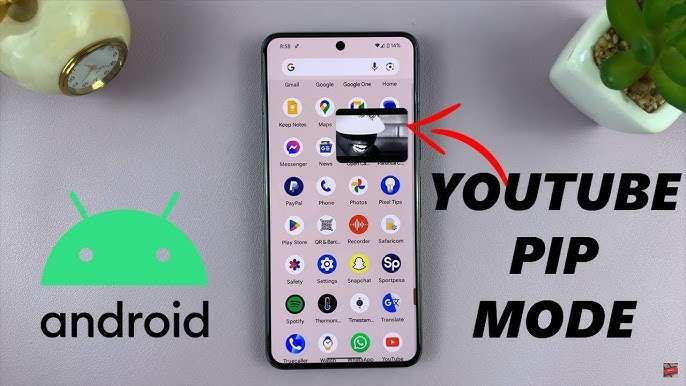

How to Make YouTube Small Screen on Android
Watching YouTube videos is a favorite activity for many Android users. Sometimes, you might want to continue browsing other apps or messaging friends while still watching a video. Luckily, Android offers a handy feature called Picture-in-Picture (PiP) mode that allows you to keep your YouTube video playing in a small window while you do other things on your device. In this guide, we’ll walk through different methods to make YouTube small screen on Android, explaining each step clearly so you can start using this feature quickly and easily.Understanding Picture-in-Picture Mode and Its Benefits
Before diving into how to enable the small screen for YouTube, let’s understand what Picture-in-Picture mode is and why it matters. Picture-in-Picture mode is a feature that lets you minimize a video into a small, floating window. This window stays on your screen, so you can move it around and access other apps without stopping the video. It’s perfect for multitasking. For example, you can watch a tutorial on YouTube, open your messaging app to reply to friends, and still see the video in a tiny window. Some benefits of PiP mode include:- Watch videos while browsing social media or chatting
- Reduce the need to switch back and forth between apps
- Keep important videos in view, like cooking recipes or workout routines
- Save time by multitasking efficiently
Checking Your Android Version and YouTube App Compatibility
Not all Android devices or YouTube app versions support PiP mode. To ensure smooth usage, verify the following:- Android Version: PiP mode is available on Android 8.0 Oreo and later versions. To check your Android version, go to Settings >About Phone >Android Version. If you have 8.0 or above, you’re good to go.
- YouTube App Version: Make sure your YouTube app is up to date. You can update it through the Google Play Store. Open the store, search for YouTube, and see if an update is available. Keep your app current to access all features.
- Device Settings: Some devices may have additional settings related to PiP that need enabling. We’ll cover this shortly.
Enabling Picture-in-Picture Mode on Android
Once your device and app are compatible, you need to turn on PiP mode through your device settings:Step-by-step Guide to Enable PiP Mode
- Open the Settings app on your Android device.
- Scroll down and tap Apps & Notifications.
- Tap Special App Access or Advanced options (may vary depending on your device).
- Find and select Picture-in-Picture.
- You will see a list of apps that support PiP. Locate YouTube and toggle it to Allow.
- Ensure that the overall toggle for Allow picture-in-picture at the top of this menu is turned on.
How to Use YouTube in Small Screen Mode
Using PiP mode with YouTube is straightforward. Here’s how you can do it:Playing a Video and Switching to Small Screen
- Open the YouTube app and play any video you like.
- While the video is playing, press the Home button (or swipe up if using gesture navigation). The video should minimize into a small floating window automatically.
- If it doesn’t, tap the Overview button (square icon), then tap the PiP icon that appears in the top corner of the video window.
- Drag it to move around the screen
- Resize it by pinching with two fingers (if supported)
- Tap the window to bring it back to full size or close it
Using YouTube in PiP Mode with the Free Version vs. Premium
It’s important to note that the YouTube Premium subscription offers enhanced PiP support, especially for background playback. But even without Premium, PiP mode works for most videos with the free version of YouTube. Here’s what you should keep in mind:- Free YouTube: PiP mode generally works when videos are viewed in the app or via browser. Some restrictions may apply depending on content licensing or app version.
- YouTube Premium: Allows background playback and more reliable PiP, including watching videos in minimized mode even when your screen is locked.
Troubleshooting Common Issues with YouTube Small Screen Mode
Sometimes, users encounter problems when trying to watch YouTube in small window mode. Here’s how to troubleshoot:Video Won’t Minimize to PiP
- Make sure PiP mode is enabled for YouTube in your device settings.
- Update your YouTube app to the latest version.
- Try restarting your device after enabling settings.
- Check if your device supports PiP mode — older models might lack this feature.
Video Stops Playing When Minimizing
- Ensure that you’re not using a browser that disables PiP or background playback.
- Verify that your internet connection is active.
- Close other apps that might interfere with video playback.
PiP Not Responding or Moving Slowly
- Restart your device.
- Clear cache of the YouTube app in Settings >Apps.
- Check for system updates which might improve compatibility.
Additional Tips for a Better YouTube Small Screen Experience
To get the most out of PiP mode, try these tips:- Use gestures like pinch to resize the PiP window for better viewing comfort.
- Keep your device’s screen brightness up for clearer visuals.
- Position the floating window near the edge of the screen to avoid blocking important content.
- Use the drag feature to move the video to the corner that suits your multitasking needs.
- Experiment with different YouTube videos to see which work best in PiP mode.
Summary of Key Steps to Make YouTube Small Screen on Android
To wrap up, here are the essential steps:- Make sure your device runs Android 8.0 or higher.
- Update the YouTube app to the latest version.
- Enable PiP mode in your device settings for YouTube.
- Open YouTube, play a video, then press Home or go to overview to activate PiP mode.
- Adjust the small video window as needed to improve your multitasking experience.
Frequently Asked Questions
How can I activate picture-in-picture mode for YouTube on my Android device?
To enable picture-in-picture mode for YouTube, go to your device’s Settings, then navigate to Apps & Notifications > Special app access > Picture-in-picture. Find YouTube in the list and ensure the toggle is turned on. When you watch a YouTube video, press the home button or use the gesture to exit the app, and the video will automatically shrink into a small window overlay.
What steps should I follow to resize the YouTube small screen on Android?
Once picture-in-picture mode is active, you can adjust the size of the YouTube window by dragging its edges if your device supports it. If resizing isn’t available, exit the mode and re-enable it, or check for app updates. Some devices or Android versions have limitations on resizing, so ensure your device supports this feature.
Can I watch YouTube videos in small screen mode while using other apps?
Yes, with picture-in-picture mode enabled, you can switch to other apps without stopping the video. The small YouTube window remains on top, allowing you to browse social media, reply to messages, or perform tasks while continuing to watch your video seamlessly.
Is there a way to enable small screen mode on YouTube without a Premium subscription?
Yes, picture-in-picture mode is available on Android devices without requiring a YouTube Premium subscription. As long as your device and app are updated, you can activate this feature to view videos in a small overlay while using other apps, even with a free YouTube account.
Why isn’t YouTube entering small screen mode even after enabling picture-in-picture?
If YouTube does not enter small screen mode, check your device’s settings to ensure picture-in-picture is permitted for YouTube. Also, verify that you are not playing videos in full-screen mode or using a browser that disables this feature. Reboot your device and update the YouTube app if necessary for optimal performance.
Final Thoughts
To make youtube small screen on android, start by opening the YouTube app. Tap on a video and then select the picture-in-picture icon if available. You can also press the home button to minimize the video automatically. Adjust the size and position by dragging the small screen to your preferred spot. This allows you to browse other apps while keeping YouTube visible. In short, knowing how to make youtube small screen on android helps you multitask efficiently. Use the picture-in-picture mode for seamless viewing and navigation.
Similar Posts































