How To Make Youtube Play Background Android Easily
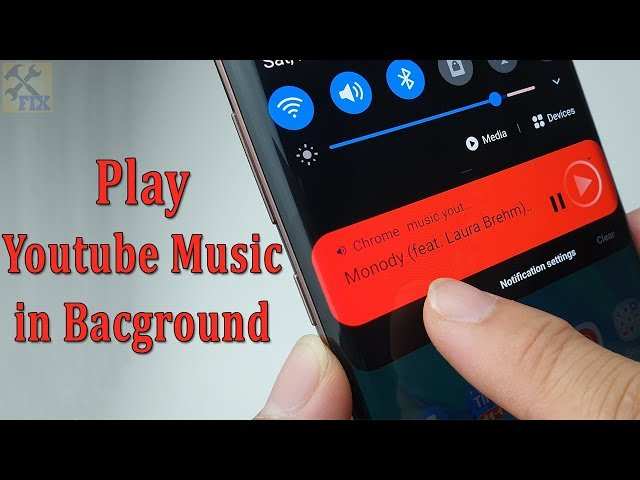

How to Make YouTube Play in Background on Android Devices
Many Android users love watching videos on YouTube, but one of the biggest challenges is keeping the audio running in the background while using other apps. Whether you’re listening to music, following a tutorial, or just want to keep the audio playing without keeping the video open, there are ways to make YouTube play in the background on your Android device. This article explains different methods, tips, and tricks to help you enjoy seamless background playback for YouTube on Android.Understanding Why YouTube Doesn’t Play in the Background by Default
Before diving into how to enable background play, it’s helpful to understand why YouTube traditionally doesn’t support it.- Official YouTube App Limitations: YouTube’s free version restricts background playback to encourage users to subscribe to YouTube Premium, which allows background listening and offline downloads.
- Device and App Restrictions: Some Android devices or app restrictions may prevent background playback, especially if the app is not optimized for it.
- Advertising Policies: YouTube’s advertising model incentivizes keeping users engaged with the app, which is why background play isn’t available in the free version.
Using YouTube Premium for Seamless Background Playback
The easiest way to ensure YouTube plays in the background is through YouTube Premium. While it requires a subscription, it offers several benefits:- Background Play Feature: You can minimize the app or turn off your screen, and the audio continues playing.
- Offline Downloads: Download videos to watch offline later.
- Ad-Free Experience: Enjoy videos without interruptions from ads.
- Open the YouTube app on your Android device.
- Tap on your profile picture in the top right corner.
- Select “Get YouTube Premium” and follow the prompts.
- Once subscribed, open any video and press the home button or turn off the screen.
- The music or audio should keep playing in the background without any issues.
Enabling Background Play in the Free YouTube App
If you prefer not to pay for Premium, there are alternative methods to enable background play for free. Some involve tweaking settings or using specific browser tricks.Method 1: Using Chrome or Other Browsers
Browsers like Google Chrome or Firefox can help you play YouTube videos in the background:- Open your preferred browser and go to youtube.com.
- Search for the video you want to listen to.
- Tap the three-dot menu in the browser and select “Desktop site” to load the desktop version of YouTube.
- Start playing the video and then press the home button.
- A notification will appear with the media controls to pause or play audio. If not, pull down the notification shade to access media controls.
- Touch the play button in the notification to resume listening while using other apps.
Method 2: Using YouTube in Desktop Mode on Chrome
Another way involves switching to desktop mode:- Launch Chrome and visit youtube.com.
- Tap the three dots menu in the top right and select “Desktop site.”
- Play your video, then minimize the browser or press the home button.
- Use media controls in the notification panel to keep the audio playing.
Using Third-Party Apps and Modifications
Besides browser tricks, several third-party apps and modifications facilitate background playback for YouTube without subscribing to Premium.Apps Designed for Background Play
Some apps claim to enable background listening:- NewPipe: An open-source app that allows background playback and download of YouTube videos without Ads.
- YMusic: Designed specifically for background music playback from YouTube.
- Download the APK from trusted sources (like their official websites).
- Enable installation from unknown sources in your device settings.
- Install the app and search for your video or music.
- Play the video and press the home button; background playback continues smoothly.
Using Apps to Modify the YouTube APK
Some tech-savvy users modify the YouTube app itself to enable background play:- Download an APK modification tool or a patched version of YouTube that supports background playback.
- Install the modified app, following trusted instructions.
- Sign in and enjoy background listening without restrictions.
Adjusting Your Device’s Settings for Better Background Playback
Sometimes, background playback issues stem from device settings:- Battery Optimization: Check if YouTube or your browser is optimized for battery saving. Disabling these can prevent interruptions.
- Notification Settings: Ensure notifications are enabled for media controls to appear when playing in the background.
- Screen Timeout: Adjust screen timeout settings to prevent the device from sleeping during playback.
- Go to Settings > Apps & Notifications > Special app access > Battery optimization.
- Find the app you’re using (e.g., Chrome, YouTube) and set it to “Not optimized.”
Tips for a Better Background Listening Experience
Making background playback work smoothly can involve some extra tips:- Use headphones: Headphones often provide better control over media and can help avoid accidental interruptions.
- Keep the app updated: Updates often improve performance and fix bugs related to background play.
- Close other apps: Running fewer apps reduces system load and prevents conflicts that might stop background music.
- Stay within data limits: Streaming videos in the background can consume substantial data. Monitor your usage to avoid unexpected charges.
Common Troubleshooting Tips
Sometimes, background playback doesn’t work as expected. Here are quick troubleshooting tips:- Restart your device to clear temporary glitches.
- Clear app cache and data for your browser or YouTube app.
- Reinstall apps if they behave unpredictably.
- Disable any power saving modes temporarily.
- Update your device firmware and apps regularly.
Frequently Asked Questions
Is there a way to play YouTube videos in the background without using a third-party app?
Yes, some Android devices allow you to play YouTube videos in the background by using the picture-in-picture mode or split-screen feature. You can enable picture-in-picture in your device settings, then open YouTube in supported browsers like Chrome or Firefox. Play the video, then press the home button; the video should minimize and continue playing. Keep in mind that this feature works best on devices with Android 8.0 or higher and may vary depending on your device manufacturer.
Can I use YouTube Premium to listen to videos in the background on Android?
Yes, subscribing to YouTube Premium grants you the ability to play videos in the background and even when the screen is off. After subscribing, open the YouTube app, play your desired video, and then navigate to other apps or turn off the screen. The audio continues to play seamlessly without needing additional apps or workarounds, offering a straightforward way to listen to content while multitasking.
Are there any browser-based tricks to keep YouTube playing in the background on Android?
You can use browsers like Chrome or Firefox to play YouTube videos in the background. Open YouTube in the browser, start playing your video, then select the browser’s menu options and choose “Desktop site” if necessary. Minimize the browser, and from the notification panel, press play on the media controls to continue listening. This method works well without installing extra apps, especially on devices that restrict background playing within the YouTube app itself.
What settings should I check on my Android device to enable background playback of YouTube videos?
First, ensure that your device’s developer options or battery optimization settings aren’t restricting background activities for YouTube or your browser. You may need to allow background data usage specifically for the app or browser you are using. Additionally, turn on picture-in-picture mode in your device settings if supported. Adjusting these settings can help maintain playback when switching between apps or turning off the screen.
Are third-party apps a reliable option to play YouTube videos in the background on Android?
Some third-party apps claim to enable background playback, but they often violate YouTube’s terms of service and may pose security risks. If you choose to use such apps, proceed with caution and ensure you download from reputable sources. The safest official method is subscribing to YouTube Premium, which legally allows background playback without compromising your device security or violating platform policies.
Final Thoughts
To make YouTube play background Android, start by opening the YouTube app. Use the split-screen or recent apps button to switch to another app while the video continues playing. Alternatively, enable Picture-in-Picture mode in your device settings. Some Android devices support background playback directly, while others may require third-party apps or browser methods. Always ensure your app settings and OS version support these features for smooth playback. In conclusion, knowing how to make YouTube play background Android helps you enjoy videos without interruption. Follow these simple steps and enjoy your favorite content seamlessly.
Similar Posts































