How To Fix Airpods With One Side Working For Better Sound
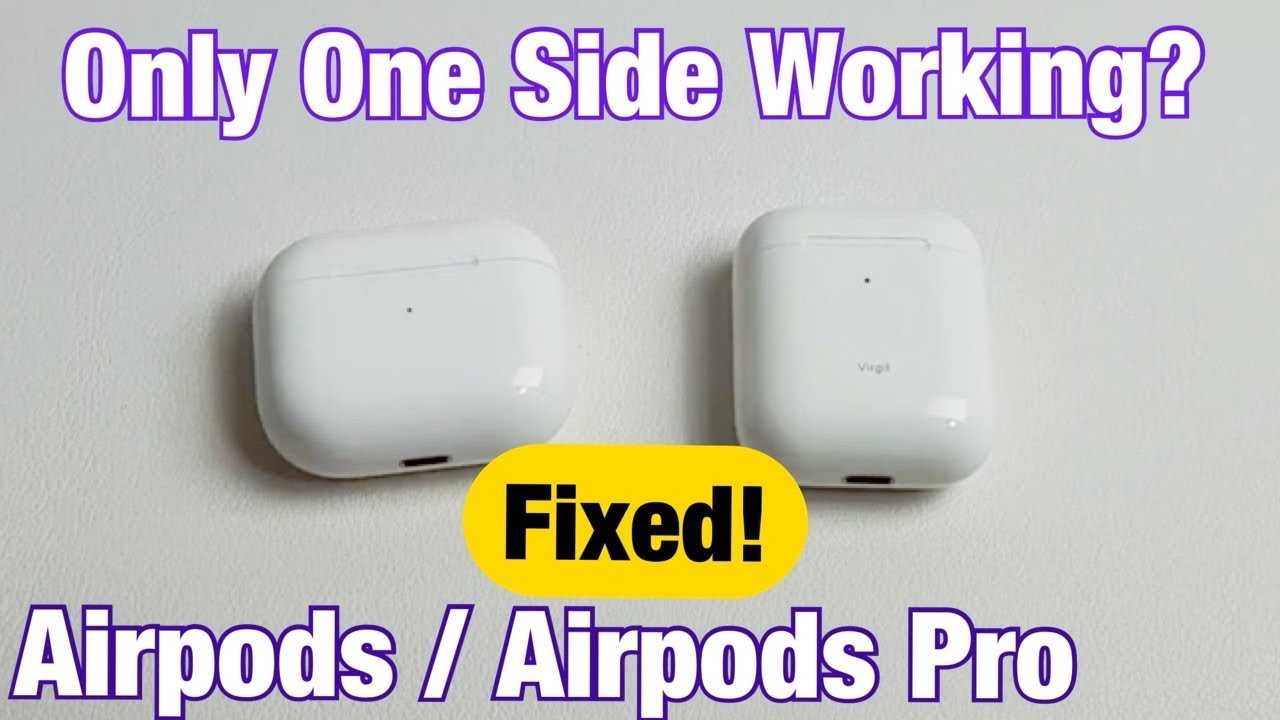
If you’re frustrated because only one AirPod is working, don’t worry—there’s usually a simple fix. A quick reset, cleaning, or updating can often solve the issue without needing a replacement. The key is troubleshooting step-by-step to identify the root cause.
The best way to fix AirPods with one side working involves resetting your AirPods, cleaning any debris, and checking your device’s settings. In most cases, issues stem from connectivity glitches or dirt blocking the speakers. A few straightforward steps can restore perfect stereo sound.
If your AirPod is only playing on one side, don’t panic—this is a common problem with an easy fix. Sometimes, debris or dirt can block the speaker, or the connection may need a refresh. Resetting your AirPods or updating their firmware can often resolve the problem. Cleaning the AirPods carefully, ensuring they’re properly paired, and checking for software updates on your device are quick ways to troubleshoot. Whether it’s a hardware hiccup or a connectivity glitch, most issues can be sorted out at home with a bit of patience and some simple steps.

How to fix AirPods with one side working
Understanding why only one AirPod works
Many users find that only one of their AirPods produces sound, which can be frustrating. Several factors might cause this issue, from hardware problems to software glitches. Knowing the root cause helps determine the best fix.
Common reasons for one AirPod not working
- Battery issues: One AirPod may be out of power.
- Connectivity problems: Bluetooth connection might be unstable or disrupted.
- Dirty or blocked speaker: Debris can block sound output.
- Software glitches: Firmware bugs can cause audio issues.
- Hardware damage: Physical damage or internal component failure.
Step-by-step troubleshooting for fixing one AirPod
Start by ruling out simple issues, then proceed to more involved solutions. Follow these steps carefully.
1. Check the battery levels
Make sure both AirPods are charged. If one is dead, it won’t produce sound. Place your AirPods in the charging case and confirm that both sides light up or show as charged on your device.
2. Clean your AirPods
Debris, earwax, or dirt can block sound. Use a soft, dry, lint-free cloth to wipe the exterior. For speakers, gently remove dirt with a dry cotton swab or a soft brush. Avoid using liquids or sharp objects.
3. Ensure proper pairing and connection
Sometimes, disconnecting and reconnecting can fix the issue. Go to your device’s Bluetooth settings, forget the AirPods, then pair them again.
- Open the case with AirPods inside.
- Go to Bluetooth settings and select “Forget” or “Remove.”
- Put the AirPods back in the case, close the lid, wait a few seconds.
- Open the lid and reconnect your AirPods as new.
4. Reset your AirPods
A reset can fix many software glitches. Here’s how:
- Put the AirPods in the charging case and keep the lid open.
- Press and hold the setup button on the back of the case for about 15 seconds.
- Release the button when the status light flashes amber then white.
- Re-pair your AirPods with your device.
Advanced fixes if basic troubleshooting fails
If simple steps do not fix the problem, consider these more advanced solutions.
Check for firmware updates
Firmware updates can fix bugs causing audio issues. Connect your AirPods to your device and ensure they are updated automatically with iOS or Android updates.
- On iPhone, go to Settings, then General, then About, and tap AirPods if available.
- If updates are available, install them.
Recalibrate your AirPods
Recalibration helps ensure your AirPods sync properly with your device. To do this:
- Use your AirPods until they fully discharge.
- Charge them completely without interruption.
- Reconnect and test for sound from both sides.
Update device software
Ensure your smartphone or computer’s operating system is up to date. Software updates can improve Bluetooth connectivity and fix bugs affecting AirPods performance.
Hardware repair options
Sometimes, internal hardware damage causes one side to stop working. If all software fixes fail, consider these options:
Visit an authorized repair center
Certified technicians can diagnose hardware damage and replace faulty components, such as speakers or internal circuits.
Replace your AirPods
If repair costs are high or your AirPods are old, replacement might be more practical. Check your warranty status or AppleCare plans for coverage options.
Preventative tips to avoid future issues
- Keep your AirPods clean and dry.
- Avoid exposing them to extreme temperatures.
- Charge regularly to prevent battery degradation.
- Store them properly in the charging case when not in use.
- Update firmware and device software regularly.
Related topics to consider
- How to improve Bluetooth connection quality with AirPods
- Battery life tips for AirPods users
- How to clean AirPods without damaging them
- Replacing AirPods vs. repairing: which option is best?
By following these detailed steps and tips, you can troubleshoot and often fix the issue of one AirPod not working. Sometimes, the fix is simple, like cleaning or resetting, but in other cases, professional repair or replacement may be necessary. Keeping your AirPods well-maintained and updated helps ensure they stay in good working order for a long time.
AirPods: Only One Side Working? Easy Fixes!
Frequently Asked Questions
What steps should I take if my AirPods only play sound on one side?
First, ensure your AirPods are fully charged. Clean the speaker meshes to remove any debris or earwax that might block sound. Reset your AirPods by placing them back in the charging case, closing it, waiting a few seconds, then opening it and reconnecting them to your device. Also, check your device’s audio balance settings and make sure the sound is evenly distributed. If the issue persists, try pairing your AirPods with another device to determine if the problem is hardware-related.
How can I determine if the problem is with my AirPods or the device?
Test your AirPods with a different device, such as another phone or tablet. If the sound only comes from one side on the new device, the issue likely resides within the AirPods themselves. If both sides work properly on another device, examine the current device’s audio settings, or consider resetting or updating its software. This process helps pinpoint whether the problem stems from the AirPods or the device you use with them.
What hardware issues could cause one AirPod to stop working?
A common hardware issue involves dirt, earwax buildup, or debris blocking the speaker mesh. Internal components like the speaker or wiring could also be damaged, especially after exposure to moisture or physical impact. Battery deterioration in one of the AirPods might cause uneven sound output. In such cases, professional repair or replacement may be necessary if cleaning or resetting do not resolve the problem.
Are there specific software updates or settings that might fix audio imbalance?
Yes, checking for firmware updates for your AirPods can resolve known bugs affecting sound output. Connect your AirPods to the paired device, go to the device’s settings, and see if any updates are available. Additionally, verify that the audio balance is set correctly in your device’s accessibility settings to ensure sound is distributed evenly between both sides.
What precautions should I take to prevent my AirPods from experiencing one-sided sound issues?
Always store your AirPods in their charging case when not in use to prevent physical damage. Keep the speaker mesh clean and dry, avoiding exposure to moisture or excessive dirt. Handle the AirPods carefully to avoid drops or impacts that could damage internal components. Regularly update your device’s firmware and maintain proper audio settings to prevent common issues from arising.
Final Thoughts
To fix airpods with one side working, start by cleaning the earbuds and charging case contacts. Reset the AirPods by holding the setup button until the LED flashes amber and white. Also, check for software updates on your device and reconnect the AirPods. If these steps don’t work, consider repairing or replacing the affected earbud.
In conclusion, solving the issue of one AirPod not working involves cleaning, resetting, and updating your device. If these methods don’t resolve the problem, professional repair might be necessary. understanding how to fix airpods with one side working gives you a better chance to restore full sound and enjoy your experience.

Similar Posts































