What To Do If Airpods Are Not Working: Troubleshooting Tips

What to Do If AirPods Are Not Working
When your AirPods suddenly stop working, it can be frustrating. But don’t worry. There are simple steps you can follow to fix common issues and get your headphones working again. In this section, we will explore detailed solutions to troubleshoot AirPods problems.
Check the Battery Level of Your AirPods
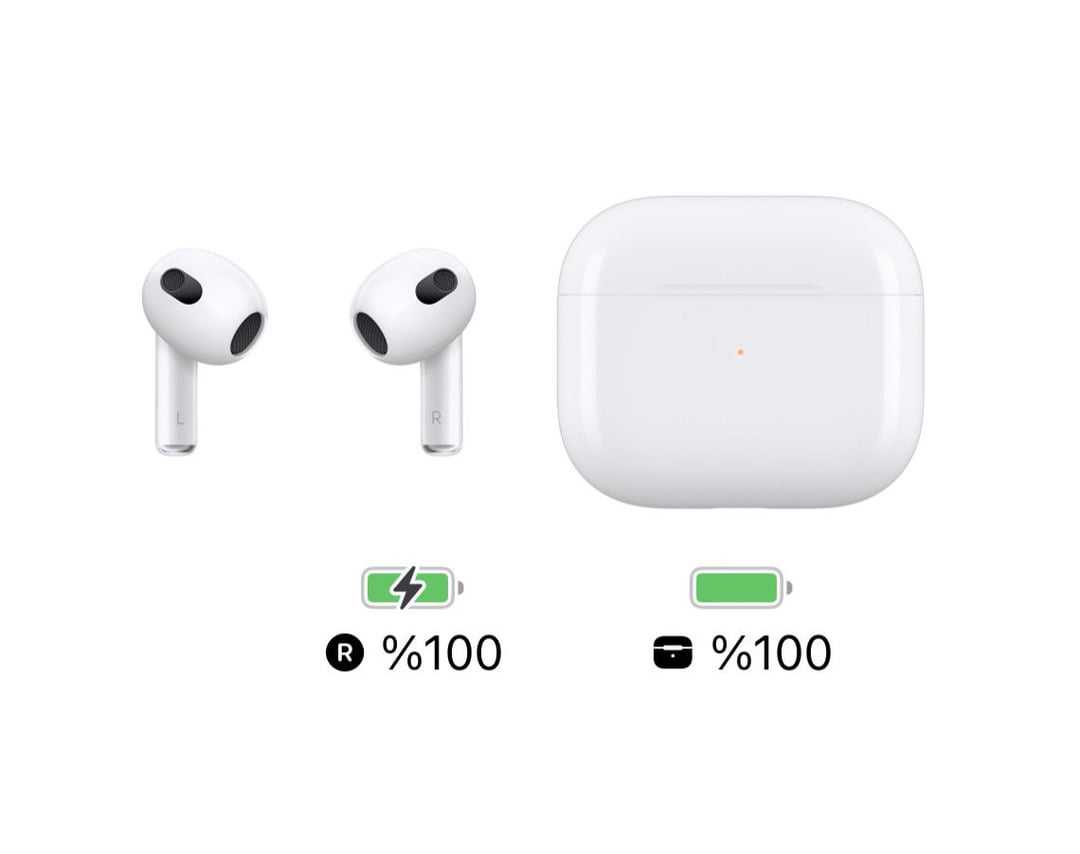
The first thing to do is ensure your AirPods have enough charge. Low battery often causes connection problems or audio issues. Open the case near your iPhone to see the battery status.
If your AirPods are dead, connect them to a charging source. Use the original charging cable and ensure the charging port is clean and free of debris. Fully charging your AirPods can resolve many basic issues.
Ensure Proper Connection Between AirPods and Device
Often, connectivity problems stem from a loose or disrupted connection. Make sure Bluetooth is enabled on your device. Turn Bluetooth off and then back on to refresh the connection.
On your device, go to Settings > Bluetooth and check if your AirPods appear as ‘Connected.’ If not, reconnect them manually by selecting your AirPods from the list of available devices.
Reset Your AirPods
When to Reset
If disconnecting and reconnecting don’t work, resetting your AirPods can fix persistent issues. Resetting restores factory settings and often clears errors.
How to Reset
- Put your AirPods in their charging case and close the lid.
- Wait for about 30 seconds, then open the lid.
- Press and hold the setup button on the back of the case until the LED flashes amber then white.
- Reconnect your AirPods to your device by going to Bluetooth settings and selecting them.
Update Firmware and Software
Keep your AirPods and device software up to date. Software updates fix bugs and improve performance. Check for updates on your iPhone or iPad in Settings > General > Software Update.
To update your AirPods firmware, connect them to your device and ensure they are charging. The firmware updates automatically in the background when connected to Wi-Fi and charging.
Troubleshoot Audio or Sound Issues
No Sound or Poor Audio Quality
If you experience no audio or poor sound quality, try cleaning the speaker meshes gently. Use a dry, soft-bristled brush or a clean, lint-free cloth.
Check if your device’s volume is turned up and not muted. Also, ensure that audio isn’t being routed to another device via AirPlay or Bluetooth.
Check Audio Balance and Settings
- Go to Settings > Accessibility > Audio/Visual on your device.
- Adjust the balance slider to ensure sound is evenly distributed.
- Disable any audio enhancements that might interfere.
Addressing Microphone and Connectivity Problems
Microphone Not Working
Test your microphone by recording a voice memo or making a call. If it doesn’t work, try cleaning the microphone openings on your AirPods with a dry brush.
If cleaning doesn’t help, resetting your AirPods and updating firmware might resolve the issue.
Connectivity Dropping or Signal Disruptions
If your AirPods frequently disconnect, check for interference from other Bluetooth devices or Wi-Fi networks. Move closer to your device and remove other active Bluetooth devices nearby.
Turning airplane mode on and off, or restarting your device, can also improve connection stability.
Troubleshoot Using Your Device Settings
Sometimes, settings adjustments can fix recurring problems. Resetting Bluetooth settings on your iPhone can help clear glitches. To do this, go to Settings > General > Reset > Reset Network Settings.
Remember, this will remove saved Wi-Fi passwords and network preferences, so be prepared to re-enter them.
Contact Apple Support or Visit an Authorized Service Provider
If all else fails, your AirPods may have hardware issues. Contact Apple Support for professional assistance or visit an authorized service provider.
Checking warranty status and recent repairs can help determine whether your AirPods are eligible for replacement or repair at no extra cost.
Additional Tips for Maintaining Your AirPods
- Regularly clean your AirPods, especially the speaker meshes and microphone openings.
- Store your AirPods in their case when not in use to prevent damage and improve battery life.
- Avoid exposing your AirPods to extreme temperatures or moisture.
Related Topics and Preventative Measures
- How to maximize battery life on AirPods
- Best practices for cleaning your AirPods
- How to troubleshoot Bluetooth connections on Apple devices
- Guide to updating AirPods firmware manually
By following these detailed steps, you can often resolve common issues with your AirPods. Keeping your device software current and maintaining your headphones can prevent many problems from arising.
One AirPod Not Working? Here's How to Fix!
Frequently Asked Questions
Why are my AirPods no longer connecting to my device?
If your AirPods are not connecting, ensure they are within range of your device and are turned on. Open the Bluetooth settings on your device and check if your AirPods appear as connected. If not, try turning Bluetooth off and on again, or forget the device and re-pair your AirPods. Restarting your device can also resolve connection issues.
How can I reset my AirPods to fix unresponsiveness?
To reset your AirPods, place them in the charging case and close the lid. Wait for at least 30 seconds, then open the lid. Press and hold the setup button on the back of the case until the status light flashes amber a few times and then flashes white. This resets your AirPods, allowing you to set them up again from scratch.
What should I do if my AirPods sound crackles or cuts out?
When your AirPods produce crackling sounds or audio cuts, make sure they are clean and free from debris. Check your device’s Bluetooth connection and minimize interference from other wireless devices. Reconnecting your AirPods or restarting your device can also help improve audio quality. Updating your device’s software may resolve persistent issues.
How can I troubleshoot if only one AirPod is working?
If only one AirPod functions, remove both from your device, then forget and re-pair them. Check if the unresponsive AirPod is clean and free from obstructions. Sometimes, resetting the AirPods fixes this issue. Additionally, ensure that both AirPods are charged and seated correctly in your ears or charging case.
What steps can I take if my AirPods are not charging properly?
Check the charging contacts on your AirPods and in the case for dirt or debris, and clean them gently with a dry cloth. Ensure the case has enough charge and that the charging cable or wireless charger works properly. Resetting your AirPods and updating your device’s software can also improve charging performance.
Final Thoughts
What to do if AirPods are not working. First, ensure your AirPods are charged and properly connected to your device. Resetting your AirPods often fixes issues; press and hold the setup button until the LED flashes amber then white. Check for software updates on your device, as these can resolve compatibility problems. If problems persist, contact Apple Support for further assistance. Addressing these steps promptly can help restore your AirPods’ functionality efficiently.
Similar Posts































