How To Customize Macbook Settings For Better Performance

How to customize MacBook settings for better performance
Understanding Your MacBook’s System Resources
Optimizing your MacBook starts with understanding how it uses its resources. Your MacBook’s CPU, RAM, and storage all affect its speed and responsiveness. Monitoring these resources helps identify what may be slowing down your device. Use the built-in Activity Monitor app to see which apps consume the most CPU, RAM, and energy. Close applications that are not in use to free up resources and improve overall performance. Regularly check your storage space and keep at least 10-15% free to prevent slowdowns.Optimizing System Preferences for Speed
Adjusting certain system preferences can go a long way in boosting speed. Disable visual effects such as ‘Reduce motion’ and ‘Reduce transparency’ by navigating to System Preferences > Accessibility. These effects can make your Mac look nice but often slow down older models. Set your ‘Dock’ to minimize animations by opening Dock preferences and choosing ‘Scale effect’ instead of ‘Magnification’. Turn off ‘Automatic graphics switching’ if you want your Mac to prioritize performance over battery life, found in Energy Saver settings.Managing Startup Items and Background Processes
Many apps automatically start when you turn on your Mac, slowing down startup time. Open System Preferences > Users & Groups > Login Items to manage which apps launch at startup. Remove unnecessary applications from the list to speed up boot time. Check for background processes using Activity Monitor and quit any that are not needed. Be cautious not to close essential system processes that keep your Mac functioning properly.Cleaning Up Storage for Better Performance
A cluttered storage can significantly reduce your MacBook’s speed. Utilize the built-in storage management tool found in About This Mac > Storage > Manage. Remove large files, old downloads, and unused applications regularly. Empty the Trash to free up space immediately. Consider moving files you want to keep to an external drive or cloud storage to create more space.Updating macOS and Apps
Keeping your software up-to-date is key to maintaining good performance. Visit System Preferences > Software Update to check for the latest macOS version. Updates often include bug fixes, security patches, and performance improvements. Update your apps via the App Store or directly from the developer’s website. Outdated software can cause compatibility issues and slow your Mac down.Adjusting Battery Settings for Optimal Performance
Battery settings can influence your Mac’s speed, especially on portable devices. Disable ‘Battery Saver’ modes that limit performance by going to System Preferences > Battery. Set your display to turn off sooner to conserve energy and reduce strain on system resources. When plugged in, ensure ‘Optimized battery charging’ is turned off for maximum performance. Managing these settings ensures your Mac is ready to perform efficiently when needed.Implementing Security and Privacy Settings
Security features can sometimes impact system speed if overused or misconfigured. Review app permissions in System Preferences > Security & Privacy to avoid unnecessary background activity. Turn off ‘Location Services’ for apps that do not need it. Disable ‘FileVault’ encryption if you notice slow system startup, but consider security implications beforehand. Limiting background security scans can help your Mac run faster.Using Third-Party Optimization Tools Carefully
Several apps can help clean your Mac and boost speed, but choose them wisely. Popular options include CleanMyMac, DaisyDisk, and Malwarebytes. Always download from official sources and avoid tools that promise unrealistic improvements. Run scans regularly to remove malware, adware, and unnecessary files. Be cautious with clearing caches or deleting files—backup before making major changes.Customizing Visual Settings for Better Performance
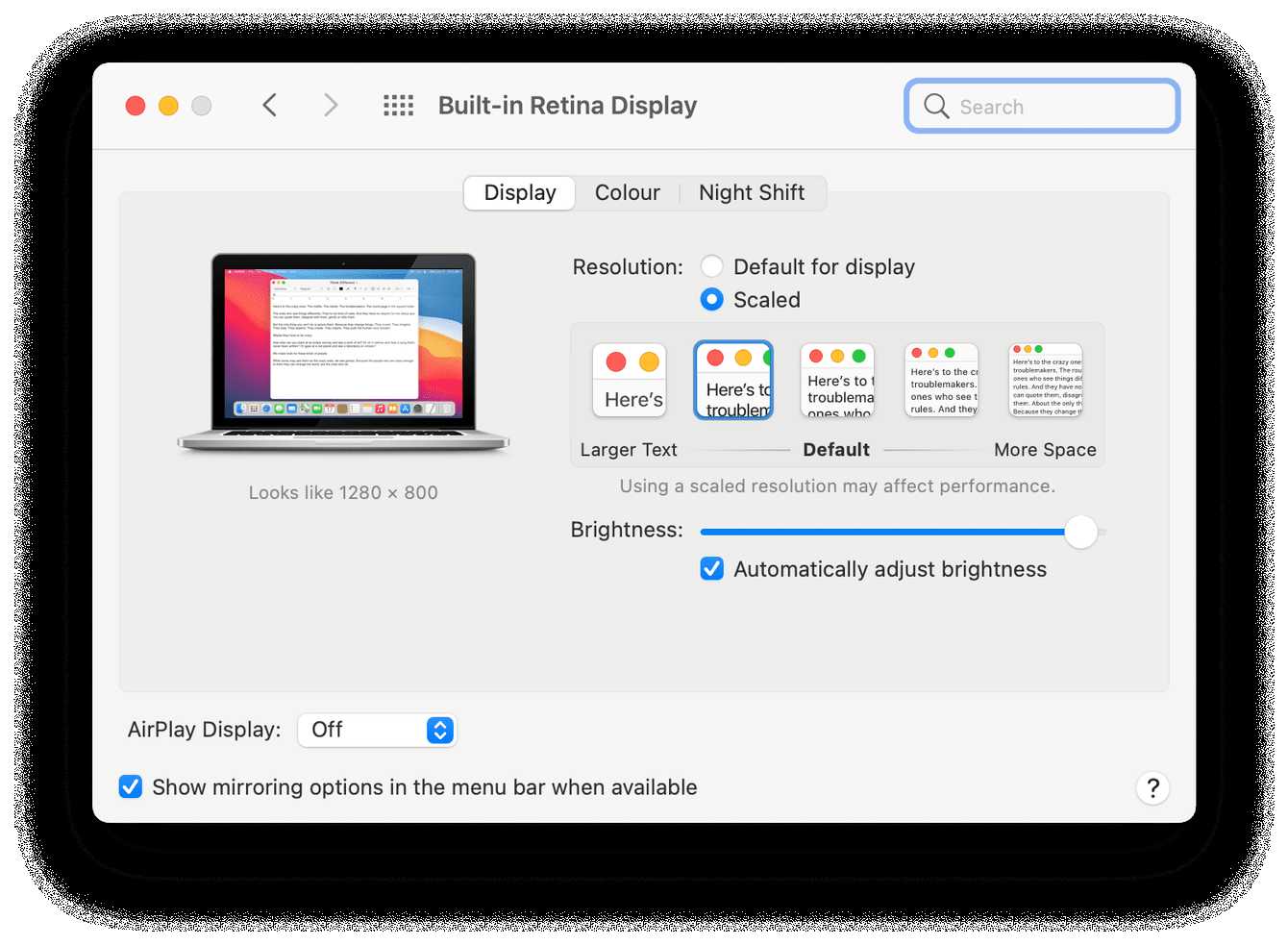
Turning down visual effects can enhance speed, especially on older Macs. Adjust the display brightness and reduce motion in System Preferences > Accessibility > Display. Disable animations in Safari and other browsers by turning off ‘Use hardware acceleration’. Limit transparency effects by enabling ‘Reduce transparency’ for quicker rendering. These simple changes can noticeably improve responsiveness and overall speed.Enhancing Keyboard Shortcuts and Workflow
Custom shortcuts can reduce the time your Mac takes to perform tasks. Set up shortcuts for frequently used actions in System Preferences > Keyboard > Shortcuts. Use Spotlight (Cmd + Space) effectively for quick app launches and file searches. Enable ‘Hot Corners’ in Mission Control to access common features instantly. Well-organized workflows decrease idle time, making your Mac perform efficiently.Regular Maintenance Tips
Set a routine to restart your Mac every week to refresh system processes. Run Disk Utility to repair disk permissions and verify disk health. Clear cache files manually or using trusted cleaning apps. Keep your browser clean by deleting cookies and history regularly. Regular maintenance ensures your Mac stays clean, fast, and reliable over time.Advanced Customizations for Power Users
For experienced users, terminal commands can fine-tune system performance. Adjust hidden settings like disabling hibernation or modifying energy preferences. Use command-line tools to clear logs and cache more thoroughly. Be cautious—advanced modifications can affect stability if not done carefully. Research thoroughly or consult a tech expert before making deep system changes. Each of these steps helps make your MacBook work faster and more smoothly. By managing resources, adjusting preferences, cleaning storage, and updating software, you set your Mac for optimal performance. Remember to regularly review your settings to keep your device running at its best.Three MacBook settings I tell everyone to enable
Frequently Asked Questions
How can I optimize my MacBook’s startup process for quicker boot times?
To speed up your MacBook’s startup, review the login items that launch automatically. Go to System Preferences > Users & Groups, select your user account, then click the Login Items tab. Remove any unnecessary apps from the list. Additionally, disable any background processes or services you do not need at startup. Keeping your system software up to date also ensures you benefit from performance improvements and bug fixes that can influence startup times.
What settings should I adjust to improve battery life and system performance?
Adjust display brightness to an optimal level, as high brightness consumes more power. Enable energy-saving features through System Preferences > Battery, such as turning off the display after a shorter period of inactivity and enabling ‘Optimize video streaming while on battery.’ Closing unused applications and minimizing open browser tabs also reduce CPU load, which helps conserve battery and maintains system responsiveness.
How can I free up storage space to enhance MacBook performance?
Start by deleting files you no longer need, including old downloads and large, unused applications. Use the built-in storage management tool available in About This Mac > Storage > Manage to identify and remove large or unnecessary files. Empty your Trash regularly and clear cache files from browsers and system directories. Keeping your storage optimized prevents system slowdowns caused by limited disk space.
What adjustments can I make to visual effects for better system responsiveness?
Reducing visual effects such as motion and transparency can improve performance, especially on older MacBook models. Navigate to System Preferences > Accessibility > Display, and enable options like ‘Reduce motion’ and ‘Reduce transparency.’ Disabling these effects decreases the workload on your graphics processor, resulting in a smoother overall experience.
Are there specific system preferences I should configure to enhance performance during intensive tasks?
Yes, you can prioritize performance by closing unnecessary background applications before starting demanding tasks. Also, check energy settings in System Preferences > Battery to disable features that might reduce performance, such as battery conservation options. Consider resetting the System Management Controller (SMC) periodically, especially if you notice unusual behavior affecting performance. These steps ensure your MacBook allocates resources efficiently during intensive activities.
Final Thoughts
Optimizing your MacBook settings can significantly boost its performance. Adjust energy saver preferences to reduce unnecessary power consumption. Manage startup items to speed up boot times and free up system resources. Disable unused features like Bluetooth or Wi-Fi when not needed. Regularly update macOS and apps to ensure compatibility and security. Clear cache files and close background applications that drain system resources. In conclusion, knowing how to customize MacBook settings for better performance helps your device run smoothly. Implement these adjustments to maximize efficiency and enjoy a quicker, more responsive MacBook.
Similar Posts































