How To Set Up A New Macbook For First Time Use In 2023

How to set up a new MacBook for first time use
Getting a new MacBook is exciting, but setting it up can seem overwhelming at first. Luckily, Apple makes the process simple and straightforward. In this guide, we will walk you through each step so you can start using your MacBook right away.
Starting Your MacBook for the First Time
Once you open your new MacBook, you’ll see the setup screen. This is where you begin customizing your device. Make sure your MacBook is connected to a power source to avoid interruptions during setup.
The device will automatically turn on, and you will see the Apple logo along with a progress bar. This initial boot usually takes a few minutes. Sit back, and get ready to set up your account and preferences.
Selecting Language and Region
The first step involves choosing your preferred language. Use the touchscreen or arrow keys to select your language. This choice affects menus, system messages, and other settings.
Next, select your country or region. This setting influences formats for date, time, currency, and keyboard layout. Be sure to choose the region closest to your location for more accurate defaults.
Connecting to Wi-Fi
Your MacBook will prompt you to connect to Wi-Fi. Select your network from the list of available options. Enter your Wi-Fi password carefully to ensure a stable connection.
If you experience issues with Wi-Fi, check your router or try connecting to a different network. An internet connection is essential for downloading updates and signing into your Apple ID.
Signing in with Your Apple ID
After connecting to Wi-Fi, you’ll be asked to sign in with your Apple ID. This account links your Mac to iCloud, App Store, iMessage, and FaceTime. If you don’t have an Apple ID, you can create one now.
Enter your email address and password, then follow the on-screen instructions. Signing in now allows you to sync your apps and settings easily across devices.
Setting Up iCloud and Find My Mac
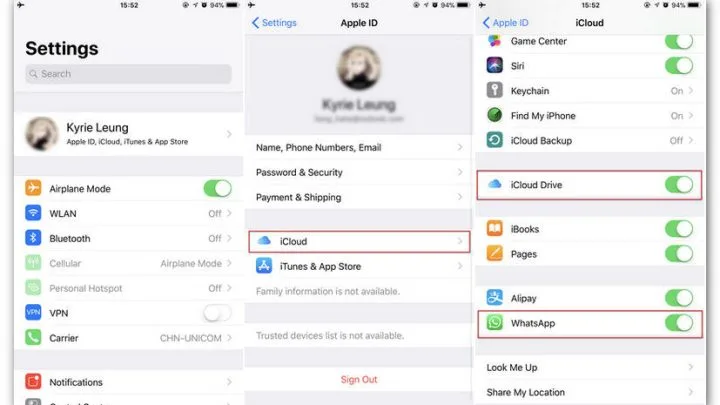
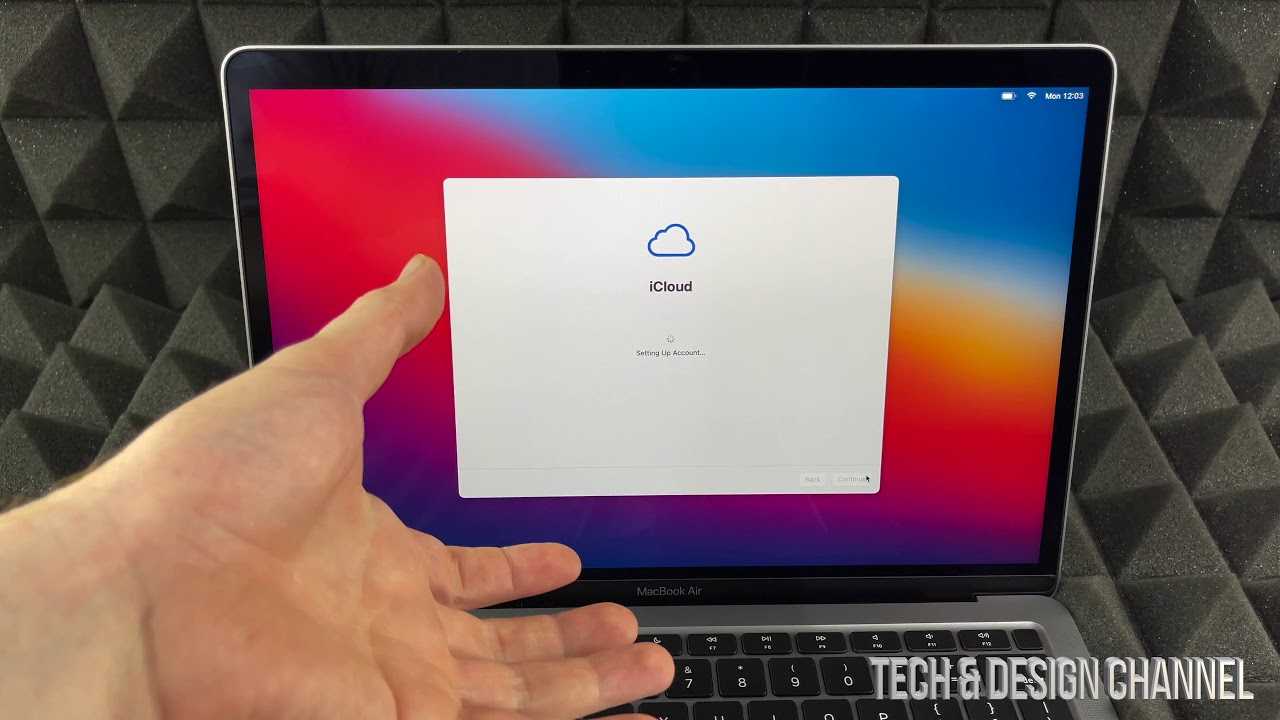
iCloud helps back up your data and keeps your photos, contacts, and calendars in sync. Enabling iCloud Drive is highly recommended for seamless access across your Apple devices.
Activate Find My Mac by checking the box. This feature helps you locate your Mac if it’s lost or stolen. It’s a good idea to enable both options for added security and convenience.
Creating a User Account and Password
Next, set up your user profile by creating a password for your MacBook. Choose a strong password that is easy for you to remember but hard for others to guess.
You can also add a password hint. This helps you recover your account if you forget your password. Consider enabling Touch ID if your MacBook supports it for quick login and payments.
Customizing Settings: Privacy, Siri, and Analytics
The setup process will guide you through privacy settings. Decide whether to enable or disable location services and analytics sharing. Read each option carefully to understand what data is collected.
Next, set up Siri, Apple’s voice assistant. You can choose to activate Siri now or skip this step and do it later. Enabling Siri allows for hands-free control and quick information retrieval.
Configuring Display and Accessibility
Set your display preferences, including brightness and True Tone display if available. Adjust these settings to ensure comfortable viewing experience.
If you have accessibility needs, you can customize options like VoiceOver, zoom, or speech. Apple provides tools to make your Mac easier to use for everyone.
Installing Updates and Software Optimization
Once your account is set up, your MacBook may prompt you to install the latest macOS updates. Installing updates ensures your device has the newest features and security patches.
Navigate to System Preferences and check for any additional updates if needed. Keeping your software current helps your Mac run smoothly and securely.
Setting Up Backup and Time Machine
It’s crucial to back up your data regularly. Connect an external hard drive or setup iCloud backup options to protect your information.
Open Time Machine in System Preferences and follow the setup guide to automatically back up your Mac. This step is vital in case of hardware failure or accidental data loss.
Personalizing Your MacBook
After completing initial setup, customize your desktop background, dock, and menu bar to match your preferences. You can access these options in System Preferences.
Install your favorite apps from the App Store or transfer data from an old device if necessary. Personalizing your Mac makes it more comfortable and efficient for daily use.
Exploring Security and Privacy Settings
Review security options like FileVault encryption, firewall, and password management. These settings help keep your data safe from unauthorized access.
Enable two-factor authentication on your Apple ID for added protection. Regularly update your passwords and review app permissions to maintain security.
Setting Up Mail, Calendar, and Contacts
Configure your email accounts by opening Mail in your Applications folder. Sign in with your email provider credentials to start sending and receiving messages.
Sync your calendar and contacts with iCloud or third-party services. This ensures your schedule and contacts are accessible on all your devices.
Installing Essential Apps and Tools
Download necessary applications such as browsers, productivity tools, and communication platforms. Make sure to install the latest versions for better performance.
Use the Launchpad or Dock to organize your apps efficiently. Keep your desktop tidy for quicker access to important programs.
Setting Up Apple Pay and Notifications
If your MacBook supports Apple Pay, add your debit or credit cards for easy online shopping and payments. Follow the prompts in Wallet & Apple Pay in System Preferences.
Configure your notification preferences to stay updated without being overwhelmed. Customize alerts for apps, messages, and calendar events.
Final Checks Before You Start Using Your MacBook
Review all your settings to ensure everything is configured correctly. Ensure Wi-Fi, iCloud, and language settings are correct.
Perform a basic test by opening apps, sending an email, or browsing the internet. Confirm your device is functioning as expected before diving into daily tasks.
By following these steps, you are now ready to fully enjoy your new MacBook. It will be tailored to your preferences and ready for work, entertainment, and more.
How To Set Up a New Mac (Step By Step Guide) + Tips & Tricks
Frequently Asked Questions
What initial steps should I take when setting up a new MacBook for the first time?
Start by connecting your MacBook to a power source to ensure it has sufficient battery life during setup. Turn on your device and follow the on-screen prompts to select your language, region, and Wi-Fi network. This helps set up the basic preferences and connect you to the internet for further configurations.
How do I sign in with my Apple ID during the setup process?
When prompted, enter your Apple ID credentials to sign in. If you don’t have an Apple ID, you can create one directly from the setup screen. Signing in allows you to access services like iCloud, App Store, and FaceTime, making it easier to restore backups and synchronize your data across devices.
What should I do to customize the privacy and security settings on my MacBook?
During setup, you will be guided to review and adjust privacy and security options. Decide whether to enable features like Find My Mac, enable two-factor authentication, and set a strong password. Customizing these settings enhances your device’s protection right from the start.
How can I set up iCloud and transfer data from my old device?
If you have an existing Mac or another device, use the Migration Assistant during setup to transfer your data, applications, and settings. Sign in to iCloud to enable syncing of your contacts, calendars, and files. This process helps you get your new MacBook ready with minimal effort.
What is the best way to install essential applications on my MacBook after setup?
Once your MacBook is set up and connected to the internet, open the App Store to browse and download the applications you need. Log in with your Apple ID to access purchased apps and updates. Consider installing productivity tools, browsers, and security software to optimize your experience.
Final Thoughts
To set up a new MacBook for first time use, start by powering it on and selecting your language. Connect to a Wi-Fi network to access online features and updates. Sign in with your Apple ID to sync data and download apps. Enable security features like Touch ID or Face ID and customize your settings. In conclusion, setting up a new MacBook for first time use becomes straightforward by following these essential steps. Ensuring you complete each step will help you enjoy your new device smoothly and securely.
Similar Posts