How To Block Site On Ipad Tips For Effective Control

How to Block Sites on iPad: A Complete Guide
Why You Might Want to Block Websites on Your iPad
Many iPad users look to block websites for various reasons. Parents may want to restrict their children’s access to inappropriate content. Teachers and schools often limit access to distracting sites during class. Adults might block social media or gaming sites to improve focus. Blocking websites helps create a safer and more controlled browsing environment.Understanding Built-in iPad Features for Site Blocking
Apple incorporates several tools within iOS to help users manage access. These features are easy to use and don’t require third-party apps. The main options include Screen Time restrictions and Safari content filters. Learning how these work is the first step toward blocking unwanted sites effectively.Using Screen Time to Block Websites
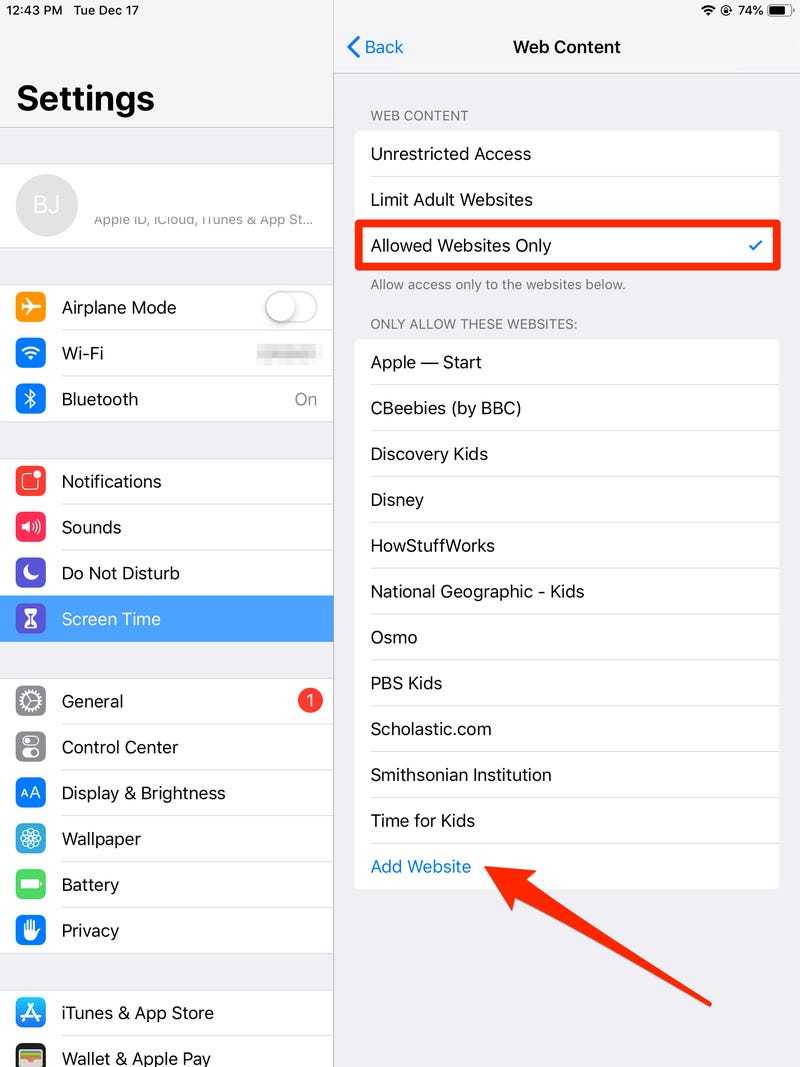
Screen Time offers a simple way to limit access to specific websites. To begin, go to your iPad Settings and tap on Screen Time. If you haven’t turned it on, enable it and set a passcode to prevent changes. Within Screen Time, select Content & Privacy Restrictions.Enabling Content & Privacy Restrictions
Turn on Content & Privacy Restrictions by toggling the switch. Then, tap on Content Restrictions to access web filtering options. Here, you can choose to restrict adult websites or create custom restrictions.Restrict Adult Websites
Select “Limit Adult Websites” to automatically block many adult and inappropriate sites. You can add specific websites to always allow or never allow lists. To do this, tap on “Always Allow” or “Never Allow” and enter domain names accordingly.Blocking Specific Websites Using Content Restrictions
For more control, add individual sites you want to block. Under “Never Allow,” tap “Add Website” and input the URL of the website you wish to restrict. You can add multiple sites to this list to customize the browsing experience.Tip for Effective Website Blocking
Remember that blocking sites via Content Restrictions applies mainly to Safari and other apps using Safari’s engine. For other browsers like Chrome, additional steps or apps may be necessary.Using Safari Settings for Site Control
Safari offers specific options to limit or block websites. To access these, go to Settings, scroll down to Safari, and open its menu. Here, you’ll find options for content blocking and website restrictions.Enabling Content Blockers
Download a content blocker app from the App Store, which can filter sites more precisely. Once installed, go to Settings, then Safari, then Content Blockers. Enable the blocker you installed to activate its filtering features.Creating Custom Block Lists
Many content blocker apps let you build custom lists of sites to block. Open the app and add URLs of websites you want to restrict. These apps often have user-friendly interfaces designed for quick setup.Using Third-Party Apps for Advanced Blocking
If built-in features aren’t enough, third-party apps provide enhanced controls. Common options include Qustodio, Net Nanny, and OurPact. These apps offer features like time limits, detailed site blocking, and activity reports.Steps to Set Up Third-Party Blocking Apps
Download your chosen app from the App Store. Follow the setup instructions and grant necessary permissions. Configure the app’s website filtering options, then activate the profiles to enforce restrictions on your iPad.Benefits of Third-Party Apps
Third-party solutions often provide more comprehensive filtering. They work across multiple browsers and apps, offer real-time activity monitoring, and give parents the ability to manage restrictions remotely.Using Profile Configuration for Enterprise or School Devices
In organizational settings, device management profiles allow administrators to enforce strict restrictions. These profiles can block certain sites and limit browsing options across multiple iPads.Deploying Profiles via MDM
Mobile Device Management (MDM) solutions facilitate profile installation. IT administrators configure restrictions remotely, ensuring consistent site blocking on all devices. This method is ideal for schools or businesses managing many iPads.Additional Tips for Managing Website Access on iPad
To maximize effectiveness, combine methods like Screen Time and third-party apps. Keep your restrictions updated and periodically review blocked sites. Educate users about the reasons behind restrictions to ensure compliance.Update Restrictions Regularly
Websites frequently change, so regularly add new sites to your block lists. Update app filters and content restrictions to maintain a safe browsing environment.Use Multiple Layers of Control
Combine built-in features with third-party apps for comprehensive restrictions. This approach minimizes the chances of users bypassing restrictions.Common Challenges in Blocking Sites and How to Overcome Them
Some users find that certain sites are still accessible despite restrictions. This can happen because of VPNs, proxy servers, or alternate browsers. To address this, disable VPNs or instruct users not to install unapproved apps.Ensuring Restrictions Are Effective
Set a strong passcode for Screen Time and app restrictions. Explain the importance of restrictions to users, especially children, to ensure they follow the rules.Handling Bypassed Restrictions
If restrictions are bypassed, consider updating the iPad’s software or resetting restrictions. For persistent issues, seek professional support or tighten security settings. Blocking websites on an iPad is straightforward with the right tools and steps. Using built-in features like Screen Time and Safari content filters provides a solid foundation. For more advanced control, third-party apps and device management profiles offer additional layers of security. Regularly reviewing and updating your restrictions keeps the browsing environment safe and appropriate. By applying these methods, you can ensure your iPad is a safer space for everyone using it.HOW TO BLOCK CERTAIN WEBSITES ON IPAD 2024
Frequently Asked Questions
How can I set up restrictions to block specific websites on my iPad?
You can set up restrictions using Screen Time settings. Go to Settings, tap on Screen Time, then select Content & Privacy Restrictions. Enable the option, and under Content Restrictions, choose Web Content. From there, you can add specific websites to always block or allow, ensuring that the iPad restricts access to unwanted sites.
What steps should I follow to prevent children from accessing certain websites on an iPad?
Start by opening Settings on the iPad and navigating to Screen Time. Turn on Screen Time if it’s not already active. Tap on Content & Privacy Restrictions, enable them, and then select Content Restrictions > Web Content. Choose ‘Limit Adult Websites’ and add specific sites to the ‘Never Allow’ list. This approach helps control what children can access online.
Is it possible to block adult content on my iPad without installing third-party apps?
Yes, you can block adult content using built-in iOS features. Access Settings, then Screen Time, and go to Content & Privacy Restrictions. Enable the restrictions, select Content Restrictions, and tap Web Content. Choose ‘Limit Adult Websites’ to automatically restrict mature content, ensuring safer browsing without extra apps.
How can I quickly disable website restrictions when needed?
Open Settings on your iPad, go to Screen Time, and enter your passcode if prompted. Tap on Content & Privacy Restrictions, then toggle off Content Restrictions. This action temporarily removes website restrictions, allowing full access until you decide to re-enable them.
What are some effective ways to manage website permissions on an iPad for multiple users?
If you’re managing an iPad for multiple users, set up different Screen Time passcodes for each user profile. Navigate to Settings > Screen Time, and configure content restrictions based on each user’s needs. This method allows you to control website access individually, maintaining appropriate browsing safety for everyone.
Final Thoughts
To block site on iPad, access the Settings app and go to Screen Time. Tap on Content & Privacy Restrictions, then enable them. Select Content Restrictions and navigate to the Web Content section. Choose Limit Adult Websites or add specific sites to Always Allow or Never Allow. This method gives you control over browsing. In conclusion, knowing how to block site on ipad helps manage content effectively. Implement these steps to restrict unwanted sites and ensure a safer browsing experience.
Similar Posts































