Where Do You Find Airpods In Settings For Easy Access

Where Do You Find AirPods in Settings?
If you’re trying to manage your AirPods and want to find their settings on your device, you’re in the right place. Many users wonder exactly where to locate AirPods options on their iPhone or iPad. Luckily, AirPods settings are easy to access once you know where to look. This guide will walk you through every step to find and customize your AirPods in Settings.
Accessing AirPods Settings on Your iPhone or iPad
The first step is to open the Settings app on your device. Once inside, you’ll want to scroll until you find the Bluetooth menu. This is where all the magic happens for managing your AirPods.
Tap on Bluetooth to open its submenu. If your AirPods are connected, you’ll see their name listed under “My Devices”. Tap on the info icon (a small blue circle with an “i”) next to your AirPods’ name. This action takes you directly to the AirPods-specific settings page.
Understanding the AirPods Settings Page
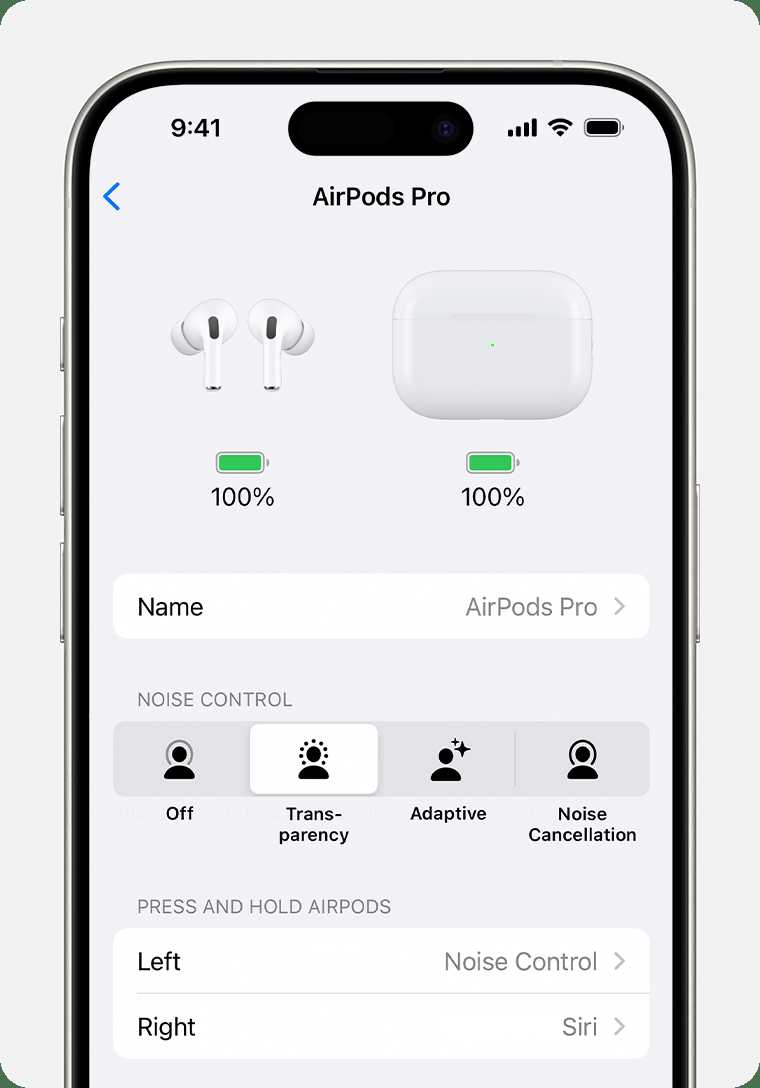
The AirPods settings page displays various options you can customize. Here, you can see your AirPods’ name, battery levels, and connection status. It also offers several key features to tailor your listening experience.
Important features include “Double Tap” or “Press” actions, noise control settings, and ear detection options. Adjusting these settings helps make your AirPods more personalized and convenient to use.
Customizing Double Tap or Press Actions
Depending on your AirPods model, you’ll see options to customize what happens when you double tap or press the force sensor. You can choose actions like play/pause, skip forward, go back, or activate Siri.
To change these, tap on the relevant option and select your preferred action. Setting this up makes controlling your devices simpler without needing your phone directly.
Managing Noise Control and Transparency Mode
AirPods Pro and AirPods Max offer noise control features. In the settings, you’ll find options for Noise Cancellation, Transparency Mode, or Off. These allow you to control how much outside sound you hear while wearing your AirPods.
Tap on the “Noise Control” section to switch between modes. You can also customize the press-and-hold action to quickly toggle between noise modes for faster adjustments.
Enabling or Disabling Automatic Ear Detection
This feature detects when your AirPods are in or out of your ears and automatically pauses or resumes playback. To toggle Ear Detection, look for the switch in the settings page. Turning it on provides seamless listening, while turning it off may save battery or help with troubleshooting.
Checking and Managing Battery Levels
The settings page displays the current battery percentage for each AirPod and the case. This info helps you know when to recharge. For more detailed battery status, you can also view this info directly from the Battery widget on your device’s Home Screen or Lock Screen.
Renaming Your AirPods for Easy Recognition
You can give your AirPods a custom name for easier identification, especially if you use multiple devices. In the settings, tap on the current name and enter your preferred one. This new name will show up across your device and Bluetooth connections.
Updating Firmware for Your AirPods
Firmware updates are crucial for improving performance and fixing bugs. To check for updates, connect your AirPods to your device and keep them charging and near your iPhone or iPad. Firmware updates happen automatically in the background when these conditions are met.
If you suspect your AirPods need an update, reconnect them to ensure they are properly recognized, then check your device’s software version under Settings > General > About > AirPods.
Pairing and Re-pairing AirPods in Settings
If your AirPods are not appearing or connecting correctly, you can reset their connection. To do this, go to the AirPods settings, tap “Forget This Device,” and then re-pair them. This process resets Bluetooth pairing and helps resolve connectivity issues.
Using Find My to Locate Your AirPods
In the Settings, under your iCloud account, you can access “Find My” to locate misplaced AirPods. If your AirPods are out of reach, this feature shows their last known location on a map. You can also play a sound to help locate them nearby.
Additional Settings for AirPods Max and AirPods Pro
These models offer extra customization options. For example, you can adjust the active noise cancellation levels or switch between transparency modes directly from the Settings.
In the case of AirPods Max, physical button controls also work in tandem with settings for seamless operation. Make sure to explore all available options to optimize your experience.
Controlling Automatic Ear Detection and Accessibility Features
Accessibility features like Live Listen can be managed within the device’s Settings. These enhance usability for users with hearing difficulties or specific needs. Find these options under Accessibility > Audio/Visual.
Syncing AirPods with Multiple Devices
If you use your AirPods with different Apple devices, ensure that they are correctly linked to your Apple ID. This syncs settings across devices for a uniform experience, and you can switch between devices seamlessly.
Troubleshooting Common Problems in Settings
If you experience issues like connectivity drops or audio problems, your AirPods’ settings can help identify and fix them. Resetting, updating firmware, and adjusting noise control are often the first steps.
Additionally, ensure your Bluetooth is up-to-date and that your device’s software is current. Proper management within Settings can resolve most common issues quickly.
Finding and customizing your AirPods through Settings is straightforward once you understand each feature’s purpose. Regularly checking these options helps keep your listening experience smooth and personalized. Keep exploring the menu to master your AirPods and enjoy their full potential.
Frequently Asked Questions
How can I locate AirPods settings on my iPhone?
To find AirPods settings on your iPhone, open the Settings app, then tap on Bluetooth. Locate your AirPods in the list of devices, and tap the info icon (i) next to them. This will open the settings specific to your AirPods, where you can customize options like double-tap functions, ear detection, and more.
Is there a way to view AirPods battery information in settings?
Yes, you can see your AirPods’ battery status directly from the Settings app. After connecting your AirPods, go to the Bluetooth menu, find your AirPods in the device list, and tap the info icon (i). Here, you will see the current battery levels for both the AirPods and the charging case.
Can I adjust AirPods settings without connecting them via Bluetooth?
No, you need to connect your AirPods to your device via Bluetooth to access their settings. Once connected, you can customize various options, such as noise control and voice prompts, through the Bluetooth menu in your device’s Settings app.
Where do I manage noise control options for my AirPods in settings?
To manage noise control features, open the Settings app, tap on Bluetooth, then locate your AirPods and tap the info icon (i). Within this menu, you can choose options like Noise Cancellation, Transparency mode, or turning off active noise controls, depending on your AirPods model.
How do I change the name of my AirPods in settings?
To rename your AirPods, connect them to your device and go to the Bluetooth section in Settings. Tap the info icon (i) next to your AirPods, then tap on the current name to edit it. Enter the new name and save your changes. This updated name will appear whenever your AirPods connect to your device.
Final Thoughts
You can find AirPods in your device’s settings by opening the Bluetooth menu. Navigate to Settings and tap Bluetooth to see connected devices. If your AirPods are connected, they appear under the My Devices list. Checking these settings allows you to manage your AirPods easily. In conclusion, where do you find airpods in settings? The answer is straightforward: they are listed under Bluetooth settings once connected.
Similar Posts