How To Use Quick Look To Preview Files Instantly
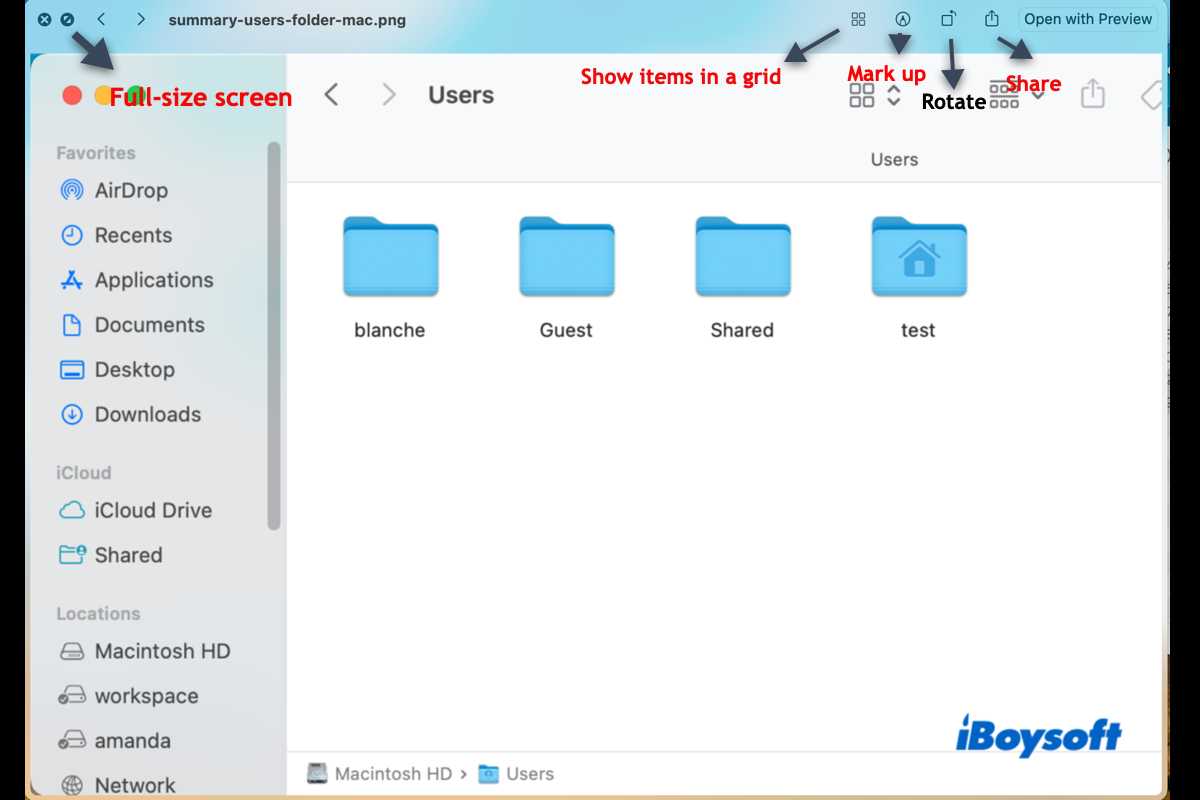

How to use Quick Look to preview files instantly
Understanding Quick Look and Its Benefits
Quick Look is a feature built into Mac OS that allows you to preview files quickly without opening them fully. It saves time and keeps your workflow smooth by providing instant access to file content. This tool is especially useful when managing large numbers of files, enabling you to identify the right document or media effortlessly. Using Quick Look helps you avoid unnecessary clicks and window switching. You can preview a variety of file types, including documents, images, videos, PDFs, and more. Its simplicity makes it a favorite for users who want fast access without compromising on detail.How to Activate Quick Look
Activating Quick Look is straightforward. First, locate the file you want to preview in Finder. Then, select the file by clicking on it once. To initiate Quick Look, do one of the following:- Press the spacebar after selecting the file
- Click the ‘Quick Look’ icon (an eye symbol) if available in your toolbar
Quick Look for Multiple Files
You can preview several files at once using Quick Look. Select multiple items by clicking and dragging or holding down the Command key and clicking each file. Then, press the spacebar to view all selected files in a slideshow-like window. In this mode, you can navigate between files using arrow keys or clicking navigation buttons. This is helpful when comparing contents or selecting the correct file from a group. Multiple previews keep your workflow efficient and organized.Customizing Quick Look Settings
While Quick Look works out of the box, you can tweak some settings for added convenience. For example, you can:- Enable or disable specific preview plugins for unsupported file types
- Adjust the display size of previews for better viewing
- Use third-party tools to extend Quick Look capabilities
Best Practices for Effective Use of Quick Look
Optimize your Quick Look experience by keeping certain habits in mind. First, always ensure your Finder window is set to list or icon view to see file thumbnails clearly. Second, organize files into folders for faster selection and preview. Another tip is to use keyboard shortcuts for speed. For instance, pressing Command + Y sometimes opens the preview pane within Finder itself, providing a persistent view. Additionally, clearing cached previews periodically can prevent sluggish performance.Supporting File Types with Quick Look
Quick Look supports a wide array of file formats. Commonly previewed files include:| File Type | Description |
|---|---|
| Documents | PDF, Word, Pages, PowerPoint, Keynote |
| Images | JPEG, PNG, GIF, TIFF, BMP |
| Videos | MOV, MP4, AVI, MKV |
| Audio | MP3, WAV, AAC |
| Compressed Files | ZIP, RAR |
Using Third-party Plugins to Extend Quick Look
Third-party developers offer plugins that enhance Quick Look’s functionality. These plugins enable previewing additional file types like RAW images, font files, and more. Popular plugins include QLMarkdown for Markdown files or QLColorCode for syntax-highlighted code. To install these, download the plugin files and move them into the Quick Look plugins folder located at:/Library/QuickLook/ Restart Finder or your Mac to activate new plugins. Proper installation expands Quick Look’s capabilities, making it more versatile for different workflows. Troubleshooting Common Quick Look Issues
Sometimes, Quick Look may not preview certain files properly. If previews aren’t working:- Restart your Mac or relaunch Finder
- Update your system to ensure compatibility with plugins
- Clear Quick Look cache by deleting files in
/private/var/folders - Install or update relevant preview plugins
Security and Privacy with Quick Look
Quick Look previews files directly on your system. Ensure sensitive files are stored securely. Be cautious when installing third-party plugins, as they may access your files. Regularly review permissions and avoid installing plugins from untrusted sources. Using FileVault encryption adds an extra layer of security for your data during previews.Integrating Quick Look with Other Applications
Quick Look can work alongside other Mac applications seamlessly. For example, in email clients or cloud storage apps, preview files directly without downloading or opening external apps. Additionally, some apps allow you to invoke Quick Look from within their interface, providing quick access during multitasking. These integrations help maintain a smooth working environment.Tips for Efficient File Management with Quick Look
To maximize productivity, organize your files carefully. Use descriptive names and consistent folder structures. Preview files before opening to ensure you select the right document or media. Consider creating custom folders for frequently accessed files to streamline your workflow. Effective file management complements Quick Look’s preview function, making your digital workspace more efficient.Additional Resources to Improve Your Quick Look Experience
Explore tutorials and forums dedicated to Mac features for further tips. Websites like MacRumors and Apple Support offer guides on advanced Quick Look tricks and plugin recommendations. Many online communities share custom scripts or shortcuts that can further speed up your file management. Staying updated with these resources helps you get the most out of Quick Look. This overview provides a comprehensive understanding of how to use Quick Look to preview files instantly. From basic activation to advanced customization, mastering this feature boosts your efficiency and organization. Whether handling a few documents or managing extensive media libraries, Quick Look remains a powerful, easy-to-use tool in your macOS toolkit.10 Places You Can Use Quick Look To Preview Files
Frequently Asked Questions
Can I use Quick Look to preview multiple files at once?
Yes, you can preview multiple files simultaneously with Quick Look. Select the files you want to view, then press the Spacebar. A preview window will open, allowing you to navigate through the selected files using the arrow keys. This feature helps you quickly browse through several documents or media files without opening each one individually.
Is it possible to customize Quick Look preview options?
Quick Look offers limited customization options, but you can enhance your experience by adding third-party plugins. These plugins allow you to preview specific file types or add new functionalities. To do this, download compatible plugins and install them into your system, which will extend Quick Look’s capabilities beyond the default settings.
How can I quickly close the preview window after viewing a file?
To close the Quick Look preview window, simply press the Spacebar again or hit the Escape key. The window will immediately close, returning you to your previous workspace. This quick action helps you efficiently manage your workflow without unnecessary disruptions.
Can I preview files from external storage devices using Quick Look?
Yes, Quick Look works seamlessly with files stored on external drives or network locations. Just select the file from your connected device, press the Spacebar, and the preview will appear. As long as the system can access the file, Quick Look can generate a preview regardless of where the file resides.
What should I do if Quick Look doesn’t display a file preview?
If Quick Look fails to generate a preview, ensure the file isn’t corrupted and is supported by the system. You can try restarting your computer or updating your system software. Additionally, check for any third-party plugins that may interfere with Quick Look, and disable them if needed. If problems persist, consider repairing your system or seeking support from official channels.
Final Thoughts
How to use Quick Look to preview files instantly simplifies your workflow. Simply select a file and press the spacebar to view it immediately. This feature works for documents, images, and videos, reducing the time spent opening multiple applications. Quick Look offers a quick, efficient way to check file contents without hassle. Practice using it to save time and improve your productivity in everyday tasks.
Similar Posts































