How To Use Android Tv As Second Monitor Wirelessly
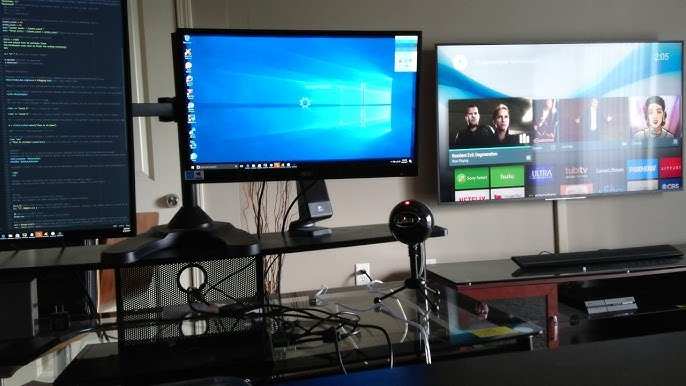

How to Use Android TV as Second Monitor Wirelessly
Using your Android TV as a second monitor can be a fantastic way to increase your productivity and enjoy a more flexible work or entertainment setup. Whether you’re working on your computer and need extra screen space or want to view content on a larger display, connecting wirelessly is an easy and clutter-free solution. In this guide, we will walk you through the entire process, explaining the necessary tools, step-by-step instructions, and tips to make the experience seamless and enjoyable.Understanding the Benefits of Using Android TV as a Second Monitor
Before diving into the how-to steps, let’s explore why turning your Android TV into a second monitor can be a game-changer:- Large Screen Real Estate: Expand your workspace without purchasing additional monitors.
- Wireless Convenience: No need for messy cables or extra hardware—just a Wi-Fi connection.
- Multi-tasking Made Easy: Keep chat windows, emails, or reference materials visible while working on your primary screen.
- Ideal for Entertainment: Use your Android TV to display presentations, videos, or games from your PC or laptop.
What You Need to Connect Your Android TV as a Second Monitor
To make your Android TV serve as a second monitor wirelessly, you’ll need a few essential tools:- Android TV Device: The TV or device running Android TV OS.
- Computer or Laptop: Windows, Mac, or Linux system with Wi-Fi connectivity.
- Wireless Display App or Software: Applications that facilitate screen sharing, such as Miracast, Google Cast, or third-party apps.
- Stable Wi-Fi Network: Both devices should be connected to the same Wi-Fi network for optimal performance.
- Optional Hardware: For some setups, a compatible wireless display adapter or dongle might help if your TV isn’t Android TV or doesn’t support certain features.
Using Built-in Screen Casting Features on Android TV
Most modern Android TVs come with built-in support for screen casting technologies like Google Cast or Miracast, allowing you to mirror or extend your display wirelessly. Here’s how to utilize these features:Enable Casting on Your Android TV
– Turn on your TV and navigate to the Settings menu. – Find the section labeled “Device Preferences” or “Network & Internet.” – Look for “Screen Sharing” or “Cast” options. – Enable the casting feature; your TV should now be discoverable on your network.Cast from Your Windows PC
– Ensure your PC is connected to the same Wi-Fi network as your Android TV. – Click on the “Action Center” icon in Windows (bottom right corner). – Select “Connect” or “Project” and choose “Wireless display.” – Your PC will search for available devices. Select your Android TV from the list. – Adjust display mode if prompted (e.g., duplicate or extend).Cast from Your Mac or Linux
– Mac users can use Google Chrome’s built-in cast feature:- Open Chrome browser.
- Click the three-dot menu and select “Cast.”
- Choose your Android TV device from the list.
Using Third-Party Applications for Enhanced Connectivity
While built-in features are convenient, third-party apps often offer extended functionality and improved performance for using Android TV as a second monitor. Let’s look at some popular options:Splashtop Wired XDisplay
– Although primarily designed for wired connections, it also supports wireless modes. – Compatible with Windows and Mac. – Provides smooth, high-quality screen sharing.AirServer
– Turns your Android TV into a receiver for Miracast, AirPlay, and Google Cast streams. – Allows you to mirror your PC or Mac screen wirelessly. – Easy setup with simple instructions.TeamViewer or AnyDesk
– Remote desktop applications that enable you to view and control your computer from your Android TV. – Ideal if you want to access your PC remotely, with screen sharing as a bonus.Setting Up Screen Mirroring with Google Cast
Google Cast is one of the most straightforward methods for wirelessly extending your display. Here’s a detailed step-by-step:Step-by-Step Guide
- Ensure both your Android TV and computer are connected to the same Wi-Fi network.
- On your computer, open the Google Chrome browser.
- Click on the three-dot menu in the top right corner and select “Cast.”
- In the cast devices list, select your Android TV device.
- Select “Cast desktop” or “Cast tab” depending on what you want to display. For a full second monitor experience, choose “Cast desktop.”
- Choose the specific monitor or screen from your computer to extend to the TV.
- Click “Share” and enjoy your extended display on Android TV.
Optimizing Screen Resolution and Performance
To ensure your experience is smooth and clear, adjust your settings:- Resolution Settings: Set the display resolution on your computer to match the Android TV’s native resolution for crisp visuals.
- Frame Rate: If available, set the frame rate to a higher value for smoother motion, especially when gaming or watching videos.
- Wi-Fi Bandwidth: Use a 5 GHz Wi-Fi network if possible, as it provides faster speeds with less interference than 2.4 GHz networks.
- Close Unnecessary Apps: Free up bandwidth and processing power on both devices to prevent lag or stuttering.
Tips for a Stable and Responsive Connection
– Keep your devices within a reasonable distance to your Wi-Fi router to maintain signal strength. – Avoid network congestion by limiting the number of devices using the same Wi-Fi network. – Restart your router and devices if you experience connectivity issues. – Update your Android TV and computer software regularly to access the latest features and bug fixes. – Use quality HDMI cables or wireless hardware that supports high data transfer rates for better video and audio quality.Potential Challenges and Solutions
While wirelessly using your Android TV as a second monitor is generally straightforward, some common issues may arise:- Lag or Delay: Reduce video quality settings or improve Wi-Fi signal strength.
- No Detection: Ensure both devices are on the same Wi-Fi network and that casting or mirroring features are enabled.
- Compatibility Problems: Check if your Android TV and computer support the same casting protocols or consider third-party solutions.
- Audio Not Working: Verify that audio settings are configured correctly, and select the Android TV as the audio output device on your computer.
Additional Tips for Using Android TV as a Second Monitor
– Keep your software updated to ensure maximum compatibility. – Use a dedicated app if you frequently need to extend your display for work or entertainment. – For better multitasking, consider adjusting the layout and display settings on your computer. – Use keyboard shortcuts to toggle between different display modes quickly. Transitioning your Android TV into a second monitor wirelessly offers flexibility and convenience without sacrificing quality. With the right tools and a little setup, you can enjoy increased productivity, more immersive media viewing, and a clutter-free workspace. Remember, the key to success is a stable Wi-Fi connection, compatible software, and patience during initial setup. Once everything is configured, you’ll find that extending your display wirelessly becomes a natural and helpful addition to your digital life.Frequently Asked Questions
What are the essential tools needed to connect an Android TV as a wireless second monitor?
To set up your Android TV as a wireless second monitor, you need a compatible app such as Duet Display or WiredX. Additionally, ensure both your Android TV and your primary device are connected to the same Wi-Fi network. A stable and fast Wi-Fi connection is crucial for smooth performance. Optional peripherals like a Bluetooth keyboard or mouse can improve navigation and usability.
How can I configure my Android TV to work effectively as a second display without cables?
Start by installing a compatible display mirror or extension app on your Android TV and your primary device, whether it’s a PC or a tablet. Open the app on both devices and follow the pairing instructions. Adjust display settings on your computer to extend the screen onto the Android TV. Keep the devices within close range to maintain a strong Wi-Fi connection and prevent lag or disconnections.
What troubleshooting steps can I take if my Android TV isn’t recognizing my computer as a second monitor?
If your Android TV doesn’t detect your computer, first verify that both devices are connected to the same Wi-Fi network. Restart the app on both devices and ensure they are updated to the latest versions. Check your network connection for stability and minimize interference. If problems persist, try reinstalling the app or resetting your network settings. Confirm that your Android TV supports the necessary display extension features.
Is there a way to optimize display quality and latency when using my Android TV wirelessly?
To improve display quality and reduce lag, ensure you use a high-speed Wi-Fi network, preferably 5 GHz. Keep both devices close to the Wi-Fi router to strengthen the connection. Adjust the app settings to prioritize resolution and frame rate based on your needs. Closing other bandwidth-heavy applications can also help maintain a smoother connection during use.
What safety considerations should I keep in mind while using my Android TV as a second monitor wirelessly?
Use secure Wi-Fi connections to prevent unauthorized access. Avoid using open or public networks that could compromise your data. Always update your apps and devices to the latest firmware to patch security vulnerabilities. Be cautious when sharing sensitive information via screen sharing, and disconnect from the second monitor mode when not in use to prevent potential security risks.
Final Thoughts
Using your Android TV as a second monitor wirelessly is simple. Download a compatible app like Duet Display or Splashtop on both devices. Connect them over the same Wi-Fi network, follow the app’s instructions, and your TV will act as an extended display. This setup offers a convenient way to increase your screen space without extra hardware. It is perfect for multitasking or presentations, making your workflow more flexible. In conclusion, knowing how to use Android TV as second monitor wirelessly helps you optimize your workspace effortlessly.
Similar Posts