What To Do When Android Tv Is Not Working
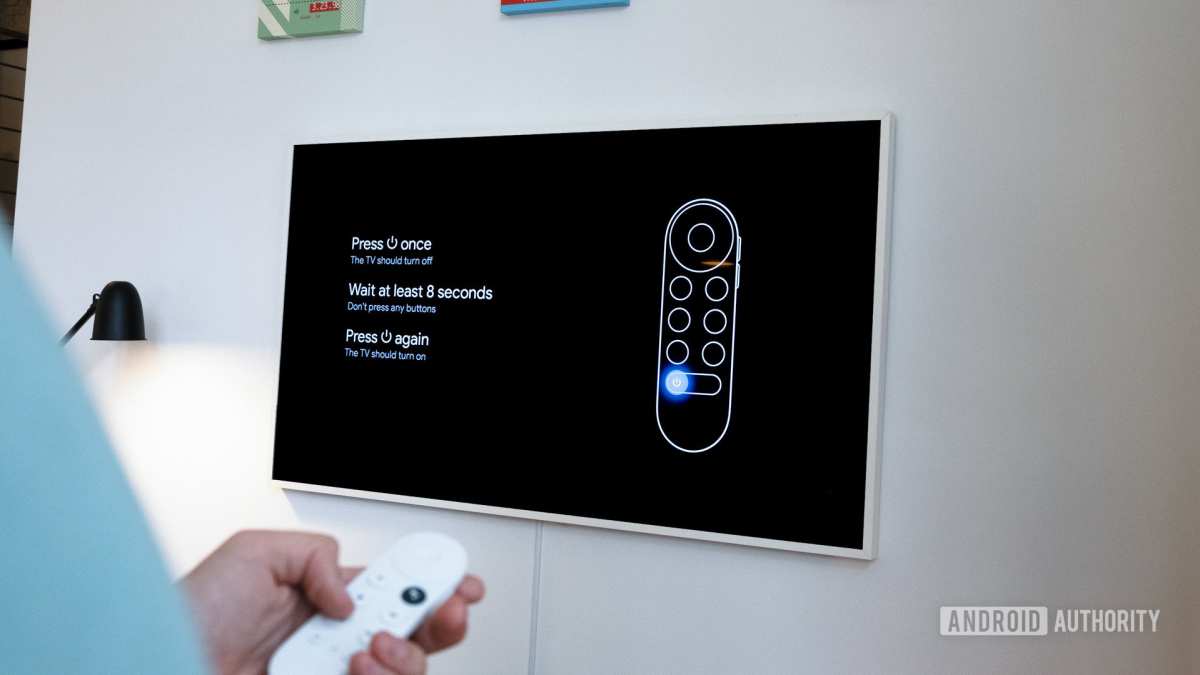

What to Do When Android TV Is Not Working
When your Android TV suddenly stops responding or doesn’t work as expected, it can be frustrating. But don’t worry—many issues can be fixed with a few simple steps. In this guide, we’ll walk you through all the things you can do when your Android TV isn’t working. Whether the problem is with the picture, sound, connection, or software, this comprehensive guide will help you troubleshoot effectively and get your TV back to normal.Understanding Common Android TV Problems
Before diving into specific fixes, it helps to know what kinds of issues you might face. Some common problems include:- TV screen remains black or blank
- Picture is flickering or distorted
- No sound or audio issues
- Apps crashing or not opening
- Internet connection problems
- Remote control isn’t responsive
- TV is slow or freezes
Basic Troubleshooting Steps
When your Android TV isn’t responding or behaves unexpectedly, start with these simple checks:Check the Power Source
– Ensure that your TV is properly plugged into a working power outlet. – If you’re using a power strip or surge protector, make sure it’s turned on. – Try plugging the TV directly into the wall socket to rule out issues with the power strip.Restart Your TV
– Turn off your TV using the remote or power button. – Unplug it from the power source. – Wait for at least 30 seconds to allow all residual power to drain. – Plug it back in and turn it on. – A simple restart can fix many temporary glitches.Check the Remote Control
– Make sure the remote has working batteries. – Try using the power button on the TV itself to rule out remote issues. – If the remote isn’t responding, re-pair it with your TV if needed.Software and Firmware Checks
Software bugs or outdated firmware can cause your Android TV to misbehave. Keeping the system updated is vital.Update Your Android TV
– Navigate to the Settings menu. – Select About, then choose System Update. – If an update is available, follow the prompts to install it. – Updates often fix bugs, improve stability, and add new features.Clear Cache and Data of Problematic Apps
– Go to Settings > Apps. – Select the app causing problems. – Choose Storage, then tap on Clear Cache. – If issues persist, select Clear Data (note: this resets app preferences).Addressing Connectivity Issues
Many problems occur because of bad internet connections.Check Wi-Fi Connection
– Ensure your Wi-Fi is working on other devices. – Restart your Wi-Fi router by unplugging it, waiting for 30 seconds, then plugging it back in. – On your Android TV, go to Settings > Network and reconnect to your Wi-Fi network. – Forget the network and reconnect if necessary.Improve Signal Strength
– Position your router closer to the TV. – Avoid obstructions like walls or other electronic devices. – Consider using a Wi-Fi extender if your signal is weak.Use Ethernet if Possible
– For stable internet, connect your Android TV directly to the router with an Ethernet cable. – Some TVs support Ethernet connections directly; others might need an adapter.Resolving Display or Picture Problems
Display issues can be caused by incorrect settings or hardware faults.Adjust Picture Settings
– Navigate to Settings > Picture. – Reset to default or select a preset mode like ‘Standard’ or ‘Cinema’. – Adjust brightness, contrast, and sharpness for better picture quality.Check HDMI and Cables
– Ensure HDMI or other video cables are securely connected. – Test with different HDMI cables or ports to rule out faulty hardware. – Remove any dust or debris from the ports.Perform a Factory Reset
– If display problems persist, consider resetting your TV. – Go to Settings > Storage & Reset > Factory Data Reset. – Note: This will erase all settings and apps, so back up if needed.Fixing Sound and Audio Problems
Sound issues can be annoying but are often easy to resolve.Check Volume and Mute Settings
– Ensure the volume isn’t muted. – Use the remote to increase volume. – Check if the TV’s speaker is enabled in settings.Test with Different Audio Outputs
– Switch between TV speakers and external speakers or soundbars. – Verify that the external device is powered on and connected properly.Update Sound Drivers or Reset Audio Settings
– Navigate to Settings > Sound. – Reset sound settings to default. – Update firmware if available to fix bugs.Handling App or Software Crashes
Apps crashing or freezing are common Android TV issues.Update Your Apps
– Open Google Play Store. – Go to My Apps & Games. – Update all apps, especially those you use frequently.Uninstall and Reinstall Problematic Apps
– Find the app on your Home screen or Apps menu. – Select it, then choose Uninstall. – Go back to the Play Store and install it again.Check for System Updates
– Go to Settings > About > System Update. – Install any available updates.Resetting Your Android TV
If none of the above steps work, a reset might be needed.Perform a Hard Reset
– Turn off your TV. – Unplug it from power. – Wait for one minute. – Plug it back in and turn it on.Factory Reset (Last Resort)
– Navigate to Settings > Storage & Reset. – Choose Factory Data Reset. – Confirm your choice. – This will erase all data, apps, and settings, so back up important data beforehand.When to Seek Professional Help
If issues persist after trying all these steps, it might be time to contact customer support or a professional technician. Hardware faults like a broken screen, faulty ports, or internal components may need expert repair. Before doing that, review your warranty status and consider whether your device is still covered. — Getting your Android TV back to full functionality doesn’t have to be overwhelming. Often, the problem is straightforward and can be fixed with simple steps like restarting, updating software, or checking connections. Remember, patience is key—take your time to identify what’s causing the issue and proceed carefully through each troubleshooting stage. With a bit of effort, you’ll have your TV working perfectly again.Frequently Asked Questions
Why is my Android TV not turning on, and how can I fix it?
If your Android TV doesn’t power on, ensure the power cable is securely connected and the outlet works correctly. Try unplugging the TV for a minute, then plugging it back in. If it still doesn’t turn on, test with a different power socket or replace the power cable. Check if the remote is functioning properly or try turning on the TV using the physical power button on the device.
What steps should I follow if my Android TV freezes or becomes unresponsive?
When your Android TV freezes, perform a forced restart by unplugging the power cord from the wall outlet. Wait for about 30 seconds to ensure all residual power drains. Plug the TV back in and turn it on. If the problem persists, consider performing a factory reset through the settings menu or by using hardware buttons if accessible.
How can I troubleshoot audio or video issues on my Android TV?
If you’re experiencing no sound or picture problems, first check the HDMI or AV connections to ensure they are secure. Verify that the correct input source is selected. Adjust the volume settings and ensure the TV isn’t muted. If the issue continues, test different cables or devices to identify if the problem stems from external components. Performing a reset or updating your TV’s firmware can also resolve software-related display issues.
What should I do if my Android TV is lagging or running slow?
Slow performance can result from too many apps running simultaneously or outdated software. Clear cache data for individual apps through the device settings. Uninstall unused applications and restart your TV. Check for available software updates and install them, as they often include performance improvements. Performing a factory reset can help restore the system to optimal functioning if problems persist.
How do I resolve connectivity issues with Wi-Fi on my Android TV?
If your Android TV struggles to connect to Wi-Fi, restart your router and the TV. Move your TV closer to the Wi-Fi router to improve signal strength. Forget the Wi-Fi network in your TV settings and reconnect by entering the password again. Ensure your network isn’t overloaded with devices. Updating your TV’s software can also enhance network compatibility and stability.
Final Thoughts
Pour conclure, when android tv is not working, start by checking your internet connection and restart your device. Ensure the software is up-to-date and clear the cache if needed. If problems persist, perform a factory reset as a last resort. Taking these steps can resolve common issues quickly and keep your entertainment seamless.
Similar Posts